Somebody has emailed you a contract and asked you to return it signed, and you are wondering how to sign a PDF without printing it, scrawling on paper, and hunting for a scanner. The good news is that you do not need any of that. With PDFLove, how to sign a PDF has a two-minute answer: you do it free, directly in your browser, with no upload, no sign-up, and no watermark stamped across your document.
This guide covers how to sign a PDF three different ways, how to make your signature look genuinely professional rather than like a smudge, what the law actually says about electronic signatures, and how to fix the problems people run into most often.
What Signing a PDF Actually Means
Before working out how to sign a PDF, it helps to know that the phrase covers two quite different things. Most people who search for it want the first one.
An electronic signature is a visual mark placed on the page: an image of your handwriting, your typed name in a script font, or a drawn squiggle. It is the digital equivalent of signing with a pen. This is what almost every contract, consent form, invoice, and rental agreement asks for, and it is what this guide focuses on.
A digital signature is something else entirely. It uses a cryptographic certificate issued by a trusted authority to prove mathematically that a specific person signed the file and that not a single byte has changed since. Banks, government tenders, and regulated filings sometimes require one. They cost money, require identity verification, and are overkill for the vast majority of everyday paperwork.
If someone has simply asked you to “sign and send it back”, they want an electronic signature, and that is the sense in which this guide answers how to sign a PDF.
What You Need Before You Start
Very little, as it turns out. Before getting to how to sign a PDF, there are only three things worth having ready.
- The PDF itself, saved somewhere you can find it. If it arrived as an email attachment, download it first rather than trying to work inside the mail app’s preview.
- A decision about your signature. You can draw it, type it, or upload a photo of a real one. More on choosing between those below.
- A modern browser. Chrome, Edge, Firefox, and Safari all work. Nothing to install.
Notably absent from that list: a printer, a scanner, a subscription, and an account. Anyone whose answer to how to sign a PDF starts with buying hardware is selling something.
How to Sign a PDF in Your Browser, Step by Step
This is the fastest route, and it works identically on Windows, macOS, Linux, and ChromeOS. Here is how to sign a PDF from start to finish. The whole sequence takes about two minutes the first time and far less after that.
- Open the tool. Go to the free PDFLove Sign PDF tool. It loads in a second and asks for nothing.
- Add your document. Drag the PDF onto the page, or click to browse for it. The file is read by your own browser and stays on your device the entire time.
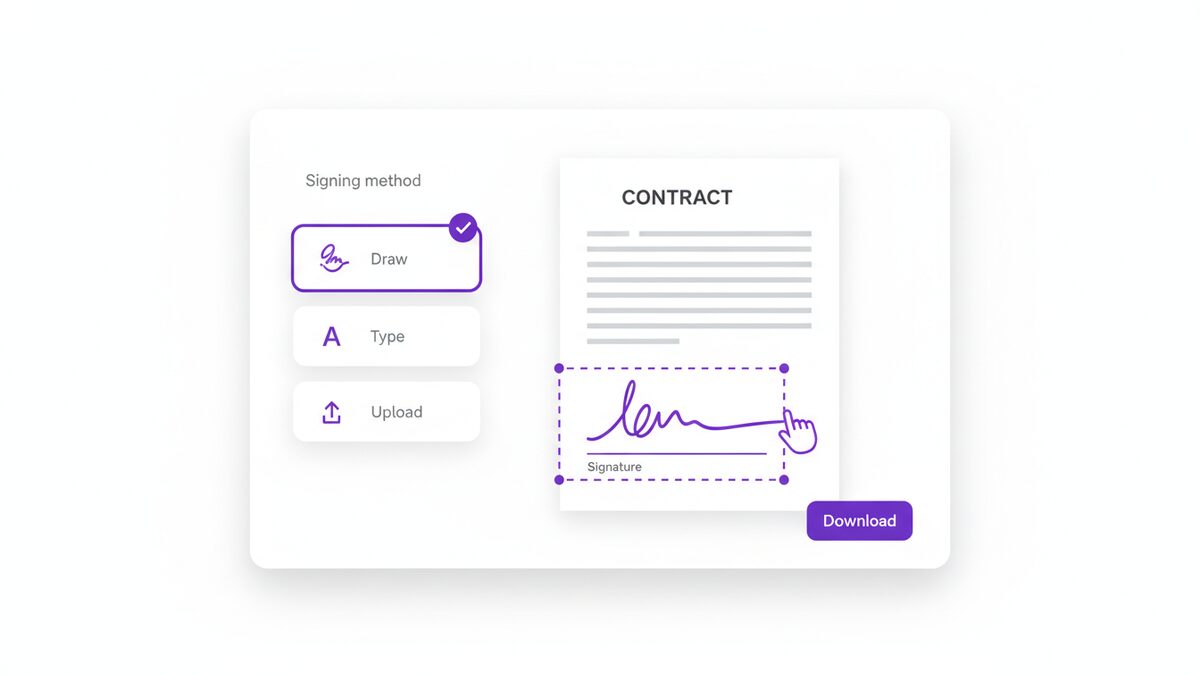
- Create your signature. Choose to draw with a mouse, trackpad, or finger; type your name and pick a handwriting style; or upload an image of your real signature.
- Place it on the page. Click where the signature belongs. Drag it into position and pull the corner handle to resize until it sits neatly on the signature line.
- Add the extras. Most documents also want a date, and some want your initials on every page or your printed name underneath. Add those as separate items.
- Check every page. Scroll through the whole document. Long agreements often hide a second signature block near the end.
- Download the signed file. Save it, then send it back. Give it a clear name such as contract-signed.pdf so the recipient can see at a glance what it is.
That is all there is to how to sign a PDF. No email verification, no free trial that quietly becomes a subscription, no watermark advertising the tool that helped you.
Three Ways to Create Your Signature
Whichever route you take to how to sign a PDF, the signature itself can be made three ways, and they suit different situations. Picking the right one is most of what separates a signature that looks convincing from one that looks careless.
Draw it
You sign with your mouse, trackpad, or finger. On a phone or tablet this produces a genuinely good result, because your finger moves much the way a pen does. On a desktop with a mouse it is harder, and most people’s first attempt looks like a seismograph reading. Draw it a few times and keep the best one.
Type it
You type your name and choose from a set of handwriting-style fonts. This is the most consistent and legible option, and it is completely acceptable for the overwhelming majority of documents. It is also the most reliable choice if you are working on a desktop without a touchscreen.
Upload an image of a real signature
This gives the most authentic result. Sign a blank sheet of white paper with a dark pen, photograph it in good light, crop it tightly, and upload. If the photo has a grey or shadowed background, the signature will sit on the page as a visible rectangle, so crop carefully and use even lighting.
Whatever you choose, save the result. Once you have worked out how to sign a PDF with a signature you are happy with, reusing it makes every future document a thirty-second job.
How to Sign a PDF on Windows and Mac
Desktop applications can also do the job, though each has its quirks. If you would rather not open a browser at all, here is how to sign a PDF using what is already installed on your machine.
On a Mac with Preview
Preview is built in and handles this well. Open the PDF, click the marker-pen Markup icon, then the signature icon. You can create a signature with the trackpad, or hold a signed piece of paper up to the camera and let the Mac capture it. Place it, resize it, and save.
The catch is that Preview is Mac-only, so it is no help on a work Windows machine, and the camera capture can struggle with anything but strong, even lighting.
On Windows
Windows has no equivalent built in. Edge will display a PDF and let you draw on it with the freehand pen, which is fine for a quick initial but produces something obviously drawn rather than signed. Adobe Acrobat Reader includes a Fill & Sign feature, but it pushes you towards an Adobe account, and the genuinely useful editing lives behind a subscription.
This is exactly why the browser route is usually simpler. It behaves the same on every operating system, and there is nothing to install on a machine where you may not even have permission to install things.
How to Sign a PDF on iPhone and Android
Phones are arguably the best tool for this, because your finger draws a far more natural line than any mouse. Plenty of people only ever need to know how to sign a PDF on the device already in their pocket.
iPhone and iPad
Open the PDF in Files or Mail, tap the Markup icon, tap the plus button, and choose Signature. Draw with a finger or an Apple Pencil, then drag it into place. It works well, but it is limited to Apple’s own apps, and getting the file back out to the right person can be fiddly.
Android
Android has no consistent built-in equivalent, and the situation varies by manufacturer. Rather than installing yet another app that wants storage permissions and shows adverts, open your mobile browser and use the same tool you would on a desktop. It is responsive, works with touch, and asks for no permissions at all.
Knowing how to sign a PDF on a phone is genuinely useful when a document needs turning round while you are away from your desk.
Getting Someone Else to Sign a Document
Sometimes you are not the one signing. You have drawn up an agreement and need a counterparty to return it signed, which means explaining to them how to sign a PDF as painlessly as possible.
The lightweight approach is to send the PDF by email and ask them to sign and return it. Make it easy for them: point out which page needs the signature, and include a link to a free tool so they are not stuck hunting for one or hitting a paywall.
Before you send it out, consider preparing the document properly. Add the signature lines, the date fields, and the printed-name boxes so there is no ambiguity about what goes where. The Fill PDF Forms tool handles this, and flattening the file afterwards stops anyone accidentally editing your terms along with adding their name.
For anything high-value or heavily regulated, a dedicated signature-request service with an audit trail is the right answer. For a freelance contract, an NDA, or a permission slip, email and a free tool are entirely normal practice.
Are Electronic Signatures Legally Valid?
This is the question that follows quickly after how to sign a PDF, and in most of the world the answer is yes. The United States has the ESIGN Act and UETA; the European Union has the eIDAS regulation; the United Kingdom, Canada, Australia, and India all have comparable legislation. Broadly, these say a signature cannot be denied legal effect simply because it is electronic.
You can read a general overview of the concept and its history on Wikipedia’s electronic signature page.
A few categories are commonly excluded and still want wet ink or a notary: wills and testamentary trusts, some property transfers, certain court filings, and adoption or divorce paperwork. Rules differ by jurisdiction.
What matters practically is intent and evidence. Keep the email thread that shows the document was sent, agreed, and returned. That correspondence is usually far more persuasive than the pixels of the signature itself. If a document is high-value or contentious, take actual legal advice rather than advice from a blog post.
Tips for a Professional-Looking Signature
The mechanics of how to sign a PDF are easy. Making the result look right takes a little more care, and it is what separates a document that reads as properly executed from one that looks rushed.
- Get the size right. A signature should sit comfortably on its line, not tower over the text. If it is taller than about twice the line height, it is too big.
- Do not cover the text. Overlapping the printed terms looks sloppy and can obscure something important.
- Match the ink. Black or dark blue reads as a signature. Bright colours do not.
- Add the date properly. Use the format the rest of the document uses, and use the date you actually signed.
- Initial every page if asked. Some agreements require initials in a corner of each page. Skipping them is a common reason documents come back.
- Flatten before sending. This merges the signature into the page so it cannot be dragged off or deleted by the recipient.
- Name the file clearly. lease-agreement-signed.pdf tells the recipient everything. document(3).pdf tells them nothing.
Common Problems and How to Fix Them
Even when you know how to sign a PDF perfectly well, documents have a way of misbehaving. These are the issues that come up most often.
The signature has a white or grey box around it
This happens with uploaded photographs. The image is rectangular, so its background comes along with it. Crop tightly, shoot on white paper in even light without shadows, or switch to drawing or typing instead.
My drawn signature looks terrible
Almost certainly because you are using a mouse. Try your phone’s touchscreen, or use the typed option, which looks tidy and is perfectly acceptable.
The recipient says the signature is missing
Some viewers, particularly older or embedded ones, render annotation layers inconsistently. Flattening the document before you send it fixes this permanently by merging the signature into the page itself.
The PDF is protected and will not let me sign it
The document has permission restrictions. If you know the password you can remove the restriction with an unlock tool and then sign normally. If you do not, ask the sender for an unrestricted copy.
The file is too large to email once signed
Signature images can add bulk, especially high-resolution photographs. Run the finished file through a compression tool before sending.
The signature moves when I reopen the file
It was added as a loose annotation rather than merged in. Flatten it, and it will stay exactly where you put it.
Real-World Use Cases
Once you know how to sign a PDF, the number of situations it covers is surprising. These are the ones that come up week after week.
- Freelancers and contractors, for whom how to sign a PDF is a weekly question, returning client agreements, NDAs, and statements of work without a day’s delay.
- Tenants and landlords handling leases, inventories, and renewal notices remotely.
- Job applicants signing offer letters and onboarding paperwork before the first day.
- Parents dealing with the endless stream of school consent forms and trip permissions.
- Small businesses countersigning quotes, purchase orders, and supplier terms.
- Anyone dealing with insurance or a bank, where the forms arrive as PDFs and must go back the same way.
In each case the alternative is print, sign, scan, and email, which takes fifteen minutes and needs hardware most people no longer own.
How to Sign a PDF Without Adobe Acrobat
A great many people assume the answer to how to sign a PDF begins with buying Adobe Acrobat. It does not. Acrobat is a capable and expensive piece of software, and signing a document is one of the things you least need it for.
Acrobat Reader, the free version, does include Fill & Sign and will show you how to sign a PDF at no cost. It works, but it steers you towards creating an Adobe account, it is a substantial download, and the moment you want to do anything adjacent, such as reordering pages or editing the text you just signed above, you hit the subscription wall.
The browser route sidesteps all of that. There is nothing to download, nothing to license, and nothing to log into. If you are on a locked-down work machine where you cannot install software at all, knowing how to sign a PDF in a browser tab is the difference between handling it yourself and waiting on IT.
The comparison below is worth keeping in mind when someone tells you how to sign a PDF the expensive way.
- Cost. A browser tool is free outright. Acrobat Pro is an annual subscription, and the useful features sit inside it.
- Installation. None versus a multi-hundred-megabyte install and an account.
- Privacy. On-device processing versus a desktop app with cloud services switched on by default.
- Platform. Any operating system with a browser versus per-platform builds.
- Limits. No page cap or watermark versus feature gates on the free tier.
None of this means Acrobat is a bad product. It means that how to sign a PDF is a solved problem that no longer justifies the price of admission.
Why PDFLove Is the Free, Private Choice
Most online tools that promise to show you how to sign a PDF upload your file to a server, process it there, and send it back. Your contract, with your signature and often your address and bank details, sits on somebody else’s hardware. Their retention policy is a paragraph you did not read.
PDFLove answers how to sign a PDF differently. Every tool runs entirely inside your browser using your own device’s processing power. Your PDF is never transmitted anywhere. There is no server-side copy to leak, subpoena, or forget to delete.
It is also genuinely free rather than free-until-you-need-it. There is no account, no email capture, no watermark on the output, and no page limit. Many competitors cap free users at around thirty pages or a couple of documents a day, then ask for a subscription. Signing a contract is not a premium feature.
The rest of the free PDF toolkit works the same way, so you can sign, fill, merge, and compress a document without any of it leaving your machine.
Frequently Asked Questions
How do I sign a PDF for free?
Open the PDFLove Sign PDF tool, add your document, then draw, type, or upload your signature. Drag it onto the signature line, resize it, add the date, and download. It is completely free, needs no account, and runs in your browser so the file is never uploaded.
Is it safe to learn how to sign a PDF using an online tool?
It depends entirely on the tool. Most online signing services upload your document to their servers, which means your contract and signature sit on someone else’s hardware. PDFLove processes everything on your own device, so the file never leaves your browser and there is no server-side copy at all.
Are electronic signatures legally binding?
In most countries, yes. Laws such as the ESIGN Act in the United States and eIDAS in the European Union give electronic signatures the same legal standing as handwritten ones. A few document types are excluded, typically wills, some property transfers, and certain court filings. Check your local rules for anything high-value.
Do I need to print and scan the document?
No. Printing and scanning is exactly what electronic signing replaces. You can sign the PDF on screen and email it straight back, which takes about two minutes and needs no printer or scanner.
How do I sign a PDF on my phone?
On an iPhone, open the PDF in Files or Mail, tap the Markup icon, then the plus button, and choose Signature. On Android, or on any phone, you can open a browser-based signing tool and draw with your finger. Touchscreens usually produce a much better-looking signature than a mouse does.
Why does my signature have a white box around it?
That happens when you upload a photograph of a signature. The image is rectangular, so its background is included. Crop the photo tightly, shoot on white paper in even light, or use the draw or type options instead, which have transparent backgrounds.
Can the recipient delete or move my signature?
If the signature was added as an annotation layer, it can sometimes be moved or removed. Flattening the document merges the signature into the page itself so it becomes a permanent part of the file and cannot be dragged off or deleted.
Is there a page limit or a watermark?
Not with PDFLove. There is no page limit, no watermark on the finished document, and no daily cap. Many free tiers elsewhere stop at around thirty pages or a couple of files per day before asking for a subscription.
Conclusion
Working out how to sign a PDF used to mean printing a document, signing it, finding a scanner, and emailing the result back as a slightly crooked photograph. It does not any more. A signature takes two minutes in a browser tab, looks better than a scan, and costs nothing.
Draw, type, or upload your signature, place it where it belongs, add the date, flatten the file, and send it back. Do it once and every future document takes seconds, because how to sign a PDF stops being a question and becomes a habit.
Ready to get that contract off your desk? Open the free Sign PDF tool and have it signed and sent before your coffee goes cold. Free, private, and entirely in your browser.