If you need to add signature to PDF paperwork and you have been putting it off because it sounds like a job for expensive software, this will take less time than reading about it. With PDFLove you can add a signature to any PDF for free, entirely inside your browser, with no upload, no account, and no watermark on the finished document.
This guide covers how to create a signature you are happy to put your name to, how to add signature to PDF files on a computer or a phone, how to reuse the same one forever, and how to make sure it cannot be tampered with after you send it.
What Counts as a Signature on a PDF
When you add signature to PDF documents, what you are really doing is placing a visual mark on the page that stands for your assent. It can be a drawn squiggle, your typed name in a handwriting font, or a photograph of a signature you made on paper. All three are electronic signatures, and all three are ordinary practice for everyday paperwork.
This is different from a cryptographic digital signature, which uses a certificate from a trusted authority to prove mathematically who signed a file and that nothing has changed since. Those are required for some regulated filings and government tenders. They cost money and involve identity checks, and nobody sending you a consent form expects one.
For contracts, invoices, NDAs, leases, school forms, and the general run of documents that need your name on them, the visual signature is what is being asked for. That is what this guide means by add signature to PDF.
Building a Signature You Will Actually Reuse
Before you add signature to PDF documents for the first time, it is worth spending five minutes here, because a good signature gets reused for years. There are three ways to make one, and the right choice depends mostly on what hardware you have to hand.
Draw it
You draw directly with a mouse, trackpad, or finger. On a phone or tablet this works beautifully, because your finger moves much the way a pen does. With a mouse it is genuinely hard, and most first attempts look like a heart monitor. Draw it several times and keep the least embarrassing one.
Type it
You type your name and pick from a set of handwriting-style fonts. This is the most consistent and legible route, and it is entirely acceptable for the overwhelming majority of documents. If you are on a desktop with no touchscreen, this is usually the option that produces the tidiest result.
Photograph a real one
This gives the most authentic look. Sign a blank sheet of white paper with a dark pen, photograph it straight on in even daylight, crop tightly to the ink, and upload. Avoid shadows and avoid lined or cream paper, both of which show up as a visible block behind the signature.
Whichever route you pick, aim for something legible enough to be recognisable but not so elaborate that it takes three attempts to reproduce.
How to Add Signature to PDF Files, Step by Step
The browser method works the same on Windows, macOS, Linux, and ChromeOS, and needs nothing installed. Here is the full sequence to add signature to PDF files from start to finish.
- Open the tool. Go to the free PDFLove Sign PDF tool. It loads immediately and asks for nothing at all.
- Add your document. Drag the PDF onto the page or click to browse. Your browser reads the file directly from your disk, so it never travels anywhere.
- Create the signature. Choose draw, type, or upload, and make the one you want.
- Place it. Click on the page where it belongs. Drag to reposition and pull a corner handle to scale it until it sits neatly on the signature line.
- Add anything else the form wants. A date is nearly always required, and many documents also want your printed name or your initials.
- Check every page. Scroll the whole document. Multi-page agreements frequently hide a second signature block, and initials boxes tend to lurk in page corners.
- Download it. Save the signed file with a clear name such as agreement-signed.pdf and send it back.
The entire process takes about two minutes the first time. Once your signature is saved, you can add signature to PDF documents in closer to twenty seconds.
Saving and Reusing Your Signature
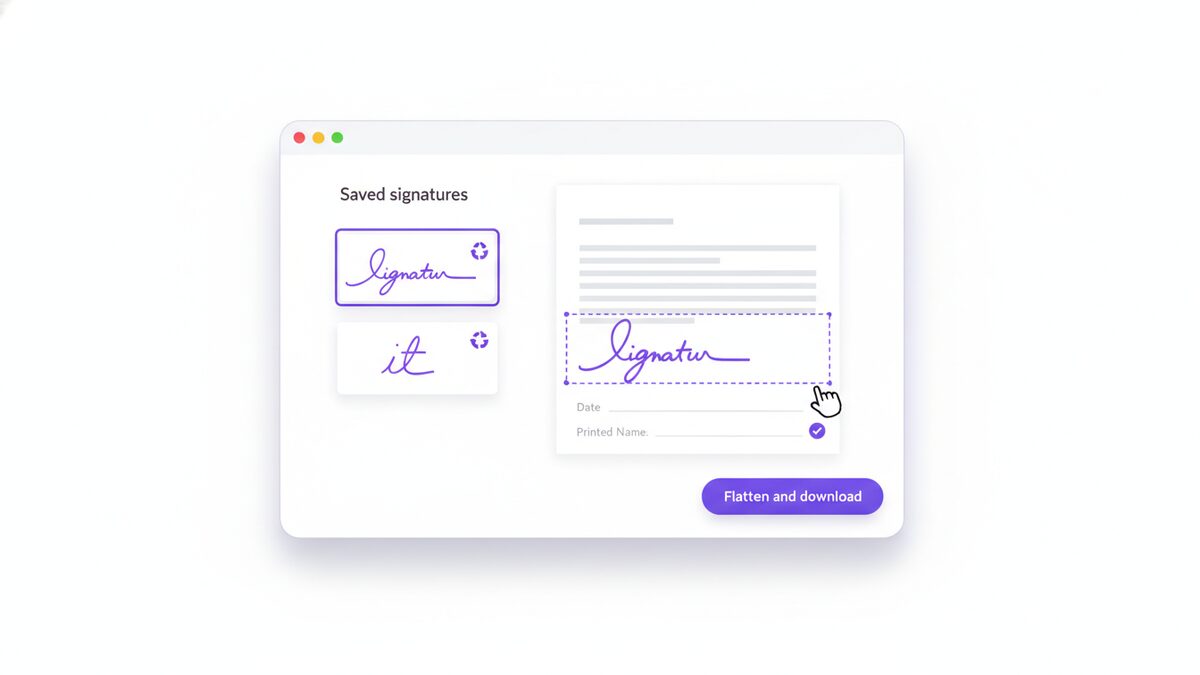
The real time saving comes the second time you add signature to PDF paperwork. Make the signature once, keep it, and every subsequent document becomes a drag-and-drop job.
If you drew or typed your signature, take a moment to export or screenshot it and keep a clean copy somewhere sensible. A tightly cropped image on a transparent or pure white background is the most portable format, because you can upload it into any tool later.
Keep it somewhere you control rather than scattered across a dozen web services. A signature image is a genuinely sensitive file: it is a picture of the mark you use to agree to things. Storing it in a folder on your own machine, or in your own encrypted storage, is the sane approach.
It is also worth making two versions: a full signature for contracts, and a compact set of initials for the corner boxes that longer agreements sprinkle through every page.
Initials, Dates, and Printed Names
When you add signature to PDF forms, the signature is rarely the only mark the document wants. Missing the supporting fields is the single most common reason paperwork gets bounced back.
- The date. Nearly universal. Use the format the rest of the document uses, and use the date you actually signed rather than the date on the letter.
- Printed name. Often sits directly under the signature line so a reader can tell who signed when the signature is illegible.
- Initials. Long agreements often want them in a corner of every page, to show nothing was swapped after signing.
- Title or company. Business contracts frequently ask for your role, especially where you sign on behalf of a company.
- Witness blocks. Some documents need a second person entirely. Check before you send.
All of these are just items placed on the page, so you can add signature to PDF forms and complete every supporting field in the same pass. If the document has proper interactive form fields, the Fill PDF Forms tool handles them more cleanly than typing on top.
How to Add Signature to PDF Documents on a Phone
Phones are the best hardware to add signature to PDF files with, because a fingertip draws a much more natural line than a mouse ever will.
On an iPhone or iPad
Open the PDF from Files or Mail, tap the Markup icon, tap the plus button, and pick Signature. Draw with your finger or an Apple Pencil and place it. It works well within Apple’s own apps, though moving the finished file to where it needs to go can be more awkward than the signing itself.
On Android
There is no consistent built-in equivalent, and what you get varies by manufacturer. Rather than installing an app that wants broad storage permissions and shows adverts, open your mobile browser and use the same tool you would use on a laptop. It is touch-friendly and asks for no permissions whatsoever.
Being able to add signature to PDF documents from a phone is genuinely useful when something needs turning round while you are away from your desk, and the drawn result usually looks better than the desktop equivalent.
Doing It in Desktop Software
If you would rather add signature to PDF documents inside an installed application, the options differ sharply by platform.
On a Mac, Preview is built in and capable. Open the PDF, click the Markup icon, then the signature icon, and either draw on the trackpad or hold a signed sheet of paper up to the camera. It is genuinely good, and completely useless the moment you sit down at a Windows machine.
On Windows, there is no built-in equivalent. Edge lets you scribble on a PDF with the freehand pen, which is fine for a quick initial but looks obviously drawn. Adobe Acrobat Reader offers Fill & Sign, but nudges you towards an account, and anything beyond the basics needs a subscription.
That asymmetry is why the browser approach tends to win. It behaves identically everywhere, including on locked-down work laptops where installing anything requires a support ticket.
Locking the Signature in Place
When you add signature to PDF files, the signature is often added as an annotation by default, which is a layer sitting above the page rather than part of it. That has two consequences worth knowing about.
First, some PDF viewers render annotation layers inconsistently, which is why a recipient occasionally reports that the signature is missing when it looks fine on your screen. Second, an annotation can be selected, dragged, or deleted by whoever opens the file next.
Flattening solves both. It merges every added element into the page itself, so the signature becomes part of the document exactly as if it had been printed there. Do this before sending anything that matters.
For extra protection on sensitive agreements, you can also password protect the finished PDF so only the intended recipient can open it.
Tips for a Signature That Looks Right
- Size it to the line. When you add signature to PDF pages, scale matters more than anything else. The signature should rest on its line, not loom over the paragraph above it. Roughly one and a half to two times the line height is about right.
- Keep it off the text. Overlapping the printed terms looks careless and can hide something that matters.
- Use dark ink. Black or dark blue reads as a signature. Anything brighter reads as a doodle.
- Stay consistent. Use the same signature across documents for the same counterparty.
- Do not oversize the date. It is supporting information, not a headline.
- Compress before emailing. A photographed signature can add real bulk to the file.
- Name the file properly. nda-signed.pdf is useful. scan_0043.pdf is not.
Common Problems and How to Fix Them
These are the issues that come up most often when people add signature to PDF documents, and all of them have quick fixes.
There is a white or grey rectangle behind my signature
The classic symptom of an uploaded photograph. Images are rectangular, so the paper comes with them. Crop tightly to the ink, shoot on plain white paper in flat, even light, or switch to drawing or typing instead.
My drawn signature looks like a scribble
You are almost certainly using a mouse. Draw it on a phone instead and upload the result, or use the typed option, which is tidy and perfectly acceptable.
The recipient cannot see the signature
Their viewer is not rendering the annotation layer. Flatten the document and resend, and it will display in everything.
The PDF will not let me add anything
It carries permission restrictions. With the password you can lift them using an unlock tool and then sign normally. Without it, ask the sender for an unrestricted copy.
The signature shifts position when reopened
It is an unflattened annotation. Flatten it and it will stay precisely where you placed it.
The signed file is suddenly enormous
High-resolution signature photographs are usually the culprit. Compress the finished document before emailing it.
Real-World Use Cases
The need to add signature to PDF paperwork turns up far more often than most people expect.
- Freelance and contract work, where the need to add signature to PDF agreements comes round weekly, and agreements and statements of work arrive by email and are expected back the same day.
- Renting and letting, covering leases, inventories, guarantor forms, and renewals.
- Starting a job, with offer letters, tax forms, and policy acknowledgements to return before day one.
- School and childcare, and the constant flow of consent slips and trip forms.
- Small business admin, countersigning quotes, purchase orders, and supplier terms.
- Banking and insurance, where forms arrive as PDFs and must be returned in the same format.
Add Signature to PDF Files Without Paying for Acrobat
A lot of people assume you need Adobe Acrobat to add signature to PDF documents. You do not, and it is worth understanding why the assumption is so widespread.
Acrobat has been the default PDF application for decades, so it is what people picture. But signing is one of the cheapest things a PDF tool can do, and it has been possible in a plain browser for years. Paying an annual subscription to add signature to PDF paperwork is a bit like buying a workshop to hang a picture.
Acrobat Reader is free and does include Fill & Sign, so it will add signature to PDF forms at no cost. The friction is elsewhere: it wants you to create an Adobe account, it is a large install, and the moment you need to do something adjacent, such as reordering pages or compressing the signed result, you meet the subscription wall.
Here is how the two approaches compare when all you want to do is add signature to PDF files and get on with your day.
- Cost. Free outright, versus a free tier with gates and a paid tier above it.
- Install. Nothing at all, versus a large download and an account.
- Privacy. Processing on your own device, versus a desktop app with cloud features enabled by default.
- Platform. Anything with a browser, versus per-platform builds.
- Limits. No page cap and no watermark, versus feature gates on the free tier.
On a managed work laptop the gap is starker still. If you cannot install software without raising a ticket, the ability to add signature to PDF documents in a browser tab is the difference between finishing the task now and finishing it next week.
Why PDFLove Is the Free, Private Choice
Most sites that offer to add signature to PDF documents upload your file to a server, process it there, and hand it back. Your contract, complete with your signature and often your address, salary, or bank details, has just been copied onto somebody else’s hardware, governed by a retention policy you did not read.
PDFLove lets you add signature to PDF files without any of that. Every tool runs inside your browser, using your own device to do the processing. The PDF is never transmitted, so there is no server-side copy to be breached, subpoenaed, or forgotten about in a backup.
That matters more here than almost anywhere else, because a signature image is reusable. It is a picture of the mark you use to agree to things, and it is worth being fussy about where copies of it end up. You can read more about the concept and its legal footing on Wikipedia’s electronic signature page.
It is free in the ordinary sense of the word: no account, no email capture, no watermark, and no page limit. Plenty of competing free tiers stop at around thirty pages or a couple of documents a day. The whole free PDF toolkit follows the same rules.
Frequently Asked Questions
How do I add signature to PDF files for free?
Open the PDFLove Sign PDF tool, add your document, then draw, type, or upload a signature. Drag it onto the signature line, resize it, add the date, and download the result. It is free, needs no account, and runs entirely in your browser.
Can I reuse the same signature on other documents?
Yes, and you should. Make it once and keep a tightly cropped copy on your own device, then upload it whenever you need it. Storing it somewhere you control rather than across several web services is sensible, because a signature image is genuinely sensitive.
Is it safe to add signature to PDF documents online?
That depends on the tool. Most online services upload your document to their servers to process it. PDFLove does the work on your own device, so the file and the signature never leave your browser and no server-side copy exists.
Will my electronic signature hold up legally?
In most countries electronic signatures carry the same legal weight as handwritten ones, under laws such as the ESIGN Act in the United States and eIDAS in the European Union. A few categories are excluded, typically wills, some property transfers, and certain court filings. Check local rules for anything high-value.
Why is there a white box around my signature?
You have uploaded a photograph, and the paper background came with it. Crop tightly to the ink, photograph on plain white paper in even light with no shadows, or use the draw or type options instead, which have no background at all.
How do I stop someone moving or deleting my signature?
Flatten the document before you send it. Flattening merges the signature into the page itself instead of leaving it as a separate annotation layer, so it cannot be dragged off, deleted, or hidden by the recipient’s PDF viewer.
Can I add initials and a date at the same time?
Yes. Initials, dates, printed names, and job titles are all just items placed on the page, so you can add them in the same pass as the signature. Scroll every page before downloading, since longer agreements often want initials in a corner of each one.
Is there a page limit or a watermark on the free version?
No. PDFLove has no page limit, no watermark on the output, and no daily cap. Many free tiers elsewhere stop at roughly thirty pages or two files a day before asking you to subscribe.
Conclusion
To add signature to PDF files you need a browser and about two minutes. No printer, no scanner, no subscription, and no account.
Build a signature you are happy with once, keep a copy somewhere you control so you can add signature to PDF files again in seconds, place it along with the date and any initials the form wants, flatten the file so nothing can be moved, and send it back with a sensible filename.
Open the free Sign PDF tool and get that document off your list. Free, private, and never uploaded anywhere.