If a recipient has ever told you your signature was missing or your form came through blank, you needed to flatten PDF output before sending it. With PDFLove you can flatten PDF files for free, entirely in your browser, with no upload, no sign-up, and no page limit.
This guide explains what flattening actually does, why unflattened documents break so often, how to flatten PDF files step by step, and when you should deliberately leave a document unflattened.
What Flattening Actually Does
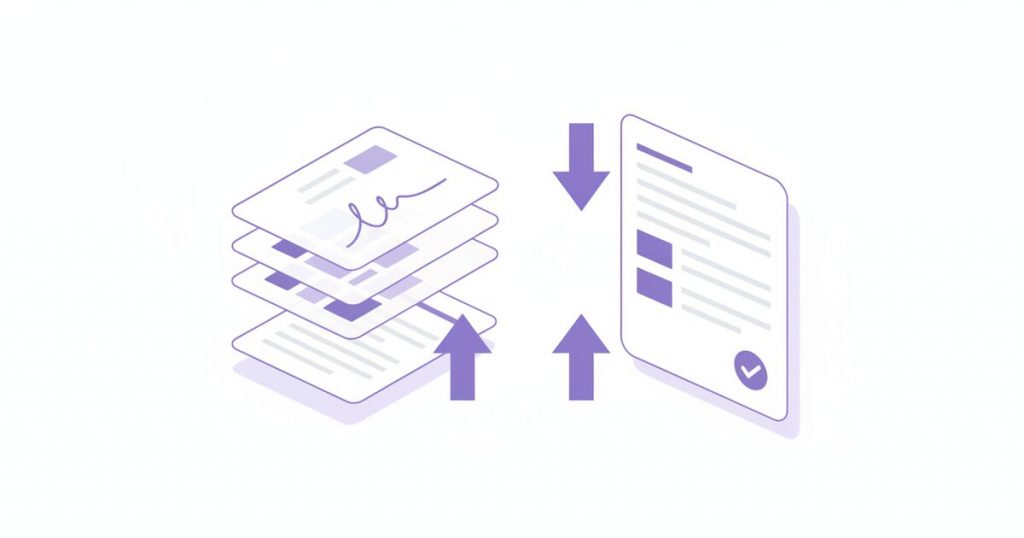
Before you flatten PDF files it is worth knowing what you are merging. A PDF is not one flat sheet. It is a stack: the page content underneath, and above it any interactive or annotation layers that have been added since, such as form fields, signatures, highlights, comments, and stamps.
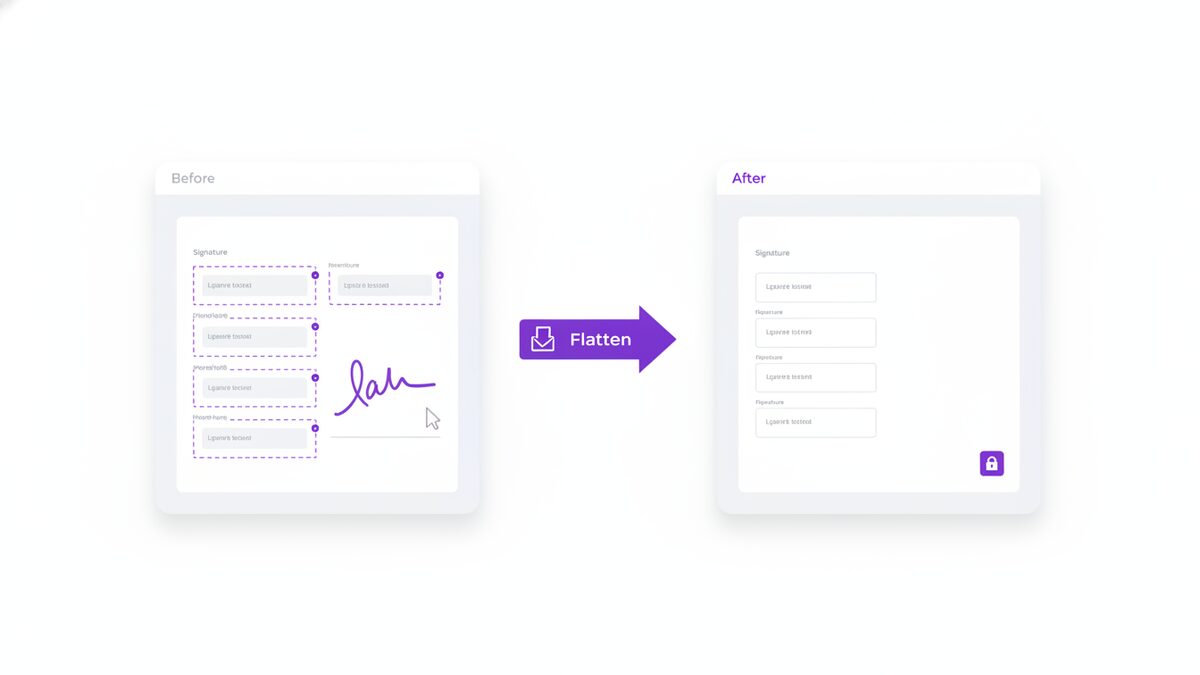
When you flatten PDF files, you merge that stack into a single layer. Everything that was floating above the page becomes part of the page itself, exactly as though it had been printed there. The text does not move and nothing looks different. What changes is that the added elements stop being separate objects that software can edit, reposition, or decline to display.
The closest physical analogy is photocopying a form you have filled in by hand. The copy shows your handwriting as part of the page, and nobody can lift your answers off it. That is what flattening does digitally.
Flattening is not the same as locking the file
It is worth saying plainly, because the language invites confusion. To flatten PDF content is to make the marks on the page permanent. It does not encrypt anything, it does not restrict printing, and it does not stop the document being copied or forwarded.
What it does guarantee is that what you see is what the recipient sees. That single property solves the overwhelming majority of real-world complaints about PDFs, which are almost never about secrecy and almost always about a form arriving empty or a signature failing to render.
If you need genuine confidentiality as well, treat it as a separate step and add it afterwards.
The Layers Hiding in Your Document
It helps to know what actually sits above the page, because these are the things you flatten PDF layers to deal with.
- Form fields. Interactive boxes with values stored separately from the visible page. This is why a completed form can arrive empty.
- Signature images. Usually added as annotations, which means they can be dragged off or deleted by the recipient.
- Text boxes and stamps. Anything typed on top of the document rather than into it.
- Highlights and comments. Review markup that you may or may not want travelling onward.
- Watermarks. Sometimes an annotation layer, which makes them removable in a couple of clicks unless flattened.
Every one of these is rendered at the discretion of whichever viewer opens the file. That discretion is the root of nearly every complaint about PDFs arriving wrong.
Why Unflattened Files Cause Problems
The trouble is that PDF viewers disagree with each other, and the person opening your document is not using your software.
Fields appear empty. The classic failure. You complete a form, save it, and email it. The recipient opens it in a browser preview or a mobile mail client that does not render form-field values, and sees a blank form. Your data is present in the file, but invisible to them.
Signatures go missing or move. Annotation layers render inconsistently in older and embedded viewers. Sometimes the signature simply is not drawn.
Content gets edited after you send it. Anything on an annotation layer can be selected and changed. On a signed agreement that is a genuine problem, not a cosmetic one.
Printing goes wrong. Some print paths ignore annotation layers entirely, producing a paper copy with no signature and no answers.
The habit of choosing to flatten PDF output before sending eliminates all four at once.
How to Flatten PDF Files, Step by Step
The browser method works identically on Windows, macOS, Linux, and ChromeOS. Here is how to flatten PDF documents from start to finish.
- Finish your edits first. Flattening is a one-way trip, so complete every field, signature, and date before you start.
- Open the tool. Go to the free PDFLove Fill PDF Forms tool, which handles filling and flattening in one place.
- Add your document. Drag it in or click to browse. Your browser reads it straight from disk, so it is never uploaded.
- Check every page. Scroll the whole file and confirm each field shows the value you expect. This is your last chance to change anything.
- Flatten and download. Merge the layers into the page and save the result under a new name such as form-final.pdf.
- Keep the unflattened original. If you might need to amend it later, that editable copy is the only way back.
- Test the output. Reopen the flattened file, ideally in a different application from the one you made it in, and confirm everything displays.
That last step catches problems while they are still yours to fix rather than the recipient’s to complain about.
When You Should Flatten a PDF
As a rule, flatten PDF output whenever the document is finished and about to leave your hands.
- Before returning a signed contract. So the signature cannot be moved or removed, and always displays.
- Before submitting a completed form. So your answers are visible in every viewer, including mobile mail previews.
- Before printing anything important. So the print path cannot silently drop your annotations.
- Before archiving. Flattened files render predictably years later, when today’s viewers are long gone.
- Before applying a watermark you want to stick. An unflattened watermark is a two-click removal job.
- Before sending anything to a system that scans documents automatically, since automated pipelines frequently ignore annotation layers.
The common thread is finality. If the document is done, flatten PDF output and send it with confidence.
When You Should Not
The decision to flatten PDF files is destructive by design, so there are cases where it is the wrong move.
When the form is meant to be filled in by someone else. Flattening a blank form removes the interactive fields and leaves the recipient with a picture of a form. This is a genuinely common mistake.
When you still need to make changes. Once merged, the values are pixels on a page rather than editable data.
When the annotations are the point. Review comments and highlights are meant to be worked with, not frozen.
When the document needs to stay accessible. Properly tagged form fields carry labels that screen readers announce. Flattening can discard that structure, so consider whether accessibility matters more than immutability here.
The safe habit is to keep the editable original and flatten a copy, which costs nothing and preserves both options.
How to Flatten PDF Documents on Desktop
Installed applications can flatten PDF documents too, with the usual variation between platforms.
Adobe Acrobat handles it properly through its print production and preflight tools, and can flatten selectively. It is thorough, and it is a paid subscription.
On a Mac, Preview will flatten in some circumstances when exporting, but the behaviour is inconsistent and depends on what kind of annotation you added. It is not something to rely on for a document that matters.
LibreOffice Draw can open a PDF and re-export it, which flattens as a side effect, though it frequently reflows the layout in the process.
None of these is reliable and free and cross-platform at once, which is why doing it in a browser tends to be the pragmatic answer, particularly on a work machine where you cannot install software anyway.
The Print-to-PDF Trick, and Its Costs
The most widely shared workaround is to open the document and print it to a PDF, which does merge everything visible into a new file. It works, and it is worth understanding what it quietly costs you.
- Hyperlinks stop working. They become plain blue text.
- Bookmarks and the document outline vanish, which matters on long files.
- Text can be rasterised depending on the print driver, so the file is no longer searchable or selectable.
- Accessibility tags are discarded, leaving screen readers with an image of a page.
- File size often grows sharply if the output is rasterised.
- Page dimensions can shift when the driver applies a default paper size and margins.
For a one-page form nobody will search, it is fine. For anything with links, structure, or length, use a tool that flattens properly and keeps the text as text.
Flattening and File Size
People expect that to flatten PDF files is to shrink them, and it usually does the opposite by a small margin. Merging annotations into the page content adds drawing instructions, so the file often grows slightly.
The exception is a form carrying a large embedded field structure, where flattening can remove more than it adds. Either way the change is normally modest.
If size is the actual problem, flattening is not the tool for it. Compress the document instead, and do that after you flatten PDF output rather than before, so the compression accounts for the final content.
Flatten PDF Files, Password Protect, or Both?
These two get muddled constantly, because both are described as making a document “secure”. They do entirely different jobs, and knowing which you need saves a lot of wasted effort.
When you flatten PDF documents, you fix the content. The signature, the form values, and the stamps stop being separate objects and become part of the page. Anyone can still open the file and read it. What they cannot do is drag your signature off, alter a figure in a form field, or open it in a viewer that renders none of it.
When you password protect a document, you control access. The content is encrypted, so only someone with the password can open it at all. But once they are in, an unflattened signature is still an object they can move.
Set out plainly, the difference is simple:
- Flattening stops the content being altered, and does nothing about who can read it.
- Encryption stops the wrong people reading it, and does nothing about the layers inside.
- Neither stops a legitimate recipient forwarding the file to somebody else.
For a signed contract going to a counterparty, the right answer is usually both. Flatten PDF output first so the signature is permanent, then apply a password so only the intended reader can open it. Doing it in that order matters: encrypting first and flattening afterwards means unlocking the file again in between.
A Pre-Send Checklist
Most of the trouble people have with documents comes down to skipping one of a handful of checks. Running through this list before you flatten PDF files and hit send takes under a minute.
- Every field completed. Scroll the entire document rather than trusting the first page. Required boxes hide in odd places.
- Signature and date present on every page that asks for them, including the initials boxes longer agreements sprinkle through.
- Nothing overlapping. A signature or text box sitting across the printed terms looks careless and can obscure something.
- Editable original saved somewhere you will find it again, because flattening cannot be undone.
- Flatten PDF output as the final content step, once nothing else needs changing.
- Reopen and check in a different application from the one you used, ideally a browser or a phone, since those are the viewers that expose layer problems.
- Compress if it is large, after flattening rather than before.
- Sensible filename that will still mean something to the recipient and to you in a year.
The reopening step is the one worth insisting on. Checking your own work in the software that produced it proves very little, because that application will happily render its own layers. Opening the file somewhere else is what tells you whether the recipient will see what you see.
Common Problems and How to Fix Them
These are the snags that come up most often when people flatten PDF documents, and each has a quick fix.
The recipient still says the form is blank
Either the file was not flattened, or an editable copy was sent by mistake. Reopen the file you actually attached and check.
My signature disappeared after flattening
The annotation was not visible to the flattening pass, usually because it belonged to a layer the tool did not merge. Reopen the original, confirm the signature renders, and try again.
I flattened it and now I need to change something
Go back to the unflattened original. If you did not keep one, the fields must be recreated on top of the flattened page, which is why keeping the original matters.
The file is now much larger
Something rasterised the pages, typically a print-to-PDF route. Use a proper flattening tool, then compress.
The document is protected and will not flatten
Permission restrictions are blocking modification. With the password you can clear them using an unlock tool and then flatten normally.
Links stopped working
Again the print-to-PDF route, which discards link annotations. A tool that flattens the form and annotation layers directly preserves them.
Real-World Use Cases
- Returning signed contracts, the commonest reason to flatten PDF files at all, so the signature is permanent and renders everywhere.
- Submitting application forms to institutions whose automated systems ignore field values.
- Sending invoices, so line items and totals cannot be quietly altered downstream.
- Sharing marked-up drafts where you want the comments preserved as part of the record.
- Producing print-ready files for a print shop, which will usually insist on flattened artwork.
- Archiving completed paperwork in a form that will still render correctly in a decade.
Why PDFLove Is the Free, Private Choice
The documents that most need flattening are, almost by definition, the ones carrying something personal. A signature, a completed form, a set of answers about your income or your health. Uploading exactly that file to a stranger’s server to have it processed is a poor trade.
PDFLove runs every tool inside your browser using your own device. Nothing is transmitted, so there is no server-side copy of your signed contract to be breached or retained. You can read more about the underlying document format on Wikipedia’s PDF page.
It is free without qualification: no account, no email capture, no watermark on the result, and no page limit. Many free tiers elsewhere stop at around thirty pages, which is exactly the wrong constraint for a long application pack.
Because the whole free PDF toolkit works the same way, you can fill a form, sign it, flatten PDF output, and compress the result without any of it leaving your machine.
One last point on ordering. Flatten PDF output after every other content change, not before. Compressing, merging, or adding a watermark to an already-flattened file all work fine, but going back to edit a field does not, so flattening earns its place at the very end of the sequence.
Treat it as the digital equivalent of signing in ink rather than pencil: worth doing deliberately, and worth doing last.
Frequently Asked Questions
How do I flatten PDF files for free?
Open the PDFLove Fill PDF Forms tool, add your document, check every field and signature displays correctly, then flatten and download. It is free, needs no account, and runs entirely in your browser so the file is never uploaded.
What does it mean to flatten a PDF?
It means merging every layer sitting above the page, such as form fields, signatures, stamps, and comments, into the page content itself. Nothing looks different afterwards, but the added elements become a permanent part of the page rather than separate objects that software can edit or decline to display.
Why does my completed form arrive blank?
Because the values live in interactive form fields rather than on the page, and the recipient’s viewer is not rendering them. Browser previews and mobile mail clients are common culprits. Flattening writes the values onto the page so every viewer shows them.
Can I undo flattening?
No. Flattening is permanent, which is the point of it. Always keep the unflattened original if there is any chance you will need to change something later, and flatten a copy rather than the file itself.
Does flattening make the file smaller?
Usually not. Merging annotations into the page adds drawing instructions, so the file often grows slightly. If size is your problem, compress the document instead, and do it after flattening rather than before.
Should I flatten a form before sending it to someone to fill in?
No. Flattening a blank form destroys the interactive fields and leaves the recipient with a picture of a form they cannot complete. Only flatten once the form has been filled in and is finished.
Is printing to PDF the same as flattening?
It has a similar effect but costs you a lot. Printing to PDF typically breaks hyperlinks, discards bookmarks and accessibility tags, and can rasterise the text so the file is no longer searchable. A proper flattening tool keeps text as text.
Does flattening stop someone editing my document?
It stops them editing the flattened elements, so a signature or a form value cannot be dragged off or altered. It is not encryption. If you also need to control who can open the file at all, add a password as a separate step.
Conclusion
The decision to flatten PDF output is the least glamorous step in document handling and the one that prevents the most embarrassment. It costs seconds and it stops the two failures that waste everybody’s time: forms that arrive blank and signatures that can be dragged off.
Finish your edits, keep the editable original somewhere safe, flatten PDF output as the final step before sending, and test the result in a different viewer.
Open the free Fill PDF Forms tool to fill and flatten in one pass. Free, private, and never uploaded anywhere.