If you are tired of typing the same password every time you open a statement, you can remove password from PDF files you own in about thirty seconds. With PDFLove it is free, it happens entirely in your browser, and there is no upload, no sign-up, and no limit on document length.
This guide explains when it is appropriate to remove password from PDF documents, how to do it step by step, what to do about restricted files you cannot edit, and the important limits on what any honest tool can offer.
When It Is Appropriate to Unlock a PDF
Let us deal with the honest question first, because it matters. You should only remove password from PDF documents where you have the right to do so, and in practice that means you already know the password.
Legitimate situations are common and entirely ordinary:
- Your own bank or card statements, the single most common reason to remove password from PDF documents, which many banks issue encrypted with your date of birth or account number, so every single opening becomes a small chore.
- Payslips and pension statements from an employer, which you want to file in a single searchable folder.
- Documents you encrypted yourself, where you now need to remove password from PDF copies in order to edit, merge, or archive them.
- Files a colleague protected and shared with you along with the password, where the protection has served its purpose in transit.
- Long-term archives, where relying on remembering a password for a decade is a genuine risk to the document.
What is not appropriate is trying to open a document somebody else locked and deliberately did not give you the key to. No reputable tool will help with that, and this guide will not pretend otherwise.
The Two Kinds of PDF Password
Before you remove password from PDF files it helps to know which kind you are dealing with, because the experience differs.
An open password is demanded the moment you try to view the file. Nothing displays until you type it. This is real encryption, and it is the one that becomes tiresome on documents you open regularly.
A permissions password lets you read the document freely but blocks actions: printing, copying text, extracting pages, or editing. You often discover it not through a prompt but through a greyed-out menu item, which is why people frequently do not realise a password is involved at all.
A single file can carry both. If a document opens without a prompt but refuses to let you print it, you are looking at permissions restrictions, and you can lift them without knowing any password at all.
How to Remove Password from PDF Files, Step by Step
The browser method behaves identically on Windows, macOS, Linux, and ChromeOS, and takes well under a minute. Here is how to remove password from PDF documents from start to finish.
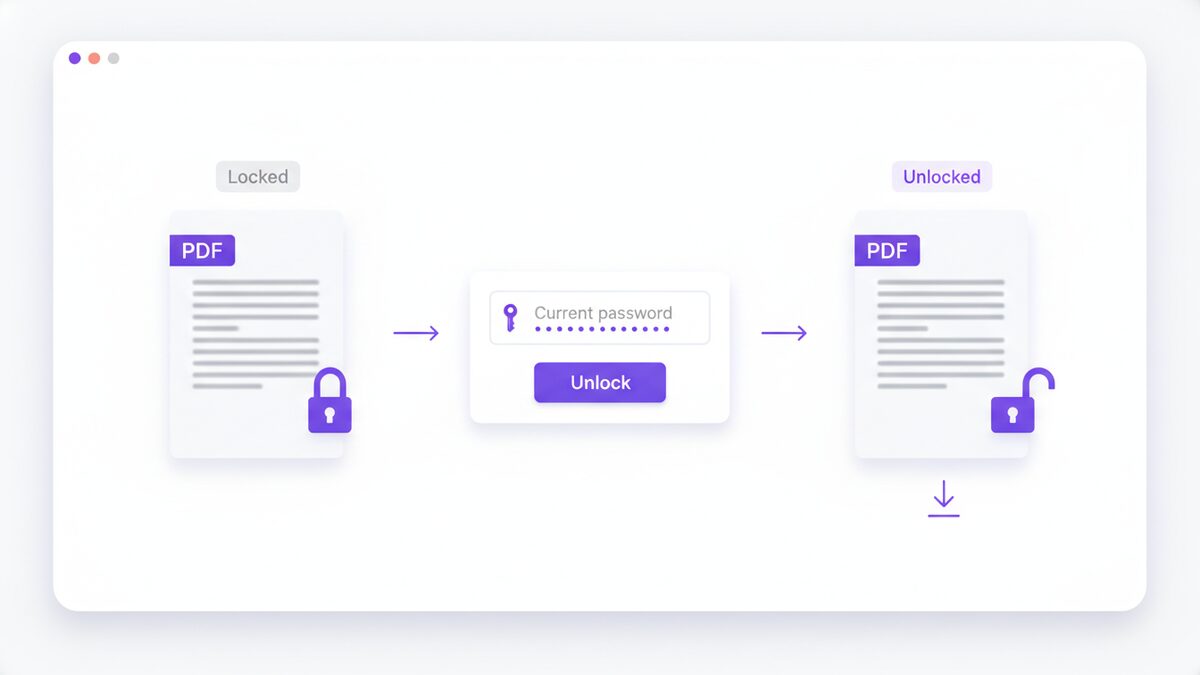
- Open the tool. Go to the free PDFLove Unlock PDF tool. Nothing to install, nothing to register.
- Add the locked document. Drag the PDF in or click to browse for it. Your browser reads it directly from your disk, so it never travels to a server.
- Enter the current password. This is the password you already know. It is used locally to decrypt the file and is never transmitted anywhere.
- Unlock it. The tool decrypts the document using your own device’s processing power.
- Download the unlocked file. Save it with a clear name so you can tell it apart from the protected original.
- Check it opens cleanly. Close everything and reopen the downloaded file. It should display with no prompt at all.
Note that when you remove password from PDF documents this way, the original protected file is untouched, so nothing is lost if you decide you would rather keep the encrypted version after all.
Removing Permission Restrictions
This is the other half of the problem, and it frustrates people more than the passwords they can actually see. Sometimes what you need is not to remove password from PDF encryption at all, but to clear a restriction.
You have a document that opens perfectly well, but you cannot print it, cannot copy a paragraph out of it, and cannot pull three pages into a separate file. There has been no password prompt, so it feels like the software is broken rather than the document being restricted.
Permissions restrictions are enforced by whichever application you happen to be using, not by mathematics. That is why behaviour is so inconsistent: one viewer greys out the print button while another prints the same file without comment. Because they are advisory rather than cryptographic, they can be cleared without knowing any password.
Once the restrictions are gone, the document behaves like any other. You can send it to split out the pages you need, copy text, or print it normally.
If You Have Forgotten the Password
Here is the part that some sites are dishonest about, so let us be direct: if a PDF has a genuine open password and you do not know it, you cannot remove password from PDF encryption by any legitimate means.
Modern PDFs use AES encryption. There is no master key, no back door, and no recovery process. Any site promising to strip an open password from a file you cannot open is either selling a brute-force tool that will run for years against a decent password, or is not being straight with you.
What you can realistically do:
- Ask whoever sent it. By far the most likely to work.
- Check your password manager and any email threads where the password may have been shared out of band.
- Try the conventions. Institutional PDFs are frequently locked with a date of birth, a postcode, a customer reference, or the last few digits of an account number, and these patterns are often documented in the covering email.
- Request a fresh copy. Banks and employers reissue documents routinely, and this is usually faster than anything else.
The flip side is worth remembering next time you encrypt something: keep the password in a manager and retain an unencrypted original somewhere safe.
How to Remove Password from PDF Documents on Desktop
Installed software can remove password from PDF files too, provided you know the password.
On a Mac, open the file in Preview, enter the password, then choose File and Export. Untick the encryption option and save a new copy. It is simple, and unavailable on any other platform.
On Windows, there is no built-in route. A common workaround is to open the file in a browser or reader, enter the password, then print to PDF. This does produce an unlocked file, but it is a lossy round trip: you flatten the document, and you often lose bookmarks, embedded links, selectable text quality, and form fields. It is a last resort rather than a method.
Adobe Acrobat handles it properly through its security settings, but the capability sits in the paid tier.
Once again the browser tool is the option that behaves the same everywhere and does not require permission to install anything.
Doing It From a Phone
Neither iOS nor Android can remove password from PDF documents natively. There are apps that claim to, but a great many upload your document, along with the password you just typed, to a remote server. Handing a stranger both the locked file and its key is an odd way to manage a confidential document.
A browser-based tool on the phone avoids that entirely. Nothing is installed, no permissions are requested, and the decryption happens on the handset.
What to Do After Unlocking
Once you remove password from PDF files, the document is readable by anyone who reaches the folder. That is the point, but it is worth a moment’s thought about where it now lives.
- Keep it somewhere sensible. An encrypted drive, or your machine’s own full-disk encryption, covers the file at rest without you retyping a password constantly.
- Do not leave it in Downloads. That folder tends to be a permanent archive of things people meant to file.
- Re-protect before sharing. If the unlocked copy needs to be emailed onward, apply a fresh password first, ideally one specific to that recipient.
- Think about backups. An unencrypted file will be copied into whatever backup system you run. That is usually fine, and worth being conscious of.
- Name it clearly. Half the reason to unlock a statement is to file and search it properly, so give it a name that will still make sense in three years.
Why People Unlock PDFs
People rarely remove password from PDF documents out of any desire for less security. The motivation is nearly always friction.
Searchability. Encrypted files are largely invisible to desktop search, so a folder of protected statements cannot be searched for a transaction.
Combining documents. Merging twelve monthly statements into one annual file means unlocking them first. Once they are open, the merge tool handles the rest.
Accessibility. Screen readers and text-to-speech tools often struggle with restricted documents, which turns a minor inconvenience into a genuine barrier.
Long-term archiving. A password you set today is a password you must still know in ten years. For personal archives kept on encrypted storage, the file-level password adds friction without adding much safety.
Sheer repetition. The commonest reason to remove password from PDF files is simply that typing a sixteen-character password every time you glance at last month’s bill wears thin quickly, and that is reason enough when the document is yours.
Unlocking a Whole Folder of Documents
One statement is a minor annoyance. Twelve months of them, each encrypted with the same password, is the situation that actually drives people to remove password from PDF files in the first place.
Work through them one at a time rather than looking for a bulk shortcut. It sounds tedious, but each file takes seconds once you have the password in the clipboard, and the alternative is usually a desktop application that wants installing and licensing for a job you will do once a year.
A sensible order of operations makes the difference:
- Gather everything first. Put all the locked documents in one folder so you can see what you are working through.
- Confirm the password on one file before starting, so you are not repeating a mistake twelve times.
- Unlock each in turn, saving into a separate output folder so locked and unlocked copies never get mixed up.
- Rename as you go, using a sortable date format such as 2026-03-statement.pdf.
- Merge if it helps, combining the year into one searchable document once you remove password from PDF copies individually.
- Store the result properly, on encrypted storage rather than loose in a downloads folder.
Doing this once a year, at the point you need to remove password from PDF statements for a tax return or a mortgage application, is far less painful than hunting through a dozen encrypted files under time pressure.
Should You Remove Password from PDF Files at All?
It is worth pausing on this rather than treating unlocking as automatically good. Removing protection is a trade, and the sensible answer depends on where the document is going to live.
The case for is straightforward. Encrypted files are invisible to desktop search, awkward to merge, and hostile to screen readers, and a password you must still recall in a decade is a genuine risk to a long-term archive. For your own records on your own machine, the friction usually outweighs the benefit.
The case against is equally real. If your laptop is not encrypted at rest, if the folder syncs to a shared cloud drive, or if other people use the same computer, that per-file password may be doing more work than you think.
A reasonable rule of thumb: remove password from PDF files that stay on hardware you control and that is already encrypted at the disk level, and keep the protection on anything that travels or lands in shared storage. If your machine has full-disk encryption switched on, the file-level password is largely redundant for documents at rest, and you remove password from PDF copies with very little downside.
Where you do decide to remove password from PDF documents, the safe pattern is to keep one protected original archived and work with the unlocked copy day to day. That way the decision is reversible.
Common Problems and How to Fix Them
These are the snags that come up most often when people remove password from PDF files, and most have quick fixes.
The tool says the password is wrong
Check for a trailing space from copy and paste, and for a phone keyboard capitalising the first letter. Bank passwords are often a date in a specific format, so try the alternatives, and check the covering email for the convention used.
The document opens but I still cannot print it
You removed an open password but permission restrictions remain, or the file only ever had restrictions. Clear those separately.
The unlocked file looks different from the original
This is the print-to-PDF workaround, not proper decryption. That route rasterises the page and discards links, bookmarks, and form fields. Use a tool that decrypts the file properly instead.
I cannot remember which password I used
If it is genuinely encrypted and genuinely forgotten, the document cannot be recovered. Ask the sender for a fresh copy.
The file is enormous once unlocked
Size is unrelated to encryption, so it was always large. Run it through a compression tool.
Why PDFLove Is the Free, Private Choice
Think about what you hand over when a website offers to remove password from PDF documents on your behalf. You upload the confidential document, and then you type the password that protects it into the same page. If that service keeps either, it holds the lot.
PDFLove never receives either one. The decryption runs inside your browser using your own device, so the file and the password stay on your machine from beginning to end. There is no server-side copy of your statement and no server-side record of your password, because neither is ever transmitted. For a task defined by confidentiality, that is the whole argument.
It is free in the plain sense: no account, no email capture, no watermark, and no page limit. Free tiers elsewhere routinely stop at around thirty pages, which is exactly the wrong moment when you are unlocking a long annual statement.
You can read more about the underlying encryption on Wikipedia’s AES page, and the rest of the free PDF toolkit follows the same on-device rules.
Frequently Asked Questions
How do I remove password from PDF files for free?
Open the PDFLove Unlock PDF tool, add the locked document, enter the password you already know, and download the unlocked copy. It is free, needs no account, and runs entirely in your browser so neither the file nor the password is ever uploaded.
Can I unlock a PDF if I do not know the password?
No. A PDF with a genuine open password uses AES encryption, which has no master key and no recovery process. Any service claiming otherwise is either running a brute-force attack that will not finish in useful time or is not being honest. Ask the sender for the password or a fresh copy.
Is it legal to remove password from PDF documents?
It is legal for documents you own or are authorised to access, such as your own bank statements, payslips, or files you encrypted yourself. It is not legitimate to try to open a document somebody deliberately locked and did not give you access to.
What is the difference between a password and a restriction?
An open password is required to view the document at all and is real encryption. A permissions restriction lets you read the file but blocks printing, copying, or editing, and is enforced by your PDF application rather than by encryption. Restrictions can be cleared without knowing any password.
Is it safe to unlock a PDF using an online tool?
With most tools, not especially, because you upload the confidential file and then type its password into the same website. PDFLove does the work on your own device, so neither the document nor the password ever leaves your browser.
Will unlocking change the document?
No. Proper decryption produces an identical document without the encryption layer, keeping text, links, bookmarks, and form fields intact. The print-to-PDF workaround does degrade the file, which is why it is worth avoiding.
Can I remove password from PDF files on my phone?
Yes, using a browser-based tool on the phone. Neither iOS nor Android can do it natively, and many app-store alternatives upload both your document and its password to a remote server, which rather defeats the purpose.
Should I re-protect the file afterwards?
If you are sending it to someone else, yes. Unlocking is useful for filing, searching, and merging your own documents. Before emailing an unlocked copy onward, apply a fresh password, ideally one specific to that recipient.
Conclusion
For documents you own, the ability to remove password from PDF files turns a daily irritation into a thirty-second job, and it is free. Statements become searchable, archives become mergeable, and you stop typing a sixteen-character string to glance at last month’s bill.
Two honest caveats. You need to know the password already, because genuine encryption has no back door. And once a file is unlocked it is readable by anyone who reaches the folder, so keep it somewhere sensible and re-protect it before sending it on.
Open the free Unlock PDF tool and clear that prompt for good. Free, private, and never uploaded anywhere.