If you are about to email a bank statement, a signed contract, or a folder of medical paperwork, you should password protect PDF files before they leave your outbox. With PDFLove you can do it free, in your browser, in about thirty seconds, with no upload, no sign-up, and no limit on how many pages the document runs to.
This guide explains what the encryption actually does, how to password protect PDF documents step by step, how to pick a password worth having, how to share it safely, and what to do when you inevitably forget it.
What a PDF Password Actually Does
When you password protect PDF files, the tool does not simply hide the contents behind a prompt. It encrypts the document, scrambling the underlying data so that the bytes on disk are meaningless without the key. Modern PDFs use AES encryption, the same family of algorithm used to secure banking and messaging traffic.
That distinction matters when you password protect PDF documents. A viewer that merely asks for a password before displaying a file offers no real protection, because anyone can open the raw file another way. Genuine encryption means the content cannot be recovered at all without the password, no matter what software is pointed at it.
You can read a general overview of the algorithm on Wikipedia’s AES page. The short version is that correctly implemented AES with a decent password is not something anybody is breaking over a weekend.
Open Passwords Versus Permissions Passwords
PDFs support two distinct kinds of password, and confusing them is the most common mistake people make here.
An open password, sometimes called a user password, is required to view the document at all. Without it the file will not open. This is the real security control, and it is what most people mean when they set out to password protect PDF documents.
A permissions password, sometimes called an owner password, lets anyone open and read the file but restricts what they can do with it: printing, copying text, or editing. It is a politeness mechanism rather than a security one. Plenty of PDF software will cheerfully ignore those restrictions, and stripping them is trivial for anyone who wants to.
If the content is genuinely confidential, you want an open password. Use permissions restrictions as a supplementary hint about intent, never as your only line of defence.
When It Is Worth Doing
Email is the reason most people go looking for a way to password protect PDF files. A message can be forwarded, sit in an inbox for a decade, get synced to a phone that is later sold, or land in the wrong thread entirely. Attachments inherit every one of those risks.
- Financial documents. Bank statements, tax returns, payslips, loan paperwork.
- Identity documents. Passport scans, driving licences, visa paperwork.
- Medical records. Test results, referral letters, insurance claims.
- Signed contracts. Especially those carrying a signature image and an address.
- HR and payroll files. Anything covering someone other than yourself.
- Legal correspondence. Where confidentiality may be a formal obligation.
A useful test: if you would not be relaxed about the document appearing in a screenshot on a group chat, password protect PDF copies of it before sending.
How to Password Protect PDF Files, Step by Step
The browser route works identically on Windows, macOS, Linux, and ChromeOS, and takes under a minute. Here is how to password protect PDF documents from start to finish.
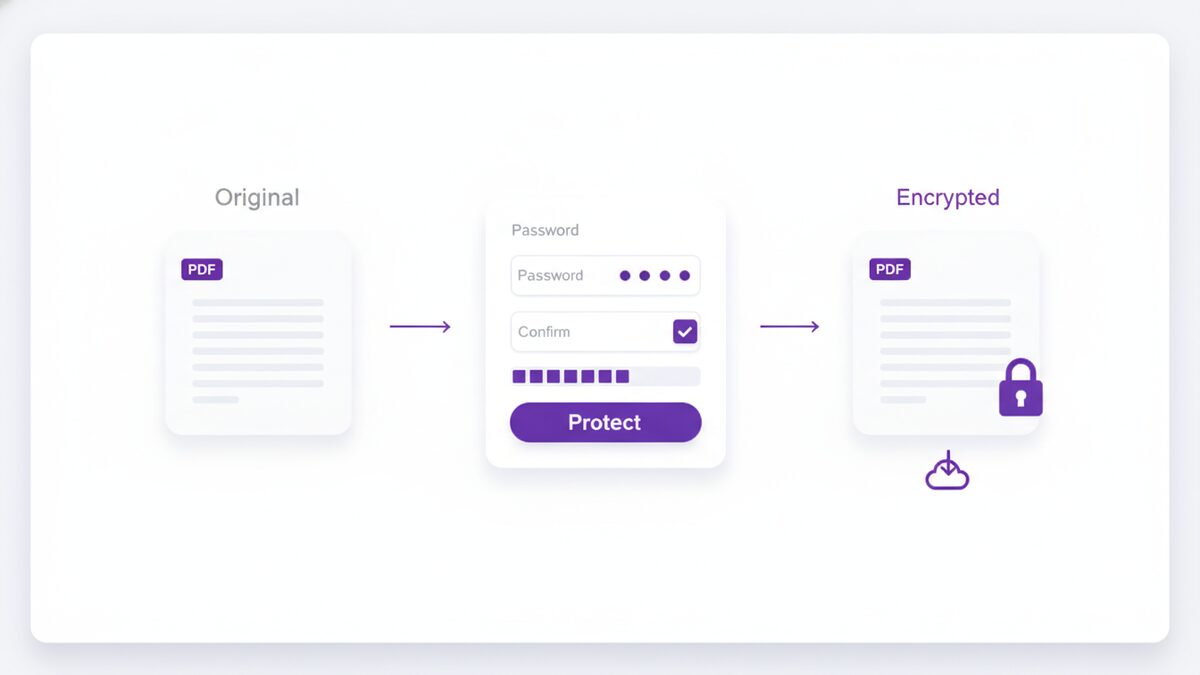
- Open the tool. Go to the free PDFLove Protect PDF tool. Nothing to install and nothing to sign up for.
- Add your document. Drag the PDF in or click to browse. Your browser reads it straight from your disk, so the file never travels to a server.
- Enter a password. Type it, then type it again to confirm. Take the confirmation seriously, because a typo here produces a file nobody can open.
- Apply the encryption. The tool encrypts the document locally using your device’s own processing power.
- Download the protected file. Save it under a clear name, and keep the unprotected original somewhere safe if you will need to edit it later.
- Test it before sending. Close everything, reopen the downloaded file, and check that it genuinely asks for the password and that the password works.
That final step is the one people skip and later regret. Thirty seconds of testing avoids sending a locked file with a mistyped password to someone who then cannot open it.
Choosing a Password That Holds Up
There is no point deciding to password protect PDF files and then guarding them with something trivial. Encryption is only ever as strong as the password in front of it. AES with the password 1234 protects nothing at all.
- Length beats complexity. A four-word phrase such as copper-lantern-quiet-harbour is far stronger and far more memorable than P@ss1!.
- Do not reuse an important password. Never use your email or banking password here. You may have to share this one.
- Avoid anything guessable. Company name, the recipient’s surname, the document date, a birthday. These are the first things anyone tries.
- Do not put it in the filename. invoice-password-summer2026.pdf defeats the entire exercise.
- Use a different password per recipient where the same document goes to several people who should not share access.
- Record it somewhere before you close the tab. A password manager is ideal.
The aim is a password strong enough to be worth the encryption behind it, and memorable enough that you can pass it on without a fuss.
Passphrases beat passwords
Security guidance has shifted decisively towards length over punctuation gymnastics. Four unrelated words give you an enormous search space while remaining something you can read aloud down the phone, which matters when you password protect PDF files that somebody else has to open.
Compare the two in practice. A short password full of symbols is hard for a human to remember, easy to mistype, painful to dictate, and not especially hard for a machine to attack. A four-word passphrase is the reverse on every count. Since the whole point of a password on a shared document is that it has to travel to another person, choose the one that survives a phone call.
Avoid famous quotations and song lyrics, which appear in the wordlists attackers use. Ordinary words in an order that means nothing to anyone else is exactly right.
Sharing the Password Safely
There is little point choosing to password protect PDF attachments and then emailing the key in the same thread. If the mailbox is compromised, the attacker now has both halves.
Send the password through a different channel entirely. A text message, a phone call, a voice note, or a separate messaging app all work. The technical term is out-of-band delivery, and it is the single biggest improvement most people can make to how they password protect PDF attachments.
For recurring correspondence with the same person, agree a scheme in advance so you are not exchanging passwords every time. And if you no longer need a document to stay locked, remove the password rather than leaving stale credentials floating around in old messages.
How to Password Protect PDF Documents on Desktop
Installed software can password protect PDF files too, with the usual platform caveats.
On a Mac, Preview can export an encrypted copy. Open the PDF, choose File then Export, tick the encrypt option, and set a password. It is straightforward, and completely unavailable the moment you sit down at a Windows machine.
On Windows, there is no built-in option. Microsoft Word can export a PDF with a password if the document started life in Word, which is no help for a PDF that arrived by email. Adobe Acrobat does it properly, but the feature lives in the paid tier.
LibreOffice is a free cross-platform alternative that can export password-protected PDFs, though you are installing an entire office suite to do one job.
This is why a browser tool tends to be the practical answer: identical behaviour everywhere, and nothing to install on a machine where you may lack the rights to install anything.
Doing It From a Phone
Neither iOS nor Android offers a built-in way to password protect PDF files. The app stores are full of options, but most want broad file-system permissions, show adverts, and upload your document to their own servers to do the work, which is a strange trade when the whole point is confidentiality.
Opening a browser-based tool on your phone avoids all of that. The interface is touch-friendly, nothing is installed, no permissions are requested, and the file stays on the handset.
What Happens if You Forget the Password
Be clear-eyed about this before you password protect PDF files: if you lose the password to a properly encrypted PDF, the document is gone. There is no master key, no recovery email, and no support line that can let you back in. That is precisely what makes the encryption worth using.
So before you password protect PDF files that matter, do two things. Record the password somewhere durable, ideally a password manager. And keep the unencrypted original in a safe place, such as an encrypted drive or backup, so that losing the password costs you an inconvenience rather than the document.
If you still hold the password and simply want to lift the protection, that is easy enough with an unlock tool. Removing a password you know is a very different problem from recovering one you have forgotten.
What Encryption Will Not Do for You
It is worth being realistic about the boundaries, because the decision to password protect PDF documents is sometimes treated as doing more than it really does.
- It does not stop a legitimate recipient sharing the file. Once someone can open it, they can forward it, screenshot it, or print it.
- It does not track anything. There is no record of who opened the document or when.
- It does not expire. The password works forever unless you produce a new version.
- It does not protect the filename. redundancy-letter-final.pdf tells a story before anyone types a password.
- It does not help if the password is weak. Short, guessable passwords are the usual failure, not the encryption.
Within those limits, choosing to password protect PDF documents is genuinely effective, and it takes half a minute.
Password Protect PDF Files, or Send Them Another Way?
Encrypting the document is not the only option for getting a confidential file to someone. It is worth knowing where the alternatives are better and where they are worse, so you can password protect PDF attachments when that is genuinely the right call.
An encrypted ZIP archive
Zipping several files with a password is reasonable when you are sending a batch. The drawbacks are practical: many corporate mail filters quarantine password-protected archives outright, phones handle them awkwardly, and the recipient has to extract everything before reading anything. To send a single document, choosing to password protect PDF output directly is simpler at both ends.
A cloud storage link
Sharing a link from cloud storage keeps the file out of the mail system and lets you revoke access later, which encryption cannot do. But the document now sits on a third-party server in readable form, and link-based sharing has a long history of being set to “anyone with the link” by accident. Uploading an already-protected file gives you both layers.
A secure portal
Banks, law firms, and healthcare providers often run portals with proper authentication and audit logs. When one is available for the matter in hand, use it. For everything else, portals are overkill, and you cannot make the other party adopt one.
Just emailing it unprotected
Extremely common and occasionally fine, for anything you would be relaxed about a stranger reading. The moment the content is financial, medical, or personally identifying, the calculus changes and it is worth the thirty seconds to password protect PDF copies first.
These options combine well. The strongest everyday practice is to password protect PDF documents and then share them through whichever channel suits, so that a mis-sent link or a forwarded email still does not expose the contents.
Real-World Use Cases
The situations where people password protect PDF files tend to repeat.
- Applying for a mortgage or a loan, where brokers ask for statements, payslips, and identity documents by email.
- Sending records to an accountant at the end of a tax year, often as one large bundle.
- Sharing medical paperwork with a specialist, an insurer, or a family member.
- Returning signed contracts that carry both a signature image and a home address.
- Sending HR documents, where the file concerns somebody other than you and confidentiality is an obligation rather than a preference.
- Archiving personal records on a laptop that travels, so a lost machine does not become a data breach.
That last one is worth dwelling on. People usually think to password protect PDF files in transit and forget the copies sitting in a downloads folder for years.
Common Problems and How to Fix Them
These are the issues that come up most often after people password protect PDF files, and each has a quick fix.
The recipient says the password does not work
Usually a typo at one end or the other, or an autocorrect that capitalised the first letter on a phone. Check for stray spaces from copy and paste, and re-send the password through a channel that does not autocorrect.
The file opens without asking for anything
You have set a permissions password rather than an open password. Only an open password prevents the document being viewed.
The protected file will not open in an older app
Some older readers do not support current AES strengths. Ask the recipient to open it in an up-to-date viewer, which is a better answer than downgrading the encryption.
I need to edit a document I already locked
Remove the password with the unlock tool, make the change, then password protect PDF output again afterwards. Keeping an unencrypted master copy avoids this loop entirely.
The file is too large to email once protected
Encryption adds very little size, so the file was already large. Compress it first, then apply the password, since compressing an encrypted file achieves nothing.
Why PDFLove Is the Free, Private Choice
There is a particular irony in uploading a confidential document to a stranger’s server in order to make it confidential. Yet that is exactly what most online tools that password protect PDF files do: your unencrypted document is transmitted, processed remotely, and encrypted somewhere you cannot see, by a service whose retention policy you did not read.
PDFLove inverts that. All processing happens inside your browser on your own device. The unprotected file is never transmitted, so there is no window during which a plaintext copy sits on somebody else’s infrastructure. For this particular task that is not a nice-to-have, it is the entire point.
It is also free without an asterisk: no account, no email capture, no watermark, and no page limit. Many competing free tiers cap you at around thirty pages or a couple of documents a day, which tends to bite exactly when you are protecting something substantial like a full year of statements.
The rest of the free PDF toolkit works the same way, so you can merge, compress, sign, and then protect a document without any part of it leaving your machine.
Frequently Asked Questions
How do I password protect PDF files for free?
Open the PDFLove Protect PDF tool, add your document, type a password twice to confirm it, and download the encrypted file. It is free, needs no account, and runs entirely in your browser so the unprotected document is never uploaded.
Is a password-protected PDF actually secure?
Yes, when the password is strong. Modern PDFs use AES encryption, so the content genuinely cannot be read without the password. The weak link is almost always the password itself: a short or guessable one undermines even the strongest algorithm.
What is the difference between an open password and a permissions password?
An open password is required to view the file at all and is the real security control. A permissions password lets anyone open the document but tries to restrict printing, copying, or editing. Many PDF applications ignore permissions restrictions, so use an open password for anything genuinely confidential.
Can I recover a PDF password if I forget it?
No. Properly encrypted PDFs have no master key and no recovery process, which is exactly what makes the encryption worth using. Record the password in a password manager and keep an unencrypted original somewhere safe before you protect anything important.
How should I send the password to the recipient?
Through a different channel from the file. If you email the document and email the password in the same thread, anyone with access to that mailbox has both. Send the password by text message, a phone call, or a separate messaging app instead.
Does encryption stop the recipient forwarding my document?
No. Once someone can open the file they can forward it, print it, or screenshot it. A password controls who can open the document in the first place, not what an authorised reader does with it afterwards.
Can I password protect PDF documents on my phone?
Yes. Neither iOS nor Android has a built-in option, but you can open a browser-based tool on the phone and do it there. That avoids installing an app that wants file permissions and uploads your confidential document to its own servers.
Is there a page limit or a watermark?
No. PDFLove has no page limit, no watermark, and no daily cap. Many free tiers elsewhere stop at roughly thirty pages, which is a problem when you are protecting something long like a full year of bank statements.
Conclusion
Taking a moment to password protect PDF attachments is one of the cheapest security habits available. It costs half a minute, it costs nothing in money, and it turns a document that anyone down the forwarding chain could read into one that only your intended recipient can open.
Pick a long passphrase, send it through a different channel from the file itself, test the result before you send it, and keep an unencrypted original somewhere safe.
Open the free Protect PDF tool and lock that document before it goes out. Free, private, and never uploaded anywhere.