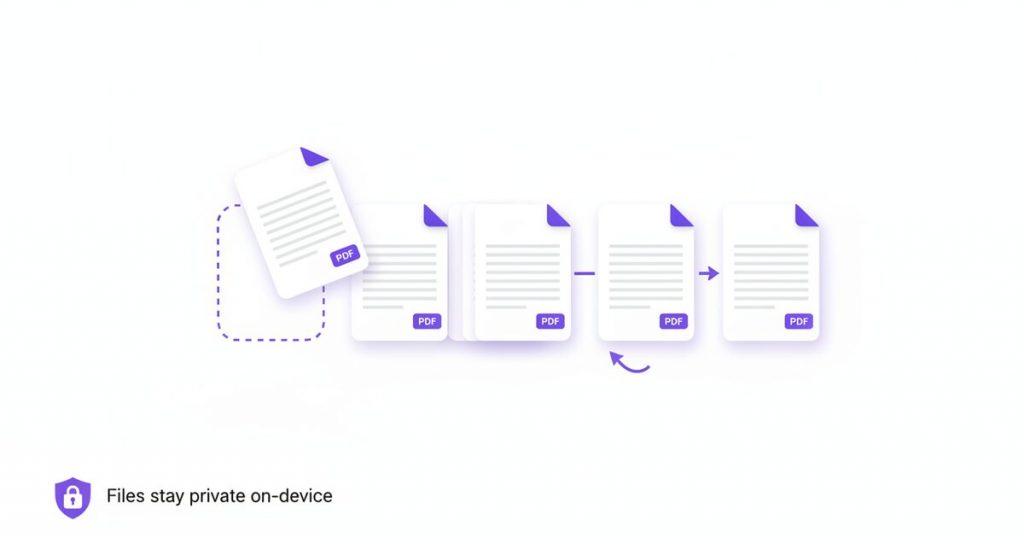
If you have ever needed to reorder PDF pages because a scanner fed the sheets backwards or a colleague merged two files in the wrong sequence, you already know how disproportionately annoying the problem is. The content is right there and perfectly readable – it is simply in the wrong order. With PDFLove you can reorder PDF pages for free, straight in your browser, with no upload, no sign-up, and no watermark on the result.
This guide walks through what reordering actually does to a document, a full step-by-step method using a free browser tool, and how to reorder PDF pages on a Mac, on Windows, and on your phone. We will finish with tips, fixes for the problems people hit most often, and a detailed FAQ.
What It Means to Reorder PDF Pages
To reorder PDF pages is to change the sequence in which the pages appear, without changing the pages themselves. Page 7 becomes page 2, page 2 slides down to page 3, and every other page shifts to accommodate the move. Nothing is added and nothing is removed – the document has exactly the same content it started with, arranged differently.
That distinction matters more than it first appears. Because reordering only rearranges, it is a lossless operation. The text stays selectable, links keep working, form fields keep their values, and image quality is untouched. You are shuffling a deck, not reprinting the cards.
It helps to picture a PDF as a numbered stack of sheets. Every sheet is independent, and the page number you see is just its current position in the stack. When you reorder PDF pages you are picking a sheet up and putting it down somewhere else. The old position closes up behind it and the new position opens up to receive it.
This is also why it is safe to experiment. If you get it wrong, you reorder PDF pages again. There is no generation loss, no quality degradation, and no accumulating damage from repeated edits – unlike compressing an image over and over.
Why Page Order Goes Wrong in the First Place
Almost nobody sets out to build a document in the wrong order. Bad page order is nearly always a side effect of how the file was produced, and knowing the cause often tells you exactly which pages need to move.
- Reverse-fed scanners. Many sheet-fed scanners output the last sheet first, so a ten-page document arrives as 10, 9, 8 and so on. The fix is a straight reversal.
- Double-sided scanning in two passes. Scanning all the fronts, then all the backs, gives you 1, 3, 5, 7 followed by 2, 4, 6, 8. This one needs interleaving rather than a simple reversal.
- Merging files in the wrong sequence. When you combine several PDFs, whatever order you added them in becomes the page order. Add the appendix before the report and it lands at the front.
- Photos taken out of sequence. Converting a batch of phone photos to PDF uses the file order, which is often alphabetical by filename rather than the order you shot them.
- Late additions. A signature page or a cover letter created after the fact usually gets appended to the end, even though it belongs at the front.
- Exports from other software. Some reporting tools place summaries after the detail tables, which is the opposite of how most readers want to read them.
Each of these has a predictable shape, and each is fixed the same way: open the file, look at the thumbnails, and reorder PDF pages until the sequence matches what a reader expects.
How to Reorder PDF Pages Online for Free (Step by Step)
The fastest method needs no installation and no account. Because PDFLove does the work inside your browser, your document never travels to a server, which makes this approach suitable even for contracts, medical records and financial statements.
- Open the tool. Go to the free PDFLove Reorder Pages tool in any modern browser – Chrome, Safari, Firefox or Edge all work.
- Add your document. Drag the PDF onto the page, or click to browse for it. The file is read locally by your browser; it is not uploaded anywhere.
- Wait for the thumbnails. Every page is rendered as a small preview with its current page number. A long document takes a moment to draw them all.
- Check the current sequence. Scan the thumbnails before you touch anything and decide where each misplaced page needs to end up. A few seconds here saves several corrections later.
- Drag pages into position. Pick up a thumbnail and drop it where it belongs. The surrounding pages move aside to show you the slot before you let go.
- Work from the front backwards. Fix page 1, then page 2, then page 3. Settling the early pages first stops the later positions from shifting under you.
- Review the final order. Read the page numbers left to right and confirm the story flows the way you want it to.
- Download the result. Save the new PDF. Your original file on disk is untouched, so you always have something to fall back on.
That is the whole process. Most people reorder PDF pages in well under a minute once the thumbnails have loaded, and there is no limit on how many pages you can rearrange.
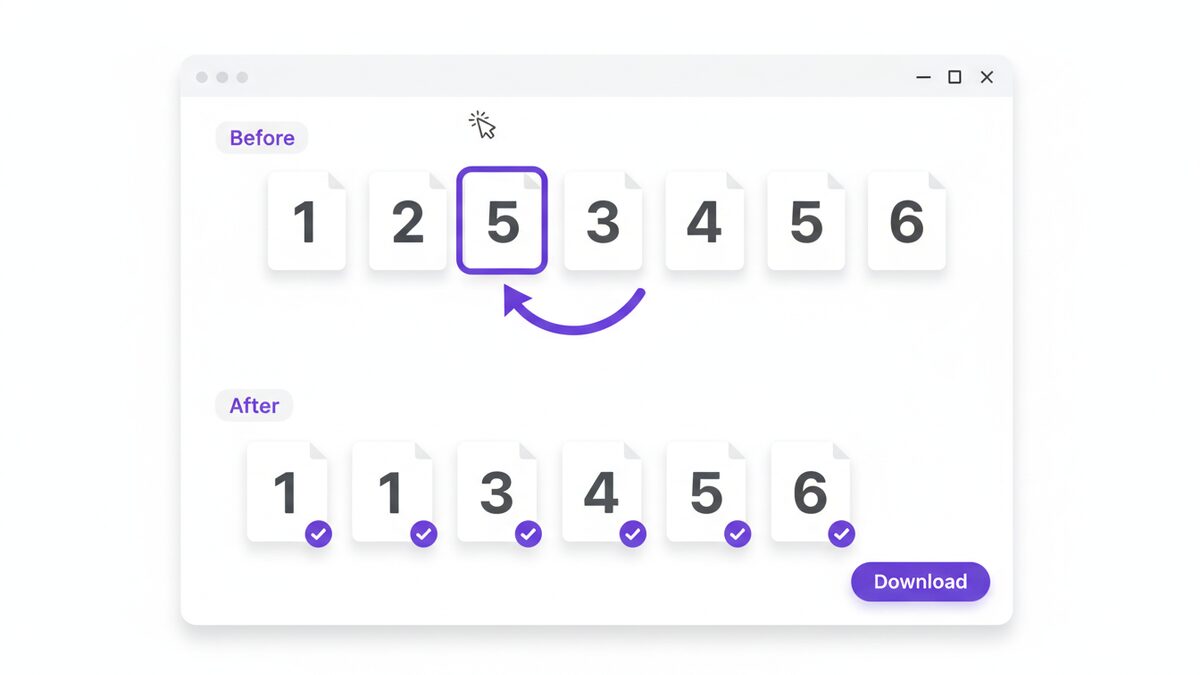
How to Move a Single Page Without Disturbing the Rest
The most common real-world job is not a full reshuffle – it is moving exactly one page. A signature sheet that belongs at the end sits at the front, or a cover page has somehow landed in the middle.
You can reorder PDF pages one at a time just as easily as in bulk. For a single move, drag the one page to its destination and stop. Every other page keeps its relative order automatically, because the rest of the stack simply closes the gap and reopens at the target. There is no need to touch anything else.
Moving a page to the very front or the very back is worth calling out separately. Drop the thumbnail before the first page or after the last one and the tool treats it as position one or final position respectively. If the drop indicator is not appearing, drag a little further past the edge of the row.
When you need to move a run of consecutive pages – say pages 12 to 15 as a block – move them one at a time, starting with page 12 and keeping them adjacent as you go. Placing 12 first and then dropping 13 immediately after it keeps the group intact and avoids the confusion of a half-moved block.
How to Reorder PDF Pages on a Mac
macOS includes Preview, which can reorder PDF pages without any extra software. It is a good option when you are working offline.
- Open the PDF in Preview – it is the default PDF viewer, so a double-click usually does it.
- Choose View → Thumbnails to show the sidebar of page previews.
- Drag a thumbnail up or down the sidebar to its new position.
- Repeat for each page that needs to move.
- Press Command+S to save the change into the same file.
Two cautions are worth knowing. Preview saves over your original by default, so duplicate the file first with File → Duplicate if you want to keep the original sequence. And the sidebar can be fiddly on very long documents, because you are scrolling a narrow column rather than viewing a grid. Apple’s own Preview user guide documents the sidebar behaviour in more detail.
For a document of more than about thirty pages, most people find it quicker to reorder PDF pages in a browser grid, where you can see twenty thumbnails at once instead of four.
How to Reorder PDF Pages on Windows
Windows is the awkward case, because it ships without a built-in PDF editor. Microsoft Edge will display a PDF perfectly well and even annotate it, but it cannot rearrange pages and save the result.
That leaves three realistic routes:
- A browser tool. Edge, Chrome or Firefox plus a page-organiser tool gives you drag-and-drop reordering with nothing to install. This is the quickest option and works identically on Windows 10 and 11.
- A desktop PDF editor. Acrobat and similar paid applications include an Organize Pages panel. Powerful, but it is a subscription and a large installation for a task that takes thirty seconds.
- A free desktop application. Several open-source viewers can rearrange pages. They work, though the interfaces tend to be dated and the page-thumbnail views cramped.
Unless you already own a PDF editor, the browser route is the sensible default on Windows. You can reorder PDF pages in the same window you were already working in, with no download and no licence.
How to Reorder PDF Pages on iPhone and Android
Phones are where badly ordered PDFs are often created in the first place, usually from a batch of photos or a scanning app, so being able to reorder PDF pages on the same device is genuinely useful.
On iPhone and iPad, the Files app offers limited page management through the Markup view, but it is cramped and easy to mis-tap. Opening a browser tool in Safari is usually less frustrating: tap to select your PDF, drag the thumbnails, then save the result back to Files or straight into a message.
On Android, there is no system-level PDF page editor at all. Chrome plus a browser-based organiser is the most direct path, and it avoids installing an app that wants access to all your documents.
The privacy angle is sharper on a phone than on a desktop. Phone scans are often ID documents, prescriptions, bank letters or signed forms. A browser tool that processes the file on the device means those pages are never transmitted anywhere, which is not something you can assume of a free app funded by advertising.
Reorder, Rotate, Delete or Split: Which One Do You Need?
People often reach for reordering when a neighbouring operation is actually what the document needs. A quick diagnosis saves a wasted round trip.
- Reorder when the pages are all correct but in the wrong sequence. Use the Reorder Pages tool.
- Rotate when a page is sideways or upside down. The position is fine, the orientation is not – that is a job for Rotate PDF.
- Delete when pages should not be in the document at all, such as blank sheets from a duplex scan. Use Delete Pages.
- Split when one document should become several separate files. That is Split PDF.
- Merge when several documents should become one. Merging in the right order up front means you may not need to reorder PDF pages afterwards at all – see Merge PDF.
A scanned batch frequently needs two of these in sequence: delete the blank versos, then reorder PDF pages into the correct reading order. Doing the deletion first is easier, because you are then rearranging fewer pages.
Real-World Reasons to Reorder PDF Pages
The need to reorder PDF pages shows up across very different kinds of work, and the pattern is always the same: the content is finished, the sequence is not.
- Contracts and agreements. Signature pages and schedules routinely arrive detached from the clauses they belong with.
- Job applications. A CV, a cover letter and certificates merged in upload order rather than reading order – the cover letter belongs first.
- Scanned records. Reverse-fed scans of anything from tax paperwork to medical notes need reversing before they are readable.
- Academic submissions. Many journals and universities specify an exact section order, and a rejected submission over page sequence is a frustrating way to lose a week.
- Invoices and statements. Accounting exports often put summaries last when reviewers want them first.
- Presentation handouts. Slides exported in edit order rather than the order you actually presented them.
- Photo albums and portfolios. Images converted to PDF alphabetically by filename instead of chronologically.
- Legal bundles. Court and tribunal bundles have strict ordering conventions that a raw scan will never match.
Tips for Best Results
A few habits make it faster to reorder PDF pages and reduce the chance of a second pass.
- Decide the target order before you drag. Skim the thumbnails and form a plan. Rearranging while you are still deciding is how pages end up in a third wrong order.
- Work front to back. Fixing early pages first means later positions stay stable while you work.
- Trust the thumbnails, not the printed numbers. A page printed “12” may be the fifteenth sheet if there is front matter. The thumbnail position is what actually moves.
- Delete before you reorder. Removing blank or duplicate pages first leaves you fewer pages to arrange.
- Keep the original file. Download the reordered version as a new file rather than overwriting your only copy.
- Rename the output. “Contract-final-ordered.pdf” tells you at a glance which version is correct.
- Open the result before sending. Ten seconds of scrolling confirms the sequence is genuinely right.
- Reorder before you add page numbers. If you plan to stamp numbers on, do it after the sequence is settled – otherwise the numbers will contradict the order.
Common Problems and How to Fix Them
Most difficulties people hit when they reorder PDF pages come down to a handful of situations, and all of them have straightforward fixes.
The thumbnails will not load
Large or image-heavy documents take time to render every preview, especially on an older phone. Give it a few seconds before assuming something is wrong. If it genuinely stalls, close other browser tabs to free memory and reload.
Dragging does nothing
On a touchscreen, press and hold briefly before you move – an immediate swipe usually scrolls the page instead of picking up the thumbnail. On a desktop, make sure you are dragging the thumbnail itself rather than the whitespace around it.
The whole document is reversed
This is the reverse-fed scanner signature. Rather than dragging every page individually, move the last page to the front, then the new last page to the front, and repeat. For long documents it is often quicker to rescan with the stack flipped.
Odd and even pages are separated
Two-pass duplex scanning gives you all the fronts then all the backs. You need to interleave rather than reverse: page 1, then the first back, then page 3, then the second back. Work steadily from the front and check every few pages.
The file is password protected
An encrypted PDF will not open for editing until the password is removed. Unlock it first with Unlock PDF, then reorder PDF pages as normal.
Why PDFLove Is the Free, Private Choice
Most free online PDF services work by uploading your document to their servers, processing it there, and sending the result back. That means a copy of your contract, your medical record or your bank statement has been on someone else’s computer, subject to their retention policy and their security.
PDFLove works differently. The tools run inside your browser using the processing power of your own device, so the document never leaves it. There is nothing to upload, nothing stored remotely, and nothing to delete afterwards. That is the same reason the PDF format became the standard for sharing final documents in the first place: predictability and control.
Three other things are worth naming. It is genuinely free, with no trial that expires. There is no page limit, where many free tiers cap you at around thirty pages – a real constraint when the reverse-scanned document in front of you is ninety pages long. And there is no sign-up, so you can reorder PDF pages right now without creating an account or handing over an email address.
You can see the whole set at PDFLove’s free PDF tools, all of which work the same on-device way.
Frequently Asked Questions
How do I reorder PDF pages for free?
Open the PDFLove Reorder Pages tool, add your document, drag the page thumbnails into the order you want, and download the result. It is free, needs no sign-up, and runs entirely in your browser so nothing is uploaded.
Does reordering pages reduce the quality of my PDF?
No. Reordering only changes the sequence of the pages, not their contents. Text stays selectable, images keep their original resolution, and links and form fields continue to work exactly as before.
Can I reorder PDF pages on my phone?
Yes. Because the tool runs in your browser, you can reorder PDF pages on an iPhone or Android with nothing to install. Open the tool in Safari or Chrome, press and hold a thumbnail to pick it up, then drag it into place.
How do I reverse the order of a scanned PDF?
Reversed documents usually come from a sheet-fed scanner that outputs the last page first. Move the final page to the front, then repeat with the new final page. If the document is very long, rescanning with the stack flipped is often faster.
Is there a page limit when I reorder PDF pages?
No. PDFLove does not cap the number of pages, unlike many free tools that stop at around thirty. Very large documents simply take a little longer to render all the thumbnails, because your own device is doing the work.
Will my original file be changed?
No. The reordered document is saved as a new download and the file on your disk is left exactly as it was. If you are not happy with the result you can start again from the untouched original.
Can I move several pages at once?
Move them one at a time, starting with the first page of the group and dropping each following page immediately after it. Keeping the block adjacent as you work preserves their internal order without any extra effort.
Do I need to install anything or create an account?
Neither. There is no software to install, no extension to add and no account to register. Open the page, add your file, reorder PDF pages and download – the tool is free and asks for nothing in return.
Conclusion
Bad page order is a small problem that makes a document feel unfinished, and it is one of the quickest things to put right. Whether a scanner fed the sheets backwards, a merge went in the wrong sequence, or a signature page ended up at the front, the fix is the same: look at the thumbnails, drag the pages into the order a reader expects, and save.
You do not need a subscription or a desktop installation to do it. Open the free PDFLove Reorder Pages tool, reorder PDF pages as many times as you like with no page limit, and download a document that reads properly from the first page to the last – with your file never leaving your device.