Searching for the best document scanner app turns up a hundred results that all claim to be free, and the differences only surface once you have scanned something and tried to get it out. This guide compares the realistic options on the things that actually bite: watermarks, page caps, whether OCR costs extra, and whether your documents are uploaded to somebody’s server.
There is no single best document scanner app for everyone, so rather than crown one, this sets out what each is genuinely good at and where it will frustrate you. PDFLove is one of the options and we make no secret of that; the comparison below is written so you can check the claims yourself.
How to Judge a Scanner App
Almost every roundup of the best document scanner app options compares the wrong things. Scan quality is broadly a solved problem: edge detection and perspective correction are commodity features now, and the difference between a good app and a mediocre one on a well-lit page is small.
What actually separates them is everything around the scan.
- Where the processing happens. On your device, or uploaded to a server? This is the single biggest difference and the least advertised.
- Whether OCR is included. Recognition is what makes a scan searchable. It is very often the thing held back for the paid tier.
- Watermarks and page caps. Both are common on free tiers and neither is mentioned until you export.
- What happens to the file next. Can you get a properly named PDF out to any destination, or only into the vendor’s own storage?
- Account requirements. Some will not scan at all until you sign in.
- Ads. Full-screen adverts between captures make a fast job slow.
Judge the best document scanner app for your own purposes on those, not on which one detects an edge half a second quicker.
What “Free” Means in the Best Document Scanner App Market
Worth being blunt about, because it explains most of the disappointment people feel with the best document scanner app they downloaded last week.
Any best document scanner app costs its developer almost nothing to run when the work happens on your phone. Scanning costs real money when it runs on their servers – and server-side processing is also what justifies a subscription and keeps you inside the product. That single architectural choice drives most of the business models you will meet.
So “free” tends to mean one of four things: free with adverts; free with a watermark until you pay; free for a few pages a day; or free because the documents themselves are the product. None of those is inherently dishonest, but you should know which one you have picked.
A note on how this list was made
Worth being transparent, since we make one of the products named. This is not a ranked chart, because a ranked chart of the best document scanner app category would be mostly a statement about who we are. What it is instead is a comparison on criteria you can verify yourself: whether processing is local, whether OCR costs extra, whether the export carries a watermark, whether an account is required.
Every one of those is testable in a few minutes, and we would rather you tested them than took our word. App terms also change frequently, so a claim that is accurate today may not be in six months – check the store listing and the current terms before committing.
PDFLove
Best for: people who want every feature without a subscription, and want the scan to stay on the device. Our own entry in the best document scanner app field, so weigh it accordingly.
Scanning, OCR in more than twenty languages, an AES-256 encrypted vault, PDF passwords, signatures, watermarks and compression are all unlocked from the start. There is no premium tier holding anything back; the app is supported by optional ads that a single purchase removes.
Everything runs on the phone, so pages are never transmitted. That is the reason to pick it over most of this list, and it is checkable rather than a slogan: turn on airplane mode and the scanning and OCR still work.
Where it will not suit you: there is no cloud sync between devices, because there is no cloud. If you want scans to appear automatically on a laptop, you will be moving files yourself or using your own storage.
Get the free PDFLove scanner, or use the browser tools for anything already on a computer.
Built-In: Apple Notes and Files
Best for: an iPhone owner who needs one scan now and does not want to evaluate the best document scanner app options at all.
iOS has had a competent scanner hidden inside Notes and Files for years. Edge detection and correction are good, it is genuinely free, and there is nothing to download.
Where it will not suit you: the result lands inside Apple’s apps, and exporting a sensibly named PDF to somewhere else takes more taps than the scanning did. There is no OCR step you can rely on, so the text is not searchable. And it is iOS only, which makes it no answer at all on Android.
Google Drive Scanning
Best for: Android users already living in Google Drive, where the best document scanner app is arguably the one already installed.
Drive can capture a document and save it straight to your Drive folder, which is convenient if that is where your files already live, and it costs nothing beyond the storage you have.
Where it will not suit you: saving to Drive is the point, which means the scan is uploaded by design. For a passport page or a payslip that may not be what you want. Editing tools are minimal, and you are inside one ecosystem.
Microsoft Lens
Best for: anyone working in Word, OneNote or OneDrive – the best document scanner app choice inside that ecosystem.
Lens is a capable free entry in the best document scanner app field, particularly good at whiteboards and business cards, and it exports cleanly into Microsoft formats – which is a real advantage if a scan needs to become an editable document.
Where it will not suit you: the value is in the Microsoft integration, so outside that ecosystem much of the point evaporates. Features and OCR generally involve a Microsoft account and cloud processing, so it is not the pick if on-device handling matters.
Adobe Scan
Best for: people already paying for Acrobat.
As a best document scanner app contender it is polished and the output quality is high, which you would expect from the company that created the format.
Where it will not suit you: it wants an Adobe account, processing happens in Adobe’s cloud, and the more useful editing lives in the wider Acrobat subscription. If you are not in that ecosystem you are signing up to it in order to scan a form. Our Adobe Scan comparison goes into the detail.
The Freemium Scanners
A large group of best document scanner app contenders behaves the same way, so it is easier to describe the pattern than to list them: CamScanner, Genius Scan, SwiftScan, Scanner Pro and others in that mould.
They are, generally, good at scanning, and any of them is a defensible best document scanner app pick. The consistent friction is commercial rather than technical: a watermark on the free export, OCR reserved for the paid tier, a daily page cap, adverts between captures, or cloud sync switched on by default. Which of those applies varies by app and changes over time, so check the current terms rather than trusting any list including this one.
The thing to actually verify before committing: whether pages are processed on the device or uploaded, and whether the export you need is behind the paywall. We have detailed write-ups for CamScanner and Scanner Pro.
The No-App Option
Worth stating because it is often overlooked when people hunt for the best document scanner app: if the document is already on your computer, or you already have photographs of it, you do not need a scanner app at all.
Browser tools will turn images into a PDF and add a searchable text layer without installing anything. What they cannot do is the capture-time work – edge detection and perspective correction – so a photo taken at an angle stays at an angle. For paper you still hold, an app is better; for pictures you already have, this is the shorter path.
What Makes the Best Document Scanner App for Privacy
This deserves its own section, because it is where best document scanner app candidates genuinely diverge and where the marketing is least helpful.
The underlying idea is old: a scanner turns a physical page into a raster image, and phones simply moved that job to a camera – Wikipedia’s image scanner page covers the lineage. What is new is where the processing happens.
Think about what a scanner app sees over a year of use: a passport, a driving licence, payslips, bank statements, a tenancy agreement, medical letters, a signed contract with your signature on it. Assembled, that is close to everything an identity thief would want, and it is all sitting in one app.
The question that decides it
Does the processing happen on the phone, or on a server? Everything else follows from that. Server-side processing means every page you capture is transmitted, stored at least temporarily, and governed by a retention policy you did not read, on infrastructure you cannot inspect.
On-device processing means the pages never leave. There is no server copy to be breached, subpoenaed, sold in an acquisition, or left in a misconfigured bucket.
How to verify it in ten seconds
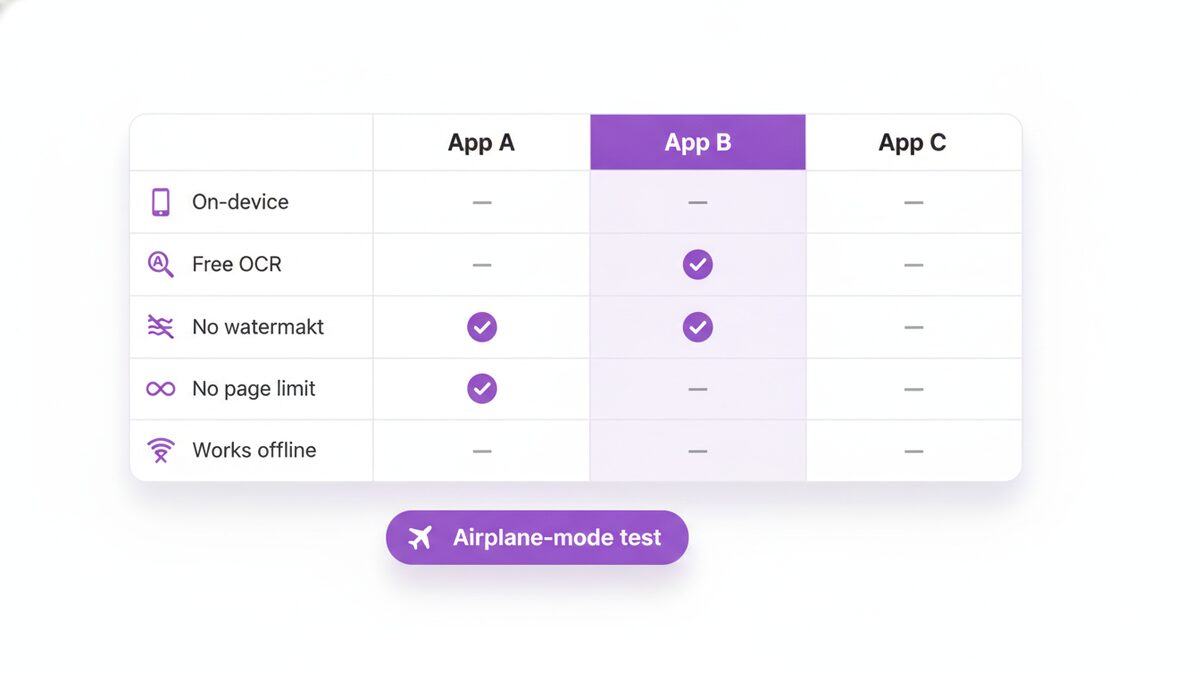
Do not take anyone’s word for it, including ours. Turn on airplane mode and scan a page. If capture works but OCR fails or spins, the recognition was happening remotely. If both work with no connection at all, the app is doing what it claims. It is the single most useful test when choosing the best document scanner app for sensitive paperwork, and almost nobody runs it.
The secondary questions
Once you know where processing happens, two more are worth asking. Does it demand an account before it will scan? A mandatory sign-in usually means files are being associated with an identity somewhere. And what permissions does it request? A scanner needs the camera and somewhere to save. Requests for contacts, location or full storage access deserve an explanation.
The Best Document Scanner App by Platform
The best document scanner app changes depending on what you are holding, so here it is broken down.
iPhone
For a single quick scan, the built-in scanner in Notes or Files is right there and costs nothing. For anything you need searchable, exported cleanly, or kept private, an app that does OCR on the device is the better pick. The built-in option’s weakness is not capture quality; it is everything after the capture.
Android
There is no consistent built-in scanner, so this is where choosing matters most and where the app stores are most crowded. It is also where you find the greatest concentration of apps that are free because of adverts and uploads. Being deliberate here pays off more than on iOS.
Desktop
If the paper is in front of you, a phone is still the better capture device than a webcam. If the file already exists, you do not need a scanner at all – browser tools handle conversion and OCR without installing anything. The best document scanner app for a laptop is often no app.
Shared or work devices
Worth a special mention. On a machine you do not control, an app that stores scans locally and unencrypted is a liability. Either use one with an encrypted vault, or process the document and remove it rather than leaving it in a gallery.
Side by Side
The comparison that matters when weighing up the best document scanner app for a given situation:
- On-device processing: PDFLove yes. Apple’s built-in scanner yes. Google Drive no, by design. Lens and Adobe Scan generally cloud-assisted. Freemium apps vary – check.
- OCR included free: PDFLove yes, over twenty languages. Apple built-in not reliably. The others commonly tie it to an account or a paid tier.
- Watermark on free export: PDFLove none. Several freemium scanners historically add one.
- Page limit: PDFLove none. Daily caps are a common free-tier limit elsewhere.
- Account required: PDFLove no. Adobe Scan, Lens and Drive expect one.
- Works fully offline: PDFLove yes, including OCR. Cloud-dependent apps no.
- Cross-platform: PDFLove, Lens, Adobe Scan and the freemium apps yes. Apple’s built-in scanner iOS only.
Terms change, so treat any best document scanner app table as a starting point and verify the two that matter to you before you commit a year of paperwork to an app.
Five Mistakes People Make Choosing a Scanner
Watching how people end up unhappy with their best document scanner app choice, the same errors recur.
1. Judging on scan quality
It is the obvious criterion and the least useful one. Edge detection and perspective correction are commodity features; on a well-lit page the output of any serious contender for best document scanner app looks much the same. You are choosing between business models, not cameras.
2. Discovering the watermark at the end
Free tiers rarely announce a watermark up front. You find it after scanning a twelve-page contract, when the export arrives stamped. Scan one page and export it before you scan the pile.
3. Assuming OCR is included
Text recognition is the feature most often reserved for the paid tier, and it is the one that makes the whole exercise worthwhile. A folder of scans with no text layer cannot be searched, which means it is an archive you can only browse.
4. Not asking where processing happens
Covered above, and worth repeating because it is invisible. Nothing in the interface tells you your passport has just been uploaded.
5. Committing a year of paperwork before testing an export
The commonest and most expensive. Scan one document, export it, name it, and send it to yourself. That five-minute test surfaces every limitation the store listing omitted – and it is how you find the best document scanner app for your workflow rather than for a reviewer’s.
Picking the Right One for You
There is no single best document scanner app, so here are four honest answers instead of one.
If privacy is the priority – identity documents, medical letters, anything financial – choose something that processes on the device and says so plainly. That is the case for PDFLove, and the airplane-mode test verifies it in ten seconds.
If you live in one ecosystem, the native option is genuinely convenient. Lens for Microsoft, Drive for Google, Notes for a quick iPhone capture.
If you already pay for Acrobat, Adobe Scan is included and integrates properly; there is no reason to add another app.
If you scan rarely, use whatever is already on your phone. The best document scanner app for three scans a year is the one you do not have to install.
Frequently Asked Questions
What is the best document scanner app that is genuinely free?
PDFLove has no watermark, no page cap and no paid tier – scanning, OCR, the encrypted vault, PDF passwords and signatures are all included, with optional ads that one purchase removes. Apple’s built-in scanner in Notes and Files is also genuinely free, but it is iOS only and has no dependable OCR.
Do scanner apps upload my documents?
Many do, because their processing runs on servers. That means passports, payslips and contracts are copied to infrastructure you cannot inspect. Apps that process on the device do not. The quickest check is to turn on airplane mode and try to scan: if it still works, nothing is being uploaded.
Why does my scanned PDF have a watermark?
A free tier is marking the output until you subscribe. It is one of the four common free models, along with adverts, daily page caps, and holding OCR back for the paid tier. PDFLove applies none of them.
Is OCR usually free?
Often not. Text recognition is the feature most commonly reserved for a paid tier, which matters because without it a scan is just a picture – you cannot search it, select from it, or have a screen reader read it. Check before you settle on an app.
Is a phone scanner as good as a real scanner?
For everyday paperwork, yes. Edge detection and perspective correction produce a flat, cropped, high-contrast page that is accepted anywhere. A flatbed still wins for fragile originals, very fine detail, artwork where colour must be exact, or bulk work with a document feeder.
Which scanner app works offline?
Any that processes on the device, including PDFLove, whose OCR also runs offline. Apps that rely on cloud processing need a connection for the features that matter, even when capture itself works.
Do I need an app if the file is already on my computer?
No. Browser tools can turn images into a PDF and add a searchable text layer with nothing installed. What they cannot do is capture-time edge detection and perspective correction, so if you still have the paper, scanning it properly gives a better result.
How do I check an app’s privacy claims rather than trusting them?
Turn on airplane mode and scan something. If capture and OCR both still work, the processing is local. Then check whether an account is required, since a mandatory sign-in usually indicates the files are going somewhere.
Conclusion
The best document scanner app is not the one with the longest feature list. Scanning itself is solved; what differs is whether the useful parts are free, and whether your documents leave the device.
Decide those two questions first and your shortlist for the best document scanner app writes itself. If you want everything unlocked and nothing uploaded, that is what PDFLove is for. If you live inside Microsoft or Google, the native option is genuinely convenient. And if you scan twice a year, the app already on your phone is fine.
Whatever you choose, run the airplane-mode test before you trust it with anything that matters. Try PDFLove free – every feature unlocked, nothing uploaded, no subscription.