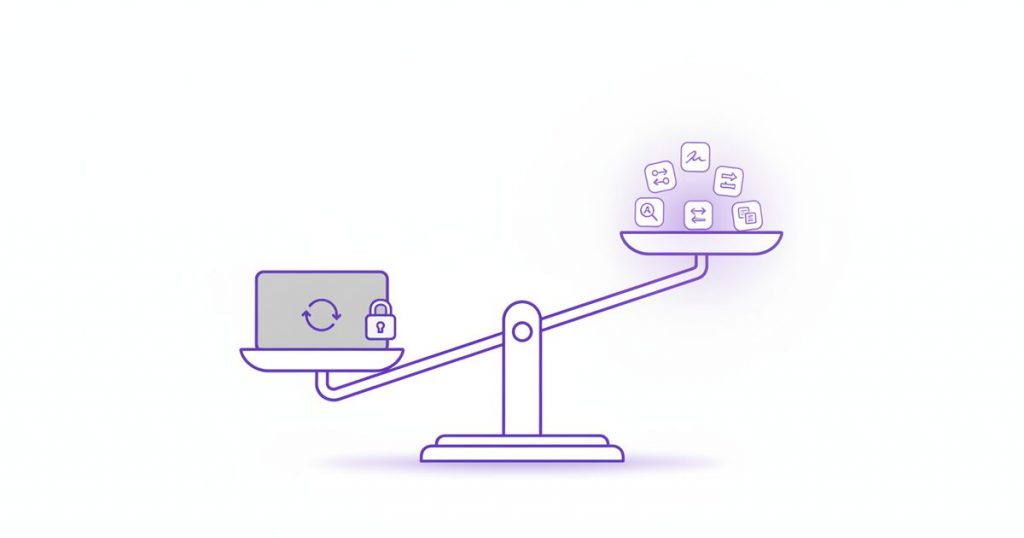
Most people searching for an Adobe Acrobat alternative do not need less software – they need to stop paying a monthly subscription to merge two files and sign a contract. Acrobat is a serious professional product, and for a lot of what people actually do with PDFs it is far more than the job requires.
This guide sets out six free Adobe Acrobat alternative options, what each genuinely replaces, and – just as important – the cases where Acrobat is still the right answer and no alternative will do.
What People Actually Use Acrobat For
Choosing an Adobe Acrobat alternative starts here, not with a feature table.
Before choosing an Adobe Acrobat alternative it is worth being honest about which features you touch. Acrobat has hundreds; most users rely on a handful.
- Reading and printing – which is free in Acrobat Reader and in every browser.
- Merging and splitting – combining files, pulling out pages.
- Compressing – getting a file under a mail server’s limit.
- Signing – adding a signature and a date to a contract.
- Filling forms – completing a PDF someone sent.
- Converting – to and from Word, Excel and images.
- OCR – making a scan searchable.
- Protecting – adding a password before emailing.
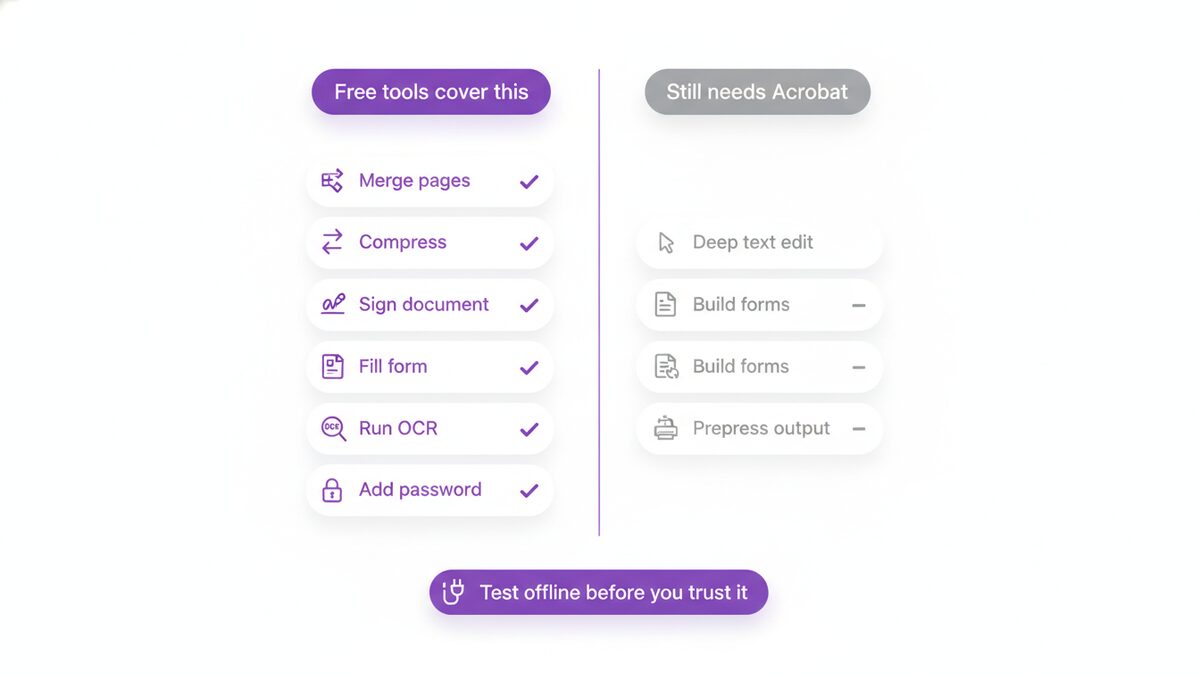
Every item on that list has a competent free Adobe Acrobat alternative. The heavy professional features – prepress colour management, PDF/A archival validation, redaction with audit trails, complex form authoring with scripting – are the ones with no real free match, and most people never open them.
So the practical question is not “which Adobe Acrobat alternative is best” but “which of those eight things do I do, and what is the lightest tool that does them”.
What an Adobe Acrobat Alternative Actually Saves You
The money is the obvious part and not the whole of it. Prices change, so rather than quote a figure that ages badly, the useful framing is what a subscription buys and what proportion of it you use.
Acrobat is priced for professionals who live in it – designers, legal teams, print production. If you open it four times a month to merge a file and sign a form, you are paying a professional rate for occasional use. That is the case for an Adobe Acrobat alternative even before privacy or convenience enter the argument.
The costs that are not money
Install weight. A full suite is a substantial download and a background updater you did not ask for.
Account friction. Signing in to sign a document is a small tax paid every time.
Lock-in. Files stored in a vendor’s cloud become an export job the day you leave, which is exactly when you are least inclined to do it.
Managed machines. On a work laptop where you cannot install software, an Adobe Acrobat alternative that runs in a browser is not a preference – it is the only route.
What “free” means here
Worth defining, since the word covers several different bargains. Free with adverts, free until you hit a daily cap, free until you want the output without a watermark, and free because the processing costs the developer nothing are four quite different things.
The last is the only one with no catch waiting, and it is a consequence of architecture rather than generosity: a tool that runs in your browser costs its author nothing per file, so there is no per-page economics to recover. That is why on-device tools tend not to have page limits while server-based ones almost always do.
Which Adobe Acrobat Alternative Fits Which Job
Rather than a winner, match the tool to the task. This is the summary most people are actually looking for.
- Merge, split, reorder pages – browser tools. Fast, free, no install, no upload.
- Compress for email – browser tools. This is the single commonest reason people open a PDF editor at all.
- Sign a contract – browser tools, macOS Preview, or Acrobat Reader’s Fill and Sign. All three are free.
- Fill in a form – Acrobat Reader handles interactive forms well; browser tools handle both interactive and flat ones.
- Convert to Word or Excel – browser tools. Acrobat is more accurate on very complex layouts.
- OCR a scan – browser tools, free and on-device. This is often a paid feature elsewhere.
- Password protect – browser tools or macOS Preview.
- Edit body text in a designed document – Acrobat, or LibreOffice Draw if you accept some reflow.
- Build an interactive form – Acrobat. No free equivalent worth the trouble.
- Prepress, PDF/A, audited redaction – Acrobat. Do not fight this one.
Seven of those ten have a free Adobe Acrobat alternative that is not a compromise, which is why an Adobe Acrobat alternative works out for most people most of the time.
Browser-Based Tools
Replaces: merging, splitting, compressing, converting, signing, form filling, OCR, password protection.
As an Adobe Acrobat alternative the modern browser can do far more than it could five years ago, and a well-built browser tool handles the entire everyday list without installing anything. PDFLove works this way: every tool runs on your own device using your browser, so files are never uploaded, and there is no account, watermark or page limit.
That last point matters more than it sounds when comparing any Adobe Acrobat alternative. Many free online tools cap you at a couple of documents a day or stamp the output, which turns a free tool into a trial.
Where it will not suit you: reflowing body text across a page – genuine word-processor-style editing of an existing PDF – is not something browser tools do well, and honestly nothing does it perfectly. See “where Acrobat still wins” below.
Browse the free tools, or start with merging and signing, which are what most people came for.
Acrobat Reader Itself
Replaces: reading, printing, commenting, basic form filling and signing.
Easily overlooked as an Adobe Acrobat alternative: the free Reader does more than people assume. Fill & Sign covers a signature and a date, and commenting is solid. If reading and the occasional signature are all you need, you may already have your Adobe Acrobat alternative installed.
Where it will not suit you: it steers you towards an Adobe account and towards the paid tier the moment you want to merge, compress, convert or edit. It is also a substantial install for what it does.
What Your Operating System Already Includes
Replaces: reading, printing to PDF, basic annotation, and on macOS a fair amount more.
macOS Preview is the strongest built-in Adobe Acrobat alternative anywhere. It reads, annotates, signs using the trackpad or camera, reorders and deletes pages by dragging thumbnails, and exports encrypted copies. For a Mac user it genuinely is an Adobe Acrobat alternative for everyday work.
Windows has no equivalent. Edge displays PDFs and allows freehand drawing and basic form filling, and every application can print to PDF, but there is no built-in editing to speak of.
Where it will not suit you: Preview is Mac-only, which is no help on a work Windows laptop, and neither platform gives you OCR, compression or format conversion.
LibreOffice Draw
Replaces: editing text inside an existing PDF, to a point.
This is the Adobe Acrobat alternative people mean when they say they want to edit a PDF properly. Draw opens a PDF as an editable document, lets you change the text, and exports back to PDF. It is free, open-source, and cross-platform.
Where it will not suit you: it reconstructs the layout rather than editing it natively, so complex documents often reflow, fonts get substituted, and spacing shifts. It works well on a simple text page and poorly on a designed one. You are also installing an entire office suite to edit one file.
Open-Source PDF Editors
Replaces: page operations, form filling, annotation, and in some cases signing.
Adobe Acrobat alternative tools in this family – PDF Arranger for page shuffling, Okular and similar readers for annotation, various command-line utilities for splitting and merging – are capable, free, and have no commercial agenda at all. For anyone comfortable assembling a toolkit, they cover a lot of ground.
Where it will not suit you: you are assembling a toolkit. Each does one thing, interfaces vary in polish, and some of the most capable options are command-line only. That is a fine trade for a technical user and a poor one for someone who wants to sign a form before lunch.
The Other Online Adobe Acrobat Alternative Suites
Replaces: broadly the same everyday list as browser tools.
There is a well-known category of Adobe Acrobat alternative services online offering merge, split, compress and convert. They are convenient and the output is generally good.
The structural difference is worth understanding: most of them upload your file to a server, process it there, and return the result. That is why they can cap free usage – each conversion costs them real money – and it is why free tiers commonly limit you to a couple of files a day or a modest page count. If you compare an Adobe Acrobat alternative purely on features, they look identical to on-device tools; the difference is where your document goes. We compare the best known of them in our iLovePDF write-up.
Where No Adobe Acrobat Alternative Wins
No Adobe Acrobat alternative covers everything, and a comparison that pretends otherwise is not much use to you.
- Deep text editing. Changing a paragraph in a designed document, with reflow and font matching, is what Acrobat does better than anything else. No free option matches it.
- Complex form authoring. Building interactive forms with validation and scripting is a professional feature with no real free equivalent.
- Prepress and print production. Colour separation, ink management, preflight profiles – specialist work for specialist users.
- PDF/A and compliance. Validated archival output and accessibility checking against formal standards.
- True redaction with an audit trail. Where you must prove content was removed rather than merely covered.
- Enterprise deployment. Central licensing, policy control and support contracts.
If your work involves any of those, an Adobe Acrobat alternative is a false economy. If it involves none of them – and for most people it does not – you are paying a subscription for capacity you never use.
A note on scanning and mobile
One area worth separating out, because it is where the comparison changes shape. Acrobat’s mobile scanning is polished, and if you are already inside the Adobe ecosystem it integrates neatly. Outside it, you are creating an account in order to photograph a form.
The free alternatives here are strong. Both iOS and Android have capable capture built in or a step away, and a dedicated scanner that runs OCR on the device gives you searchable output without a subscription or an upload. If scanning is a large part of why you were paying for Acrobat, that part of the bill is the easiest to remove.
The Question Most Comparisons Skip
Feature tables comparing any Adobe Acrobat alternative rarely mention where your document is processed, and it is arguably the most important line in any Adobe Acrobat alternative comparison.
Think about what goes through a PDF tool: contracts, invoices, bank statements, medical letters, scanned identity documents, signed agreements carrying your actual signature. Uploading those to a third party to have two files stapled together is a poor bargain.
Three models exist. Desktop software processes locally, though many products now have cloud features enabled by default. Server-based online tools upload everything by design. On-device browser tools process in the browser, so nothing is transmitted at all.
PDFLove is the third kind, and it is checkable rather than a claim: load a tool, disconnect from the network, and it still works. That is the test to apply to anything you are about to trust with a contract.
Four Myths About Leaving Acrobat
The same worries come up whenever someone considers an Adobe Acrobat alternative, and most of them are out of date.
“Free tools will wreck my formatting”
For page operations – merge, split, reorder, rotate, compress – nothing is re-laid out at all; the pages are moved or re-encoded, not rebuilt. Formatting risk appears only when converting to an editable format such as Word, and that risk exists in Acrobat too, because it is inherent to the conversion rather than to the tool.
“My PDFs will not open properly elsewhere”
PDF is an open published standard, not an Adobe-only format. A file written by any competent tool opens in any competent reader. The compatibility worry belongs to the 1990s.
“Free means it is not secure”
It depends entirely on architecture, not price. A paid desktop product with cloud features switched on may transmit more of your document than a free tool that processes locally. The right question is where the file goes, and the disconnect test answers it in seconds.
“I will lose my files if I cancel”
Your PDFs are yours and sit on your disk. What you can lose is anything stored in the vendor’s cloud, which is why exporting before you cancel is on the checklist below. The documents themselves are never hostage to a subscription.
Choosing for a Team Rather Than Yourself
Picking an Adobe Acrobat alternative for one person is a preference. Picking one for a team is a decision with a few extra dimensions.
Onboarding. A browser tool needs no install, no licence key and no IT ticket, which for occasional users across a company is a substantial saving in time nobody measures.
Confidentiality. If colleagues will be handling contracts, HR files or customer data, on-device processing means those documents never reach a third party. That is a much easier conversation with a compliance officer than a list of a vendor’s certifications.
The specialist minority. Most teams have one or two people who genuinely need Acrobat and a large majority who do not. Licensing those few and giving everyone else free tools is usually cheaper and less disruptive than either extreme.
Consistency. Whatever you choose, choose one thing. The worst outcome is five people using five different online converters, each uploading company documents somewhere different.
Switching Without Losing Anything
If you decide to move to an Adobe Acrobat alternative, a little sequencing avoids the usual regrets.
- List what you actually did last month. Not what the software could do – what you opened it for. Most lists are shorter than expected.
- Match each item to a free tool and try it on a real file, not a test one.
- Check the awkward cases first. If you have one recurring complex form, test that before cancelling anything.
- Export anything stored in the vendor’s cloud while you still have access.
- Keep the subscription running for one cycle alongside the replacement, so a surprise costs you nothing.
- Then cancel. If a rare job later needs Acrobat, a single month is far cheaper than a year of unused capacity.
Frequently Asked Questions
What is the best free Adobe Acrobat alternative?
It depends what you use Acrobat for. For merging, splitting, compressing, converting, signing, form filling, OCR and password protection, browser tools such as PDFLove cover the lot with no account or page limit. For editing text inside a designed PDF, nothing free matches Acrobat.
Can I edit PDF text without Acrobat?
Up to a point. LibreOffice Draw opens a PDF as an editable document and exports it back, which works well on simple text pages. It reconstructs the layout rather than editing it natively, so complex documents often reflow and substitute fonts. There is no free tool that matches Acrobat here.
Is Acrobat Reader free?
Yes, and it does more than people assume – reading, printing, commenting, basic form filling, and signing through Fill and Sign. Merging, compressing, converting and editing sit behind the paid tier, which is where most people run into the wall.
Do free PDF tools upload my files?
Many do, because their processing runs on servers – which is also why their free tiers cap you at a few files a day. On-device browser tools do not upload anything. You can verify it by disconnecting from the network and checking whether the tool still works.
When should I keep paying for Acrobat?
When you need deep text editing with reflow, complex form authoring with scripting, prepress and print production, PDF/A or accessibility compliance, true redaction with an audit trail, or enterprise deployment and support. Those have no real free equivalent.
Does macOS include a good PDF editor?
Preview is the strongest built-in option on any platform. It annotates, signs with the trackpad or camera, reorders and deletes pages, and exports encrypted copies. It is Mac-only, and it does not do OCR, compression or format conversion.
Are free PDF tools limited to a few pages?
Often, yes – a page cap or a daily file limit is the usual free-tier constraint for server-based services, because each job costs them money to run. Tools that process on your own device have no such cost, which is why PDFLove has no page limit and no watermark.
How do I cancel without getting stuck?
Test your real tasks on the replacement first, especially any recurring complex form. Export anything held in the vendor’s cloud while you still have access, and run both for one billing cycle before cancelling. If a rare job later needs Acrobat, one month costs far less than a year.
Conclusion
The right Adobe Acrobat alternative is decided entirely by which of Acrobat’s features you actually touch. For the eight everyday jobs most people do – merge, split, compress, convert, sign, fill, OCR, protect – free tools cover all of them, and the good ones do it without an account, a watermark or a page cap.
For deep text editing, complex forms, prepress or formal compliance, no Adobe Acrobat alternative competes: Acrobat remains genuinely better and it is worth paying for. Pretending otherwise would waste your afternoon.
Work out which group you are in, test on a real file, and keep the subscription for one cycle alongside the replacement. If the everyday list is all you need, try the free PDFLove tools – private, in your browser, with nothing uploaded.