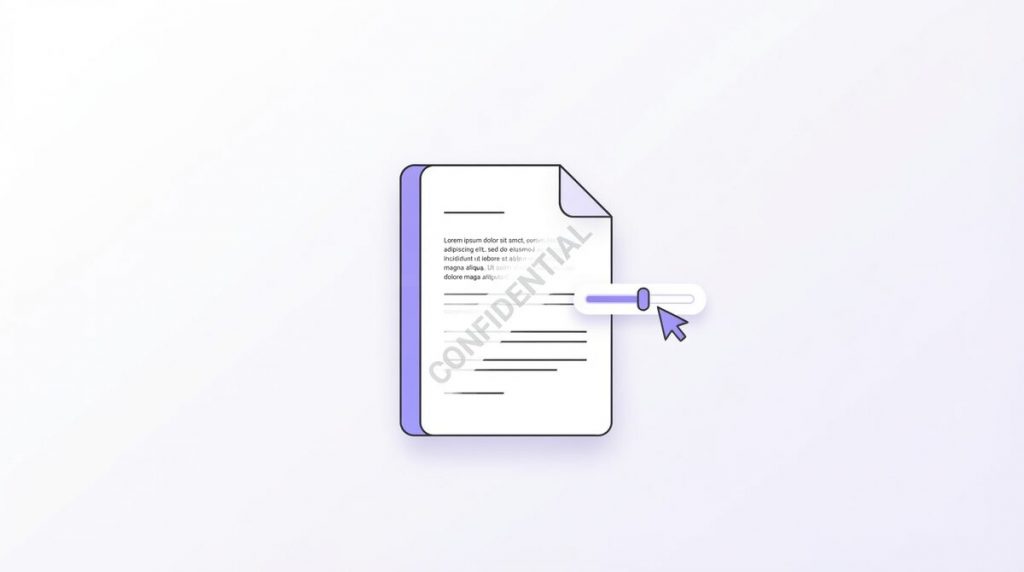
Learning how to add watermark to PDF files is one of the simplest ways to protect and brand your documents. A watermark – a faint “CONFIDENTIAL” stamp, a “DRAFT” label, or your company logo behind the text – tells everyone who sees the file how it should be used, and makes it far harder to pass off as their own.
The good news: you can add a watermark to a PDF for free, in seconds, without installing software or uploading your file to a stranger’s server. In this guide you’ll learn how to add watermark to PDF documents in your browser, choose between text and image watermarks, fine-tune the look, and keep your files completely private.
Everything here works on Windows, Mac, Chromebook, iPhone, and Android. Let’s stamp that PDF.
Why Add Watermark to PDF Files?
A watermark is a semi-transparent mark layered over every page. It doesn’t change the underlying text, but it signals ownership and status at a glance. People add a watermark to a PDF for a handful of common reasons.
- Confidentiality – stamp “CONFIDENTIAL” or “PRIVATE” so readers know not to share the file.
- Status – mark a document as “DRAFT”, “SAMPLE”, or “NOT FOR DISTRIBUTION” to prevent mix-ups.
- Branding – place your company name or logo behind the content on proposals and reports.
- Copyright – discourage reuse by adding your name or website across the pages.
- Traceability – label copies with a recipient name so leaks can be traced.
Whatever the reason, the goal is the same: make the document’s ownership or status obvious without covering up the text. Knowing how to add watermark to PDF files quickly is a small skill that saves a lot of hassle – and it looks far more professional than scribbling a note or a stamp on top of the page. A proper watermark applies evenly to every page and stays consistent no matter how the file is viewed or printed.
Text vs Image Watermarks
Before you start, decide which type of watermark you need. Both are easy to add, and a good free tool supports either.
- Text watermark – a word or phrase like “CONFIDENTIAL”, “DRAFT”, or your name, usually placed diagonally across the page. Best for status labels and quick protection.
- Image watermark – a logo, signature, or graphic (ideally a transparent PNG) laid over the page. Best for branding.
A watermark is different from a stamp or a header: it sits behind or lightly over the whole page and is usually faded, so the content stays readable. As a reference, the idea comes from traditional paper watermarks – you can read more about the concept of digital watermarking if you’re curious about how it evolved.
Method 1: Add Watermark to PDF Free in Your Browser (Fastest)
The quickest way to add watermark to PDF documents for free is a browser-based tool that never uploads your file. With PDFLove’s free Watermark PDF tool, the watermark is applied to every page right inside your browser tab – your document is never sent to a server, so there’s nothing to leak.
Here’s how to add a watermark to a PDF in three easy steps:
- Open the tool. Go to the free Watermark PDF tool in any modern browser.
- Add your PDF and your watermark. Drag the PDF onto the page, then type your text (like CONFIDENTIAL) or upload a logo image.
- Adjust and download. Set the opacity, size, angle and position, click apply, and download your watermarked PDF.
That’s it – no account, no email, and no per-file limit. Because the work happens locally, it’s fast even for long documents, and it keeps working even if your connection drops.
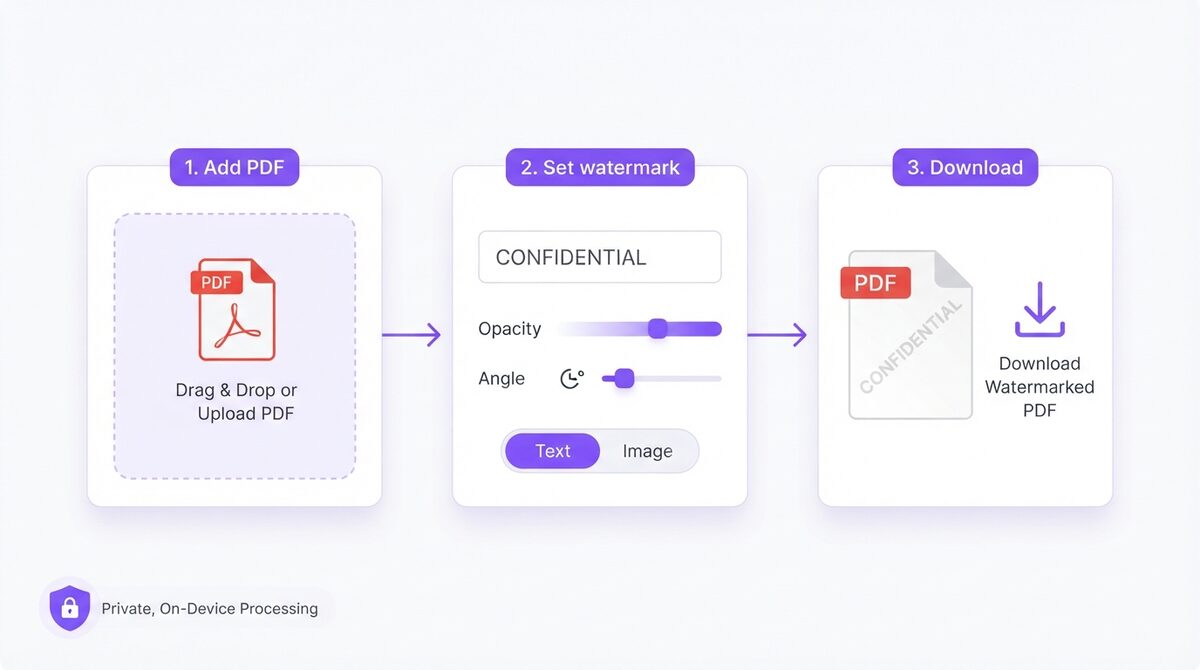
This method is the most cross-platform option: it works the same on a work laptop, a school Chromebook, or a phone. If you regularly add watermark to PDF files, bookmark the tool so it’s one click away.
Watermark Settings That Matter
A watermark should protect your document without making it unreadable. A few settings control that balance, and a good tool lets you adjust each one.
- Opacity – how see-through the watermark is. Around 20-40% is the sweet spot: visible, but the text underneath stays legible.
- Position – centre, corner, or across the page. A diagonal centre placement is hardest to crop out.
- Angle – a 45-degree tilt is the classic watermark look and covers more of the page.
- Size – large enough to be seen, small enough not to bury the content.
- Density / tiling – repeat the watermark across the whole page for stronger protection, or use a single mark for a cleaner look.
- All pages – apply the watermark to every page in one go, not just the first.
When you add watermark to PDF files with PDFLove, all of these are adjustable, so you can match the look to the job – subtle branding for a proposal, or a bold repeating “CONFIDENTIAL” for a sensitive contract.
When a Watermark Is Not the Right Tool
A watermark is a signal, not a lock. It tells people how a document should be treated, but it can’t stop someone who has decided to ignore it. Knowing when to reach for something else saves you from a false sense of security.
- You need real security. If the file must not be opened by the wrong person at all, a password does that job and a watermark doesn’t. On a sensitive contract, use both.
- The page is already busy. Over a dense table or a full-page chart, even a faint mark can cost you readability. A line in the header or footer may serve the reader better.
- You only need to mark one page. To initial or sign a single page, a signature is the right tool – a watermark stamps the whole document, which is more than you need.
- It’s going to print in black and white. A pale grey mark that looks right on screen can wash out on a mono printer, so darken it a little before you add watermark to PDF pages headed for print.
The rule of thumb: watermark when you want everyone who opens the file to see its status or owner. Reach for a password, a signature, or a plain footer when you want something narrower.
How to Add a Text Watermark (CONFIDENTIAL, DRAFT)
Text watermarks are the fastest way to label a document. To add a text watermark to a PDF:
- Open the Watermark PDF tool and add your file.
- Choose the text option and type your word or phrase (for example, CONFIDENTIAL, DRAFT, or your name).
- Set the opacity to around 30%, the angle to 45 degrees, and centre it on the page.
- Enable “all pages” so every page is stamped, then apply and download.
Common text watermarks include CONFIDENTIAL, DRAFT, SAMPLE, COPY, DO NOT COPY, and a person’s or company’s name. Because you type the text yourself, you can add watermark to PDF files with any label you need – there are no presets to limit you.
How to Add a Logo or Image Watermark
For branding, an image watermark – usually your logo – looks more professional than text. To add an image watermark to a PDF:
- Open the Watermark PDF tool and add your PDF.
- Choose the image option and upload your logo (a transparent PNG works best).
- Lower the opacity so the logo sits softly behind the text, and position it in the centre or a corner.
- Apply to all pages and download.
A transparent PNG gives the cleanest result, because the background of the image won’t cover your content. If your logo has a solid background, the watermark will show that background too – so export a transparent version first for the best look when you add watermark to PDF pages.
How to Add Watermark to PDF on iPhone and Android
You don’t need a computer to add watermark to PDF files. Because the browser tool runs on your device, you can do it from a phone in the same steps.
On iPhone or iPad
- Open Safari and go to the free Watermark PDF tool.
- Tap to add your PDF from Files, iCloud Drive, or email.
- Type your text or upload a logo, adjust the settings, apply, and save the watermarked PDF to Files.
On Android
- Open Chrome and go to the tool.
- Add the PDF from your storage or Google Drive.
- Set your watermark, apply, and download to your device.
This is perfect for quick jobs on the go – say a contract needs a CONFIDENTIAL stamp before you forward it. You can add a watermark to a PDF on your phone in under a minute, with no app to install.
How to Add Watermark to PDF on Windows and Mac
It’s worth knowing that Windows and Mac don’t include a simple built-in way to add watermark to PDF files. The Windows PDF viewer and Mac Preview can annotate and mark up PDFs, but they don’t offer a true repeating, semi-transparent watermark across every page.
That’s exactly why a browser tool is so handy on desktop: there’s nothing to install, it runs in the browser you already have, and it applies a proper watermark to all pages at once. Whether you’re on Windows, Mac, or a Chromebook, the steps to add a watermark to a PDF are identical – which is one less thing to remember.
How to Add Watermark to PDF Without Losing Quality
A common worry is that stamping a document will make it look worse or blow up the file size. Done right, you can add watermark to PDF pages with no visible loss of quality at all.
Keep these points in mind:
- A text watermark is vector. Typed text stays crisp at any zoom and adds almost nothing to the file size, so it’s the lightest way to add watermark to PDF documents.
- Use a high-resolution logo. For an image watermark, start from a large, sharp PNG so it stays clean when scaled across the page.
- Don’t over-compress afterwards. If you compress the PDF later, do it lightly so the watermark and text stay legible.
- Keep the original. Because a watermark is baked in, save a copy of the un-watermarked file in case you need a clean version.
Since PDFLove renders the watermark on your device rather than re-uploading and re-encoding the whole file, the underlying pages are untouched – so you add watermark to PDF files without degrading the document.
How to Add Watermark to PDF Files in Bulk
If you need to stamp several documents – a folder of invoices, a set of proposals, a batch of contracts – you can still add watermark to PDF files quickly, one after another, with a fast browser tool.
For the smoothest bulk workflow:
- Keep the tool open in a tab and process files back to back – no reloads and no re-uploading.
- Reuse the same settings (text, opacity, angle, position) so every document gets a consistent watermark.
- Rename as you download so your watermarked files don’t overwrite each other.
- Combine first if needed. If several PDFs belong together, merge them before you add the watermark, so you stamp one file instead of many.
Because everything runs on your device, you can add watermark to PDF documents for an entire folder without ever exposing those files to a server – a real advantage when the batch contains client or financial records.
How to Remove a Watermark from a PDF
What if you receive a watermarked file and need a clean copy – for example, a DRAFT stamp on a document that’s now final? Removing a watermark is harder than adding one, because the mark is merged into the page.
Your best options are:
- Ask for the original. The cleanest fix is to get the un-watermarked file from whoever created it.
- Re-create the page. If it’s your own document, open the source file, remove the watermark setting, and export a fresh PDF.
- Re-apply, don’t stack. If you need a different watermark, start from the clean original rather than layering a second mark on top.
This is exactly why it pays to keep an un-watermarked master copy whenever you add watermark to PDF files – it saves you from ever needing to undo the mark later.
Common Problems When You Add a Watermark to a PDF (and How to Fix Them)
A few snags come up often. Here’s the quick fix for each.
The watermark hides the text
Your opacity is too high. Lower it to around 20-40% so the mark is visible but the content stays readable.
The image watermark has a white box around it
Your logo isn’t transparent. Use a transparent PNG so only the logo shows, not its background.
The watermark only appears on the first page
Make sure the “all pages” option is turned on before you apply, so every page is stamped.
The PDF is password protected
A tool can’t edit a locked PDF. Remove the password first with a free unlock tool (when you have the right to do so), then add your watermark.
Someone can still remove the watermark
A visual watermark deters casual misuse but isn’t unbreakable. For stronger control, also password-protect the PDF so only intended recipients can open it.
Why PDFLove Is the Free, Private Choice
Most online watermark tools upload your PDF to their servers. For a flyer that’s fine – but contracts, financial statements, and legal documents (the very files you most want to watermark) are another story. Once a file leaves your device, you’re trusting someone else’s security.
PDFLove works differently. Every tool runs 100% in your browser, so when you add watermark to PDF files your document never leaves your device. There’s no upload, no cloud storage, and no account – which also means there’s nothing for a breach to expose. And it’s genuinely free: no watermarks from us on your file, no page limits, no sign-up.
You also get a full toolkit in one place. Beyond watermarking, you can merge, split, compress, sign, and protect PDFs – all with the same private, on-device processing. It’s the convenience of an online tool with the privacy of desktop software.
PDFLove vs Other Watermark Tools
How does an on-device watermark tool compare with the alternatives?
- vs. server-based online tools: similar speed, but no upload, no privacy risk, and no daily limit.
- vs. Adobe Acrobat: no paid subscription required, and it runs on any device including Chromebooks and phones.
- vs. desktop editors: nothing to install or update, with the same on-device privacy.
- vs. manual methods: a real repeating, semi-transparent watermark on every page – not a one-off text box.
For most people, a free browser tool is the sweet spot: fast, private, and available everywhere.
Best Practices When You Add Watermark to PDF Files
A few habits make the difference between a watermark that looks professional and one that gets in the way. Keep these in mind whenever you add watermark to PDF documents:
- Prioritise readability. The content is still the point – keep the opacity low enough that people can read straight through the mark.
- Match the message to the document. A subtle logo suits a client proposal; a bold, repeating “CONFIDENTIAL” suits a sensitive contract.
- Be consistent. Use the same watermark style across a set of files so they look like they belong together.
- Combine with protection. A watermark deters misuse, but to truly lock a file down, add a password too.
- Test one page first. Check how the mark looks over a busy page before you add watermark to PDF files across the whole document.
Follow those and you’ll add watermark to PDF pages that protect and brand your work without ever hurting readability. It only takes a few seconds once you know the settings.
Frequently Asked Questions
How do I add a watermark to a PDF for free?
Open a free browser tool like PDFLove’s Watermark PDF, add your PDF, type your text or upload a logo, set the opacity and position, and download. It takes seconds – no sign-up, no upload, and no watermark from the tool itself.
Can I add both a text and an image watermark?
Yes. You can add a text watermark such as CONFIDENTIAL, or upload a logo image as a watermark. A transparent PNG gives the cleanest result for logos.
Is it safe to add a watermark to a PDF online?
It depends on the tool. Server-based tools upload your file, which is risky for sensitive documents. A tool that processes on your device – where the PDF never leaves your browser – is much safer.
How do I add a watermark to every page of a PDF?
Enable the all-pages option before you apply the watermark. The tool then stamps every page in one step, rather than just the first.
What opacity should a PDF watermark be?
Around 20 to 40 percent works well. That keeps the watermark clearly visible while leaving the text underneath easy to read.
Can I add a watermark to a PDF on my phone?
Yes. Because the tool runs in your browser, you can add a watermark to a PDF on iPhone or Android in the same steps – add the file, set your watermark, and download.
Can someone remove the watermark I add?
A visual watermark deters casual misuse but is not unbreakable. For stronger protection, also password-protect the PDF so only intended recipients can open it.
Do I need Adobe Acrobat to add a watermark?
No. A free browser tool adds a text or image watermark with no paid software. You only need Acrobat if you want its other advanced editing features.
Conclusion
You now know how to add watermark to PDF files for free: open a private browser tool, add your document, choose a text or image watermark, fine-tune the opacity and position, and download – all in seconds, on any device. It’s a small step that makes your documents look more professional and much harder to misuse.
Remember the essentials: keep the opacity around 20-40% so the text stays readable, tilt the watermark 45 degrees across the centre for the best coverage, and turn on “all pages” so nothing is missed. Choose a text watermark for quick status labels and an image watermark for branding, and always keep a clean copy of the original. For sensitive files, pair the watermark with a password for real protection.
Before you send a document to a random online tool, remember the privacy trade-off: the files you most want to watermark are often the most sensitive. A tool that lets you add watermark to PDF pages entirely on your own device keeps those files private, with no upload and no account – and still does the job in seconds, completely free.
Ready to stamp your document? Add a watermark to your PDF for free with PDFLove – no sign-up, no uploads, and your files never leave your device.