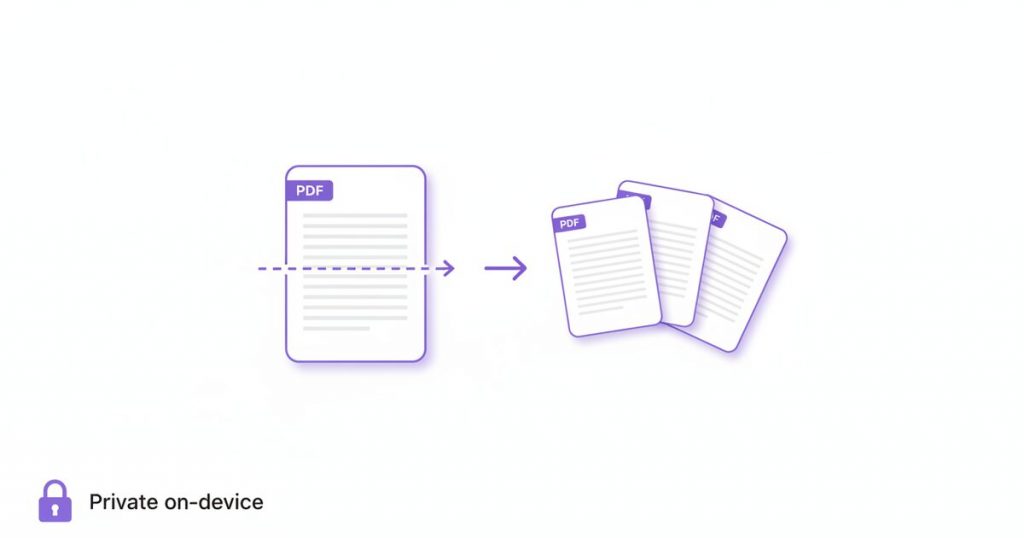
Learning how to split PDF files is one of those small skills that saves you time almost every week – pulling a single invoice out of a 40-page statement, sending one chapter instead of a whole book, or breaking a scanned batch into individual documents. With PDFLove you can split PDF files for free, directly in your browser, with no upload, no sign-up, and no watermark.
In this guide you will learn exactly what splitting means, how it differs from extracting and deleting pages, and a step-by-step walkthrough using the free PDFLove Split PDF tool. We will also cover how to split a PDF on a Mac, on Windows, and on your phone, plus tips, fixes for common problems, and a full FAQ.
What It Means to Split a PDF
To split a PDF means to take one document and break it into smaller, separate documents. The original file stays whole on your computer; what you get back are new PDFs containing only the pages you chose.
Think of a PDF as a stack of paper held with a clip. When you split PDF files, you simply decide where to divide the stack. Page three can become its own one-page document, while pages one through ten become a short report and pages eleven through forty become an appendix.
This matters because PDFs are, by design, fixed documents. As the Portable Document Format was created to present a document exactly the same way on every device, its pages are locked into the order they were saved. Splitting is how you get flexibility back without changing the way any single page looks.
Splitting is not destructive, either. The tool reads the pages you asked for and writes them into a fresh document, so the fonts, layout, images, and quality all come through untouched while your source file stays whole.
Split PDF vs Extract Pages vs Delete Pages
These three terms get used interchangeably online, and that confusion sends people to the wrong tool. Here is the plain-language difference.
- Split PDF: divide one document into two or more separate documents. A 100-page report becomes a 60-page part one and a 40-page part two. You end up with multiple files.
- Extract pages: pull specific pages out into a new document and keep the original as it is. Page 7 of a bundle becomes its own single-page PDF. You end up with one new file containing just what you picked.
- Delete pages: remove unwanted pages so the document gets shorter. A 20-page file with a 5-page appendix becomes a 15-page file. You end up with one file, smaller than before.
In practice, splitting and extracting are two sides of the same action, which is why one tool handles both. When you split PDF documents with PDFLove you enter the page ranges you want, and whether you call that “splitting off part two” or “extracting page seven”, the tool does the same job.
Deleting is genuinely different. If your goal is a shorter version of the same document rather than new separate documents, the Delete Pages tool is the faster route. Ask yourself one question: do I want more files or a shorter file? More files means split. Shorter file means delete.
A quick way to decide
Sending someone just one part of a document? Split or extract. Cleaning up a document before you archive the whole thing? Delete. Going the other way and combining several PDFs into one? Use the Merge PDF tool instead.
How to Split PDF Files Online for Free (Step by Step)
Here is the complete free method to split PDF files using the PDFLove Split PDF tool. Everything runs inside your browser, so your document never leaves your device and nothing is uploaded to a server.
- Open the Split PDF tool. Go to the free PDFLove Split PDF page in any modern browser on your computer, tablet, or phone. There is nothing to install and no account to create.
- Load your PDF. Click to select your file or drag it into the window. Because the tool works locally, even large documents open quickly – and privately.
- Decide which pages you want. Scroll through the document and note the page numbers you need. Write them down if the file is long; it is much easier than guessing later.
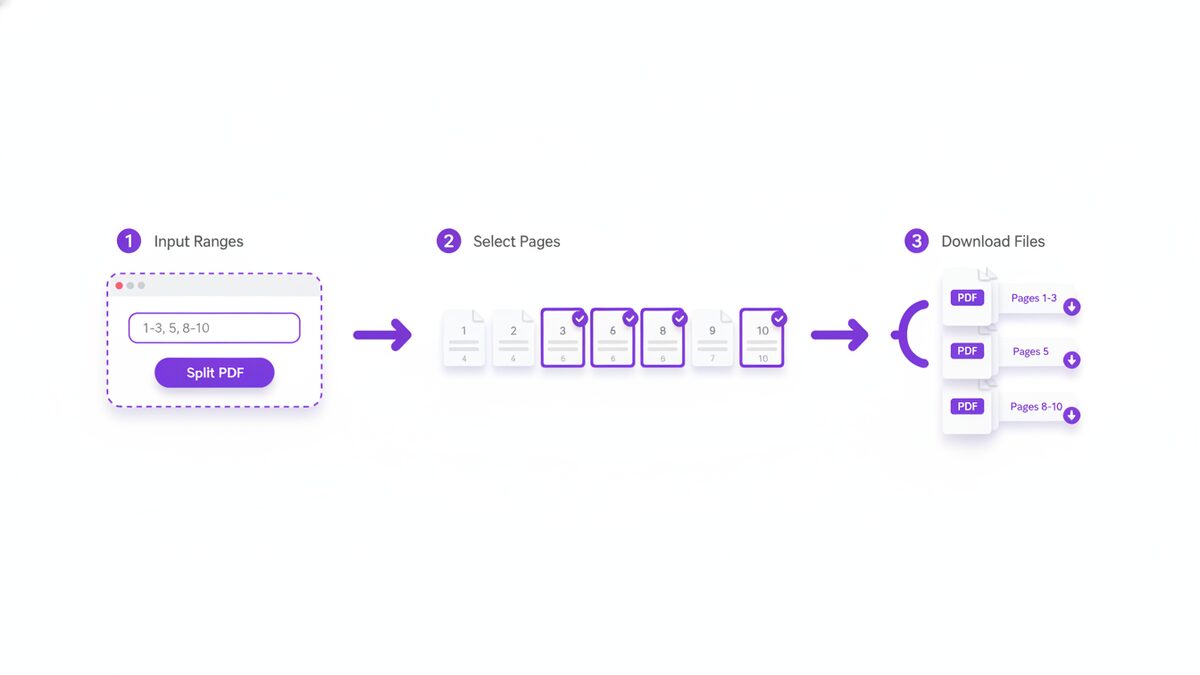
- Enter your page ranges. Type the pages you want to keep using the range syntax – for example 1-3, 5, 8-10. This tells the tool exactly which pages belong in your output. The next section explains this syntax in detail.
- Split the document. Run the split. The tool reads only the pages you named and builds them into new documents, leaving your original file exactly as it was.
- Download your new files. Save the results and give them clear names right away – “Invoice-March.pdf” beats “document (3).pdf” when you go looking next month.
The whole process takes well under a minute once you know which pages you want. When you split PDF files this way there are no page limits, no file size limits, and no watermark stamped on your output.
How Page Range Syntax Works
Page ranges are the heart of the tool, and they are much simpler than they look. Once the syntax clicks, you can split PDF files of any length in seconds, and the same rules apply whether you split PDF documents on a laptop or a phone.
There are only two building blocks:
- A single number means one page. Typing 5 gives you page five and nothing else.
- Two numbers with a hyphen means everything from the first to the last, inclusive. Typing 8-10 gives you pages eight, nine, and ten.
You combine them with commas. So 1-3, 5, 8-10 means: pages one, two, and three, then page five, then pages eight, nine, and ten. Pages four, six, and seven are simply left out.
Practical examples
- 7 – pull out a single page. Perfect for one invoice inside a statement bundle.
- 1-12 – take the first chapter of a book and leave the rest behind.
- 1-5, 20-24 – grab an introduction and a conclusion while skipping the middle.
- 2, 4, 6, 8 – pick out individual pages that are not next to each other, such as every scanned front side.
- 1-30 then 31-60 – run the split twice to break one long document neatly into two halves.
Three rules worth remembering
First, page numbers are the physical pages of the file, counted from one. If your document has a cover and a table of contents before the printed “page 1”, the numbering you type will not match the numbers printed on the page. Always count from the very first sheet.
Second, ranges run forwards. Write 8-10, not 10-8. A backwards range will not reverse your pages.
Third, do not go past the end. If your PDF has 24 pages, asking for 20-30 requests pages that do not exist, so check the total page count first.
How to Split a PDF on a Mac
If you are on a Mac and would rather not open a browser, the built-in Preview app can split PDF documents without any extra software. It is not as direct as a dedicated tool, but it works for quick jobs.
- Open the PDF in Preview. Double-clicking a PDF usually opens it in Preview by default.
- Show the thumbnail sidebar. From the View menu, choose Thumbnails or Contact Sheet so you can see every page as a small preview down the side.
- Select the pages you want. Click a thumbnail, and hold Command to click additional pages that are not next to each other, or Shift to select a run of pages.
- Drag them to your desktop. Drag the selected thumbnails out of the sidebar and drop them onto the desktop or a folder. Preview creates a new PDF containing just those pages.
- Rename the new file. The file it creates gets a generic name, so rename it while you still remember what is inside.
You can also delete pages inside Preview and use File then Export to save a trimmed copy. Be careful, though: editing in Preview changes the open document, so work on a duplicate if you want to keep the original intact.
The drag-out method is handy, but it gets awkward once you are picking pages out of a hundred-page file. That is where typing a range like 1-3, 5, 8-10 into the free Split PDF tool is simply faster.
How to Split a PDF on Windows
Windows has no built-in PDF editor, but it does have a trick that lets you split PDF files with nothing but the print dialog. It uses the Microsoft Print to PDF virtual printer, which has shipped with Windows 10 and Windows 11 for years.
The idea is simple: instead of printing to paper, you print a page range to a new PDF file.
- Open your PDF in any viewer that can print, such as Microsoft Edge, which opens PDFs by default on Windows.
- Press Ctrl+P to open the print dialog.
- Choose “Microsoft Print to PDF” as the printer, rather than a physical printer.
- Set the page range. Under Pages, switch from All to Custom and type the pages you want – for example 1-3 or 8-10. The syntax works much like the ranges described above.
- Click Print. Windows asks where to save, and you name the new PDF. It is written to disk containing only the pages you specified.
- Repeat for each part if you are dividing one document into several – print 1-30 to one file, then 31-60 to another.
This genuinely works and it costs nothing, but be aware of two things. Printing re-renders each page, so interactive elements such as form fields and links may be flattened into plain visuals, and file size can change. If you want your pages copied across exactly as they are, use a real tool that splits by copying the original page objects into a new file rather than reprinting them.
How to Split a PDF on iPhone and Android
You do not need a computer at all. Because PDFLove runs entirely in your browser, you can split PDF documents from an iPhone or an Android phone with no app to download.
- Open Safari, Chrome, or whichever browser you prefer and go to the Split PDF tool.
- Tap to choose your PDF from the Files app, iCloud Drive, Google Drive, or wherever it is saved. On many phones you can also share a PDF straight into the browser.
- Scroll the document and note the pages you need. Pinch to zoom if the page numbers are hard to read on a small screen.
- Type your page range – the same 1-3, 5, 8-10 syntax works exactly the same on mobile.
- Run the split and save the resulting files back to your phone, then share them from there.
The steps to split PDF files on a phone are identical to the desktop steps, and your document stays on your device throughout.
Some phones offer their own routes too, though they vary by model and software version, so treat these as starting points rather than exact instructions. On an iPhone, the Print dialog often supports selecting a page range before saving back out as a PDF, and on Android some versions of Google Drive expose similar print-to-PDF behaviour. If you cannot find these options on your device, the browser method above works everywhere.
Real-World Reasons to Split PDF Files
Splitting sounds technical until you notice how often it comes up. Here are the situations where people most often need to split PDF files, and any of them is a good reason to split PDF pages out on their own.
- Pulling one invoice out of a bundle. Your accountant sends a single PDF containing every invoice for the quarter, but you only need the one for March. Extract that page and send it on its own.
- Sending a single chapter. A colleague asked for the section on pricing, not the entire 90-page proposal. Split out pages 34-41 and email a file they will actually read.
- Separating scanned batches. You fed ten receipts through a scanner and got back one ten-page PDF. Split it into ten separate documents so each one can be filed properly.
- Removing an appendix before sharing. Keep pages 1-20 for the client and leave the internal notes in the appendix behind.
- Meeting an upload size limit. Portals often cap attachments, so splitting a long document into parts gets each piece under the limit – and you can compress the PDF to shrink it further.
- Filing documents individually. A bank statement bundle or a year of payslips is far easier to search when each document is its own file.
- Sharing only what is needed. Rather than sending an entire file and asking someone to ignore most of it, send the two pages that matter.
That last point matters most: every extra page you send is information you did not need to share.
Tips for Best Results When You Split PDF Files
A few small habits make the job cleaner every time you split PDF documents.
- Check the page count first. Knowing your file has 24 pages stops you from typing a range that runs off the end.
- Count physical pages, not printed numbers. Covers, blank pages, and front matter throw the numbering off. Trust the viewer’s page counter.
- Note your pages before you start. Jot down “3, 9, 14-16” while you scroll rather than hunting for them while typing.
- Keep the original. Splitting does not harm the source file, but it is still good practice to keep the complete document somewhere safe.
- Name files as you save them. “Contract-Signature-Page.pdf” is worth the extra five seconds.
- Open the result before you send it. One quick look confirms you got the right pages in the right order.
- Split first, then compress. If size is the problem, removing pages usually helps more than compression alone – and doing both helps most.
Common Problems and How to Fix Them
The pages I got are not the pages I wanted
This is almost always a numbering mismatch. The number printed at the bottom of a page is rarely the same as its physical position in the file, because covers and front matter come first. Recount from the very first sheet and try again.
My range does not work
Check the syntax. Ranges need a hyphen between two numbers and a comma between entries, like 1-3, 5, 8-10. Make sure the range runs forwards and that no number is higher than the document’s last page.
The new file is bigger than I expected
A PDF can carry shared resources such as embedded fonts and images that get copied along with your pages, so a short extract from a long file may not shrink much. Run it through the Compress PDF tool if you need it smaller.
Some pages are sideways
Scanned batches often mix orientations. Splitting preserves each page exactly as it was, rotation included, so fix the orientation with the Rotate PDF tool before or after you split.
The PDF will not open in the tool
If a document is password protected, it has to be unlocked before any tool can read its pages. Open it with the password in your usual viewer and save an unprotected copy first.
I split the wrong pages
No harm done. Your original file is untouched, so simply go back and run the split again with the corrected range. This is the quiet advantage of splitting over deleting.
I ended up with too many files
If you split a document into more pieces than you needed, put them back together with the Merge PDF tool. Merging and splitting are complementary.
Why PDFLove Is the Free, Private Choice
Most documents worth splitting are documents worth protecting. Bank statements, contracts, medical forms, payslips – the files you most often need to split PDF pages out of are the ones you would least like to hand to a stranger’s server.
That is exactly what most online PDF services ask you to do: your file is uploaded to a remote machine, processed there, and you are asked to trust a promise that it gets deleted afterwards.
PDFLove works differently. The Split PDF tool runs entirely in your browser, on your own device, so your document is never uploaded, never stored, and never seen by anyone but you. Turn off your Wi-Fi after the page loads and it still works – which tells you exactly where the processing happens.
Every PDFLove tool is genuinely free as well – no account, no watermark, no page limits, no size limits, and no trial that expires halfway through the job. Browse the full collection of free PDF tools to split, merge, rotate, compress, and edit your documents, all with the same private, in-browser design. Free and private is not a marketing line here – it is how the tools are built.
Frequently Asked Questions
How do I split a PDF for free?
Open the PDFLove Split PDF tool, load your document, type the page ranges you want such as 1-3, 5, 8-10, and download the new files. It is completely free, needs no sign-up, and runs in your browser so nothing is uploaded.
What is the difference between splitting and extracting pages?
They are two sides of the same action. Splitting divides one document into separate documents, while extracting pulls specific pages into a new file and leaves the original alone. The same page-range tool does both.
How do I split a PDF into separate pages?
Enter the page you want as a single number – typing 7 gives you page seven on its own. Repeat for each page you need, and you end up with one file per page. Your original document stays untouched throughout.
Can I split a PDF on my phone?
Yes. Because PDFLove runs in your browser, you can split PDF files on an iPhone or Android with no app to install. Open the Split PDF tool in Safari or Chrome, pick your file, type a page range, and save the result.
How do I split a PDF on Windows for free?
Open the PDF in Edge, press Ctrl+P, choose Microsoft Print to PDF as the printer, set Pages to Custom and type a range like 1-3, then click Print and save. Note that printing re-renders pages, so form fields and links may be flattened.
Does splitting a PDF reduce the quality?
No. Splitting copies your pages into a new document exactly as they were, so fonts, images, and layout are preserved. Only the print-dialog method on Windows re-renders pages, which is why a dedicated tool is the safer choice.
Is it safe to split a PDF online?
With PDFLove it is, because your file never leaves your device – all processing happens locally in your browser with no upload. Be cautious with services that send your document to a remote server for processing.
Is there a page or file size limit?
No. The PDFLove Split PDF tool has no page limit, no file size limit, and adds no watermark. Because the work happens on your own machine, the only real limit is your device’s memory.
Conclusion
Now you know how to split PDF files three different ways: with a free browser tool, with Preview on a Mac, and with the Print to PDF trick on Windows. The core idea is the same in all three – decide which pages you want, describe them as a range, and let the tool write them into a new document while your original stays exactly as it is.
For most people the browser route is the fastest and the safest, because there is nothing to install and nothing to upload. Open the free PDFLove Split PDF tool, type your pages, and download the result in seconds. Your documents stay on your device, where they belong.