Knowing how to add page numbers to PDF files turns a loose stack of pages into a document people can actually navigate, cite and discuss. Without numbers, “look at the third table” means counting from the front every single time. With PDFLove you can add page numbers to PDF documents for free, directly in your browser, with no upload, no sign-up, and no watermark stamped across your work.
This guide covers where numbers belong on a page, a full step-by-step walkthrough, how to handle covers and front matter, and how to add page numbers to PDF files on a Mac, on Windows and on your phone. Tips, common problems and a detailed FAQ follow.
Why Page Numbers Matter More Than You Think
The reasons to add page numbers to PDF documents go well beyond tidiness. Page numbers are one of those details nobody notices until they are missing. The moment a document is discussed by more than one person, numbers stop being decoration and start being infrastructure.
They give everyone a shared vocabulary. “The clause on page 14” is unambiguous; “the clause about three quarters of the way through” is not. In a meeting where six people are looking at the same PDF on six different screens, that shared reference is the difference between a two-second lookup and a minute of scrolling.
They also protect against disorder. If a printed document is dropped or a stapled bundle comes apart, numbered pages can be put back together. Unnumbered ones become a puzzle. This is exactly why courts, universities and regulators insist on pagination in anything they receive.
And they make a document feel finished. A report without numbers reads as a draft even when the writing is polished. It is a small signal, but readers pick it up immediately.
Where Page Numbers Should Go on the Page
Before you add page numbers to PDF files, decide where they belong. The position is not purely cosmetic – it affects whether the numbers survive printing and binding.
- Bottom centre. The safest default. It works whether the document is read on screen, printed single-sided, or bound, and it never collides with a margin note.
- Bottom right. Conventional for single-sided business documents, and the natural place a thumb lands when flipping pages forward.
- Top right. Common in academic and legal work, where the reader is scanning for a specific page rather than reading straight through.
- Outer edge, alternating. For documents that will be printed double-sided and bound, numbers on the outer edge stay visible. This means right on odd pages and left on even ones.
- Bottom left. Least common, and worth avoiding for anything that might be bound on the left edge, where the number can disappear into the gutter.
If the document will be hole-punched or spiral bound, keep numbers well clear of the binding edge. A number swallowed by a punch hole is worse than no number at all, because it looks like a mistake rather than a choice.
How to Add Page Numbers to PDF Files Online for Free
The quickest way to add page numbers to PDF documents needs no installation and no account. Because PDFLove runs inside your browser, the document is never uploaded to a server, which matters when you are numbering a contract or a set of medical records.
- Open the tool. Go to the free PDFLove Add Page Numbers tool in Chrome, Safari, Firefox or Edge.
- Add your document. Drag the PDF onto the page or click to browse. Your browser reads the file locally – nothing is transmitted.
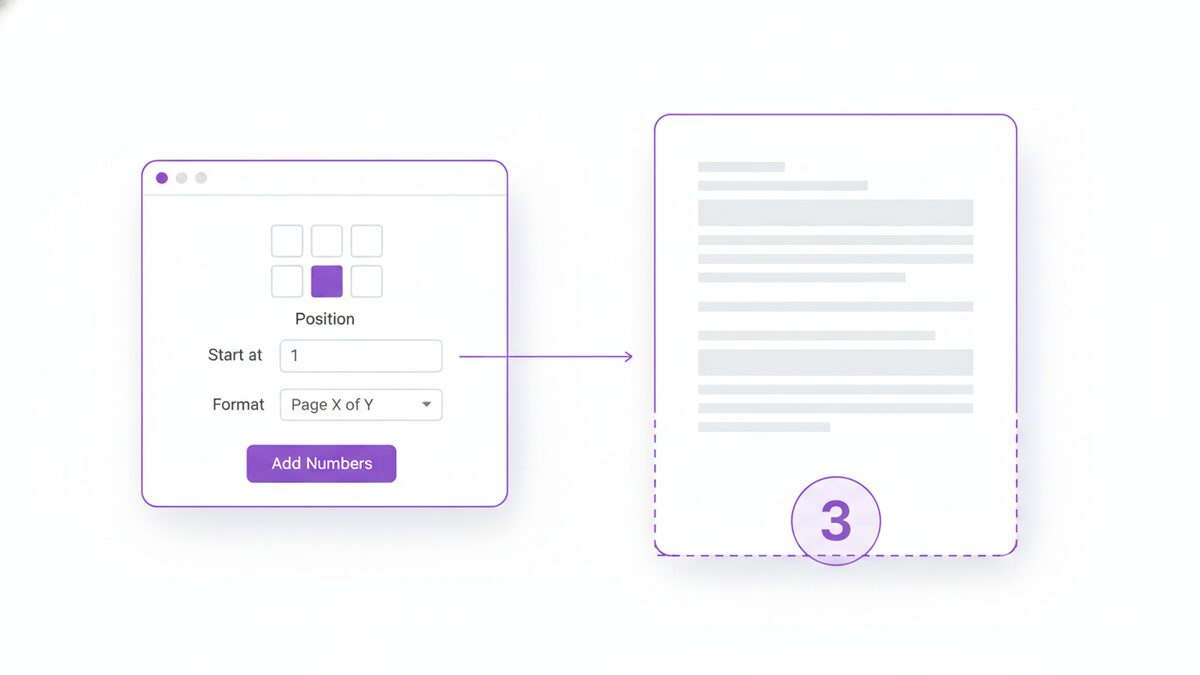
- Choose a position. Pick where the numbers should sit. Bottom centre is the safe default if you are unsure.
- Set the starting number. Usually 1, but not always – a document that continues from another may need to start at 47.
- Decide which page gets number one. If there is a cover, you will normally want numbering to begin on the page after it.
- Pick a format. A plain numeral, or something like “Page 3 of 20” if readers benefit from knowing the total.
- Preview the result. Check the first numbered page and the last one. Those two catch almost every mistake.
- Download the numbered PDF. The file saves to your device, and your original is left untouched.
The whole process takes under a minute, and there is no cap on document length – you can add page numbers to PDF files of any size.
How to Skip the Cover Page and Front Matter
This is the detail that trips people up most often when they add page numbers to PDF files.
A title page carrying a number looks wrong to everyone who sees it.
Consider the two questions below before you start. A title page with “1” stamped on it looks wrong to everyone who sees it, and it is the single most common reason people redo the job.
There are two separate questions, and confusing them is what causes the trouble:
- Which page shows the first number? Usually the page after the cover.
- What number does it show? Either “1”, treating the cover as unnumbered front matter, or “2”, counting the cover silently.
Academic and formal conventions usually want the first content page to read “1”, with the cover counted but not printed. Business documents are more relaxed and often just start at 1 on the second page. Neither is wrong; consistency within the document is what matters.
If your document has several pieces of front matter – a cover, a contents page, an executive summary – decide where the substantive content actually begins and start there. Readers navigating to “page 1” expect to land on the beginning of the real document.
Number Formats and Styles That Work
The format you choose when you add page numbers to PDF pages should match how the document will be used.
- Plain numerals (1, 2, 3). The default, and right for most documents. Unobtrusive and universally understood.
- Page X of Y. Useful when a reader needs to know whether they have the complete document. Standard for contracts, invoices and anything faxed or scanned, where a missing final page is a real risk.
- Prefixed numbers. Something like “A-1” for an appendix, keeping appendix numbering distinct from the main body.
- Roman numerals. Traditional for front matter, with the main body switching to Arabic numerals at page 1. Formal, and worth it only for long structured documents.
Keep the styling restrained. Numbers should be legible but quiet – a modest size, a neutral colour, and enough margin that they never crowd the body text. A page number competing with your content for attention is doing the opposite of its job. The conventions of page numbering have been stable for centuries precisely because understated works.
How to Add Page Numbers to PDF Files on a Mac
macOS Preview is excellent at viewing, annotating and rearranging PDFs, but it has no built-in pagination feature. There is no menu item that will number a document for you.
Your offline options to add page numbers to PDF files on a Mac come down to:
- Number before you export. If the PDF came from Pages, Word or Google Docs, add the numbers in that application and re-export. This gives the cleanest result, because the numbers become part of the layout.
- Use a paid PDF editor. Acrobat and similar applications include a header-and-footer feature. Effective, but a subscription for an occasional task.
- Use a browser tool. Open Safari and add page numbers to PDF files without installing anything at all.
If you no longer have the source document – which is the usual situation with a scan or a file someone sent you – the browser route is the only one that does not cost money.
How to Add Page Numbers on Windows
Windows is in the same position when you want to add page numbers to PDF files. Edge displays PDFs and lets you annotate them, but it cannot paginate a document and save the result.
The practical choices are the same three: go back to the source file and re-export, buy a desktop editor, or use a browser tool. For a one-off job the browser route wins on every measure – nothing to install, nothing to pay, and it works identically on Windows 10 and Windows 11.
One Windows-specific note: if the PDF began life as a Word document you still have, adding numbers in Word gives a slightly better result. Word places them inside the page layout rather than stamping them on top, so they reflow correctly if the document is ever edited again.
How to Do It on iPhone and Android
Neither iOS nor Android has any built-in way to add page numbers to PDF documents. The Files app on iPhone and the various Android document viewers can display and share PDFs, but not number them.
A browser tool closes that gap and lets you add page numbers to PDF documents from the handset itself. Open the page in Safari or Chrome, select your PDF, choose a position and a starting number, and download the result back to your device. It works the same on a phone as on a laptop, because the work happens in the browser either way.
This is genuinely useful when you are away from a computer and need to send a properly numbered document – a signed agreement, an expense claim, a set of photographed receipts converted to PDF.
Get the Page Order Right First
You should add page numbers to PDF files as one of the very last steps, and the reason is simple: numbers are stamped onto pages, so they do not follow those pages if the pages move afterwards.
Rearrange a numbered document and you get a file where the printed numbers read 1, 2, 5, 3, 4 – which is considerably more confusing than no numbers at all, because readers trust what is printed.
So the correct sequence is:
- Remove any pages that should not be there, using Delete Pages.
- Fix the sequence with Reorder Pages.
- Merge in anything else that belongs, using Merge PDF.
- Only then add page numbers to PDF pages that are finally in their permanent order.
Treat pagination as the finishing step, in the same way you would proofread last rather than first.
Add Page Numbers to PDF Files vs Bates Numbering
If you work anywhere near law, insurance or auditing, you will eventually meet Bates numbering, and it is worth knowing how it differs from ordinary pagination before you start.
Ordinary page numbers describe a position inside one document. Page 4 is the fourth page of this file, and another document will have its own page 4. The numbering restarts with every file.
Bates numbering does the opposite. It assigns a unique identifier to every page across an entire collection of documents, running continuously so that no two pages anywhere in the set share a number. A reference like ABC-0004821 points to exactly one page in a discovery set of many thousands, regardless of which file it sits in.
Bates numbers also usually carry a prefix identifying the producing party or the matter, and they are conventionally zero-padded to a fixed width so they sort correctly.
For everyday work – reports, contracts, submissions, handouts – you want ordinary pagination, and you can add page numbers to PDF documents in a few seconds. Reach for Bates numbering only when you are producing documents into a formal process that has asked for it, because the continuous cross-document numbering is genuinely harder to manage and impossible to redo casually.
One thing the two share: both should be applied only once the document set is final. Renumbering a Bates-stamped production is a far bigger problem than renumbering a single report, which is another argument for settling page order before you add page numbers to PDF pages at all.
When You Really Need Page Numbers
- Legal filings and court bundles. Pagination is usually mandatory, and submissions get rejected without it.
- Academic work. Dissertations, theses and journal submissions almost always specify numbering, often including its position.
- Contracts. “Page X of Y” makes it obvious if a page has been removed from a signed agreement.
- Reports and proposals. Any document with a contents page needs numbers for that contents page to mean anything.
- Training material and handouts. A room full of people needs to get to the same page quickly.
- Scanned archives. Numbering a scanned batch makes it possible to reference and re-file individual sheets later.
- Anything printed and bound. Physical documents come apart. Numbers make them reassemblable.
Tips for Best Results
- Number last. Finish all reordering, deleting and merging before you add page numbers to PDF pages.
- Check the first and last page. When you add page numbers to PDF files, these two catch nearly every off-by-one error.
- Keep numbers out of the binding edge. Allow room for hole punches and spiral binding.
- Match the document’s tone. A formal report suits a restrained bottom-centre numeral; a workbook can carry something friendlier.
- Use “Page X of Y” when completeness matters. Contracts and anything that will be scanned or faxed benefit from it.
- Keep the unnumbered original. If you ever need to reorder the document again, you will want a clean copy to start from.
- Print one test page. If the document is going to paper, check the number is not too close to the edge for your printer’s margins.
- Be consistent across a set. If you add page numbers to PDF documents that will be read together, use the same position and format in all of them.
Common Problems and How to Fix Them
The cover page has a number on it
Numbering started on page one instead of page two. Redo it from the unnumbered original, setting the first numbered page to the one after the cover. This is why keeping that original matters.
Numbers overlap the content
The document has unusually small margins, or existing footer content. Move the numbers to a different position, or if the source document is available, add the numbers there where they can be part of the layout.
The numbering starts at the wrong value
Check whether the cover is being counted silently. A document where numbering begins on page two but the cover is counted will show “2” on the first numbered page, which may be exactly right or exactly wrong depending on the convention you are following.
The printed numbers no longer match the page order
The document was rearranged after numbering. There is no way to fix this other than starting again from an unnumbered copy – stamped numbers do not follow their pages.
The PDF is password protected
You cannot add page numbers to PDF files that are encrypted until the password is removed. Use Unlock PDF first, then add page numbers to PDF pages as normal.
The file is a scan, so the numbers look different from the text
This is expected. A scan is an image of a page, while the numbers are crisp vector text drawn on top. The contrast is normal and readers will not find it odd.
Why PDFLove Is the Free, Private Choice
Most free online services that add page numbers to PDF files upload your document to a server, process it there, and send it back. For a numbered document that often means a contract, a legal filing or a set of scanned records has been sitting on someone else’s infrastructure.
PDFLove takes a different approach. Everything runs in your browser, using your own device to do the work, so the document never leaves it. Nothing is uploaded, nothing is stored remotely, and there is nothing to delete afterwards.
It is free with no expiring trial. There is no page limit, where many free tiers stop at around thirty pages – a genuine obstacle when the thing you need to paginate is a 200-page bundle. And there is no sign-up, so you can add page numbers to PDF files right now without an account.
Every tool in the PDFLove collection of free PDF tools works the same on-device way.
Frequently Asked Questions
How do I add page numbers to PDF files for free?
Open the PDFLove Add Page Numbers tool, load your document, choose a position and a starting number, and download the result. It is free, needs no sign-up, and runs in your browser so nothing is uploaded.
Can I skip the cover page when numbering?
Yes. Set numbering to begin on the page after the cover. You can also choose whether that page shows 1, treating the cover as unnumbered, or 2, counting the cover silently – both are accepted conventions.
Can I add page numbers to PDF documents on my phone?
Yes. Neither iPhone nor Android can paginate a PDF on its own, but a browser tool can. Open the page in Safari or Chrome, pick your file and position, and save the numbered document back to your device.
Will adding numbers change the rest of my document?
No. The numbers are drawn onto each page and nothing else is altered. Your text stays selectable, images keep their resolution, and links and form fields continue to work as before.
Should I number before or after reordering pages?
Always after. Numbers are stamped onto pages and do not follow them, so rearranging a numbered document leaves the printed numbers out of sequence. Finish all reordering and deleting first, then paginate.
Can I use a Page X of Y format?
Yes, and it is worth choosing for contracts, invoices and anything that will be printed or scanned. Showing the total makes it immediately obvious if a page has gone missing from the set.
Is there a page limit?
No. PDFLove does not cap document length, unlike many free tools that stop at around thirty pages. Long documents simply take a moment longer, because your own device is doing the work.
Can I remove page numbers later?
Not easily – once numbers are stamped onto the pages they are part of the page image. This is why it is worth keeping your unnumbered original, so you can always produce a fresh copy if the numbering needs to change.
Conclusion
Page numbers are a small addition that changes how a document behaves. They give readers a shared reference, they make a bundle reassemblable if it comes apart, and they signal that the document is finished rather than in progress.
Get the sequence settled first, decide where the numbers belong and which page carries the first one, then add page numbers to PDF pages as the final step. Open the free PDFLove Add Page Numbers tool to add page numbers to PDF documents of any length, with no sign-up and no page limit – and with your file never leaving your device.