Knowing how to delete pages from PDF files is one of those small skills that saves you time almost every week – trimming a blank scan page, dropping a 40-page appendix before you email a report, or removing internal notes from a proposal that is about to go to a client. With PDFLove you can do it for free, right inside your browser, with no upload, no sign-up, and no watermark on the result.
This guide shows you how to delete pages from PDF documents the fast way, explains the page-range syntax, and covers the same job on a Mac, on Windows, and on your phone. It also clears up one misunderstanding: deleting a page is not the same thing as redacting one.
Why You Would Delete Pages from PDF Documents
Most PDFs are not born tidy. They come out of a scanner, a printer driver, or a colleague’s export, and nearly always carry a few pages you did not ask for. Here are the reasons people most often need to delete pages from PDF files:
- Blank pages from a scanner. Duplex scanning inserts an empty page every time the back of a sheet is blank, so a ten-sheet stack becomes a twenty-page PDF.
- Cover sheets and fax headers. The first page is often a transmission slip nobody needs to read twice.
- Appendixes and attachments. A report reads far better when the 30 pages of raw data at the back are removed and sent separately.
- Internal notes before a client sees it. Pricing scratchpads and reviewer comments are the classic reason to delete pages from PDF proposals before they leave the building.
- Duplicate scans. A page that fed through twice, or a re-scan of a crooked sheet, leaves two near-identical pages.
- Trimming a huge file down. Every page you remove makes the PDF smaller, which matters when an email gateway caps attachments at 10 MB.
- Removing ads or filler. Downloaded ebooks and manuals often bundle promotional pages; delete pages from PDF files like these before you print.
In every one of those cases the job is the same: identify the page numbers you do not want, delete pages from PDF files in one pass, and keep everything else exactly as it was.
What to Check Before You Delete Anything
Deleting is quick, but thirty seconds of preparation pays off before you delete pages from PDF documents, because there is no undo once a trimmed file has downloaded.
- Note the real page numbers. Use the page counter in your PDF viewer, not the numbers printed on the page. A report whose first printed page says “1” may be page 3 of the file once you count the cover and contents.
- Write the list down. Something like “1, 4, 9-12” is all you need, and it stops the classic off-by-one mistake.
- Keep the original. Work on a copy, or at least do not overwrite the source. The original is your undo.
- Decide whether deleting is what you want. If you are hiding something on a page you intend to keep, deleting is the wrong tool – see the redaction section below.
How to Delete Pages from PDF Files Online (Step by Step)
The fastest free way to delete pages from PDF documents is the PDFLove Delete Pages tool. It runs entirely in your browser, so your file is never uploaded – it is opened, trimmed, and saved on your own device. Here is the whole process.
- Open the Delete Pages tool. Go to the free PDFLove Delete Pages page in any modern browser on your computer or phone. There is nothing to install and no account to create.
- Load your PDF. Click to select your file or drag it in. Because everything happens locally, even a large document opens quickly and stays private.
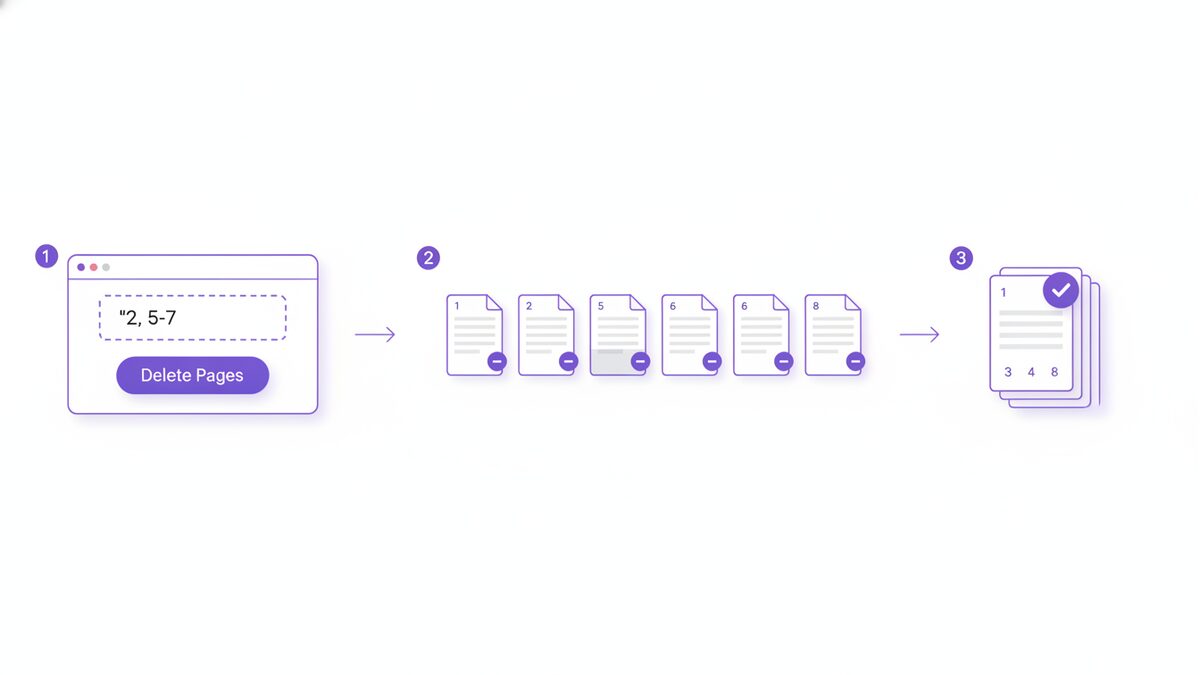
- Enter the pages to remove. Type the page numbers or ranges into the box – for example 2, 5-7 removes page 2 and pages 5, 6, and 7. Separate pages with commas and use a hyphen for a run of consecutive pages.
- Double-check your list against the document. Confirm you are removing page 2 and not page 3 before you commit.
- Download the trimmed file. The tool builds the new PDF on your device. The pages you listed are gone; every other page keeps its original content, quality, and layout.
That is the entire job – usually under a minute. This is the simplest way to delete pages from PDF files: no watermark, no page limit, no size limit, and the result is yours to send, print, or archive.
Understanding the Page Range Syntax
The range box is the heart of the tool, and it is simpler than it looks. You describe a list of pages to remove using commas and hyphens, so you can delete pages from PDF files of any length without scrolling through thumbnails. Master this one box and you can delete pages from PDF documents faster than any point-and-click editor.
The two building blocks
- A single page is just its number: 4 removes page four.
- A range uses a hyphen: 5-7 removes pages five, six, and seven. Ranges are inclusive.
Combining them
Commas join as many pages and ranges as you need:
- 2 – the single blank page after a cover sheet.
- 2, 5-7 – page 2 plus the three-page block from 5 to 7.
- 12-40 – an entire appendix in one go.
- 3, 8, 14, 19 – the blank back-of-sheet pages from a duplex scan.
Two rules worth remembering
First, page numbers always refer to the original document, not to the file as it shrinks. When you enter “2, 5-7” the tool reads all four numbers against the file you loaded, so you never renumber as pages disappear.
Second, order does not matter. “5-7, 2” removes the same pages as “2, 5-7” – ascending order is simply easier to proofread.
Deleting a Page Is Not the Same as Redacting It
This section matters more than any other, because getting it wrong can leak information. When you delete pages from PDF documents, those whole pages leave the new file – everything on them, text and images alike, goes away. That is genuinely effective if your goal is to get rid of an entire page.
But that is a different job from redaction. Redaction means hiding specific sensitive content – a name, an account number, a salary figure – on a page you are keeping. Deleting cannot help there, because the page has to stay.
The distinction in one line:
- Delete a page when the whole page should not exist in the file you are sending: a blank scan, an appendix, an internal notes page.
- Redact when the page must stay but a few words or numbers on it must not be readable.
If redaction is what you actually need, do not improvise it by deleting pages or by drawing a box and hoping. Read our guide on how to redact a PDF properly, which explains why a black box alone leaves the original text recoverable underneath, and how to flatten the page so the hidden words are truly gone. The free PDFLove Edit PDF tool is where you black the text out.
One honest note about privacy: when you delete pages from PDF files, their content leaves the file you download, but the original copy on your own drive still has every page it always had. Keeping that original is usually a feature, since it is your only undo – just handle the source file with care if it is itself sensitive.
How to Delete Pages from PDF on a Mac
macOS ships with Preview, which handles page deletion natively, so you can delete pages from PDF files without any download. If you are on a Mac and the file is open, this is often the quickest route, and it works offline.
- Open the PDF in Preview. Double-clicking usually opens Preview by default; if not, right-click and choose Open With.
- Show the thumbnails sidebar. Choose View then Thumbnails. A strip of page previews appears on the left.
- Select the pages to remove. Click a thumbnail. Hold Command to pick scattered pages, or Shift for a continuous run.
- Delete them. Press the Delete key, or use Edit then Delete.
- Save. Press Command+S. To keep your original intact, use File then Duplicate first, or File then Export As under a new name.
Preview gives you an undo (Command+Z) as long as the document is still open. Apple documents the app’s page-editing features in the official Preview User Guide. The catch is that Preview edits your file in place unless you duplicate first – so if you are working on the only copy of something important, the browser tool’s “load, trim, download a new file” model is safer by default.
How to Delete Pages from PDF on Windows
Here is the honest answer most articles dance around: Windows has no built-in PDF page editor. Windows 10 and 11 can view PDFs in Edge and create them through the Microsoft Print to PDF driver, but there is no bundled equivalent of Preview’s thumbnail-and-delete. Free Adobe Acrobat Reader will not do it either – page deletion sits behind the paid Acrobat Pro. So to delete pages from PDF files on Windows you have two realistic free options.
Option 1: A browser tool (recommended)
Open the free Delete Pages tool in Edge or Chrome, type your range, and download the result. Nothing to install, nothing uploaded. For most people this is simply the answer on Windows.
Option 2: The Print to PDF range trick
This built-in workaround needs no internet at all. Instead of removing the pages you do not want, you print the pages you do want into a brand-new PDF.
- Open the PDF in Edge or any viewer with a print dialog.
- Press Ctrl+P and choose Microsoft Print to PDF as the printer.
- Under Pages, enter the pages you want to keep – for example “1, 3-4, 8-20” to drop pages 2 and 5-7.
- Click Print, name the new file, and save it.
Be aware of the trade-offs. You have to list the keepers rather than the pages to remove, which is fiddly on a long document. And printing re-renders the pages: form fields, bookmarks, links, and copyable text can be flattened or lost. It works in a pinch, but a dedicated tool that copies the pages through untouched gives a cleaner result.
How to Delete Pages from PDF on iPhone and Android
You do not need a computer to delete pages from PDF files. Because PDFLove runs in the browser, the mobile route is the same one you already know – which makes it the most reliable answer on either platform.
- Open Safari, Chrome, or your usual mobile browser and go to the Delete Pages tool.
- Tap to choose your PDF from Files, iCloud Drive, Google Drive, or wherever it lives.
- Type the page numbers or ranges to remove, such as 2, 5-7.
- Download the trimmed PDF. It lands in your downloads or Files app, ready to share.
Those steps let you delete pages from PDF files on any phone in about a minute. There are native options too, though they vary. On an iPhone, the Files app can preview a PDF and recent iOS versions expose page thumbnails with a page-management menu, though the exact wording has moved between releases. On Android, page deletion depends entirely on which PDF app you have installed; the stock viewer is often read-only, and third-party editors that offer it frequently gate the feature or add a watermark. When the browser tool works everywhere for free, it is usually the shortest path to delete pages from PDF files on a phone.
Delete, Split, or Merge: Picking the Right Tool
Page deletion is one of a small family of jobs, and people often reach for the wrong one. Before you delete pages from PDF files, a quick guide to which tool fits:
- Delete Pages – you want one file, minus some pages: blank scans, a cover sheet, an appendix you are dropping entirely.
- Split PDF – you want to keep the removed part as its own file. Splitting a report into a summary and an appendix is a split, not a delete.
- Merge PDF – you are combining several files into one. Tidy each source first, then merge.
- Reorder Pages – the pages are all wanted, just in the wrong sequence.
A useful rule of thumb: if you would be sad to lose the pages forever, split rather than delete. If they are genuinely junk, delete pages from PDF files directly and enjoy the smaller result.
Real-World Use Cases
Concrete situations where you would delete pages from PDF files to take a document from awkward to professional:
- The duplex scan. A 15-sheet contract scanned double-sided turns every blank back into a page. Remove 2, 4, 6, 8 and the rest, and the file is exactly what you scanned.
- The client proposal. Your internal version has a costing page and a reviewer’s comment page at the back. Delete both before it goes out.
- The bank statement. A landlord asks for three months; your download has twelve. Trim the nine you were not asked for rather than oversharing.
- The email attachment limit. A 22 MB deck bounces back. Removing 40 pages of speaker notes gets it under the cap.
- The printed handout. A 90-page manual has ads and a licence agreement scattered through it. Delete them and print only what people read.
- The application form. A downloaded form has four pages of instructions before the form itself. Drop them for a clean, fillable document.
Tips for Best Results
A handful of habits make this painless every time you delete pages from PDF documents:
- Always work on a copy. Keep the download separate from the source. The original is your only route back.
- Check page numbers before you commit. There is no undo once the trimmed file has downloaded, so proofreading beats a re-do.
- Use the viewer’s page counter, not the printed numbers. Front matter throws off printed pagination almost every time.
- Delete before you merge. Trim each source file first, then combine. Chasing blank pages through a merged document is miserable.
- Do it in one pass. Enter the full range at once – one set of numbers, all measured against the original.
- Open the result before you send it. Ten seconds of scrolling confirms you removed what you meant to.
Common Problems and How to Fix Them
I deleted the wrong page
Go back to your original PDF and run it again with the corrected range. This is why the “work on a copy” tip is first – the untouched source makes any mistake a thirty-second fix.
The page numbers do not match what is printed on the page
Printed pagination usually starts after the cover and contents, so file page 5 might be printed page 1. Count in the viewer’s page indicator instead, and if in doubt, jump to the page and check before adding it to your range.
The file is still too big after deleting pages
Page count and file size are not the same thing – a single 600 dpi photo page can outweigh fifty pages of text. If the pages you keep are high-resolution scans, you need compression, not more deleting.
I need the deleted pages back as their own document
That is a split, not a delete. Use the Split PDF tool on your original so both halves survive.
Nothing happens when I enter my range
Check the format: numbers separated by commas, hyphens for ranges, nothing else. Also make sure no page number exceeds the document length – page 30 of a 20-page file has nothing to remove.
I want to blank out one paragraph, not the whole page
Deleting cannot do this, and it is the most common mix-up. See the redaction section above and the full redaction guide.
Why PDFLove Is the Free, Private Choice
Most documents worth trimming are documents worth keeping private – contracts, statements, medical forms, proposals. Yet the usual online route asks you to upload that file to someone else’s server and trust a promise that it gets deleted afterwards.
PDFLove does not work that way. The Delete Pages tool runs entirely in your browser, on your own device. When you delete pages from PDF files here, the file physically never leaves your computer – the only privacy guarantee that does not require trusting anybody.
It is also free the way people wish more tools were: no account, no watermark, no page limit, and no file size cap. The same applies across the whole collection of free PDF tools – merge, split, reorder, convert, edit – all with the same in-browser design.
Frequently Asked Questions
How do I delete pages from PDF files for free?
Open the free PDFLove Delete Pages tool, load your PDF, type the page numbers or ranges you want removed (for example 2, 5-7), and download the trimmed file. It is free, runs in your browser, and never uploads your document.
How do I delete a range of pages at once?
Use a hyphen for a run of pages and commas to separate entries. Typing 2, 5-7 removes page 2 and pages 5, 6 and 7 in a single pass. Page numbers always refer to the original document, so you never have to renumber as pages are removed.
Is deleting a page the same as redacting it?
No, and this matters. Deleting removes an entire page from the new file. Redaction hides specific sensitive text on a page you are keeping – a different job that needs a different method. See our guide on how to redact a PDF.
Can I delete pages from PDF documents on a Mac without any tool?
Yes. Open the file in Preview, choose View then Thumbnails, select the pages in the sidebar, press Delete, and save. Use File then Duplicate first if you want to keep your original untouched, because Preview saves over the file.
How do I delete pages from PDF files on Windows?
Windows has no built-in PDF page editor, and free Adobe Reader cannot delete pages either. Either use a free browser tool, or use the Microsoft Print to PDF workaround: press Ctrl+P, choose Print to PDF, and enter only the pages you want to keep.
Can I undo a deletion after downloading?
No – the downloaded file is a new PDF without those pages. Your undo is the original document, which is untouched, so always keep it until you have checked the result. Proofread your page range before you download.
Will deleting pages reduce my PDF file size?
Usually yes, since each removed page takes its content with it. But page count and file size are not the same – if the pages you keep are high-resolution scans, the file can still be large and you will need compression rather than more deleting.
Is it safe to delete pages from PDF files online?
With PDFLove it is, because nothing is uploaded – the trimming happens locally in your browser and the file never leaves your device. Be cautious with tools that send your document to a remote server for processing.
Conclusion
Trimming a document is a two-minute job once you know the shape of it: note the real page numbers, decide whether you want a delete or a split, type your range, and download. Whether it is a blank scan, a cover sheet, an appendix, or a page of internal notes, you can delete pages from PDF files without installing anything or handing your document to a stranger’s server.
Start with the free PDFLove Delete Pages tool, keep your original as your undo, and open the result before you send it. And if you actually need to hide something on a page you are keeping, head to the redaction guide instead – knowing that difference is what keeps your documents both tidy and safe.