If a scan opened sideways or a page landed upside down, you need to rotate PDF pages and save the change into the file itself – not just spin the view on your screen. With PDFLove you can rotate PDF pages for free, right inside your browser, with no upload, no sign-up, and no watermark on the result.
This guide covers why pages end up sideways, the one mistake that makes a “fixed” file open sideways again for whoever you send it to, and a step-by-step walkthrough that saves the rotation permanently. We will also cover Mac, Windows, iPhone, and Android, and how to pick the right direction the first time.
Why PDF Pages End Up Sideways or Upside Down
Sideways pages are a side effect of how the file was captured, and once you know the cause, the fix is clear.
The most common culprit is the scanner feed direction. Office scanners capture the sheet in the orientation it travels through the feeder. Load a page in landscape when the scanner expects portrait, and every page comes out turned a quarter turn – the content intact, just lying on its side.
The second culprit is phone photos. When you photograph a document and convert it to a PDF, the image carries an orientation tag from the phone’s sensor. Some apps honour that tag, others ignore it, so the same photo can appear upright in one viewer and rotated in another. That inconsistency is why people so often need to rotate PDF pages after a mobile scan.
A third cause is mixed orientation by design. A portrait report with a wide financial table or engineering drawing often has those pages laid out in landscape, and whoever generated the file may have turned them the wrong way.
Finally, there is the upside-down double-sided scan. Flip a stack of paper the wrong way for the second pass and every even page comes out at 180 degrees – half the document fine and half inverted.
In every one of these cases the remedy is the same: rotate PDF pages by a clean quarter or half turn and save that rotation into the file.
Rotating the View Is Not the Same as Saving It
This is the most important idea in this article, and the reason so many people think they fixed a file when they did not.
Most PDF readers offer a rotate button. You click it, the page snaps upright, and everything looks solved. But in many readers that button rotates the view – a temporary display setting for your session only. It does not change the file. Close the document, reopen it, and the page is sideways again.
Worse, the person you email the file to sees the original sideways page, because your view setting never travelled with the document. You tilt your head, they tilt theirs, and the file that “works on my machine” annoys everyone else.
A real fix writes a rotation value into the page object inside the PDF, so every viewer on every device renders the page upright. When you rotate PDF pages with a tool that saves and re-downloads the file, you get that permanent version.
Here is a quick way to tell which kind of rotation you performed:
- You clicked a rotate arrow but never downloaded a new file. Almost certainly a view-only rotation.
- You closed and reopened the document and it went back to sideways. Definitely view-only.
- A colleague says it still looks sideways to them. View-only again – your screen is the only place it is fixed.
- You downloaded a new file and it opens upright everywhere. That is a saved rotation, which is what you want.
PDFLove is built around that second behaviour. It does not just tilt the preview: it rewrites the pages and hands you back a corrected file to download, which is why the walkthrough below ends with a download rather than a button click.
How to Rotate PDF Pages Step by Step (Free)
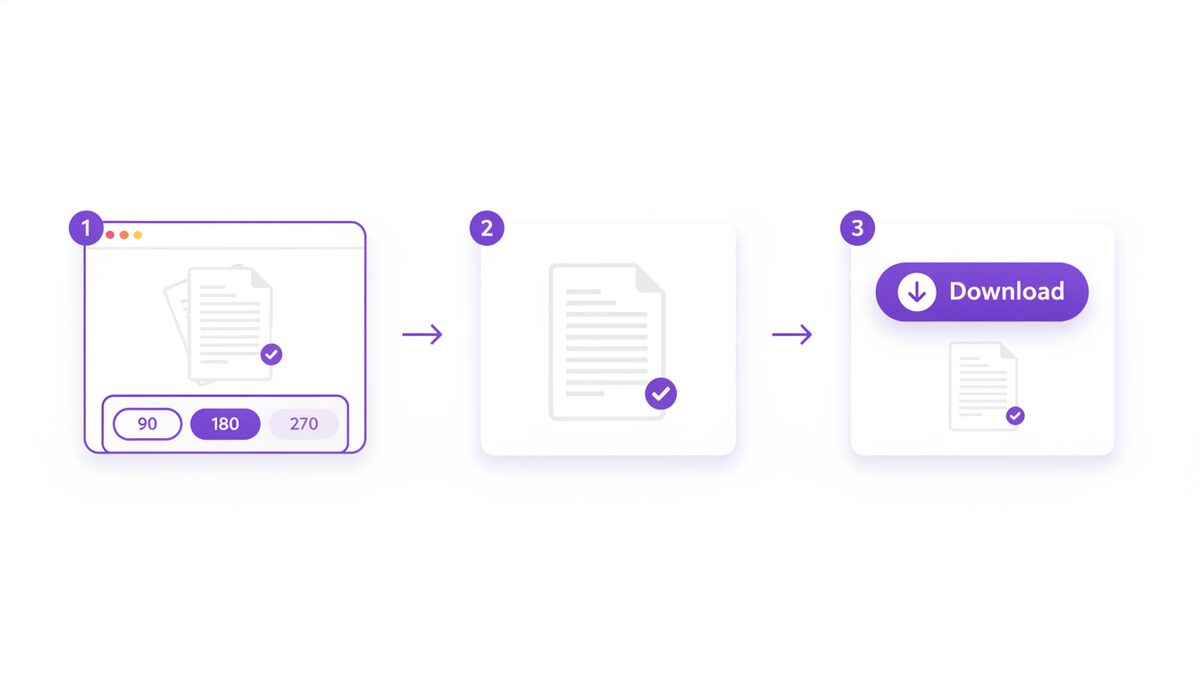
Here is the complete free method to rotate PDF pages and keep the change, using the PDFLove Rotate PDF tool. Everything runs in your browser on your own device, so your file is never uploaded to a server.
- Open the Rotate PDF tool. Go to the free PDFLove Rotate PDF page in any modern browser on your computer or phone. There is nothing to install and no account to create.
- Load your PDF. Click to choose your file or drag it into the window. Because the tool works locally, even a long scanned document opens quickly – read by your own browser, not sent across the internet.
- Choose your angle. Pick 90, 180 or 270 degrees. Ninety is a quarter turn, 180 flips an upside-down page the right way up, and 270 is a quarter turn the other way.
- Choose all pages or just the ones that are wrong. If the whole scan came out sideways, apply the turn to every page. If only a few pages misbehave, select just those and leave the rest untouched.
- Check the preview. Confirm the text now reads the normal way up before you commit – the moment to catch a 90 that should have been a 270.
- Download the fixed file. Save the corrected PDF to your device. The rotation is now baked into the document, so it opens upright for you, for your colleagues, and for anyone who prints it.
That is the whole process, and it usually takes under a minute. The download step matters most: it turns a temporary preview into a file you can actually send.
Which Way to Turn: 90, 180 or 270 Degrees
People waste a surprising amount of time here, clicking rotate over and over until something looks right. You can get it correct on the first try with one trick: look at where the top of the text is pointing right now.
Find the heading or the top edge of the page content, then ask which edge of your screen it is facing – that tells you exactly which turn you need.
- Text top points to the right edge? Use 270 degrees (a quarter turn counter-clockwise). You have to tilt your head to the right to read it.
- Text top points to the left edge? Use 90 degrees (a quarter turn clockwise). You are tilting your head to the left to read it.
- Text is upside down? Use 180 degrees. Direction does not matter for a half turn – clockwise and counter-clockwise land in the same place.
- Text is already upright? No rotation needed. If it still looks off, see the section on skew below.
The head-tilt test
If the angles still feel abstract, use your body. Tilt your head until the page reads normally. If you tilted left, the page needs a clockwise turn of 90. If you tilted right, it needs 270 – right nearly every time.
Remember that 270 and “minus 90” are the same thing
Different tools label the same turn differently. Some offer “rotate left” and “rotate right”, some offer -90 and +90, and some offer 90/180/270 as PDFLove does. A 270-degree turn and a -90-degree turn are identical. If a guide tells you to rotate a PDF by -90, choose 270 and you are done.
How to Rotate Only Some Pages, Not All of Them
Mixed documents are common, and they are the reason a blanket “turn everything” approach often makes things worse. A 40-page report with three landscape charts does not need all 40 pages turned – it needs three.
The PDFLove tool lets you rotate PDF pages selectively, so you apply the turn to just the pages that are wrong and leave the rest exactly as they are.
- Scroll through the whole document first. Note every page number that is not upright before you touch any controls.
- Group them by the turn they need. The sideways pages might all need 90, while a couple of upside-down ones need 180 – two separate passes.
- Select the first group and apply its angle. Only the pages you picked change.
- Repeat for the second group, then download the finished file once everything reads correctly.
One warning: a landscape table on a portrait page is not always a mistake. Some reports intentionally place wide tables sideways so they fit. If the page is meant to be landscape and simply faces the wrong way, rotate it 180 rather than 90 – that keeps it landscape while making it readable.
How to Rotate PDF Files on Mac and Windows
You can also rotate PDF documents with software already on your computer, though the results differ more than you might expect.
On a Mac: Preview
Preview, the PDF viewer built into macOS, does this properly. Open the PDF, show the thumbnail sidebar, select the pages you want to turn, and use the rotate command in the toolbar or the Tools menu. Each click turns the selection a quarter turn. Then save – Preview writes the rotation into the file, so it stays fixed when you send it on.
If you select nothing in the sidebar, Preview typically turns the page you are viewing; select several thumbnails first and it turns all of them at once. Selecting the thumbnails is the reliable way to rotate PDF pages in bulk here.
On Windows: it depends on the app
Windows is where people get caught out. Microsoft Edge is the default PDF viewer on most Windows machines, and it does offer rotate buttons – but historically those buttons rotate the view for your current session rather than writing the change into the file. Depending on your version of Edge, saving may not keep the rotation, and the file can open sideways again for the next person.
Because that behaviour has changed across versions, the safest approach on Windows is simply to check: rotate, save, close, and reopen. If the page is sideways again, the app only rotated the view, and you need a tool that genuinely re-saves the file. The free browser-based PDFLove Rotate PDF tool avoids the ambiguity entirely, because it always hands back a downloaded file with the rotation written in.
Paid desktop software such as Adobe Acrobat also rotates and saves properly, but it is a large install and a subscription for a job that takes seconds in the browser.
How to Rotate PDF Pages on iPhone and Android
Phones are where most sideways scans are born, so it makes sense to fix them there. Because PDFLove runs entirely in the browser, you can rotate PDF pages from a phone with no app to download.
- Open Safari, Chrome, or your usual mobile browser and go to the Rotate PDF tool.
- Tap to select your PDF from Files, iCloud Drive, Google Drive, or wherever it is saved.
- Pick 90, 180 or 270, and choose whether to turn every page or only the ones that are wrong.
- Check the preview, then download the corrected file back to your phone.
- Share it from there – the rotation travels with the file, so it opens upright for the recipient.
You may also have built-in options depending on your device. Some versions of the iPhone Files app and Apple Books offer rotation controls, and various Android PDF readers include a rotate button. These vary a lot between versions, so rather than promise a menu path that may not exist on your phone, apply the same test as on desktop: rotate, save, then close and reopen. If it is still sideways, the app only changed the view, and a browser tool that re-downloads the file will finish the job.
When It Is Not a Rotation Problem at All
Sometimes a page looks wrong but rotating it will not help, and it is worth recognising the difference before you spend time on the wrong fix.
Rotation deals in clean quarter turns: 90, 180, and 270 degrees. If your scan is slightly crooked – a three or five degree tilt because the paper went into the feeder at an angle – that is skew, not rotation. Turning the page by 90 degrees will just make it sideways and tilted.
So be clear about which problem you have:
- A quarter or half turn off? That is rotation. Rotate PDF pages by 90, 180 or 270 and it is solved.
- A few degrees off true? That is skew. The realistic fix is to rescan the page squarely in the feeder, or reprocess the original image in a scanning app that offers straightening.
- Text mirrored or reversed? Not rotation either – it usually means the original was scanned or exported flipped, and needs to be recaptured.
Real-World Reasons to Rotate PDF Pages
This comes up far more often than people expect. Some everyday situations where you need to rotate PDF pages and save the result:
- Scanned contracts and forms: The whole batch came out of the office scanner sideways and needs a quarter turn before it goes to a client.
- Phone-photographed receipts: An expense claim where half the receipts are rotated because of the camera’s orientation tag.
- Reports with landscape tables: A wide budget table or Gantt chart sitting the wrong way round inside an otherwise portrait document.
- Double-sided scans: Every second page upside down because the stack was flipped the wrong way for the reverse pass.
- Course notes and handouts: Lecture slides or worksheets scanned in a hurry, saved sideways, and shared with a whole class.
- Compliance submissions: Portals that reject documents which are not correctly oriented, forcing a resubmission.
In each case the requirement is identical: the fix has to live in the file, not in one person’s viewer.
Tips for Best Results When You Rotate PDF Pages
A few habits make this quicker and stop you from redoing the work.
- Work on a copy. Keep the untouched original until you have confirmed the new file is right.
- Fix orientation before you merge. If you plan to combine documents, rotate PDF pages first, then merge the files. Sorting orientation inside a 200-page combined document is far more tedious.
- Do the whole document in one pass. Scroll to the end before you start so you catch every wrong page.
- Verify by closing and reopening. The definitive test that your rotation was saved rather than previewed. For anything important, open it on a different device before it goes to the client.
Common Problems and How to Fix Them
It looks fine on my screen but sideways for everyone else
This is the classic view-versus-file problem. Your reader rotated the display only. Run the original through the Rotate PDF tool and send the downloaded file instead – that version carries the rotation with it.
Only some pages are sideways
Select just those pages and apply the turn to them alone. Rotating everything would fix a few pages and break the rest.
I rotated it and now it is upside down
You picked the wrong direction. Apply another 180 to the same pages and it will land upright.
The page is only slightly crooked
That is skew, not rotation, and a 90-degree turn will not fix a 3-degree tilt. Rescan the page straight, or reprocess the source image in a scanner app with a straightening feature.
My file has pages in the wrong order too
Orientation and order are separate jobs. Fix the turns first, then reorder the pages or delete the ones you do not need.
Why PDFLove Is the Free, Private Choice
The documents people need to rotate PDF pages in are rarely trivial – contracts, bank statements, medical forms, and signed agreements freshly off a scanner. Most online rotation sites ask you to upload that file to their server, process it remotely, and trust that it is deleted afterwards.
PDFLove does not work that way. The Rotate PDF tool runs entirely in your browser, on your own device. Your file is never uploaded, never stored on a server, and never seen by anyone but you. For a job as simple as turning a page, sending your private paperwork across the internet is a cost with no benefit.
It is also genuinely free. No account, no watermark stamped across your scan, no page limit, and no file size cap. The rotation you download is the rotation the PDF format itself stores at the page level, which is why every viewer honours it – your reader, your colleague’s reader, and the printer at the other end.
And when the rotation is done, the rest of the toolkit is right there. Browse the full collection of free PDF tools to merge, split, reorder, and clean up your documents, all with the same private, in-browser design.
Frequently Asked Questions
How do I rotate a PDF and save it for free?
Open the free PDFLove Rotate PDF tool, load your file, choose 90, 180 or 270 degrees, pick all pages or only the ones that are wrong, and download the corrected file. The rotation is written into the document, so it opens upright for everyone.
Why does my PDF go back to sideways when I reopen it?
Because your reader rotated the view, not the file. That is a temporary display setting for your session. To make it permanent you need a tool that re-saves the document, which is what the PDFLove Rotate PDF tool does when you download the result.
Can I rotate PDF pages individually instead of all of them?
Yes. You can apply a turn to every page or select only the pages that are wrong. This matters for reports where a few landscape tables sit inside an otherwise portrait document.
What angles can I use to rotate a PDF?
90, 180 and 270 degrees – a quarter turn one way, a half turn, or a quarter turn the other way. These are the rotations the PDF format stores at page level. Arbitrary angles like 45 degrees are not part of how PDF page rotation works.
Can I rotate a PDF on my iPhone or Android phone?
Yes. PDFLove runs in your mobile browser, so there is no app to install. Open the Rotate PDF tool, load the file from Files or Drive, choose your angle, and download the fixed version back to your phone.
Will rotating fix a scan that is slightly crooked?
No. Rotation fixes clean 90-degree turns, not a slight tilt. A three or five degree skew comes from the paper going through the feeder at an angle, and the realistic fix is to rescan the page squarely or reprocess the source image in a scanning app that offers straightening.
Is it safe to rotate a PDF online?
With PDFLove it is, because your file never leaves your device – everything happens locally in your browser with no upload. Be cautious with sites that require you to upload a private contract or bank statement just to turn a page.
Does rotating a PDF reduce the quality of the pages?
No. Rotating changes which way the page is displayed, not the content itself. Your text stays sharp and your scanned images keep their original resolution.
Conclusion
Now you know the part most guides skip: to rotate PDF pages properly you have to save the turn into the file, not just spin the view in your reader. Pick the angle with the head-tilt test, apply it to all pages or only the wrong ones, download the result, and reopen once to confirm.
All of that is free and completely private with the PDFLove Rotate PDF tool – no upload, no sign-up, no watermark, and no limits. Turn the page once, save it properly, and nobody has to tilt their head at your document again.