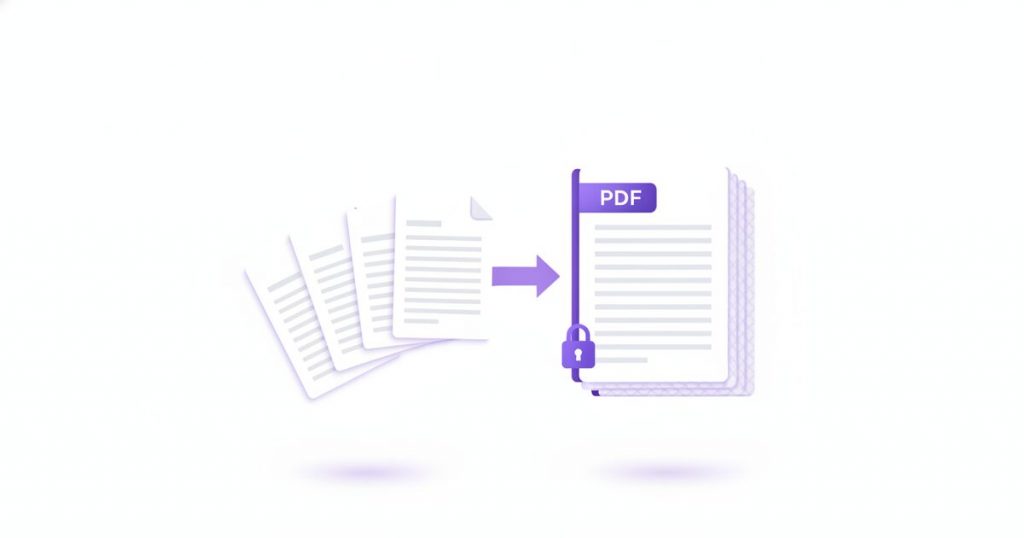
If you have three separate files that really should be one, learning how to merge PDF documents is the fastest fix in your whole workflow – and it should cost you nothing. Combining PDFs is one of the most common document tasks there is: a contract and its signed annexes, a report split across chapters, a stack of scanned receipts, an application that asks for “one file, please”. With PDFLove you can do it free, in your browser, with your files never leaving your device.
This guide covers everything: what merging actually does to your files, a detailed walkthrough with the free tool, how to combine PDFs on Windows, Mac, iPhone, and Android, how to get the order right the first time, and how to fix the problems that trip people up most often.
What It Means to Merge PDF Files
To merge PDF files is to take two or more separate PDF documents and combine them into a single new PDF, with the pages laid end to end in the order you choose. The first file’s pages come first, the second file’s pages follow, and so on until you have one continuous document.
Nothing is re-typed, re-rendered, or converted. A good merge PDF tool copies each page across exactly as it is, which means your fonts, layout, images, and formatting all survive the trip untouched. A merged document looks identical to the originals – it just has a longer scrollbar.
It also helps to know what merging is not. Merging works at the file level: it takes whole documents, in the sequence you arrange them. It does not rearrange individual pages inside a file, delete pages you do not want, or pick out page ranges. Those are separate jobs with separate tools, and we will point you to them where they help.
The PDF format itself was designed from the start so that a page carries everything it needs to display correctly, independent of the software or device that opens it. That page-independence is exactly why merging works so cleanly – you can lift pages from one document, drop them into another, and they still render the way their author intended. You can read more about the format’s design in the PDF overview on Wikipedia.
Merging vs. zipping vs. printing
People sometimes reach for a ZIP archive when they need to send several documents together. A ZIP is a bundle: the recipient still has to unzip it and open each file one at a time, and mobile users often struggle with it entirely. A merged PDF opens in one tap, scrolls in one motion, and prints in one job.
Others print everything and re-scan it as one document. That works, but it costs you paper, time, and quality – and it turns crisp searchable text into a flat photograph. Merging digitally keeps the text selectable and the file small.
When You Actually Need to Combine PDFs
Most people first search for how to merge PDF documents because something demanded a single file. Upload forms are the usual culprit – job portals, visa applications, tax filings, university admissions, and insurance claims almost all accept exactly one attachment.
But once you know how to merge PDF files, you start using it everywhere:
- Contracts and agreements: the main agreement, the signature page, and every annex arriving as its own file.
- Reports and proposals: a cover page, an executive summary, chapters from different colleagues, and an appendix.
- Receipts and expenses: a month of individual receipts that finance wants as one submission.
- Scanned chapters and notes: a scanner that produced one file per batch instead of one per book.
- Portfolios: individual project write-ups collected into a single document you can send with one link.
- Invoices and statements: a year of monthly PDFs archived as one searchable file.
The thread running through all of these is the same: several files exist, one file is wanted, and nobody wants to pay for software just to merge PDF documents.
How to Merge PDF Files for Free (Step by Step)
Here is the complete free method to merge PDF documents using the PDFLove Merge PDF tool. The whole thing runs inside your browser, which means your documents are never uploaded to a server – they are processed on your own device and go nowhere else.
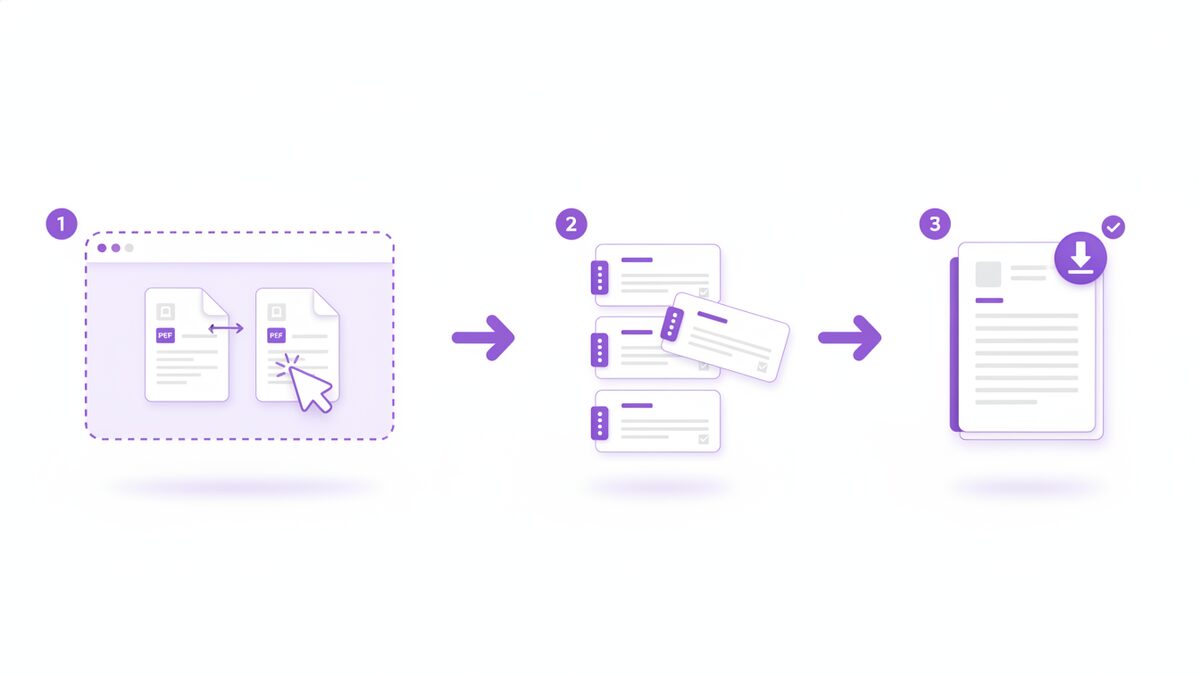
- Open the free Merge PDF tool. Go to the PDFLove Merge PDF page in any modern browser on your computer, tablet, or phone. There is no account to create and nothing to install.
- Add your files. Drag your PDFs into the window, or click to select them from your device. You need at least two files to merge – that is the whole point – and there is no limit on how many you can add or how big they are.
- Drag to reorder. The files appear as a list you can rearrange. Drag each one until the sequence matches the document you want. This is the step worth slowing down for, and the next section explains why.
- Merge. Click the merge button. Because the work happens locally, it finishes in seconds – no upload progress bar, no queue, no waiting on someone else’s server.
- Download your combined PDF. Save the new single document to your device, give it a sensible name, and open it once to check the result before you send it anywhere.
That is genuinely all there is to it. No watermark is stamped on the output, no page limit cuts you off, and no sign-up wall appears at the download step. The file you download is a clean, ordinary PDF that any reader can open.
What happens to your files when you merge PDF documents
It is worth being precise about this, because “online tool” usually implies “upload”. With PDFLove it does not. Your browser reads the files from your disk, assembles the new document in memory on your machine, and hands you the result as a download. Nothing is transmitted, nothing is stored remotely, and there is no copy sitting in someone’s cloud waiting to be deleted.
Practically, that also makes it fast. A merge of several large scanned files does not depend on your upload speed, because there is no upload. If you have ever watched a 90 MB file crawl up to a server just to come back down again, you already know why this matters.
Order Matters: Getting the Sequence Right
The single most common regret after people merge PDF documents is the order. It is much easier to arrange files before you combine them than to fix a 60-page document afterwards, so spend the extra ten seconds here.
Remember that the Merge PDF tool works with whole files. Each file joins the document as one intact block, in the position you drag it to. So the order of your files is the order of your finished document.
Rename your files first
If you have more than a handful of documents, rename them with a numeric prefix before you start: 01-cover.pdf, 02-summary.pdf, 03-chapter-one.pdf. Use a leading zero so that 10 does not sort before 2. Your file picker will then hand them over in the right sequence and your dragging is mostly done for you.
Check the boundaries, not the middle
When you review a merged document, the places things go wrong are the seams – where one file ends and the next begins. Jump to each boundary rather than reading the whole thing. If every join is correct, the blocks in between are correct too.
Watch out for the cover page trap
A cover page or signature page saved as its own file is the piece most likely to end up in the wrong place, because it is small and easy to overlook in a list. Confirm the first and last items in your list explicitly before merging.
If the order is wrong afterwards
It is not a disaster. You can either merge again from the originals with the files dragged into the right order, or open the merged file in the Reorder Pages tool and move individual pages around. Merging again is usually quicker; reordering pages is better when only one page is out of place.
How to Merge PDF Files on Windows and Mac
A lot of guides claim every computer has a built-in way to merge PDF files. That is only half true, and being straight with you about it will save you a frustrating hunt through menus.
On a Mac: Preview can do it
macOS genuinely can combine PDFs with no extra software, using the Preview app that is already installed. The rough flow is:
- Open the first PDF in Preview – the one whose pages should come first.
- Show the thumbnail sidebar from the View menu so you can see the pages down the left side.
- Drag the second PDF file from Finder straight into that thumbnail sidebar, dropping it where you want its pages to land.
- Repeat for any other files, then use File and Export as PDF to save the combined result as a new document.
Two cautions. First, Preview edits the document you opened, so work on a duplicate unless you want your original changed. Second, exact menu wording shifts between macOS versions, so treat the steps above as the shape of the process rather than a script. If you would rather not think about any of that, the browser tool will merge PDF files identically on a Mac.
On Windows: there is no built-in PDF merger
This is the honest answer that most articles dodge. Windows 11 and Windows 10 do not include any feature that will merge PDF files for you. Edge opens and annotates PDFs but will not combine them. The “Microsoft Print to PDF” printer creates a PDF from one document at a time – it cannot take several PDFs and staple them together. There is no hidden right-click option in File Explorer either.
So on Windows your realistic choices are paid desktop software, a command-line utility, or a free browser tool. That is precisely the gap the free Merge PDF tool fills: it works the same in Edge, Chrome, or Firefox, costs nothing, and does not upload your documents anywhere.
What about Linux and Chromebooks?
Same story, and the same answer. Neither ships with a general-purpose PDF merger that a non-technical user will find. A browser-based Merge PDF tool is the shortest path on both, and it behaves identically to how it does on Windows and Mac.
How to Merge PDF Files on iPhone and Android
You do not need a computer. Because PDFLove runs in the browser, the way to merge PDF documents on a phone is the same as on a desktop: open the tool in Safari or Chrome, add your files from the Files app or Google Drive, drag them into order, merge, and save the download.
That is the route we would recommend, because it behaves the same on both platforms and you do not have to install anything. But it is worth knowing what your phone can do on its own.
On iPhone and iPad
The iOS Files app has a feature that creates a single PDF from multiple selected items. Broadly: open Files, tap Select, choose the files you want, then use the more menu (the three dots) and look for the option to create a PDF. Your phone combines them into one new PDF in the same folder.
Be aware that this feature’s exact behaviour and wording have changed across iOS versions, and it is happiest with images and simple documents. It also gives you little control over the resulting order beyond how the items are sorted in the folder. If you need a specific sequence, or if it does not appear on your device, use the Merge PDF tool in your browser instead – it gives you the drag-to-reorder step that the Files app does not.
On Android
Android has no built-in PDF merger. Google Drive and the Files by Google app will store and open your PDFs, but neither will combine them. The Play Store is full of apps that will, though many are ad-supported, watermark the output, or upload your documents to their own servers to do the work.
Opening the Merge PDF tool in Chrome sidesteps all of that: no app, no ads, no watermark, and no upload. Tap to add your PDFs from wherever they live on the device, drag them into place, and download the merged file straight to your Downloads folder.
Tips for Best Results
A few habits make every merge cleaner. None take more than a moment, and together they cover almost everything that can go wrong.
- Compress first if the files are huge. Merging several scanned documents adds their sizes together. If the parts are already heavy, run them through the Compress PDF tool before you merge, so the finished document stays easy to email.
- Trim before you combine, not after. If a file has a blank back page or a cover you do not need, remove it first with the Delete Pages tool. Cleaning up small files is far easier than hunting through a long merged one.
- Name the output properly. “merged.pdf” tells nobody anything. “Acme-Contract-Signed-2026-07.pdf” tells them everything, and it will still make sense to you in a year.
- Keep the originals. Do not delete the source files until you have opened the merged document and confirmed it is right. If something is out of order, remerging from the originals takes seconds.
- Check the page count. The merged file should have exactly as many pages as all the sources added together. If it does not, a file did not make it in.
- Merge on the device that has the files. Emailing PDFs to yourself just to combine them adds a detour – and an unnecessary copy of your documents in an inbox.
Common Problems and How to Fix Them
The merged file is too big to email
This is the most common complaint after a merge, and it has an easy fix. Most email services cap attachments around 20-25 MB, and scans add up fast. Run the merged document through the Compress PDF tool and it will usually drop dramatically, because scanned pages are images and images compress well. Compressing after merging is more effective than compressing each part separately.
The pages came out in the wrong order
Merge again from the original files with the list dragged into the correct sequence – it is the fastest path. If only a page or two are misplaced, open the merged document in the Reorder Pages tool and move them individually instead.
One of the files is password-protected
An encrypted PDF cannot be merged while it is locked, because the pages cannot be read. Open it in a viewer with its password, save or export an unlocked copy, and merge that copy. If you do not know the password, there is no legitimate way around it – you will need it from whoever sent the file.
The file will not load at all
Check that it is genuinely a PDF and not something renamed to end in .pdf. Also check that it is not corrupted: if it does not open properly in your normal PDF viewer, it will not merge either. Re-download or re-export the original.
I only want some pages from a file
Merging takes whole files, so do the trimming first. Use the Split PDF tool to pull out the section you want as its own file, then merge that piece with the rest.
The merged document lost its bookmarks
Bookmarks and internal links belong to the file that contained them and generally do not survive being combined. The pages themselves come through perfectly. For a long merged document, adding a simple contents page listing the section start pages is the practical workaround.
My phone browser feels fiddly
Rotate to landscape for more room when dragging items into order, and add files one at a time so the list stays readable. For a large stack, finishing on a computer is genuinely easier.
What to Do After You Merge PDF Files
The merge is rarely the last step. A few small things afterwards turn a combined file into a document that is actually pleasant to receive.
- Open it and check the seams. Jump to each point where one file joins the next and confirm the order and that no pages are missing.
- Check the size. If it is heading past 20 MB and you plan to email it, compress it now rather than after the bounce message.
- Rename it for the recipient. A clear, descriptive file name saves them a question and saves you a reply.
- Archive the originals. Move the source files into a subfolder rather than deleting them, at least until the merged version has been accepted.
And if you later need to undo the whole thing, you can. The Split PDF tool will break a combined document back into pieces, so a merge is never a one-way door.
Real-World Reasons to Merge PDF Files
Here is how the need to merge PDF documents actually shows up in ordinary weeks:
- Job applications: a portal that accepts one attachment, so your CV, cover letter, and references have to travel together.
- Signed contracts: the agreement you sent, the annexes you added, and the signature page that came back separately – combined into the single copy you file.
- Expense claims: a month of receipts, each downloaded as its own PDF, submitted as one document.
- Client reports: a cover, the report body, and a data appendix from a colleague, delivered as one polished file.
- Visa and immigration paperwork: passport scan, bank statements, and supporting letters, in the exact order the checklist specifies.
- Scanned books and notes: a scanner that made one file per batch, stitched back into a single readable document.
- Tax records: a year of statements archived as one file you can search in a single pass.
- Property and rental documents: a lease, an inventory, and a set of photos, bundled for the agent.
In each case the same three things matter: it should be free, the order should be right, and the documents – often personal or financial – should not be handed to a stranger’s server just to be stapled together.
Why PDFLove Is the Free, Private Choice
That last point deserves more attention than it usually gets. Think about what is actually inside the files you merge: signed contracts, bank statements, passport scans, salary details, medical forms. Most online tools that merge PDF files upload every one of those to a remote server, process them there, and ask you to trust a promise that they are deleted afterwards.
PDFLove does not work that way. Every tool, including Merge PDF, runs entirely in your browser on your own device. Your documents are never uploaded, never stored remotely, and never seen by anyone but you. It is not a policy you have to take on faith – it is simply how the tool is built.
The practical benefits stack up on top of the privacy. There is no sign-up, no watermark on your output, no page or file-size limits, and no “free for three files a day” meter. Because there is no upload, there is no waiting on your connection either. And it works the same in every modern browser, on Windows, Mac, Linux, Chromebook, iPhone, and Android.
When you are done, the rest of the free PDF tools work on exactly the same principle – split, compress, reorder, delete pages, edit – all free, all private, all in your browser. Free and private is not a marketing line here. It is the whole design.
Frequently Asked Questions
How do I merge PDF files for free?
Open the free PDFLove Merge PDF tool, add at least two PDFs, drag them into the order you want, click merge, and download the combined document. It is free, needs no sign-up, and adds no watermark.
Is it safe to merge PDF files online?
With PDFLove it is, because your files never leave your device – the merge happens locally in your browser with no upload. Be careful with tools that send your documents to a remote server, especially for contracts, bank statements, or ID scans.
Can Windows merge PDF files without extra software?
No. Windows 10 and 11 have no built-in PDF merger. Edge can open and annotate PDFs, and Microsoft Print to PDF creates a PDF from a single document, but neither can combine several PDFs. A free browser tool is the simplest option on Windows.
How do I merge PDF files on a Mac for free?
macOS Preview can do it. Open the first PDF, show the thumbnail sidebar from the View menu, drag the other PDF files into that sidebar in the order you want, then use File and Export as PDF to save a new combined file. Work on a copy, since Preview edits the open document.
Can I merge PDF files on my iPhone or Android phone?
Yes. Open the Merge PDF tool in Safari or Chrome, add your files from the Files app or Drive, drag them into order, and download the result – no app needed. The iOS Files app can also create a PDF from multiple selected items, though it gives you less control over the order.
Is there a limit on how many files I can merge?
No. PDFLove has no file-size limit and no cap on how many PDFs you combine. You do need at least two files, since merging one document into itself would not achieve anything.
My merged PDF is too big to email. What do I do?
Run it through the Compress PDF tool. Scanned pages are images, which compress well, so a large merged file usually shrinks a long way – often enough to clear the typical 20-25 MB attachment limit.
Can I undo a merge or take pages back out?
Yes. Use the Split PDF tool to break a combined document back into separate files, or the Delete Pages tool to remove pages you no longer want. Keeping your original files until you have checked the merge is still the easiest safety net.
Conclusion
Combining documents should be the easy part of your day, and now it is. Add your files, drag them into order, merge, download – four small actions and the stack of separate PDFs on your desktop becomes the single clean document someone asked for.
The best part is that it costs nothing and stays entirely on your device. No account, no watermark, no limits, and no copy of your contract sitting on a server you have never heard of. Open the free PDFLove Merge PDF tool and combine your first documents right now – and when you need to split, compress, or reorder them later, the rest of the free PDF tools are waiting, working exactly the same private way.