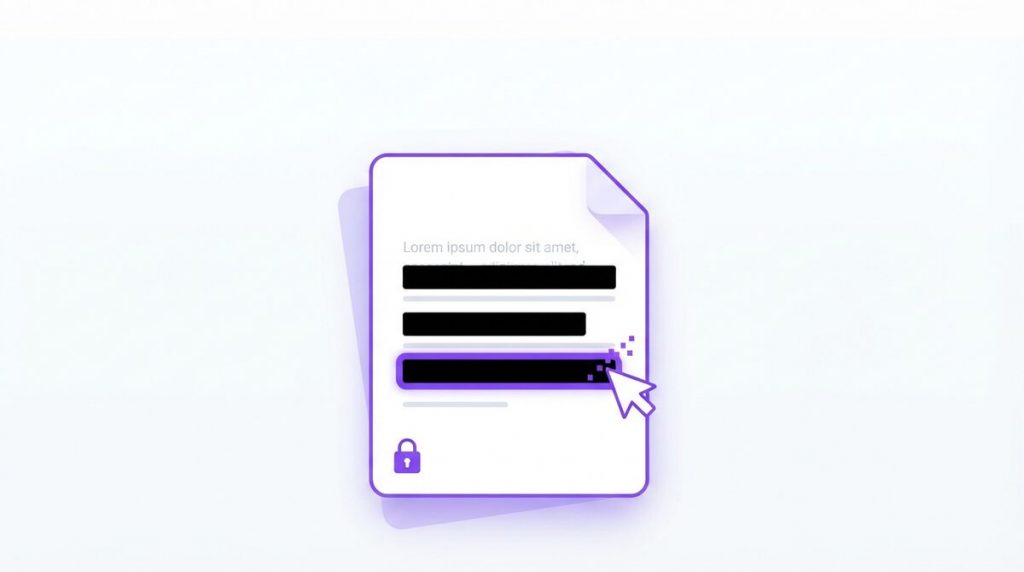
If you have ever needed to share a contract, bank statement, or medical form but wanted to hide a name, account number, or address first, then knowing how to redact a PDF is an essential skill. Redaction lets you permanently black out sensitive text so the people you send the file to cannot read it – and with PDFLove you can do it for free, right inside your browser, with no upload and no software to install.
In this guide you will learn what redaction really means, the safe way to redact a PDF so the hidden text is truly gone, and a simple step-by-step walkthrough using the free PDFLove Edit PDF tool. We will also cover the single most common mistake people make – one that leaves your “hidden” text fully recoverable – and how to avoid it.
What Redaction Means and Why It Matters
Redaction is the process of permanently removing or obscuring sensitive information from a document before it is shared or published. You have almost certainly seen redacted documents before – government files and legal disclosures with thick black bars covering names, dates, and figures.
The goal of redaction is not just to make text look hidden. It is to make it genuinely unreadable and unrecoverable. That distinction matters enormously, because a document that only appears redacted can still leak the very information you were trying to protect.
People search for how to redact a PDF for all sorts of everyday reasons: hiding a Social Security or account number on a form, removing a home address from a lease before posting it, covering salary figures on an offer letter, or blacking out a client’s name in a case study. In every one of these situations, the person receiving the file must not be able to recover what you hid.
According to the concept of document sanitization, truly protecting information means eliminating it from the file entirely – not just visually masking it on screen. Keep that principle in mind, because it shapes the safe way to redact a PDF that you will learn below.
The Right Way to Redact a PDF
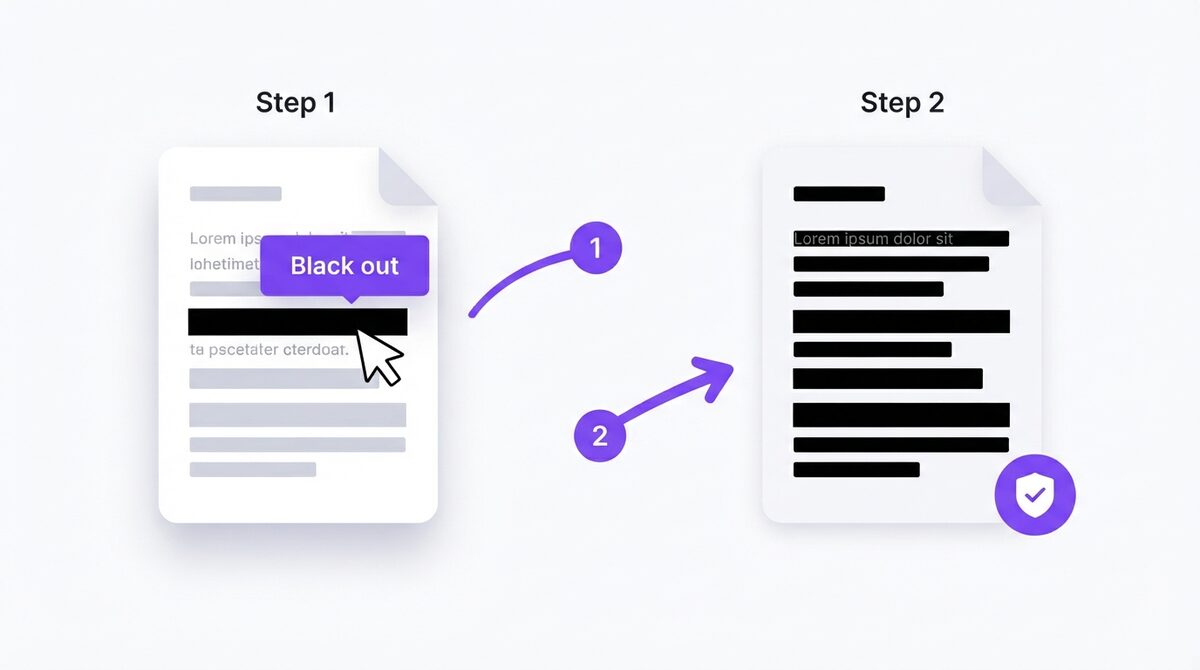
Learning how to redact a PDF properly comes down to two steps, not one. Most guides only teach the first step, which is exactly why so many “redacted” documents end up leaking data.
Step one is to cover the sensitive text with a solid, opaque box – the classic black bar. This is the visual part, and it is what the free PDFLove black-out tool does beautifully.
Step two is to flatten the page so the covered text is destroyed. When you draw a black box over words in a PDF, the box sits on top like a sticker. The words underneath are still there in the file’s text layer. Flattening merges everything into a single image, so there is no separate text layer left to recover. Only when you have done both steps have you truly managed to redact a PDF safely.
Think of it like this: covering text is like sticking a Post-it note over a printed word. The word is still on the paper – someone can peel the note off. Flattening is like photocopying the page with the note on it, then handing over only the photocopy. The word underneath is gone for good.
How to Redact a PDF Step by Step (Free)
Here is the complete, free method for how to redact a PDF using the PDFLove Edit PDF tool. Everything runs in your browser, so your file never leaves your device and nothing is uploaded to a server.
- Open the Edit PDF tool. Go to the free PDFLove Edit PDF page in any modern browser on your computer or phone.
- Load your PDF. Click to select your file or drag it into the window. Because the tool works locally, larger files open quickly and privately.
- Select the Black-out tool. Choose the black-out (redaction) option, then draw a solid box over each piece of sensitive text – a name, a number, an address, or a whole paragraph.
- Cover every instance. Scroll through the entire document. The same detail may appear in a header, a footer, a signature block, or a second page, so check every page carefully.
- Download your covered PDF. Save the file with the black boxes in place. Your visual redaction is now complete – but read the next section, because you are not fully finished yet.
This gives you a clean, professional-looking blacked-out document in under a minute. For sharing casual, low-risk files this may be all you need. For anything sensitive, continue to the flattening step below to make the redaction truly secure.
The Critical Second Step: Flatten the Page
Now for the step that turns a good-looking cover-up into real, secure redaction. After you have drawn your black boxes, you need to flatten the page so the text underneath is destroyed and cannot be copied or searched.
The simplest free way to flatten a PDF is to convert it into an image and back. When a page becomes a picture, its text layer no longer exists – there is nothing but pixels, and the black box is now baked permanently into the image.
Here is how to do it with free PDFLove tools:
- Black out the text using the Edit PDF tool as described above, then download the covered PDF.
- Convert the covered PDF to images with the PDF to Images tool. Each page becomes a flat picture with no recoverable text layer beneath the black boxes.
- Turn the images back into a PDF if you need a PDF to send. Because the page is now an image, the redacted text is permanently gone.
Alternatively, on most computers you can “Print to PDF” the covered file – printing often flattens the page into a fresh document. Whichever route you choose, the goal is the same: no live text hiding beneath the black bars.
The Common Mistake: A Black Box Is Not Enough
This is the most important warning about how to redact a PDF in this entire guide, so it deserves its own section. A black rectangle drawn over text only covers it visually. In most PDFs, the original words still live in the file’s text layer underneath the box.
That means anyone who receives your file could recover the “hidden” text in seconds, without any special hacking tools. They might:
- Select all the text on the page (Ctrl+A or Cmd+A) and paste it into a document – the covered words come right along.
- Use the copy function to grab text from behind the box.
- Open the PDF in an editor and simply drag the black box away.
- Run the file through a search or extraction tool that reads the underlying text layer.
There have been real, embarrassing cases where governments, law firms, and companies published documents with black bars over sensitive names – only for readers to copy and paste the text out and expose it publicly. Do not let that be you. A black box alone is never secure redaction. Always pair it with flattening.
How to Verify Your Redaction Actually Worked
Knowing how to redact a PDF is not complete until you verify your work. Once you have covered and flattened your document, take one minute to confirm the hidden text is truly gone. Verification is quick and gives you real peace of mind before you send anything out.
- Try to select the text. Open the final PDF and attempt to highlight the area under a black box. If nothing selects and no text can be dragged over, the page has been flattened correctly.
- Try to copy and paste. Select the whole page, copy it, and paste into a plain text editor. None of the hidden words should appear.
- Use the search function. Press Ctrl+F (or Cmd+F) and search for a word or number you redacted. If the PDF finds it, the text is still live and you must flatten again.
- Zoom in on the boxes. Make sure each black box fully covers its text with no letters peeking out at the edges.
If all these checks come back clean, your document is safely redacted and ready to share.
How to Redact a PDF on Your Phone
You do not need a computer to redact a document. Because PDFLove runs entirely in the browser, you can learn how to redact a PDF straight from your iPhone or Android phone with no app to download.
- Open your mobile browser, such as Safari or Chrome, and go to the Edit PDF tool.
- Tap to upload the PDF from your Files app, iCloud, Google Drive, or wherever it is stored.
- Use the black-out tool with your finger to draw boxes over the sensitive text. Pinch to zoom for precise coverage on a small screen.
- Download the covered PDF, then run it through the PDF to Images tool to flatten it, just as you would on a desktop.
- Save the finished, flattened file back to your phone and share it.
The steps to redact a PDF are the same on mobile as they are on desktop, and your file stays private on your device the entire time.
When to Use Professional Redaction Software
The free cover-and-flatten approach to how to redact a PDF is perfect for most personal and everyday business needs. But there are situations where you should reach for dedicated, certified redaction software instead.
Consider professional tools like Adobe Acrobat Pro’s Redact feature or specialized legal redaction platforms when:
- You are handling legal discovery, court filings, or regulated compliance documents where redaction standards are legally mandated.
- You need to redact metadata and hidden document properties, not just visible text – things like author names, edit history, and embedded comments.
- You must produce an audit trail proving what was redacted and when.
- You are processing large volumes of documents and need pattern-based redaction that automatically finds every phone number or account number.
For these high-stakes scenarios, certified software gives you guarantees and features that a quick free method cannot. For everything else – hiding a number on a form, cleaning up a document before you email it – the free PDFLove method is fast, private, and more than good enough when you flatten properly.
Real-World Reasons to Redact a PDF
Redaction shows up in more parts of daily life than most people realize. Here are common reasons someone needs to redact a PDF:
- Job applications: Removing your Social Security number or date of birth from a scanned ID before sending it.
- Renting and housing: Blacking out a previous tenant’s or landlord’s personal details on a shared lease.
- Financial documents: Hiding account and routing numbers on a bank statement submitted as proof of funds.
- Medical records: Covering a patient’s name and ID before using a form as a template or example.
- Business and legal: Anonymizing client names in a case study, proposal, or portfolio piece.
- Selling online: Removing your address and signature from a receipt or warranty before posting it publicly.
In every case, the same rule applies when you redact a PDF: cover the text, then flatten so it is truly gone.
Mistakes to Avoid When You Redact a PDF
Most redaction failures are not clever attacks – they are small, ordinary slips. These are the ones worth knowing before you send anything out.
- Using a highlighter or a semi-transparent shape. If you can still make out the letters underneath at high zoom, so can your reader. Only a solid, fully opaque box does the covering job.
- Trusting a white box on a white page. It looks like clean empty space, but it is still just a shape sitting on top of live text – and the text underneath survives exactly as it would under a black bar.
- Cropping instead of removing. Cropping a page changes what is displayed, not what the file contains. The cropped-away content can be restored by widening the crop back out.
- Skipping the flatten step because the file “looks right”. A covered page and a flattened page look identical on screen. The difference only shows up when someone selects, copies, or searches the text – which is why you flatten every time.
- Sending the original by mistake. After flattening you have two files with similar names. Check that the one you attach is the flattened version before you hit send.
Run through this short list each time you redact a PDF and you will avoid nearly every real-world redaction leak.
Tips for Best Results When You Redact a PDF
A few small habits make your redaction cleaner and safer every time you learn how to redact a PDF for a new document.
- Work on a copy. Always keep an untouched original in case you need to re-check something later. Redaction is permanent by design.
- Zoom in before you draw. Covering text at full zoom ensures your black box sits exactly over the words with no letters escaping the edges.
- Check headers, footers, and margins. Names and numbers often repeat in places you might not scroll to.
- Always flatten before sharing anything sensitive. This is the difference between a cover-up and real redaction.
- Redact the file name too. A document called “John-Smith-SSN.pdf” defeats the point – rename it before you send.
- Verify every time. Do the copy-paste and search test on the final file before it leaves your hands.
Common Problems and How to Fix Them
The hidden text can still be copied
This means you covered the text but did not flatten the page. Run the covered PDF through the PDF to Images tool to destroy the underlying text layer, then rebuild the PDF.
The black box does not fully cover the text
Zoom in and redraw the box a little larger so it overlaps the surrounding whitespace. Letters that peek out from the edges are still readable.
The file looks fine on screen but leaks when printed
Some viewers render hidden layers differently. Flattening solves this too, because once the page is an image there are no hidden layers left to reveal.
I redacted the wrong text
Because you kept the untouched original (see the tips above), simply go back to your source copy and start again. This is why working on a copy matters.
My phone browser feels cramped
Rotate to landscape and pinch to zoom for finer control, or finish the job on a computer where drawing precise boxes is easier.
Why PDFLove Is the Free, Private Choice
When you are figuring out how to redact a PDF that contains sensitive information, the last thing you want is to upload it to a stranger’s server. Many online redaction tools do exactly that – your confidential file travels to a cloud service, gets processed remotely, and you have to trust that it is deleted afterward.
PDFLove works differently. Every tool, including Edit PDF and PDF to Images, runs entirely in your browser on your own device. Your document is never uploaded, never stored on a server, and never seen by anyone but you. For redaction – a task that is all about privacy – that on-device approach is exactly what you want.
On top of that, every PDFLove tool is genuinely free with no account, no watermark, and no page limits. You can browse the full collection of free PDF tools to merge, split, convert, and edit your documents, all with the same private, in-browser design. Free and private is not an afterthought here – it is the whole point.
Frequently Asked Questions
How do I redact a PDF for free?
To redact a PDF for free, open the PDFLove Edit PDF tool, use the black-out feature to draw solid boxes over sensitive text, and download the file. For true security, then flatten the page by converting it to an image and back so the hidden text is permanently removed.
Is a black box enough to redact a PDF?
No. A black box only covers text visually. The original words usually remain in the file’s text layer and can be copied or searched. You must also flatten the page so the underlying text is destroyed.
How do I make sure the hidden text is truly gone?
After flattening, try to select and copy the area under the black box, and use Ctrl+F to search for a redacted word. If nothing selects and the search finds nothing, the text has been permanently removed.
Can I redact a PDF on my phone?
Yes. Because PDFLove runs in your browser, you can learn how to redact a PDF on an iPhone or Android with no app. Open the Edit PDF tool, draw black boxes with your finger, download, and flatten.
Is it safe to redact a PDF online?
With PDFLove it is, because your file never leaves your device – all processing happens locally in your browser with no upload. Avoid tools that upload your sensitive document to a remote server.
When should I use professional redaction software instead?
Use certified software like Adobe Acrobat Pro for legal discovery, regulated compliance, metadata removal, or bulk pattern-based redaction. For everyday personal and business needs, the free cover-and-flatten method works well.
Does redaction remove hidden metadata too?
The cover-and-flatten method removes visible text and the text layer, but not always document metadata like author or edit history. For full metadata removal, use dedicated redaction or sanitization software.
Conclusion
Now you know how to redact a PDF the right way: cover the sensitive text with a solid black box, then flatten the page so the hidden words are permanently destroyed. That two-step method is what separates a real, secure redaction from a black box that leaks the moment someone copies and pastes.
The best part is that you can do all of it for free and completely privately, without installing anything or uploading your file. Start with the free PDFLove Edit PDF tool to black out your text, flatten it with the PDF to Images tool, verify the result, and share with confidence. Your sensitive information stays exactly where it belongs – hidden.