Someone has asked for your document as a PDF, and you need to save Google Doc as PDF without the layout falling apart on the way. It takes two clicks once you know where they are, and this guide covers the routes that keep the formatting intact – plus what to do with the file afterwards.
We will also cover the phone app, how to share a PDF link without emailing an attachment, and the handful of things that reliably shift when a Doc becomes a PDF.
Why Send a PDF Rather Than a Doc Link
Sharing a link is easier than choosing to save Google Doc as PDF, so it is worth knowing when it is the wrong choice.
The layout is fixed. A PDF looks the same for everyone. A Doc reflows depending on the reader’s screen, zoom and available fonts.
It cannot be edited. Useful for anything that is final – an invoice, a signed letter, a submitted application.
It does not need an account. A link may prompt the recipient to sign in or request access. A PDF opens for anyone.
It survives. A link breaks if permissions change, the file moves, or the account closes. An attachment does not.
It is what forms want. Upload fields almost universally accept PDF and reject a link.
Those five reasons are why people go looking for how to save Google Doc as PDF in the first place, usually five minutes before a deadline.
How to Save Google Doc as PDF, Step by Step
To save Google Doc as PDF, the export route is right in almost every case, because it preserves more than printing does.
- Open the document in Google Docs in a browser.
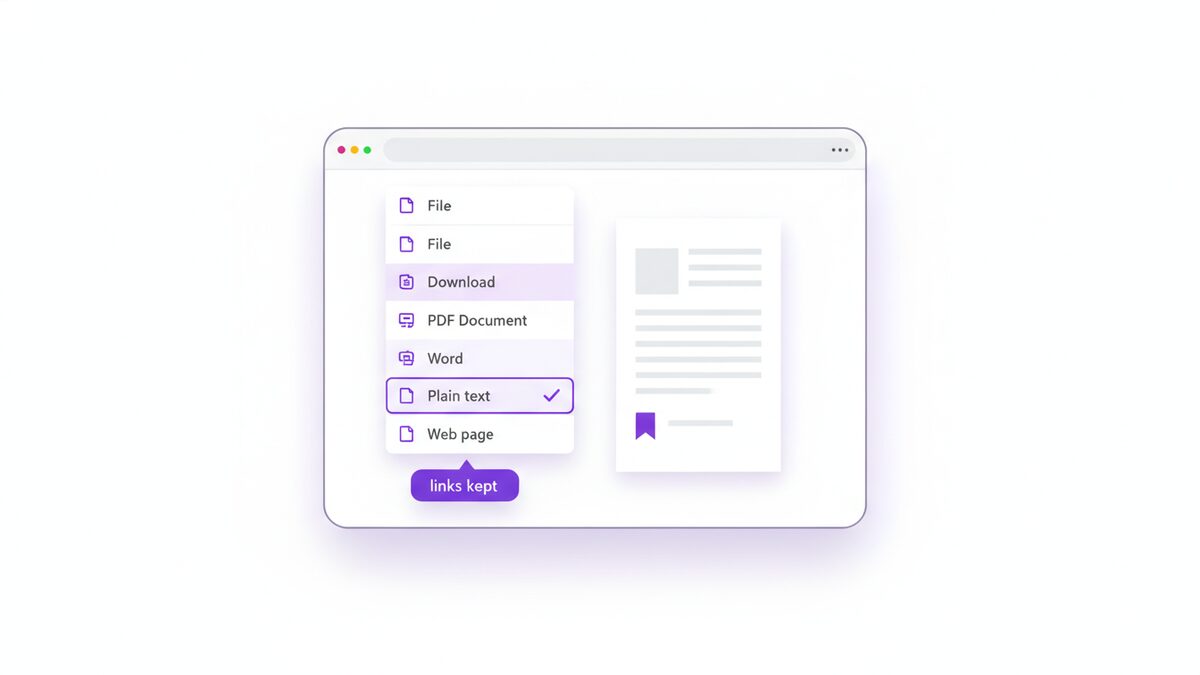
- Choose File, then Download.
- Select “PDF Document (.pdf)”.
- The file lands in your downloads folder, named after the document title.
- Rename it if the title is not what you want the recipient to see. “Untitled document.pdf” has been sent to a lot of hiring managers.
- Open it once before sending. Check the page breaks and the last page.
That is all there is to save Google Doc as PDF. The export keeps headings as bookmarks, keeps hyperlinks clickable, and keeps the text selectable and searchable.
Save Google Doc as PDF via Print Instead
You can also save Google Doc as PDF through File then Print, with “Save as PDF” as the destination. It is the second-best option most of the time and the better one occasionally.
Prefer export for anything you are sending on, because printing tends to flatten hyperlinks and drop the document outline.
Prefer print when you need control the export does not give you: a specific page range, a different paper size, custom margins, or a scale adjustment to stop a table breaking. The print dialogue exposes all of those; the download does not.
If you use the print route, turn off headers and footers so the URL and date do not appear on every page.
On the Google Docs Mobile App
The phone app lets you save Google Doc as PDF too, behind a slightly odd label.
Open the document, tap the three-dot menu, choose Share & export, then Save as, and pick PDF Document. The file is saved to your device, from where you can share it anywhere.
There is also a Print option in the same menu, which produces a PDF through the system print dialogue – the pinch gesture on iPhone, or “Save as PDF” on Android. Both work; the Save as route is fewer taps.
Emailing It Without Downloading First
A way to save Google Doc as PDF that almost nobody knows about, and the fastest of the lot when the destination is an inbox.
Choose File, then Email, then Email this file. Pick PDF as the format, enter the recipient, and it is sent as an attachment directly. Nothing touches your downloads folder.
The limitation is that you cannot inspect the file before it goes, which for anything important is a real drawback. Use it for routine documents you have already reviewed on screen, and download first for anything that matters.
Offline and no internet
Worth knowing if you work on the move. Google Docs offline mode lets you keep editing without a connection, but the ability to save Google Doc as PDF through File then Download needs the servers, because the conversion happens on their side rather than in your browser.
The workaround is the print route, which uses your own operating system’s PDF driver and works with no connection at all. It gives you a slightly less capable file – flattened links, no bookmarks – but a document in hand beats a perfect one you cannot produce until you land.
Save Google Doc as PDF, or as Word?
Download offers several formats besides save Google Doc as PDF, and the choice matters more than it looks, because it decides what the recipient can do.
Fixed layout, no editing, opens anywhere, accepted by every upload form. The right answer for anything final: a CV, an invoice, a signed letter, a submitted application. When someone says “send it as a document”, they almost always mean save Google Doc as PDF.
Word (.docx)
Editable, and the right choice when the recipient needs to change something or your organisation works in Word. The cost is that layout can shift on their machine, and you lose control over how it looks.
Plain text or Markdown
Content without any presentation. Useful for feeding text somewhere else, useless for anything anyone reads directly.
Web page (.html, zipped)
Rarely what you want, though it does preserve links and structure if you are moving content into a site.
The rule of thumb: if it is finished, save Google Doc as PDF. If it is a draft someone else will work on, send the Word version. Sending an editable file for something final is how invoices get altered and CVs get accidentally overwritten.
Saving Several Documents at Once
The option to save Google Doc as PDF handles one document at a time, which is tiresome when you have a folder of them.
The route most people miss is Google Drive rather than Docs. Select several files in Drive, right-click and choose Download, and Drive converts them and delivers a ZIP – Docs become Word files by default rather than PDFs, which is the catch.
For actual PDFs in bulk, the practical approach is to save Google Doc as PDF individually and then combine, rather than fighting the interface. Export each one, then merge them into a single document in whatever order you need. For an application pack or a set of monthly reports, that is usually what you wanted anyway – one file rather than eleven attachments.
What Shifts When a Doc Becomes a PDF
When you save Google Doc as PDF, mostly nothing shifts, which is the point. But a few things move, and knowing which saves a confused half hour.
- Page breaks may fall differently from what the editor showed, particularly in documents assembled by several people.
- Comments and suggestions disappear, which is usually what you want. Check the document is in “Viewing” mode first if you want to be sure nothing is pending.
- Headers, footers and page numbers appear properly, sometimes for the first time, since the editor de-emphasises them.
- Wide tables can clip at the page edge if they were sized for a screen.
- Images stay put, though “wrap text” positioning is occasionally interpreted a little differently.
- Non-standard fonts substitute, which is the one worth its own section.
Check it before you send it
The step most often skipped after you save Google Doc as PDF, and the one that catches everything else. Open the exported file in a PDF viewer rather than trusting the editor’s preview, and look at four things: the first page, the last page, any table, and the filename.
The last page catches stray content spilling over. Tables catch clipping at the right margin. The filename catches “Untitled document”. And opening it in a viewer rather than Docs catches font substitution, which the editor cannot show you because it still has the original fonts available.
Thirty seconds. It is the difference between a document that looks considered and one that arrives with a heading broken across two lines.
The Font Problem
The commonest complaint after people save Google Doc as PDF is that the type looks wrong, and the cause is nearly always fonts.
Google Docs offers a large font library, including many that only exist in Google’s own environment. When you save Google Doc as PDF, the fonts should be embedded so the file renders identically everywhere – and usually they are. The failure appears with unusual or recently added fonts, where the substitute changes the metrics and the text reflows slightly.
The symptom is subtle: a line that used to fit now wraps, a heading spills onto two lines, a table gains a row. Nothing looks broken; it just is not what you laid out.
Two defences. Stick to widely available fonts for anything you will distribute, which is dull advice and correct. And always open the exported PDF and look at it, rather than trusting that the export matched the editor.
What to Do with the PDF Afterwards
Once you save Google Doc as PDF, the exported file is often not quite the finished article.
It may be large, especially with high-resolution images. Run it through a compression tool before attaching it to an email.
It may need signing. Contracts and letters usually do – add a signature without printing anything.
It may need protecting. If it carries anything personal, set a password before it leaves your outbox.
It may need combining with a cover letter or supporting documents into one file.
All of those run in the browser on your own device, so a document you exported privately stays that way.
Sharing the PDF Once You Have It
Having taken the trouble to save Google Doc as PDF, how you send it matters more than people think.
As an attachment
The default once you save Google Doc as PDF, and usually right. It arrives, it stays, it does not depend on your account still existing. Watch the size – most mail servers reject attachments beyond about 25 MB, and a document with photographs reaches that faster than you would expect.
As a link from Drive
Convenient for large files, and unlike a plain decision to save Google Doc as PDF it lets you revoke access later. The costs are real though: the recipient may be asked to sign in, the link breaks if permissions change, and you have handed a third party a copy of a document you had just made local.
Protected, either way
If the document carries an address, a signature, salary details or an account number, put a password on it before it goes. Send the password separately – a text message rather than the same email thread – or you have locked the door and taped the key to it.
The habit worth forming: save Google Doc as PDF, check it, compress it if heavy, protect it if personal, then send. Four steps, under two minutes, and it prevents most of the ways a document embarrasses you later.
Turning a PDF Back into an Editable Document
The reverse of save Google Doc as PDF comes up constantly: someone sends a PDF and you need to change something.
Google Docs can open a PDF directly from Drive, and it will attempt to convert it. Results vary sharply with the source – a simple text document converts well, a designed one with columns and images comes back rearranged.
For a more predictable result, convert to Word first with the PDF to Word tool, then open the .docx in Docs. That path tends to preserve structure better than Drive’s own conversion, and it runs in your browser rather than uploading the file.
Either way, expect to fix some formatting. No conversion reconstructs a layout perfectly, because a PDF stores character positions rather than the structure that produced them.
Common Problems and How to Fix Them
These are the snags people hit most often, and each has a quick fix.
The file is called “Untitled document.pdf”
The export takes the document title, not the filename you wanted. Rename the Doc before exporting, or rename the file afterwards.
The layout changed
Usually font substitution. Switch to a widely available font, or use the print route where you can adjust scale and margins to compensate.
My table is cut off at the right
It is wider than the page. Use File then Page setup to switch to landscape, or narrow the columns before exporting.
Comments are showing in the PDF
Print with comments was selected, or the document exported from Suggesting mode. Switch to Viewing mode and export again.
The PDF is huge
Full-resolution images. Compress the finished file rather than re-inserting smaller images.
Links do not work
You used the print route, which flattens them. Use File then Download instead, which keeps them clickable.
Real-World Use Cases
- Sending a CV, the commonest reason to save Google Doc as PDF, where a PDF preserves your layout and a Doc link does not.
- Invoices and quotes, which need to be fixed and unchangeable.
- Coursework and applications, where the upload form accepts PDF only.
- Contracts to be signed and returned.
- Reports for people outside your organisation who have no Drive access.
- Archiving a finished document in a form that will still open in ten years.
Why PDFLove Is the Free, Private Choice
The step where you save Google Doc as PDF happens in Google’s own infrastructure, where your document already lives. The privacy question arrives at the next step, when the PDF is too large, needs signing, or needs a password – and you go looking for a tool.
That is the moment a CV with your address on it, or an invoice with your bank details, gets uploaded to a server you know nothing about. PDFLove avoids it: every tool runs inside your browser on your own device, so a document you just downloaded never travels anywhere else.
There is no account, no watermark and no page limit. The whole toolkit works this way, so compressing, signing, protecting and merging all keep the file on your machine. You can read more about the format itself on Wikipedia’s PDF page.
Frequently Asked Questions
How do I save Google Doc as PDF?
Open the document, choose File then Download, and select “PDF Document (.pdf)”. The file downloads named after the document title, so rename the Doc first if the title is not what you want the recipient to see. The export keeps headings as bookmarks and hyperlinks clickable.
Should I download or print to PDF?
Download in almost every case, because it preserves hyperlinks and the document outline that printing flattens. Use the print route only when you need control the export does not offer – a specific page range, a different paper size, custom margins, or a scale adjustment to stop a table breaking.
Why does my PDF look different from the Doc?
Almost always font substitution. Google Docs offers fonts that may not embed cleanly, and the substitute changes the text metrics slightly, so a line wraps or a heading spills onto two. Stick to widely available fonts for anything you distribute, and always open the exported PDF before sending it.
Can I do this on my phone?
Yes. In the Google Docs app, tap the three-dot menu, choose Share and export, then Save as, and pick PDF Document. The file saves to your device. The same menu also has a Print option that produces a PDF through the system dialogue.
Can I email the PDF without downloading it?
Yes – choose File, then Email, then Email this file, and pick PDF as the format. It sends as an attachment directly. The drawback is that you cannot inspect the file before it goes, so download first for anything important.
Will my comments appear in the PDF?
Not normally. Comments and suggestions are excluded from the export. If they are appearing, the document was exported from Suggesting mode or with print comments enabled – switch to Viewing mode and export again.
How do I turn a PDF back into a Google Doc?
Drive can open a PDF and attempt to convert it, though results vary with the source. For a more predictable outcome, convert to Word first and open the .docx in Docs. Expect to fix some formatting either way, because a PDF stores character positions rather than document structure.
My exported PDF is too large to email – what now?
High-resolution images are almost always the cause. Compress the finished PDF rather than re-inserting smaller images into the Doc, which is faster and keeps the original quality in the source document.
Conclusion
To save Google Doc as PDF takes two clicks – File, then Download, then PDF Document – and the export keeps your links, bookmarks and selectable text intact where printing would flatten them.
When you save Google Doc as PDF, rename the document first so the filename is not embarrassing, open the result and check the page breaks, and watch for font substitution if the type looks subtly off.
Then finish the job: compress it if it is heavy, sign it if it needs signing, protect it if it carries anything personal. The free PDFLove tools do all of that in your browser, with nothing uploaded.