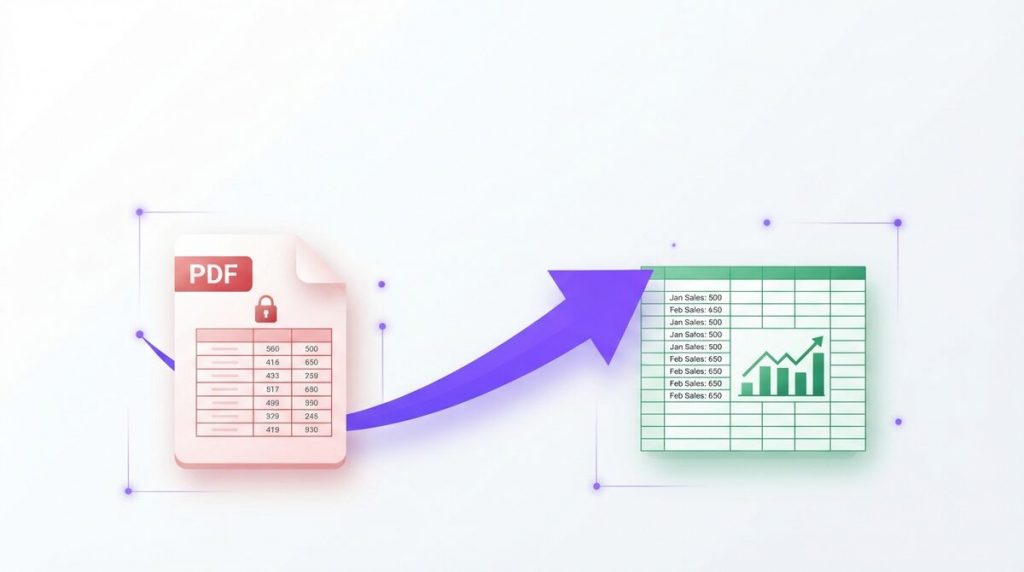
Learning how to convert PDF to Excel is one of the fastest ways to stop retyping data by hand and start working with numbers you can actually sort, filter, and calculate. Whether you have a bank statement, an invoice, a price list, or a report full of tables, PDFLove lets you turn that locked PDF into an editable .xlsx spreadsheet in seconds — completely free, with no sign-up and no upload.
Everything happens right inside your browser, so your files never leave your device. In this step-by-step guide you will learn multiple ways to convert PDF to Excel, how to get the cleanest table results, how to handle scanned documents, and how to fix the most common problems along the way.
Why Convert PDF to Excel?
PDF is a wonderful format for sharing documents that look identical everywhere, but it is a terrible format for working with data. The moment you need to add a column of numbers, sort a list, or build a chart, a PDF fights you at every step. That is exactly why so many people search for a reliable way to convert PDF to Excel.
When you move your data into a spreadsheet, each value lands in its own cell. You can suddenly apply formulas, use filters, create pivot tables, and feed the numbers into other tools. What was a static, read-only page becomes a living dataset you control.
Here are the most common reasons people convert PDF to Excel:
- Accounting and bookkeeping — pull figures from bank statements and invoices into a ledger.
- Data analysis — turn a PDF report into rows and columns you can chart and summarize.
- Price lists and catalogs — edit vendor pricing without retyping every item.
- Research and surveys — collect tabular results into a single workbook.
- Reusing old files — recover data from PDFs when the original spreadsheet is long gone.
The alternative — copying values one cell at a time — is slow and error-prone. A single mistyped digit in a financial sheet can cause hours of trouble. Converting the file properly keeps your numbers accurate and your time free for the work that matters.
How to Convert PDF to Excel (Step by Step)
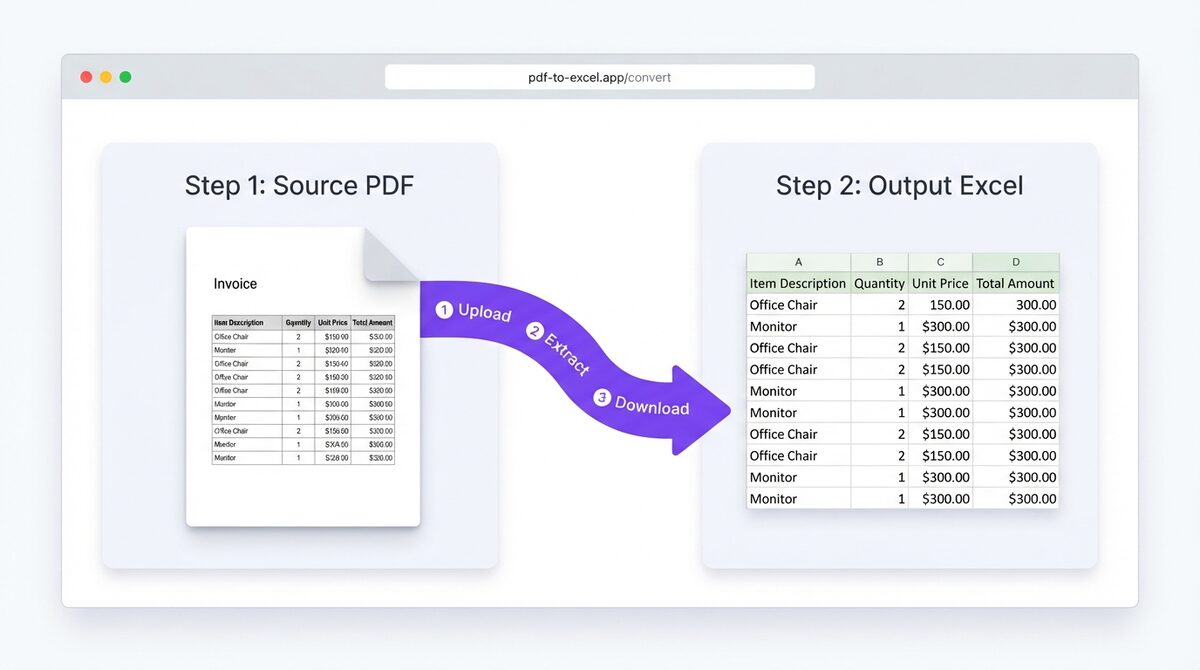
The easiest way to convert PDF to Excel is with the free, browser-based PDFLove tool. There is nothing to install and nothing to pay for, and because the conversion runs entirely on your device, your document is never uploaded to a server. Follow these five simple steps.
- Open the tool. Go to the PDF to Excel converter on PDFLove. It loads instantly in any modern browser on Windows, Mac, Chromebook, or Linux.
- Add your PDF. Drag your PDF into the drop zone, or click to browse and select the file from your computer. Your file stays on your machine the whole time.
- Let it read the tables. The tool scans the pages, detects the tables and text, and maps each value into rows and columns. This usually takes just a few seconds.
- Review the preview. Check that the columns and rows line up the way you expect. If your PDF has multiple tables or pages, confirm they were all captured.
- Download your spreadsheet. Click download to save a clean, editable .xlsx file. Open it in Microsoft Excel, Google Sheets, LibreOffice Calc, or Apple Numbers and start working.
That is the entire process. No account, no watermark, and no waiting in a queue. If you regularly work with documents, bookmark the PDF to Excel tool so it is always one click away, and explore the full set of free converters in the PDFLove tools library.
Other Ways to Convert PDF to Excel
The browser tool is the fastest route for most people, but it helps to know the alternatives so you can pick the right method for your situation. Below are the three most popular options and where each one shines.
Method 1: The Free Online Browser Tool (Recommended)
Using PDFLove’s browser-based converter is ideal when you want speed, privacy, and zero cost. Because it runs locally, it is safe for sensitive documents like statements and contracts, and it works the same on any operating system. There is no software to update and nothing to uninstall later.
Method 2: Adobe Acrobat and Other Desktop Apps
Adobe Acrobat Pro includes an Export feature that can save a PDF as an Excel workbook. It is a capable, well-known option, but it is a paid subscription and it uploads your file to Adobe’s cloud service for parts of the process. Other desktop apps such as Nitro and Foxit offer similar export features under paid licenses. Desktop apps make sense if you already own a license and need advanced batch tools, but they are overkill for a quick, occasional conversion.
Method 3: Google Sheets and Copy-Paste
You can sometimes open a PDF, select a table, copy it, and paste it into Google Sheets or Excel. Simple, well-structured tables occasionally paste cleanly this way. In practice, though, columns often collapse into a single cell and you spend more time cleaning up than you saved. This manual approach only works for tiny, tidy tables and is not reliable for real reports, which is why a purpose-built converter is worth using.
How to Convert PDF to Excel on Your Phone
You do not need a computer to convert PDF to Excel. Because PDFLove runs in the browser, it works on iPhone, iPad, and Android phones and tablets too. This is handy when a document lands in your email while you are away from your desk.
- Open your mobile browser, such as Safari on iPhone or Chrome on Android.
- Visit the PDF to Excel converter.
- Tap to upload and choose your PDF from Files, iCloud Drive, Google Drive, or your downloads.
- Wait a moment for the tool to read the tables on your device.
- Download the .xlsx file and open it in the Excel or Google Sheets mobile app.
Since the file is processed on the phone itself, you are not sending private data over public Wi-Fi to an unknown server — a real advantage when you are working on the go.
Tips for Accurate Table Extraction
The cleaner your source PDF, the cleaner your spreadsheet will be. A converter can only work with the structure the PDF actually contains, so a few habits will dramatically improve your results when you convert PDF to Excel.
- Use text-based PDFs. If you can select and highlight the text in your PDF with your cursor, the file contains real text and will convert accurately. If the text is a picture, you will need OCR first (see the next section).
- Prefer PDFs with visible gridlines. Tables that show clear borders or consistent spacing are easier for any tool to segment into columns.
- Watch out for merged cells. Headers that span several columns can confuse column detection. You may need to nudge a few cells after converting.
- Check number formatting. Confirm that currency symbols, decimals, and thousands separators survived the trip, and reformat cells as needed.
- Split huge files. If a PDF has dozens of pages with different table layouts, converting a smaller range at a time can improve accuracy.
- Always review before you rely on the data. Spot-check totals and a few rows against the original, especially for financial documents.
A little verification goes a long way. Treat the converted file as a strong first draft that saves you the bulk of the typing, then apply your own quick quality check.
Scanned PDFs: Run OCR First
Not every PDF is created equal. A scanned document — or a photo saved as a PDF — is really just an image of a page. There is no selectable text inside it, so a standard converter has nothing to extract and may return blank or jumbled cells.
The fix is Optical Character Recognition, or OCR. OCR reads the picture of the text and turns it into real, machine-readable characters. Once your PDF contains actual text, converting it to Excel works normally.
If your document is scanned, run it through the free OCR PDF tool first to make the text selectable, then bring the result into the PDF to Excel converter. This two-step flow rescues data from receipts, printed statements, and old paperwork that would otherwise be stuck as an image.
A quick test: open your PDF and try to select a line of text with your cursor. If it highlights, you are ready to convert. If it does not, run OCR first.
Common Problems and How to Fix Them
Most conversions go smoothly, but here are the issues people run into most often and exactly how to solve them.
Columns Are Merged Into One
This usually means the source table lacked clear column boundaries, or the PDF is image-based. Confirm the text is selectable, run OCR if needed, and use Excel’s Text to Columns feature to split any stubborn cells by a delimiter.
The Output Is Empty or Garbled
An empty result almost always points to a scanned, image-only PDF. Run it through OCR first, then convert again. Garbled characters can also come from unusual embedded fonts, in which case OCR often produces a cleaner read.
Numbers Turned Into Text
Sometimes figures import as text and will not add up. Select the column in Excel, choose a number or currency format, and use Text to Columns or the VALUE function to convert them back into true numbers.
Extra Blank Rows or Columns
Complex layouts can leave gaps. Simply delete the empty rows and columns, or use Excel’s Go To Special > Blanks feature to clean them out in one pass.
The File Feels Too Large or Slow
Very long PDFs with many tables take a little longer to process. Try converting a page range at a time, and close other heavy browser tabs so your device has more memory to work with.
What to Do After Converting PDF to Excel
Getting the table out of the file is only half the job. Even a clean conversion usually needs five minutes of tidying before the numbers are safe to work with, and doing it in this order saves the most time.
Check the shape of the data first. Compare the number of rows in your spreadsheet against the original document. If the source printed a total, rebuild it with =SUM() and see whether it matches. A total that is out by one row usually means a header or a subtotal line was pulled in as ordinary data.
Turn text back into numbers. Figures that arrive as text sit left-aligned in the cell and are quietly ignored by SUM. Select the column, and if Excel shows a small warning triangle, choose Convert to Number. If it doesn’t, type 1 into a spare cell, copy it, then use Paste Special → Multiply across the range to force the conversion.
Split anything that landed in a single column. Select it and choose Data → Text to Columns. Delimited works when the values are separated by commas or tabs; Fixed width is the better choice for figures that were lined up by position in the original layout.
Clear the leftovers. Stray spaces are the most common reason a lookup formula fails a week later, so run the column through =TRIM(), and use Find & Replace to strip any non-breaking spaces that came across as thousands separators. To remove empty rows in one pass, press F5, choose Special → Blanks, and delete the selected rows.
Make it readable before you save. Freeze the header row with View → Freeze Panes, apply a proper number or currency format to each column, and widen anything showing as #####. Keep the file as .xlsx rather than .csv if you want that formatting to survive — a habit worth forming whenever you convert PDF to Excel for someone else to use.
Real-World Use Cases
Once you know how quickly you can convert PDF to Excel, it becomes a regular part of your workflow. Here are practical situations where it pays off:
- Freelancers and small businesses importing invoice line items into an accounting sheet.
- Students and researchers extracting data tables from published PDF reports for analysis.
- Sales teams pulling product and pricing data out of supplier catalogs.
- Finance staff reconciling bank and credit-card statements each month.
- Operations teams converting inventory or shipping manifests into trackable spreadsheets.
- Anyone recovering data from an old PDF when the original workbook has been lost.
In every one of these cases, the goal is the same: get the numbers out of a locked page and into a format where you can actually use them, without wasting an afternoon on manual entry.
Why PDFLove Is the Free, Private Choice
Many online converters ask you to upload your file to their servers, create an account, or sit through ads before you can download the result. That is a poor trade when your documents contain financial figures or personal information. PDFLove takes a different approach.
The PDF to Excel converter runs entirely in your browser using your own device’s processing power. Your file is never transmitted, stored, or seen by anyone else — it simply stays with you. That makes it a genuinely private way to handle sensitive spreadsheets, and it means there is no waiting on a slow upload or download.
It is also completely free with no sign-up, no watermark, and no page limits hidden behind a paywall. You get the same clean, editable output you would expect from paid desktop software. If you want to understand the format you are converting into, Microsoft’s Microsoft Excel spreadsheet application and its .xlsx workbooks are the industry standard that PDFLove exports to.
PDFLove vs Other PDF to Excel Tools
How does the free browser tool compare to the paid and manual options? Here is a quick honest breakdown to help you choose.
- PDFLove (browser): Free, no sign-up, processes on your device so nothing is uploaded, works on any OS and on phones. Best for quick, private, everyday conversions.
- Adobe Acrobat Pro: Powerful and polished, but a paid subscription that uses cloud processing. Best if you already pay for it and need advanced editing.
- Other online uploaders: Often free at first but upload your file to their servers, cap the number of conversions, or add watermarks. A privacy and reliability concern for sensitive data.
- Copy-paste into Sheets: Free but unreliable for anything beyond the simplest table, and it usually needs heavy manual cleanup.
For the vast majority of people who just want to turn a PDF table into a usable spreadsheet without cost or risk, the free, private browser tool is the clear winner.
Everyday Situations Where Converting PDF to Excel Helps
Once you know how to convert PDF to Excel, you will reach for it far more often than you would expect. A few real examples show why it is such a time-saver:
- Bank and card statements – pull transactions into a spreadsheet to total, sort, or budget without retyping a single number.
- Invoices and receipts – move line items into Excel for bookkeeping and expense reports.
- Price lists and catalogues – turn a supplier PDF into an editable sheet you can filter and update.
- Reports and data tables – get raw figures out of a finished PDF so you can chart or re-analyse them.
- Contact and inventory lists – convert a printed-style list into rows and columns you can search and manage.
In every case the win is the same: a table trapped inside a PDF becomes live data you can work with. That is exactly why converting PDF to Excel is such a practical skill – it turns a static document back into a spreadsheet in seconds, with none of the tedious copy-and-paste.
Frequently Asked Questions
Is the PDF to Excel converter really free?
Yes. The PDFLove PDF to Excel tool is completely free with no sign-up, no watermark, and no hidden page limits. You can convert as many documents as you like at no cost.
Is it safe to convert PDF to Excel online?
With PDFLove it is very safe because the conversion runs entirely in your browser. Your file is never uploaded to a server, so sensitive statements and invoices stay private on your own device.
Will my tables and formatting stay accurate?
For text-based PDFs with clear tables, the rows and columns transfer accurately into an editable .xlsx file. Always do a quick spot-check of totals and a few rows, and reformat any cells if needed.
How do I convert a scanned PDF to Excel?
A scanned PDF is an image with no selectable text, so run it through the free OCR PDF tool first to make the text readable, then convert the result to Excel as normal.
Can I convert PDF to Excel on my phone?
Yes. Because the tool works in any mobile browser, you can convert PDF to Excel on an iPhone, iPad, or Android device without installing an app. The file is processed right on your phone.
What file format do I get?
You get a standard .xlsx workbook that opens in Microsoft Excel, Google Sheets, LibreOffice Calc, and Apple Numbers, so you can edit the data anywhere.
Why are my columns merged into one after converting?
That usually means the source PDF is image-based or lacked clear column lines. Confirm the text is selectable, run OCR if it is not, and use Excel’s Text to Columns feature to split any stubborn cells.
Do I need to create an account?
No account is required. Just open the tool, add your PDF, and download your spreadsheet. There is nothing to install and nothing to sign up for.
Conclusion
Converting PDF to Excel does not have to be slow, expensive, or risky. With a free, browser-based tool you can turn a locked PDF table into an editable spreadsheet in about five steps — no software, no account, and no upload of your private data. Use text-based PDFs for the cleanest results, run OCR first on anything scanned, and always give your numbers a quick review.
Ready to try it? Open the free PDF to Excel converter now and get your data into a spreadsheet in seconds, or browse the full collection of free, private tools in the PDFLove library.