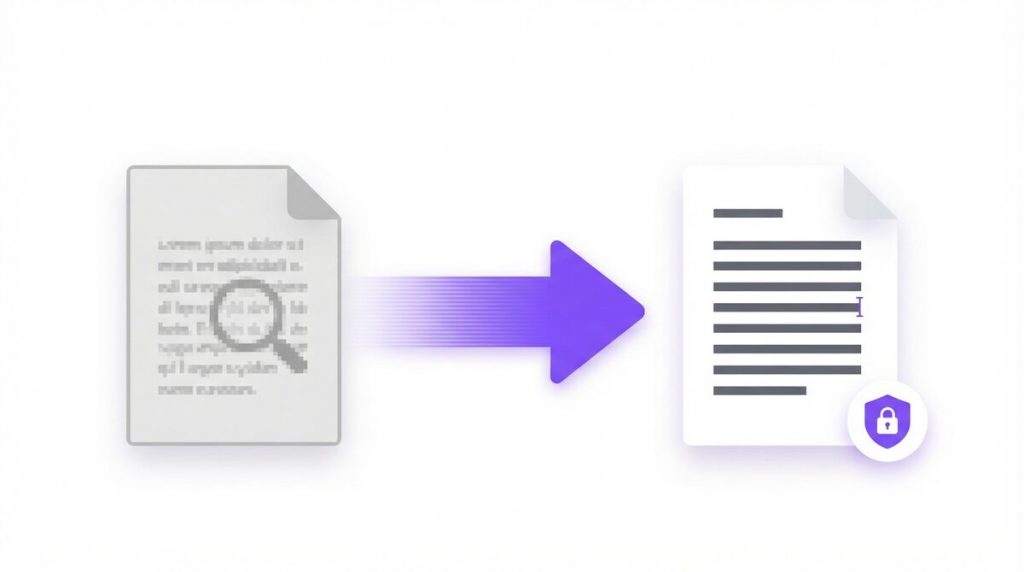
Turning a scanned pdf to word or plain editable text is one of the most common — and most frustrating — problems people hit when working with documents, and the good news is that you can do it for free, right in your browser, without uploading a single file. A scanned PDF is really just a picture of a page, so the words you see on screen are locked inside an image. To make them editable, you first need OCR (optical character recognition), and then you can copy the text or save it as a Word document.
In this guide you’ll learn exactly what OCR is, how to tell whether your PDF is scanned, and how to convert a scanned pdf to word using PDFLove’s free, private, on-device tools — plus tips for accuracy, common problems, and answers to the questions people ask most.
What Is a Scanned PDF (and Why It Won’t Let You Edit)
A scanned PDF is created when you photograph or scan a paper document. Instead of storing the actual letters and words as text, the file stores a flat image of the page — the same way a photo stores a picture of a sunset. Your eyes read the words fine, but to the computer it’s just a grid of colored pixels.
That’s why you can’t select, copy, or search the words in a scanned document. There’s nothing to select because, technically, there is no text in the file — only an image that happens to look like text. This is the single biggest reason people struggle to convert a scanned pdf to word format: they try to copy and paste, and nothing happens.
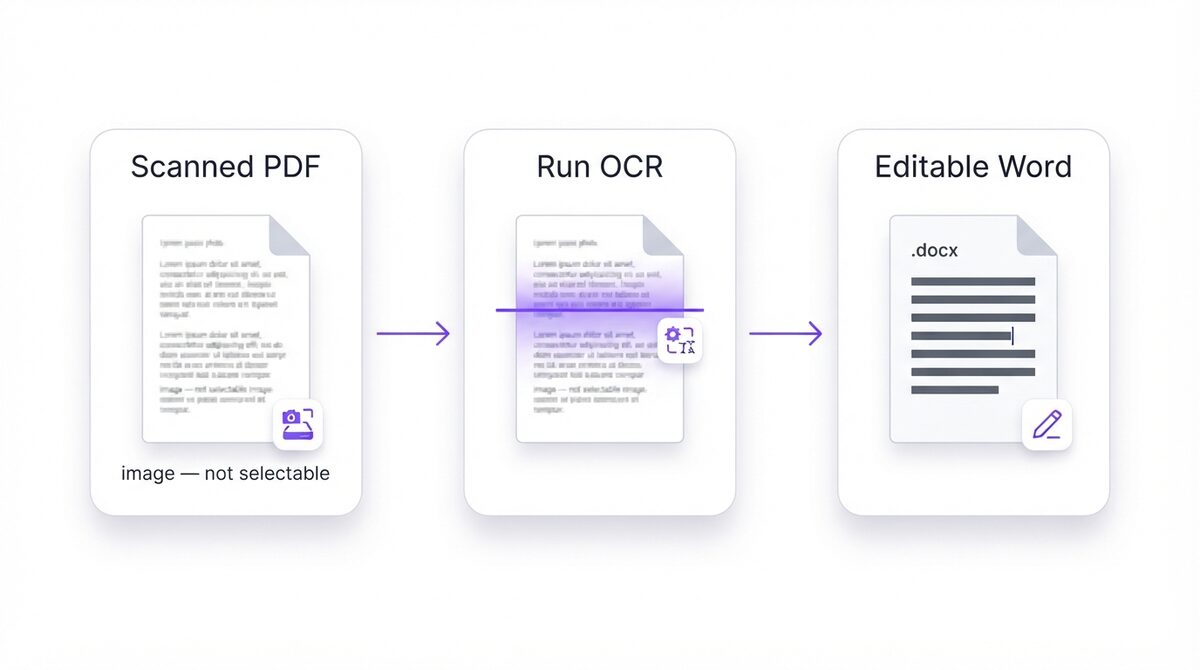
The fix is a two-step process. First, you run OCR to “read” the image and rebuild the real text. Second, you take that recognized text and either copy it or save it as an editable Word (.docx) file you can open in Microsoft Word, Google Docs, or Pages.
What Is OCR and Why a Scanned PDF Needs It
OCR stands for optical character recognition. It’s the technology that looks at the shapes in an image, matches them to letters and numbers, and turns a picture of words back into actual, editable text. According to Wikipedia’s overview of optical character recognition, OCR has been refined for decades and now powers everything from license-plate readers to document digitization.
Without OCR, a scanned page stays an image forever. You could retype the whole thing by hand, but for anything longer than a paragraph that’s slow and error-prone. OCR does the reading for you in seconds. Once the characters are recognized, converting a scanned pdf to word becomes simple: the text is now real data that any word processor can accept.
Modern OCR is impressively accurate on clean, printed pages. It handles most fonts, multiple columns, and even a mix of languages. PDFLove’s OCR runs on-device text recognition directly in your browser, so your document is analyzed on your own machine — never sent to a server.
How to Tell If Your PDF Is Scanned or Text-Based
Before you convert anything, it helps to know what you’re dealing with. There’s a quick, reliable test that takes about five seconds.
- Open the PDF in any viewer (browser, Preview, Adobe Reader).
- Try to select a word with your mouse by clicking and dragging across it.
- Watch what happens. If a blue or highlighted selection appears over the text, your PDF already contains real text — you may not need OCR at all. If nothing highlights, or the whole page selects as one block like a photo, it’s a scanned (image-based) PDF.
- Try search. Press Ctrl+F (or Cmd+F) and search for a word you can clearly see. If it isn’t found, the PDF is almost certainly scanned.
If your PDF passed the test and text is already selectable, you can jump straight to converting it — see our full collection of free PDF tools. If it failed, keep reading: you’ll need OCR first, and that’s exactly what the next section covers.
How to Convert a Scanned PDF to Word (Step by Step)
Here’s the complete, free workflow to take a scanned pdf to word using PDFLove. The whole thing runs in your browser, so nothing uploads and nothing leaves your device.
- Open the OCR tool. Go to PDFLove’s free OCR PDF tool in any modern browser on your computer or phone.
- Add your scanned PDF. Drag and drop the file onto the page, or click to browse and select it. Because the tool works on-device, your file is loaded locally — it is never sent anywhere.
- Run the text recognition. Start the OCR process. The tool scans each page, recognizes the characters, and rebuilds the real, selectable text. Larger documents take a little longer, so give multi-page files a moment.
- Review and copy the extracted text. Once OCR finishes, you’ll have selectable, copyable text. Read through it quickly to catch any obvious slips (see the accuracy tips below).
- Get an editable Word file. To finish converting the scanned pdf to word, take the now text-based PDF and run it through PDFLove’s PDF to Word converter to produce a clean, editable .docx you can open in Microsoft Word or Google Docs.
- Open, edit, and save. Open the .docx, make your changes, and save. That’s it — the words that were once locked inside an image are now fully editable.
The key mental model is simple: OCR first, convert second. OCR unlocks the text; the PDF to Word step packages that text into a document format built for editing.
How to Convert Scanned PDF to Word on Your Phone
You don’t need a desktop app. Because PDFLove is browser-based, the same scanned pdf to word workflow runs on an iPhone or Android phone directly in Safari or Chrome.
- Scan or find your document. Use your phone’s built-in scanner (in the Files app on iPhone or Google Drive on Android) or pick an existing PDF.
- Open the OCR tool in your mobile browser. Visit the OCR PDF tool, then add your file straight from your phone’s storage.
- Run OCR and copy the text. Let the recognition finish, then copy the extracted text or continue to the PDF to Word converter for a .docx.
- Share or save. Save the file to your phone, email it, or drop it into your notes app.
This is ideal when you’re away from your desk — snap a photo of a receipt, contract, or handout and turn it into editable text on the spot.
Tips for the Best OCR Accuracy
OCR quality depends heavily on the quality of the scan. A little care up front means far less cleanup later when you convert a scanned pdf to word.
- Start with a sharp, high-resolution scan. Aim for at least 300 DPI. Blurry or low-res images confuse the recognizer.
- Keep pages straight. Skewed or rotated pages hurt accuracy. Straighten the page before scanning, and use good, even lighting.
- Maximize contrast. Dark text on a plain white background reads best. Avoid shadows, glare, and busy backgrounds.
- Flatten the paper. Creases, folds, and curled edges distort letters. Press documents flat before scanning.
- Prefer clean, standard fonts. Printed text is far easier to recognize than handwriting or decorative fonts.
- Scan one language where possible. Mixed scripts on the same line can reduce accuracy on some pages.
Even great OCR benefits from a quick human proofread. Skim the result for common mix-ups — like the letter “O” versus zero, or “l” versus “1” — and fix them in your Word document.
Common Problems and How to Fix Them
Most issues have simple causes. Here are the ones people run into most when they convert a scanned pdf to word, and how to solve each.
The text still isn’t selectable after OCR
Make sure the OCR step actually finished before you moved on. On very large files, give it extra time. If a page was mostly image or very low quality, re-scan it at a higher resolution and try again.
Some words came out garbled
This is almost always a scan-quality issue. Rescan at 300 DPI or higher with better lighting and contrast. Then re-run OCR — accuracy usually jumps dramatically with a cleaner source.
The formatting looks different in Word
OCR rebuilds text, not always the exact original layout. Complex tables, columns, and graphics may shift. Fix spacing and headings in Word after conversion — the words themselves will be correct, which is the hard part.
The file won’t load
Confirm the file is a genuine PDF and isn’t password-protected. Remove any password first, then load it into the OCR tool.
My handwriting didn’t convert well
OCR is optimized for printed text. Handwriting recognition is far less reliable, so expect to correct more. For important handwritten notes, typing may still be faster than heavy cleanup.
How to Check the Text After You Convert a Scanned PDF to Word
OCR is pattern recognition, not reading. It will happily produce a confident-looking word that was never on the page, and because the output is ordinary text, nothing marks it as a guess. Ten minutes of checking is what separates a document you can rely on from one that quietly carries an error into a contract, an invoice or a set of accounts.
Start with the characters OCR confuses most. Nearly every recognition mistake falls into a small, predictable set of look-alikes:
- 0 and O, and 1, l and I — most damaging inside reference numbers, invoice IDs and postcodes, where nothing looks obviously wrong.
- rn read as m, or cl read as d — these produce real words, so a spell check will never flag them.
- 5 and S, 8 and B, 2 and Z — common in older, faded or low-contrast scans.
- Decimal points and commas dropped from figures, which can shift a number by a factor of a hundred.
Search instead of skimming. Use Word’s Find (Ctrl+F, or Cmd+F on a Mac) to jump straight to what matters — currency symbols, dates, totals and any reference number — and compare each one against the original scan. Reading top to bottom is slower and catches less.
Let Word take the first pass. Run spell check with the proofing language set correctly: a document wrongly marked as English will flag perfectly good text in another language and bury the genuine errors in noise. Switching on Show All Formatting Marks also exposes the stray line breaks that OCR tends to insert at the end of every scanned line.
Add the numbers up again. If the page held a table or a total, re-total it and compare against the original. Figures are where a mistake is most expensive, and a quick sum finds it in seconds.
Keep the original scan. Never delete the source file once you convert a scanned PDF to Word. It is the only record of what the page actually said, and you will want it the first time a figure looks off.
Doing this a few times also tells you how good your scans really are. If a page needs heavy correction every time, the fix is upstream rather than in Word — rescan it at a higher resolution with better contrast, and the next scanned PDF to Word conversion will need almost no editing at all.
Real-World Use Cases
Once you know how to turn a scanned pdf to word, a lot of everyday tasks get easier:
- Students digitize scanned handouts and textbook pages so they can quote, search, and reuse the text in essays.
- Professionals pull clauses out of scanned contracts to edit or repurpose them without retyping.
- Small businesses turn scanned invoices and receipts into editable, searchable records.
- Researchers convert old printed papers and archives into text they can annotate and cite.
- Anyone updating an old document that only exists as a paper scan — no need to rebuild it from scratch.
In every case the goal is the same: free the text from the image so you can edit it. That’s exactly what the OCR-then-convert workflow delivers.
PDFLove vs Other Scanned PDF to Word Tools
Plenty of services promise to convert a scanned pdf to word, but many require you to upload your file to their servers, create an account, or pay for the features you actually need. That raises real privacy questions — especially for contracts, IDs, and financial documents.
PDFLove takes a different approach:
- 100% in your browser. OCR and conversion run on your own device using on-device text recognition. Your files never upload.
- Free. No subscription, no paywall, no trial countdown.
- No account required. Just open the tool and start.
- Private by design. Because nothing leaves your machine, sensitive documents stay yours.
- Works everywhere. Any modern browser on desktop, iPhone, or Android.
Traditional desktop software like Microsoft Word can open some PDFs and attempt conversion, and dedicated OCR apps exist — but they often mean installs, licenses, or uploads. A free, private, browser-based workflow removes all of that friction.
Why PDFLove Is the Free, Private Choice
The documents you scan are often the most sensitive ones you own — contracts, medical forms, tax papers, and IDs. When a website asks you to upload those files to convert a scanned pdf to word, you’re trusting an unknown server with private data. PDFLove removes that risk entirely by doing the work locally, in your browser, using on-device optical character recognition.
That means the file you drop into the OCR PDF tool is read and processed on your device and nowhere else. There’s no upload, no cloud storage, and no copy sitting on someone else’s server. You get professional-grade results with the privacy of working entirely offline — for free.
Tips for the Most Accurate Scanned PDF to Word Results
OCR is impressively good, but the quality of your scan makes a big difference. A few habits get you the cleanest scanned PDF to Word conversion possible:
- Start with a high-resolution scan. Around 300 DPI gives OCR the detail it needs to read letters accurately.
- Keep pages straight. A skewed or tilted scan confuses the text engine – straighten pages before running OCR.
- Use good contrast. Dark text on a clean white background reads far better than a faint or grey scan.
- Choose the right language. Tell the OCR tool which language the document is in so it recognises the right characters.
- Proofread afterwards. Even great OCR can misread the odd character, so give the converted text a quick check before you rely on it.
Follow those and your scanned PDF to Word conversion will need only light touch-ups. The better the scan going in, the less editing you will do once the text is back in Word.
Why You Can’t Skip OCR for a Scanned Document
It is tempting to drop a scanned file straight into a PDF-to-Word converter and hope for the best – but it will not work, and it helps to understand why. A normal PDF stores real, selectable text; a scanned PDF stores only a picture of the page. To a converter, that picture is just pixels, with no letters to extract.
That is the whole reason a scanned PDF to Word conversion has two stages: first OCR reads the image and rebuilds the text, then that recovered text can be moved into Word. Skip the OCR step and a converter has nothing to work with, so you get a blank or garbled document. Running OCR first is what turns an image back into words – and it is the difference between a usable file and a frustrating one.
Frequently Asked Questions
How do I convert a scanned pdf to word for free?
Open PDFLove’s free OCR PDF tool, add your scanned file, and run text recognition to unlock the text. Then use the PDF to Word converter to save an editable .docx. Both steps are free and run in your browser.
Why can’t I edit or copy text in my scanned PDF?
A scanned PDF is just an image of the page, so there is no real text to select or copy. You need OCR to recognize the characters and rebuild editable text before you can convert a scanned pdf to word.
Is my file uploaded when I convert a scanned pdf to word?
No. PDFLove runs OCR and conversion 100% in your browser using on-device text recognition. Your document never leaves your device, so it stays completely private.
Do I need to run OCR before converting to Word?
Yes, if the PDF is scanned. OCR turns the image into real, selectable text first. If your PDF already has selectable text, you can skip OCR and go straight to the PDF to Word step.
How can I make OCR more accurate?
Use a sharp scan of at least 300 DPI, keep pages straight and flat, maximize contrast between text and background, and prefer clean printed fonts. Better scans mean fewer corrections after you convert a scanned pdf to word.
Can I convert a scanned pdf to word on my phone?
Yes. Because PDFLove is browser-based, the same workflow runs on an iPhone or Android phone in Safari or Chrome — just open the OCR tool and add your file.
Does OCR work on handwriting?
OCR is optimized for printed text and is far less reliable with handwriting. It may still recognize neat handwriting, but expect to correct more errors than with clean printed pages.
Is PDFLove really free to use?
Yes. The OCR and PDF to Word tools are free, with no account, subscription, or upload required. You can convert a scanned pdf to word as often as you like.
Conclusion
Turning a scanned page into editable text isn’t magic — it’s just two clear steps. First, run OCR to rebuild the real text hidden inside the image. Second, convert that text into an editable Word file. With PDFLove you can do both for free, entirely in your browser, with nothing ever uploaded.
Ready to convert your scanned pdf to word right now? Start with the free, private OCR PDF tool, then finish in the PDF to Word converter — no account, no cost, and your files stay on your device.