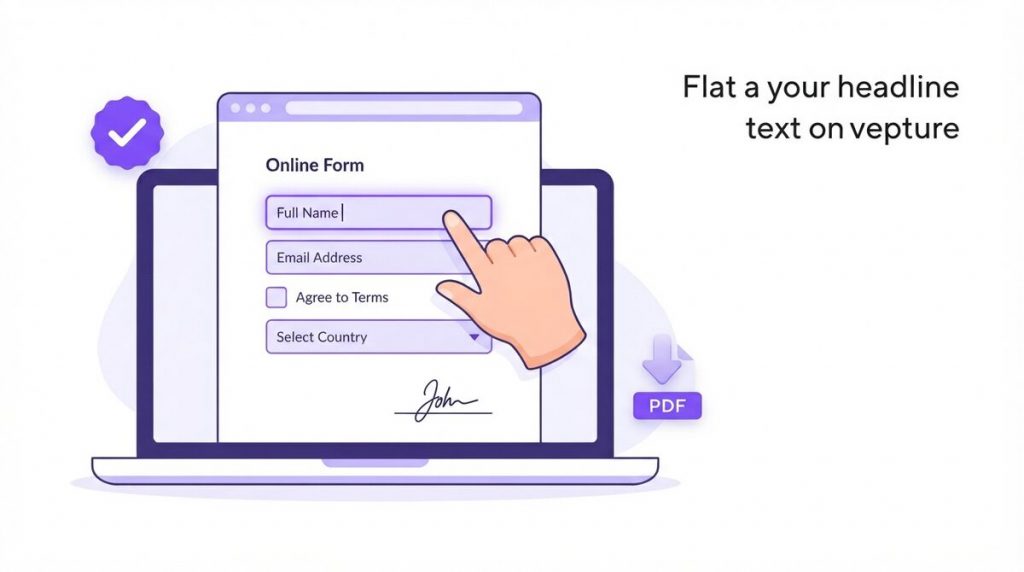
Learning how to fill out a PDF form should not mean printing, hand-writing, scanning, or paying for bloated software. With the right free tool you can type directly into the fields, tick checkboxes, sign, and save a clean copy in a couple of minutes — all inside your web browser, with your file never leaving your device.
This guide walks you through every situation you will run into when you fill out a PDF form: interactive forms with real fillable fields, flat forms with no fields at all, signing, working on your phone, and fixing the problems that trip most people up. Everything here is free and private, with no watermarks and no account required.
What Does It Mean to Fill Out a PDF Form?
A PDF form is any PDF designed to collect information — an application, a tax document, an enrollment sheet, a rental agreement, an intake questionnaire, or a permission slip. To fill out a PDF form means to enter your details into the correct places, add any signatures or checkmarks, and save the finished document so it can be emailed, printed, or submitted.
The old way was clumsy: you would print the page, write on it by hand, then scan it back in. Not only is that slow, the result often looks messy and can be hard to read. The modern way keeps everything digital: you fill out a PDF form on screen, type into it, and export a crisp, professional copy that anyone can read on any device.
There is one important catch, and it decides everything about how you proceed: not all PDFs are built the same. Some contain real interactive fields you can click into; others are just flat images of a form with no clickable areas at all. Knowing which kind you have is the first step, so let us break that down clearly.
Fillable Forms vs. Flat Forms (And How to Tell)
There are two kinds of PDF forms, and they need slightly different approaches.
Interactive (fillable) forms contain built-in form fields — text boxes, checkboxes, radio buttons, and dropdown menus — that the form’s creator added on purpose. These are the easiest to complete. You click a field, the cursor appears, and you type. Government agencies, banks, and HR departments often publish forms this way so responses come back neat and consistent.
Flat forms are static. They look like a form — lines, boxes, labels — but there are no clickable fields underneath. This happens when a form was scanned from paper, exported as an image, or simply created without form fields. Clicking on a flat form does nothing because there is no field to receive your text.
Here is how to tell which one you have in about five seconds:
- Click a blank line or box. If a text cursor appears and you can type, it is an interactive form.
- Press the Tab key. On a fillable form, Tab usually jumps from one field to the next and highlights it. On a flat form, nothing happens.
- Look for a highlight. Many viewers shade fillable fields in a light blue or gray so they stand out. No highlights usually means a flat form.
- Check the origin. A crisp, digitally generated PDF is often fillable; a slightly blurry page that looks photocopied is almost always flat.
Good news: you can fill out a PDF form of either type free and in your browser. The rest of this guide covers the fillable path first, then the flat-form path, so you are ready either way.
How to Fill Out a PDF Form Online (Step by Step)
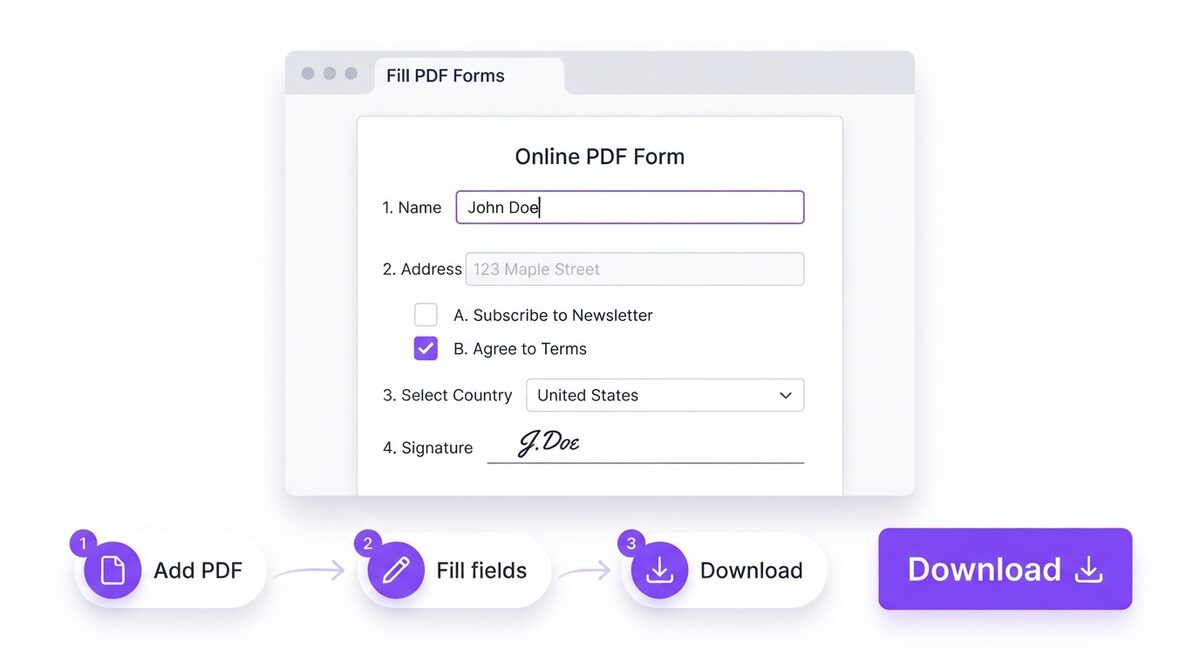
If your document has interactive fields, this is the fastest route. To fill out a PDF form with real fields, use the free Fill PDF Forms tool from PDFLove. It detects the fields for you, keeps everything on your device, and never asks you to create an account. Here is the full walkthrough.
- Open the tool. Go to the Fill PDF Forms page in any modern browser — Chrome, Safari, Edge, or Firefox. Nothing installs and nothing uploads to a server.
- Add your PDF. Drag your form onto the page or click to browse and select it from your computer. Because the tool runs entirely in your browser, the file stays on your machine.
- Let it detect the fields. The tool reads the PDF and highlights every interactive field it finds — text boxes, checkboxes, and dropdowns.
- Click a text field and type. Enter your name, address, dates, and any other details. Use the Tab key to jump neatly to the next field.
- Tick checkboxes and radio buttons. Click any box you need to select. For radio buttons, choosing one option automatically clears the others in that group.
- Choose from dropdowns. If the form has a dropdown (for a state, title, or category), click it and pick the correct value from the list.
- Review every field. Scroll through the whole form and double-check spelling, numbers, and dates before you finish.
- Download your completed form. Click download or save to export a clean PDF with your answers baked in — no watermark, ready to email or print.
That is the entire process. Most people fill out a PDF form of a single page in under two minutes. Because the work happens locally, it is also fast even on slower connections — there is no waiting for a large upload or download to a distant server.
How to Fill Out a Flat PDF Form With No Fields
What if you click and nothing happens? Then you have a flat form, and you cannot type into fields that do not exist. The solution is to place your own text directly on top of the page. For this, use the free Edit PDF tool, which lets you add text boxes, checkmarks, and images anywhere on the document.
Here is how to complete a flat, non-fillable form:
- Open the Edit PDF tool in your browser and add your PDF the same way — drag and drop or click to browse.
- Select the text tool and click where you want to write, for example on the blank line next to “Name.”
- Type your answer, then move, resize, or adjust the font so it lines up neatly with the printed line or box.
- Add checkmarks by typing an “X” or a checkmark character in the right spot, or drop a small image where needed.
- Repeat for every field on the form, working top to bottom so you do not miss anything.
- Download the finished PDF. Your typed text is now part of the page, and the document looks tidy and professional.
This approach lets you fill out a PDF form that was scanned from paper, exported as an image, or simply never given interactive fields. It is also handy when a fillable form has a stubborn field that will not accept text — you can simply lay your own text over the top instead. You can reach both tools and more from the main PDFLove tools page whenever you need them.
How to Sign the Form After You Fill It Out
Many forms need a signature at the end. You do not have to print and scan for that either. After you fill out a PDF form, you can add a signature digitally in a few different ways:
- Draw it. Use your mouse, trackpad, or finger (on a touchscreen) to draw your signature directly on the signature line.
- Type it. Enter your name and pick a handwriting-style font for a quick, legible signature.
- Upload an image. If you already have a photo or scan of your signature, drop it onto the page and position it over the line.
Place the signature where it belongs, resize it so it fits the line, and add the date next to it if the form asks for one. Then download your signed copy. For legally sensitive documents, check whether the recipient requires a specific type of electronic or digital signature — some organizations accept a simple typed or drawn signature, while others require a certificate-based digital signature. When in doubt, ask the party requesting the form.
Fill Out a PDF Form on Your Phone (iPhone & Android)
You can fill out a PDF form on a phone or tablet just as easily as on a computer, because browser-based tools work on mobile too. This is perfect when a form lands in your email and you are away from your desk.
On iPhone or iPad
- Open the PDF form from Mail, Messages, or Files in Safari or download it to your device.
- Go to the Fill PDF Forms tool in Safari and add the PDF from your Files app or Photos.
- Tap each field and type using the on-screen keyboard; pinch to zoom in for precise tapping on small fields.
- Add your signature with your finger, then tap download to save the finished form back to Files.
On Android
- Save the PDF form to your device from Gmail, Drive, or wherever you received it.
- Open the Fill PDF Forms tool in Chrome and add the PDF from your storage.
- Tap into each field, type your answers, and select checkboxes or dropdowns as needed.
- Sign with your fingertip and download the completed PDF to your device.
The mobile experience mirrors the desktop one: your file stays on your phone, there is nothing to install, and you get a clean, shareable PDF at the end. For most people this is now the quickest way to fill out a PDF form, because the document is already sitting in your inbox.
Tips for the Best Results
A few small habits make it faster and cleaner every time you fill out a PDF form:
- Zoom in for accuracy. Enlarging the page makes it easier to click the exact field and read tiny labels, especially on tax and government forms.
- Use Tab to move through fields. On interactive forms the Tab key jumps to the next field in order, which is quicker and reduces the chance of skipping one.
- Match the field size. If you are adding text to a flat form, keep the font size close to the printed text so everything looks consistent.
- Fill from top to bottom. Working in order helps you avoid missing a box, which is easy to do on long, multi-section forms.
- Keep a plain-text copy of common answers. If you fill similar forms often, having your details ready to paste saves time.
- Save a blank master. Keep the original empty form so you can start fresh next time instead of clearing an old copy.
- Double-check dates and numbers. These are the most common source of errors and the hardest for a reader to guess if wrong.
Common Problems and How to Fix Them
Even simple forms occasionally misbehave. Here are the issues people hit most often when they fill out a PDF form, and how to solve each one.
“I click a field but cannot type.”
The form is probably flat, with no interactive fields. Switch to the Edit PDF tool and add text on top of the page instead, as described above.
“The form is password protected.”
Some forms are secured against editing. You will need the password or an unlocked version of the file before you can fill it. Ask whoever sent it for an editable copy.
“My text is too big or too small for the box.”
Adjust the font size so your entry fits inside the field or line. On flat forms you can freely resize each text box until it looks right.
“The checkbox will not tick.”
If a checkbox is not interactive, treat the form as flat and place an “X” or checkmark character over the box using the edit tool.
“I need to change something after downloading.”
Reopen the blank original and fill out a PDF form from scratch, or re-open the saved copy in the tool and adjust the entries you need to change. Keeping the blank master file makes this painless.
“The fonts look different after filling.”
This is usually fine for submission, but if appearance matters, match the tool’s font to the form’s style, or on flat forms pick a neutral font like a standard sans-serif that blends in.
Real-World Use Cases
People fill out PDF forms every week for all kinds of reasons. A few common examples:
- Job applications and HR paperwork — onboarding forms, tax withholding sheets, direct-deposit setup, and benefits enrollment.
- Government and tax documents — many agencies publish fillable PDFs you can complete and submit or print.
- Rental and real estate — lease agreements, rental applications, and inspection checklists.
- School and childcare — enrollment forms, permission slips, and medical release forms.
- Healthcare intake — new-patient questionnaires and consent forms you can complete before an appointment.
- Business and finance — invoices, purchase orders, expense claims, and vendor forms.
In every case the goal is the same: a clean, readable, professional document you can send with confidence — without a printer, a scanner, or a subscription.
Why PDFLove Is the Free, Private Choice
The biggest difference between PDFLove and many other options is where your file goes. When you fill out a PDF form with PDFLove, the work happens in your browser on your own device — your form is not uploaded to a company server, so your personal details stay with you. For sensitive documents like tax forms, medical intakes, and financial applications, that privacy matters.
PDFs are a widely used open standard; you can read more about the format’s history and design on the Wikipedia PDF page. Because PDFLove tools run locally, they also tend to be faster than upload-based services and work without an internet round-trip once the page has loaded.
On top of privacy, PDFLove is genuinely free: no watermark on your finished form, no forced sign-up, and no trial that expires. You get the fillable-form tool, the edit tool for flat forms, signing, and dozens of other PDF utilities in one place, all in the browser.
PDFLove vs. Other Tools
- vs. printing and scanning: No hardware, no mess, and a far cleaner result that is easy to read.
- vs. paid desktop software: Nothing to install or license; you open a page and go.
- vs. upload-based websites: Your file never leaves your device, so there is no server-side copy of your personal data.
Everyday Situations Where You Fill Out a PDF Form
Once you know how to fill out a PDF form on any device, you will use it all the time. A few real examples show why it is such a handy skill:
- Job applications – fill out a PDF form from an employer and send it straight back, no printer needed.
- Government and tax paperwork – complete official forms neatly and legibly instead of hand-writing them.
- School and medical intake – fill out a PDF form before an appointment and email it ahead.
- Contracts and agreements – enter your details, then sign the same file.
- Rental and banking documents – fill out a PDF form with sensitive details privately, on your own device.
In every case the win is the same: you fill out a PDF form digitally and return a clean, professional file in minutes – no printing, scanning, or posting. That is why learning to fill out a PDF form the right way saves so much time.
Before You Send It: What to Check After You Fill Out a PDF Form
The last thirty seconds are worth more than the ten minutes before them. Run through this quick list before the form leaves your device:
- Reopen the downloaded file. Do not trust the editing view alone — open the saved PDF in a normal viewer and confirm your answers are actually there and readable.
- Check the last page. Signature lines, dates, and declarations live at the bottom, and they are the fields people most often miss.
- Read your numbers out loud. Account numbers, dates of birth, and reference codes are the errors a recipient cannot guess or correct for you.
- Flatten it if the fields should not change. The Fill PDF Forms tool can flatten your entries into the page, which stops anyone editing them later.
- Rename the file sensibly. “Smith-J-enrollment-2026.pdf” reaches the right desk faster than “form(3).pdf”.
Two minutes of checking is cheaper than being asked to fill out a PDF form a second time because one box was blank.
Frequently Asked Questions
How do I fill out a PDF form for free?
Open the free Fill PDF Forms tool in your browser, add your PDF, click each interactive field and type your answers, tick any checkboxes, then download the finished form. It is completely free with no watermark and no account.
Can I fill out a PDF form without Adobe Acrobat?
Yes. You do not need Acrobat or any installed software. A browser-based tool like PDFLove lets you fill out a PDF form online for free, and it works on Windows, Mac, Chromebook, and mobile.
How can I tell if a PDF form is fillable or flat?
Click a blank field or press the Tab key. If a text cursor appears or a field highlights, it is fillable. If nothing happens, it is a flat form and you should use the Edit PDF tool to add text on top.
How do I fill out a PDF that has no fillable fields?
Use the Edit PDF tool to place text boxes, checkmarks, and images directly on the page. This works for scanned or image-based forms that were never given interactive fields.
Is it safe and private to fill out a PDF form online?
With PDFLove it is, because the tool runs in your browser and your file is never uploaded to a server. Your personal details stay on your own device, which is ideal for tax, medical, and financial forms.
Can I sign a PDF form after filling it out?
Yes. You can draw your signature with a mouse or finger, type it in a signature font, or upload an image of your signature, then position it on the signature line and download the signed copy.
Can I fill out a PDF form on my phone?
Yes. Open the tool in Safari on iPhone or Chrome on Android, add the PDF from your files, tap each field to type, sign with your finger, and download the completed form back to your device.
Do I have to pay or create an account to fill out a PDF form?
No. PDFLove is free to use with no sign-up and no watermark on your finished document. You can fill out a PDF form and download it right away.
Conclusion
You now have everything you need to fill out a PDF form the fast, modern way. For interactive forms, click the fields and type; for flat forms, lay your own text on top; then sign, review, and download — all free, all private, and all in your browser on any device.
Ready to get started? Open the free Fill PDF Forms tool to complete your document in minutes, with no upload and no sign-up. Your form, your device, done in a couple of clicks.