
If you have ever emailed a document and wondered what your file is quietly telling people about you, learning how to edit PDF metadata is one of the most useful ten-minute skills you can pick up. Every PDF carries a small set of hidden properties – a title, an author name, the software that made it, and a creation timestamp – and with PDFLove you can read and rewrite all of them for free, right inside your browser, with no upload and nothing to install.
In this guide you will learn what PDF metadata is, why the Title and Author fields matter far more than most people realise, and how to edit PDF metadata step by step using a free tool, Adobe Acrobat, or Preview on a Mac. We will also cover how to strip your name out of a file completely before sharing it publicly.
What PDF Metadata Actually Is
Metadata is data about your data. In a PDF it lives in a small section of the file called the document information dictionary – usually shortened to the Info dictionary. It is not part of the page content, so you will never see it by scrolling through the document. It sits alongside the pages, quietly describing them.
The Info dictionary holds a short, fixed list of properties. Before you edit PDF metadata it helps to know what each one is for:
- Title – the human-readable name of the document. This is not the filename. It is a separate field stored inside the file.
- Author – the person or organisation credited with writing the document.
- Subject – a short description of what the document is about, like a one-line summary.
- Keywords – a comma-separated list of terms that describe the document, used by search and indexing tools.
- Creator – the application that created the original document.
- Producer – the application that converted that original into the PDF you are holding.
- Created – the date and time the document was first created.
- Modified – the date and time it was last changed.
That is the whole set. Eight fields, written automatically by whatever software produced your file, and almost never reviewed by the person who sends it. The PDF format has carried this document information dictionary since its earliest versions, which is why it is so consistently present in files from every era and every application.
Here is the important part: these fields are filled in whether you want them to be or not. Nobody asks your permission. If you want them accurate, useful, or empty, you have to edit PDF metadata yourself.
Creator vs Producer: The Difference Nobody Knows
Almost everyone who opens a properties panel gets confused by these two fields, because they sound like synonyms. They are not, and the distinction makes it much easier to edit PDF metadata sensibly.
Creator is the application that authored the original content. If you typed a report in Microsoft Word, the Creator is Word. It answers the question: what did the human actually work in?
Producer is the application that wrote out the PDF file itself. When you print a page to PDF from a browser, the Producer is whatever PDF library the operating system used. It answers a different question: what performed the final conversion?
Very often the two are different, and sometimes the chain is longer still – you make a document in one app, export it, then run it through an online tool, and the Producer changes again while the Creator stays as it was.
Together these two fields are a small confession about your software stack, your employer’s licensing, and sometimes your job role. When you edit PDF metadata for a file you are about to publish, Creator and Producer are the two people most often forget.
Why You Should Edit PDF Metadata
There are four solid reasons to edit PDF metadata, and most people only think of the last one.
1. Privacy
A PDF you email can silently carry your real full name in the Author field, your employer’s software in Creator and Producer, and a timestamp showing exactly when you made it. If you send an “anonymous” complaint, a blind portfolio piece, or a document under a pen name, that metadata undoes your intent instantly. Anyone can see it in two clicks.
Timestamps deserve their own warning. A creation date of 11:47 PM on a Sunday tells a story. A creation date the day after a deadline tells a different one. If those details matter, edit PDF metadata before the file leaves your device.
2. SEO and discoverability
If your PDF is going on a website, the Title field is what search engines and most PDF viewers display as the document title – often instead of the filename. A well-written Title is the difference between a search result reading “2026 Accessibility Guide for Small Teams” and one reading “Microsoft Word – untitled-3.docx”. People click the first one.
Subject and Keywords add further context for indexing systems. They are not a magic ranking button, but they are free and they take twenty seconds.
3. Organisation and search
Windows Search, macOS Spotlight, and virtually every document management system index these fields. If you edit PDF metadata consistently across a folder of invoices or reports, you can find any document by author, subject, or keyword rather than squinting at cryptic filenames.
4. Professionalism
Open a client-facing proposal and see the title bar read “Microsoft Word – final_v3_REALLY FINAL.docx” and the document loses a little credibility. Taking a moment to edit PDF metadata before delivery is the document equivalent of proofreading your subject line.
How to Edit PDF Metadata Free in Your Browser
The fastest free way to edit PDF metadata is the PDFLove Edit Metadata tool. It runs entirely in your browser, so your PDF is never uploaded. No sign-up, no watermark, no file-size limit. Here is the complete walkthrough.
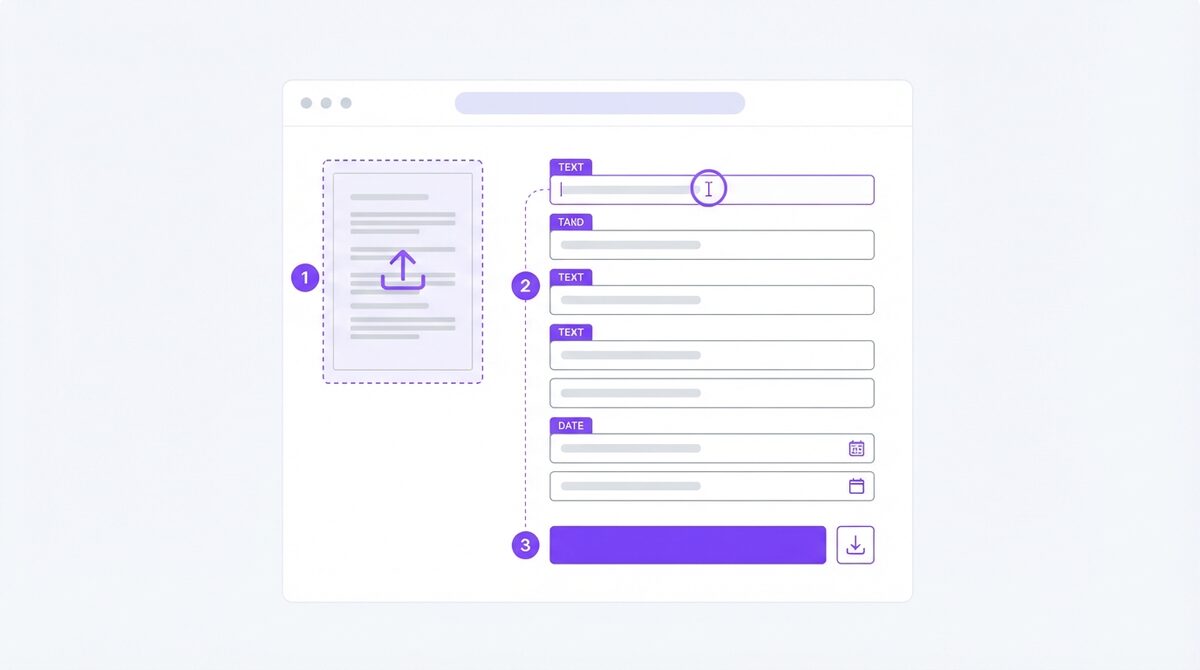
- Open the tool. Go to the free PDFLove Edit Metadata page in any modern browser on your computer or phone.
- Drop in your PDF. Drag the file into the window or click to select it. Because everything happens locally, it loads instantly and nothing is transmitted.
- Review what is already there. The tool reads your file’s existing metadata and pre-fills every field, so you can see exactly what your PDF has been telling people. A lot of people meet their own Author field for the first time here.
- Edit the Title. Write the real, human-readable name of the document. Think of it as a headline, not a filename.
- Set the Author and Subject. A person or organisation in Author, a one-line description in Subject.
- Add Keywords. Enter your terms separated by commas, for example: invoice, 2026, quarterly, acme. They are saved and read back exactly as you typed them, so they survive a save-and-reopen cycle intact.
- Adjust Creator and Producer. These are pre-filled with whatever software touched your file. Overwrite them with anything you like, or clear them entirely.
- Set the Created and Modified dates. Both use a date-and-time picker. Leave a date field blank and the existing date is preserved unchanged.
- Click Save Metadata. The tool writes your changes into the file.
- Download the updated PDF. The whole process takes well under a minute.
Because the tool pre-fills everything it finds, you only ever touch the fields you care about. Everything you do not change stays exactly as it was.
The Eight Fields and What to Put in Them
Knowing which button to press is easy. Knowing what to write is where most people stall. Here is a practical guide to each field.
Title
Write the document’s real name in plain language. “Q3 2026 Sales Report” beats “sales_q3_v7_final”. This is the string a search engine may show, so treat it like a headline.
Author
Use a real person’s name for credited work, an organisation name for published material, or leave it empty for anything you want anonymous. This is the single most privacy-sensitive field in the file.
Subject
One clear sentence describing the document’s purpose. Viewers often show this next to the title.
Keywords
Comma-separated terms, five to ten. Think about what a colleague would type into a search box six months from now.
Creator and Producer
The app that made the original, and the app that wrote the PDF. Leave them accurate if the provenance is useful, overwrite them with your organisation name for a clean branded look, or clear them for privacy. Many teams set both to their own name so every published document looks consistent.
Created and Modified
Both use a date and time picker. Use them to correct a wrong timestamp, to set a sensible publication date, or simply leave them alone – a blank date field means the existing value is preserved unchanged.
Those eight fields are everything the Info dictionary holds. There is no ninth hidden field to hunt for, which is why this job is quicker than expected.
How to Strip Metadata for Privacy Before Sharing
This is why many people go looking for a way to edit PDF metadata in the first place. You have a file to publish or send anonymously, and you want your name off it.
The method is simple: clear the field and save. When you empty a text field and click Save Metadata, the tool writes an empty value into the file. That is how you strip identifying metadata rather than overwriting it with something else. Here is the privacy pass, in order:
- Open your PDF in the free Edit Metadata tool and read the pre-filled fields. Note anything that identifies you.
- Clear the Author field. This is where your real name usually lives, courtesy of whatever software you were logged into.
- Clear or rewrite Creator and Producer. These reveal your software stack and, by implication, your employer.
- Check the Title. Exported files often carry a Title like “Microsoft Word – JSmith_resume_draft.docx”, which leaks a name and a state of mind.
- Review Subject and Keywords for anything internal – project codenames and client names hide here more often than you would think.
- Consider the dates. If a timestamp is sensitive, set it to something neutral with the picker.
- Save Metadata and download. Then reopen the downloaded file and check the fields again to confirm your changes stuck.
One honest caveat: the Info dictionary is not the only place a PDF can carry information. If you also need to hide text on the page itself, that is redaction, not metadata – a different job with a different tool. But for the properties panel anyone can open in two clicks, clearing these fields does the work.
How to Edit PDF Metadata in Adobe Acrobat
Adobe Acrobat is the reference implementation, and it is worth knowing how to edit PDF metadata there even if you do not use it daily. The catch is cost: full editing lives in Acrobat Pro, a paid subscription. The free Acrobat Reader lets you view document properties but not change and save them. In Acrobat Pro the flow is:
- Open your PDF in Acrobat Pro.
- Go to File > Properties. The keyboard shortcut is Ctrl+D on Windows or Cmd+D on a Mac.
- Select the Description tab. You will see Title, Author, Subject, and Keywords as editable boxes, with Creator, Producer, and the dates shown below.
- Type your changes into the fields you want to update.
- Click OK, then save the file with Ctrl+S or Cmd+S. The changes are not written until you save the document itself.
Acrobat is thorough, and many organisations standardise on it. But if all you need is to edit PDF metadata on a handful of files, paying a subscription to change a Title field is a lot of overhead for a small job – which is precisely the gap a free browser tool fills.
How to Edit PDF Metadata in Preview on macOS
Preview is built into every Mac and it is the first place many Mac users look. Open your PDF and choose Tools > Show Inspector, or press Cmd+I. The General tab shows the document’s properties – title, author, the PDF producer, and the dates.
The limitation is that Preview’s inspector is largely a read-only window. It is excellent for auditing a file and poor for changing one, so a lot of Mac users pair Preview for inspection with a browser tool to actually edit PDF metadata.
The same applies on Windows. File Explorer’s properties panel shows you some PDF details, but it will not reliably let you rewrite the Info dictionary inside the file.
Real-World Use Cases
Metadata editing sounds niche until you notice how often it comes up. Here is where people most commonly need to edit PDF metadata:
- Publishing a whitepaper or guide. Set a proper Title so search engines and viewers show the real name instead of an export artifact.
- Sending a resume. Clean up a Title that still says “Untitled document” and make sure Author says what you want a recruiter to see.
- Anonymous or blind submissions. Academic peer review and blind hiring exercises fall apart if your name is in the Author field.
- Client deliverables. Set Creator and Producer to your agency name so every file you hand over looks deliberate and branded.
- Archiving and records. Consistent Subject and Keywords across a folder make Spotlight and Windows Search genuinely useful.
- Fixing a merged file. After combining documents, the metadata often comes from whichever file was first. Edit PDF metadata afterwards so the result describes the whole thing.
- Correcting a bad timestamp. A scanner or converter can stamp the wrong creation date. The date picker fixes it.
Tips for Best Results
A few habits make it faster and cleaner every time you edit PDF metadata for a new document.
- Do it last. Metadata is written by the app that exports the file, so if you edit PDF metadata and then re-export, your changes can be overwritten. Make it the final step before sharing.
- Read before you write. The tool pre-fills every field, so spend ten seconds reading what is in there. You will find surprises.
- Write Titles like headlines. Proper capitalisation, real words, no version numbers.
- Keep a keyword convention. Decide on a small vocabulary – client name, year, document type – and reuse it. Consistency is what makes search work.
- Empty is a valid answer. Blank Author beats a fake one if your goal is privacy. Clear the field, save, done.
- Check the filename too. Metadata is invisible; the filename is not. “JSmith_draft_v2.pdf” defeats a privacy pass.
- Make it the last step. Edit PDF metadata after every other change is finished, so nothing downstream overwrites your Producer or dates.
- Keep the original. Save the edited copy under a new name. If you edit PDF metadata on your only version and clear the wrong field, there is no undo.
Common Problems and How to Fix Them
My changes disappeared after I converted the file
Any tool that rewrites the PDF writes its own Producer, and may reset other fields. This is why you should edit PDF metadata as the final step, after all merging, splitting, and converting is finished.
The Author field still shows my old name
Check that you clicked Save Metadata and downloaded the new file, then reopen the downloaded copy – not the original – to verify. It is easy to check the wrong file.
I need to do a whole folder at once
The tool handles one PDF at a time, so a batch means running through them individually. Quick for a handful of files, worth planning for if you have hundreds.
I cleared a date and it did not clear
Blank date fields mean “preserve the existing value”, not “erase it”. If you want a different date, set one explicitly with the picker rather than clearing the field.
My viewer still shows the old values
Viewers cache aggressively. Close the document fully and reopen it before concluding your edit did not take.
Why PDFLove Is the Free, Private Choice
Here is the irony at the heart of most online metadata tools: you are trying to remove your name from a document, so you upload the document – name included – to a stranger’s server, and you are asked to trust a deletion policy you can never verify.
PDFLove works the other way around. The Edit Metadata tool runs entirely in your browser on your own device. Your PDF is never uploaded, never stored, and never seen by anyone but you. For a privacy task, that on-device design is not a nice extra – it is the entire point.
It is also genuinely free. No account, no watermark, and no file-size limit waiting to upsell you halfway through. You get all eight fields, pre-filled from your actual file, and a download button. Edit PDF metadata as often as you like, on as many documents as you like, and nothing is ever counted against a quota.
And it does not stop at one tool. Browse the full collection of free PDF tools to merge, split, convert, and edit the pages of your PDF, all with the same private, in-browser design. Do the page work first, then edit PDF metadata at the end, and your finished file says exactly what you want it to say.
Frequently Asked Questions
How do I edit PDF metadata for free?
Open the PDFLove Edit Metadata tool, drop in your PDF, and the tool reads and pre-fills the existing fields. Change the Title, Author, Subject, Keywords, Creator, Producer, or the Created and Modified dates, click Save Metadata, and download the updated file. It is free, requires no sign-up, and your PDF is never uploaded.
What metadata does a PDF actually contain?
The document Info dictionary holds eight fields: Title, Author, Subject, Keywords, Creator (the app that made the original), Producer (the app that wrote the PDF), and the Created and Modified dates. They are written automatically by whatever software produced your file.
What is the difference between Creator and Producer?
Creator is the application you authored the original content in, such as a word processor. Producer is the application that performed the final conversion into a PDF. They are frequently different apps, which is why both appear in the properties panel.
Can I remove my name from a PDF?
Yes. Clear the Author field – and usually Creator and Producer too – then click Save Metadata. Clearing a text field and saving writes an empty value, which is how you strip identifying metadata before you share a file publicly.
Is it safe to edit PDF metadata online?
With PDFLove it is, because the tool runs entirely in your browser and your file never leaves your device. Be cautious with services that upload your document to a remote server, especially when the whole point of the edit is privacy.
How do I edit PDF metadata in Adobe Acrobat?
In Acrobat Pro, open the file and go to File > Properties (Ctrl+D or Cmd+D), then use the Description tab to change Title, Author, Subject, and Keywords. Click OK and save the document. Note that Acrobat Pro is a paid subscription; the free Reader can view properties but not change them.
Does the Title field affect SEO?
It can. Search engines and most PDF viewers display the Title field as the document’s name, often instead of the filename. A clear, well-written Title makes your document look far better in search results than an export artifact like Microsoft Word – final_v3.docx.
Conclusion
Now you know what is hiding in your documents and how to edit PDF metadata properly: eight fields in the Info dictionary, written automatically by your software, describing you and your file to anyone curious enough to press Ctrl+D. Title for how the world sees your document, Author and the dates for privacy, Creator and Producer for the software trail you did not mean to leave, Subject and Keywords for finding it again later.
Best of all, you can edit PDF metadata for free and completely privately, without installing anything or uploading your file anywhere. Open the free PDFLove Edit Metadata tool, drop in your PDF, read what it says about you, change what you want changed, and download. Make it the last thing you do before you hit send, and your file will say exactly what you intended – and nothing more.
It takes about thirty seconds once you know where to look. Edit PDF metadata on the contract before it goes to a client, on the CV before it goes to an employer, and on anything you publish where the Title field is the first thing a search engine reads. It is a small habit that quietly makes your documents more private, more professional, and easier to find.