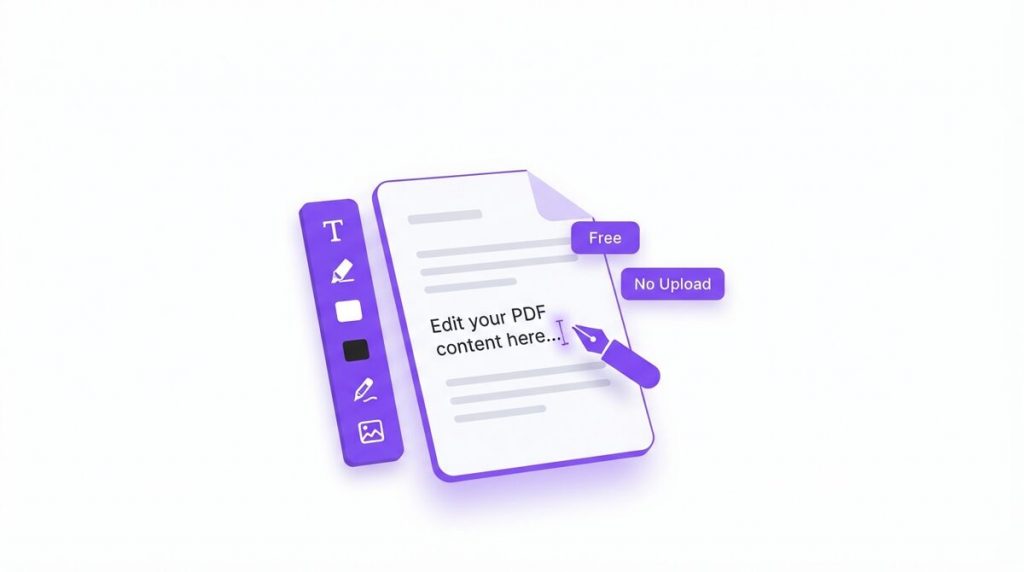
If you have ever wondered how to edit a PDF without paying for Adobe Acrobat, the good news is that you can do it right now, for free, without installing anything or uploading your file to a stranger’s server. A PDF is built for viewing, not editing, which is exactly why so many people feel stuck the moment they need to add a note, fix a detail, cross something out, or drop in a signature.
This guide walks you through how to edit a PDF for free in your browser — adding text anywhere, highlighting, whiting-out or blacking-out content, drawing freehand, and inserting images — plus how to change text that is already baked into the file using a simple Word round-trip. Everything here works on Windows, Mac, Chromebook, iPhone, and Android, and your document never leaves your device.
Let’s turn that locked-down PDF into something you can actually work with.
What Does Editing a PDF Actually Mean?
Before we get into the how-to, it helps to understand what a PDF really is. PDF stands for Portable Document Format, and it was designed to look identical on every screen and printer. To do that, it stores each character as a glyph placed at an exact coordinate on the page — closer to a printout than to a living document. That fixed nature is what makes a PDF so reliable to share, and also what makes it feel impossible to change.
Because of this, “editing a PDF” can mean two quite different things, and knowing which one you need saves a lot of frustration:
- Adding to the page (annotating). This means placing new content on top of the existing PDF — a line of text, a highlight, a signature, a redaction box, an image, or a freehand drawing. The original page stays as it is and your additions sit in a new layer above it. This covers the vast majority of everyday edits.
- Changing content already in the PDF. This means editing text or objects that are baked into the file — retyping a paragraph, deleting a sentence, or reflowing a heading. Because that text is fixed in place, changing it directly requires converting the PDF into an editable format first (more on that below).
Most of the time, when people ask how to edit a PDF, they actually want the first kind — to add or mark up content. That is fast, free, and can be done entirely in your browser. The second kind takes one extra step, and we’ll cover it in full so you’re never stuck either way.
Ways to Edit a PDF (An Overview)
There are several answers to how to edit a PDF, and the right one depends on what you’re trying to do and what you have installed. Here’s the quick landscape before we dive into the detailed steps:
- A free browser-based editor — the fastest and most private option. It runs on your device, needs no account, and lets you add text, highlight, redact, draw, and insert images on any page.
- The Word round-trip — the reliable way to change text that already exists in the PDF, by converting to Word, editing, and converting back.
- Google Docs — a free option if you already use Google Drive, though it uploads your file and simplifies the layout.
- Preview on Mac — built into macOS for basic annotation like notes, shapes, and signatures.
- Adobe Acrobat — powerful, but paid, and overkill for most everyday edits.
The rest of this guide focuses on the free, private methods first, because for the majority of tasks they are all you’ll ever need.
How to Edit a PDF for Free in Your Browser (Step by Step)
The simplest way to edit a PDF for free is a browser-based editor that never uploads your file. With the free PDF editor from PDFLove, the entire edit happens inside your browser tab — your document is opened, marked up, and saved right on your own device. Nothing is sent to a server, so there is nothing to leak, and there is no sign-up, watermark, or daily limit.
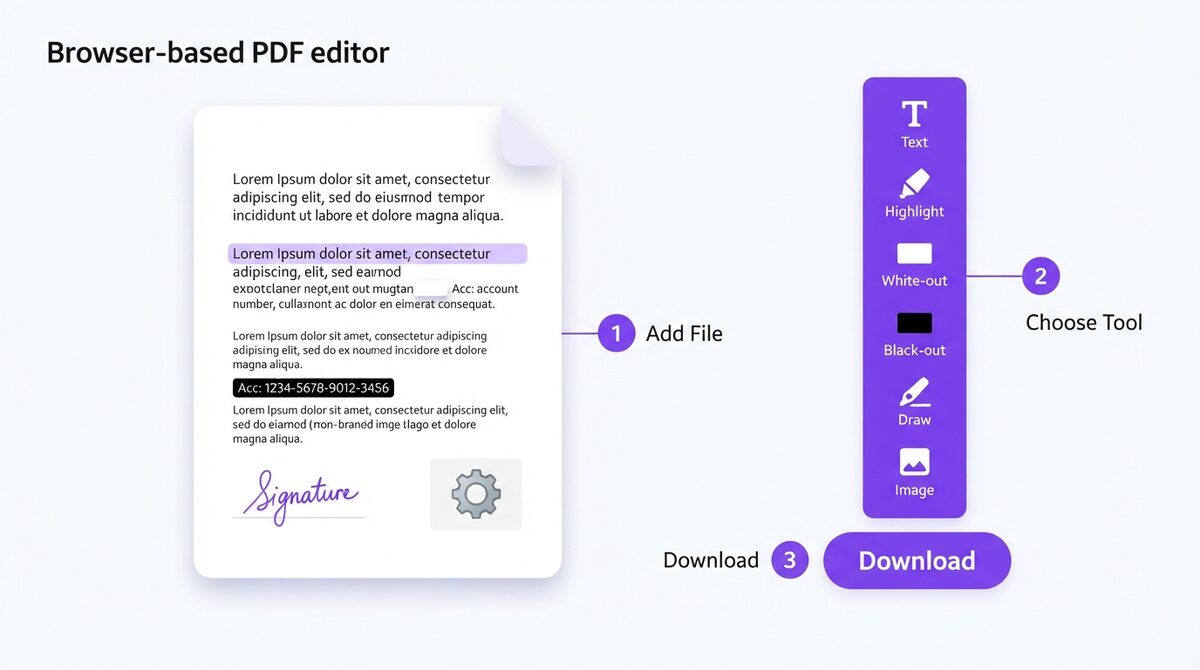
Here is how to edit a PDF in a few easy steps:
- Open the editor. Go to the free Edit PDF tool in any modern browser — Chrome, Safari, Edge, or Firefox.
- Add your PDF. Drag the file onto the page, or click to browse and select it. Your PDF stays on your computer the whole time.
- Choose a tool. Pick text, highlight, white-out, black-out, draw, or image from the toolbar.
- Make your edits. Click anywhere on the page to place text, drag to draw a highlight or redaction box, or drop in an image. Move to any page you like.
- Download. When you’re happy, click download to save your edited PDF. Your changes are flattened into a fresh file, ready to send or print.
That’s the whole process. Because the work happens locally, it’s usually instant even for long documents, and it keeps working even if your connection drops mid-task. If you regularly need to know how to edit a PDF in a hurry, bookmark the tool so it’s one click away.
This method is ideal when you want speed and privacy together. It’s also the most cross-platform way to edit a PDF: it works the same whether you’re on a work laptop, a school Chromebook, or a phone.
Add Text, Highlight, White-Out, Black-Out, Draw, and Insert Images
The browser editor gives you a full annotation toolkit, and each tool covers a common real-world need. Here’s exactly what each one does and when to reach for it.
Add text anywhere
Click the text tool, then click anywhere on the page and start typing. This is perfect for filling in a form field that isn’t interactive, adding a date, writing a note in the margin, or completing a template. You can reposition the text box, and adjust size and colour so it blends in with the page.
Highlight important passages
Select the highlight tool and drag across a line or block of text to mark it in colour, just like a highlighter pen on paper. This is great for study notes, flagging key clauses in a contract, or drawing a reviewer’s eye to the parts that matter.
White-out content you want to hide
The white-out tool drops an opaque white box over anything you want to remove visually — an old address, a stray mark, or a line you no longer need. It’s the digital equivalent of correction fluid, letting you clean up a page or clear space to type fresh text on top.
Black-out (redact) sensitive information
Use the black-out tool to cover private details — account numbers, names, signatures — with a solid black box before you share a document. When you download, the box is flattened into the file so the covered content isn’t visible underneath. If you redact regularly, PDFLove also has a dedicated redaction and privacy toolset for the job.
Draw freehand
The draw tool lets you sketch directly on the page with your mouse, trackpad, or finger. Use it to sign a document, circle a figure, add an arrow, or mark up a diagram. On a touchscreen it feels just like writing with a pen.
Insert an image on any page
Add a picture — a scanned signature, a company logo, a stamp, or a screenshot — and position it anywhere on any page. This is one of the most useful ways to edit a PDF, because it lets you personalise or brand a document without rebuilding it from scratch.
Because all of these tools add content in a layer above the page, they never damage the original — and you can keep tweaking until the result looks exactly right before you download.
How to Edit Existing Text in a PDF (the Word Round-Trip)
Here’s the honest, important caveat: a browser annotation editor adds a new layer on top of the page. That’s ideal for the additions above, but it does not let you retype text that is already baked into the PDF. If you need to rewrite a paragraph, delete a sentence, or change a number that’s part of the original document, you need a different approach — and it’s still completely free.
The most reliable way to change existing text is a quick round-trip through Word:
- Convert the PDF to Word. Use the free PDF to Word converter to turn your file into an editable .docx. This runs in your browser too, so your document isn’t uploaded.
- Edit the text. Open the Word file in Microsoft Word, Google Docs, LibreOffice, or Apple Pages, and change the text freely — retype, delete, reformat, whatever you need.
- Convert it back to PDF. When you’re done, use the free Word to PDF converter to turn the edited document back into a polished PDF.
This round-trip is the answer whenever “how to edit a PDF” really means “how to rewrite what’s already in it.” Simple, text-based PDFs convert cleanly, so the edit is quick. For heavily designed pages you may need a little clean-up in Word, but it’s still far faster than retyping the whole document by hand.
A quick way to decide which method you need: if you’re adding content, use the browser editor; if you’re rewriting content that’s already there, use the Word round-trip.
How to Edit a PDF on iPhone and Android
You don’t need a computer to edit a PDF. Because the browser editor runs entirely on your device, you can do it from a phone in the same few steps — which is perfect when a document lands in your inbox and you need to mark it up before a meeting.
On iPhone or iPad
- Open Safari or Chrome and go to the free Edit PDF tool.
- Tap the upload area, then pick your PDF from Files, iCloud Drive, or your email attachment.
- Tap a tool and use your finger to add text, highlight, draw a signature, or place an image.
- Download the edited PDF and save it to Files or share it straight to another app.
On Android
- Open Chrome and go to the editor.
- Tap to browse and select the PDF from your storage or Google Drive.
- Make your edits with the toolbar, using touch to place and drag items.
- Download the finished file to your device.
Signing with a fingertip on a phone is especially handy — the draw tool turns your screen into a signature pad, so you can sign and return a document in under a minute without printing anything.
Other Free Ways to Edit a PDF (Google Docs and Preview)
The browser editor and the Word round-trip cover almost everything, but it’s worth knowing two other free routes so you can pick the best fit.
Edit a PDF with Google Docs
If you already live in Google Drive, Google Docs can open a PDF as an editable document. Upload the PDF to Drive, right-click it, and choose Open with > Google Docs. Google converts the text so you can edit it, then you export back to PDF with File > Download > PDF. The trade-offs: your file is uploaded to Google’s servers, and complex layouts get simplified, so it’s best for plain, text-heavy documents.
Edit a PDF with Preview on Mac
Every Mac includes Preview, which handles basic annotation for free. Open the PDF, click the markup toolbar (the pen icon), and you can add text boxes, shapes, notes, highlights, and even a saved signature. Preview is great for quick markup and signing, but like the browser editor it annotates on top of the page rather than rewriting the original text. Apple documents the built-in tools in its own Preview support guide.
Between a browser editor, Google Docs, and Preview, there’s always a free way to edit a PDF on any device — no Adobe subscription required. Whichever you choose, knowing how to edit a PDF without paid software means you’re never blocked by a locked file again.
Tips for the Best Results
A few small habits make every edit smoother and more professional-looking. Keep these in mind whenever you’re working out how to edit a PDF cleanly:
- Match your text to the page. When you add text, pick a size and colour close to the surrounding content so it looks native rather than pasted on.
- Zoom in for precision. Increase the zoom before placing text, redactions, or signatures so everything lines up neatly with existing fields and lines.
- Redact, don’t just hide. When covering sensitive data, use the black-out tool and then download — flattening the file ensures the hidden content can’t be revealed underneath.
- Use a transparent-background image for signatures. A PNG signature with no white box behind it sits cleanly over the page.
- Choose the right method up front. Adding content? Use the browser editor. Rewriting baked-in text? Use the Word round-trip. Picking correctly saves a redo.
- Keep a copy of the original. Download the edited version as a new file so you always have the untouched original to fall back on.
With those in mind, most edits take under a minute and come out looking like they were part of the document all along.
Common Problems and How to Fix Them
Even with the right tool, you might hit a snag. Here are the issues people run into most often when learning how to edit a PDF, and the fix for each.
I can’t change the text that’s already in the PDF
That’s expected — an annotation editor adds a layer on top and can’t retype baked-in text. Use the Word round-trip: convert to Word, edit, then convert back to PDF.
My white-out or black-out box doesn’t cover everything
Drag the box a little larger so it fully overlaps the content, and zoom in to check the edges. Then download so the box is flattened permanently into the file.
The PDF is password protected
An editor can’t open a locked PDF. Remove the password first with a free unlock tool (only when you have the right to do so), then edit as normal.
My added text is hard to read
Adjust the colour and size, and make sure it isn’t sitting over a busy background. Add a white-out box behind it first if you need a clean space to type on.
The PDF is a scan (just an image)
You can still annotate on top of a scanned page, but there’s no selectable text to convert. To make a scan editable, run it through OCR first to add a real text layer, then use the Word round-trip.
My edits didn’t save
Remember to click download when you’re finished — that’s what writes your changes into a new file. Simply closing the tab won’t keep them.
Why PDFLove Is the Free, Private Choice
Most online PDF editors ask you to upload your file to their servers. For a flyer that’s fine — but contracts, invoices, medical records, and IDs are a different story. Once a file leaves your device, you’re trusting someone else’s security and privacy policy, and you can’t take it back.
PDFLove takes a different approach. Every tool runs 100% in your browser, so when you edit a PDF your document never leaves your computer. There’s no upload, no cloud storage, and no account — which also means there’s nothing for a data breach to expose. On top of that, PDFLove is genuinely free: no watermarks, no page limits, and no file-size caps. The PDF format itself is an open standard, as the Wikipedia overview of PDF explains, which is exactly why it can be edited safely right on your own device.
You also get a full toolkit in one place. Beyond editing, you can merge, split, compress, convert, and sign PDFs — all with the same private, on-device processing. It’s the convenience of an online tool with the privacy of desktop software.
PDFLove vs Adobe Acrobat
Adobe Acrobat is the name most people associate with PDFs, but it isn’t the only answer to how to edit a PDF — and for everyday editing, it’s often the wrong one. Here’s how a free browser editor compares.
- Price: Acrobat Pro is a paid monthly subscription; the browser editor is completely free with no limits.
- Installation: Acrobat is a large desktop install with updates to manage; the browser tool needs nothing installed and runs on any device.
- Privacy: Acrobat’s online features and cloud storage involve uploading; the browser editor keeps your file on your device.
- Learning curve: Acrobat is powerful but crowded; a focused editor does the common jobs — add text, highlight, redact, draw, sign — in seconds.
- Editing existing text: this is where Acrobat’s paid engine shines, but the free Word round-trip achieves the same result for most documents at no cost.
For the vast majority of tasks, a free browser editor is the sweet spot: fast, private, and available everywhere. Reach for Acrobat only when you genuinely need its heavyweight, professional features.
Frequently Asked Questions
How do I edit a PDF for free without Adobe Acrobat?
Open a free browser-based editor like PDFLove’s Edit PDF tool, add your file, and use the toolbar to add text, highlight, white-out, black-out, draw, or insert an image. Then download the edited PDF — no Adobe, no sign-up, and no upload.
How do I edit a PDF that has text I need to change?
An annotation editor adds a layer on top, so to rewrite text that’s already in the PDF, use the Word round-trip: convert the PDF to Word, edit the text, then convert it back to PDF. Both converters are free and run in your browser.
Is it safe to edit a PDF online?
It depends on the tool. Server-based editors upload your file, which is risky for sensitive documents. A tool that processes on your device — where the PDF never leaves your browser — is much safer. PDFLove works this way.
Can I edit a PDF on my phone?
Yes. Because a browser editor runs on your device, you can edit a PDF on iPhone or Android in the same steps — open the tool, add the PDF, mark it up with your finger, and download. The draw tool even lets you sign with a fingertip.
How do I add my signature to a PDF?
Use the draw tool to sign directly on the page with your mouse or finger, or insert a PNG image of your signature and position it where you need it. Then download the signed PDF.
How do I black out or redact information in a PDF?
Select the black-out tool, drag a solid box over the sensitive details, and download the file. Flattening on download ensures the covered content isn’t visible underneath when you share it.
Do I need to pay or sign up to edit a PDF?
No. PDFLove’s editor is free with no account, no watermark, no page limit, and no file-size cap. You can edit as many PDFs as you like.
Will editing change the rest of my PDF?
No. The browser editor adds your text, highlights, and images in a layer on top of the page, so the original content stays intact. When you download, your additions are flattened into a fresh file.
Conclusion
You now know how to edit a PDF for free without Adobe Acrobat. For adding content — text, highlights, white-out, black-out, freehand drawing, signatures, and images — a free browser editor is the fastest and most private route, and it works the same on a laptop, Chromebook, or phone. For changing text that’s already baked into the file, the free Word round-trip has you covered.
The two habits that make every edit smooth are simple: pick the right method up front (add content in the browser editor, rewrite existing text via Word), and always download your work as a new file so the original stays safe. With those in mind, you can edit a PDF in seconds and move on with your day.
Before you send anything to a random online editor, remember the privacy trade-off — sensitive documents deserve a tool that processes everything on your own device. Ready to get started? Edit your PDF for free with PDFLove — no Adobe, no sign-up, and your files never leave your device.