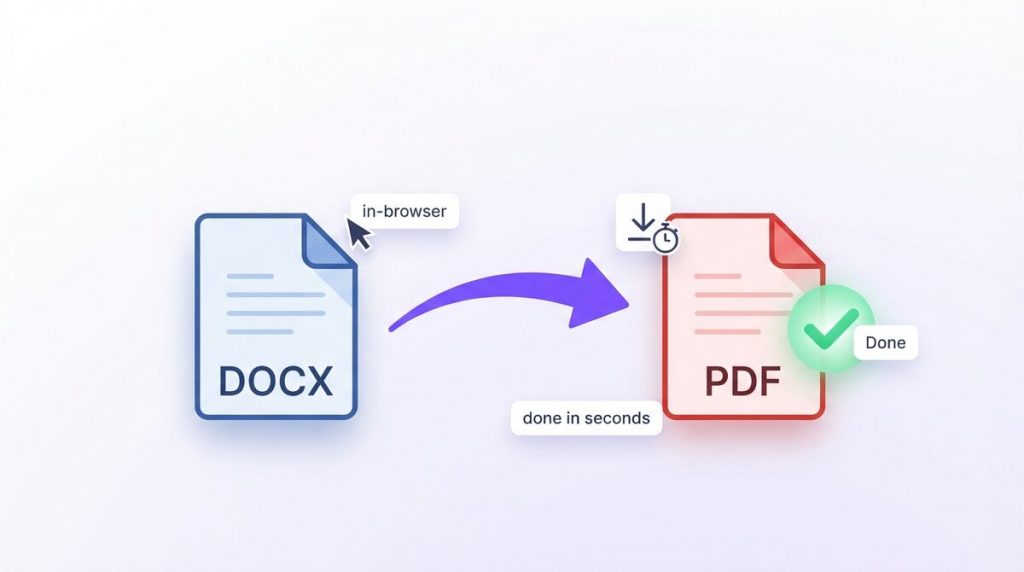
Learning how to convert Word to PDF is one of the most useful document skills there is, because a Word file is built for editing while a PDF is built for sharing. The moment you need to send a resume, email an invoice, or hand over a contract that should look the same on every device, you want that document as a PDF – not an editable .docx that anyone can change.
The good news: you can convert Word to PDF for free, in seconds, without installing software or uploading your document to a stranger’s server. In this guide you’ll learn three reliable ways to do it – a free browser tool, Microsoft Word, and Google Docs – plus how to keep your formatting intact and your files private.
Everything here works on Windows, Mac, Chromebook, iPhone, and Android. Let’s turn that Word document into a polished PDF.
Why Convert a Word Document to PDF?
A Word document is perfect while you’re writing, but it’s a poor way to share a finished file. It can look different on someone else’s computer, and anyone can edit it by accident. Converting Word to PDF fixes both problems in one step.
Here are the most common reasons people convert Word to PDF:
- Consistent look – a PDF displays identically on every device, screen and printer.
- No accidental edits – recipients can read and print it, but not change the wording.
- Professional delivery – resumes, invoices, quotes and contracts are expected as PDFs.
- Smaller, self-contained files – fonts and layout are baked in, so nothing shifts.
- Universal support – anyone can open a PDF without Microsoft Word installed.
Whatever the reason, the goal is the same: turn an editable draft into a finished document that looks right everywhere. Knowing how to convert Word to PDF quickly is a small skill that makes you look polished every time you send a file.
Word vs PDF: What Actually Changes When You Convert
To get the best results, it helps to understand what happens when you convert Word to PDF. A Word (.docx) file stores your content as editable structure – paragraphs, styles, and reflowing text that changes when you type or when fonts differ.
A PDF is the opposite. It captures the final, fixed appearance of each page: the exact position of every line, the fonts, and the layout, locked in place. So converting Word to PDF is like “printing” your document to a digital sheet that no longer reflows.
That’s exactly why a PDF looks the same everywhere while a Word file can shift. Knowing this, you can set realistic expectations: a clean Word document converts to a pixel-perfect PDF, and once it’s a PDF, what you see is what everyone else will see too.
It also explains why the direction matters. Converting Word to PDF is easy and faithful because you’re going from an editable format to a fixed one – essentially freezing the layout. Going the other way (PDF back to Word) is harder, because the software has to guess the original structure from a fixed page. So keep your editable Word file as the master, and treat the PDF as the finished copy you share.
Method 1: Convert Word to PDF Free in Your Browser (Fastest)
The quickest way to convert Word to PDF for free is a browser-based tool that never uploads your file. With PDFLove’s free Word to PDF converter, the whole conversion runs inside your browser tab – your .docx is read and a PDF is built right on your own device. Nothing is sent to a server, so there’s nothing to leak.
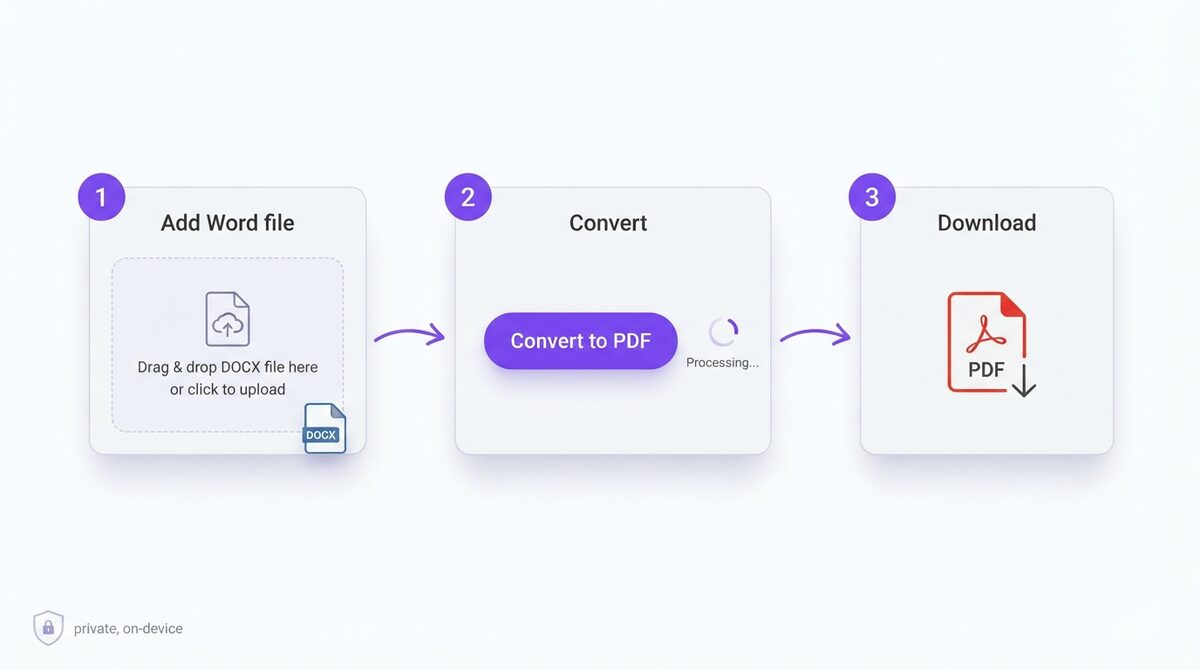
Here’s how to convert Word to PDF in three easy steps:
- Open the tool. Go to the free Word to PDF converter in any modern browser.
- Add your Word file. Drag your .docx onto the page, or click to browse and select it. The file stays on your device.
- Convert and download. Click “Convert to PDF”, wait a second or two, then download your finished PDF.
That’s it – no account, no email, no watermark, and no daily limit. Because the work happens locally, conversion is usually instant, and it keeps working even if your connection drops mid-task.
This method is the most cross-platform option: it works the same whether you’re on a work laptop, a school Chromebook, or a phone. If you regularly convert Word to PDF, bookmark the tool so it’s one click away.
Method 2: Convert Word to PDF Using Microsoft Word
If you already have Microsoft Word installed, it can save your document straight to PDF. This is the most faithful option for heavily designed files, because Word uses its own layout engine.
- Open your document in Microsoft Word.
- Click File > Save As (or File > Export).
- Choose a location, then set File format (or “Save as type”) to PDF.
- Click Save – your PDF is created.
Microsoft documents this in its own support guide. The trade-off is that this method needs a paid Microsoft Office/365 license and the desktop app. If you don’t have Word installed, the browser tool in Method 1 or Google Docs below will convert Word to PDF just as easily.
Method 3: Convert Word to PDF with Google Docs (Free)
Google Docs is another free way to convert Word to PDF, and it’s handy if you already use Google Drive.
- Go to drive.google.com and upload your .docx file.
- Right-click it and choose Open with > Google Docs.
- In the document, choose File > Download > PDF Document (.pdf).
Google Docs is genuinely free and works on any device with a browser. The downsides are that your document is uploaded to Google’s servers, and the layout can shift slightly when Google re-opens a Word file. If privacy or pixel-perfect formatting matters, an on-device tool that never uploads is the safer way to convert Word to PDF.
How to Convert Word to PDF on iPhone and Android
You don’t need a computer to convert Word to PDF. Because the browser method runs on your device, you can do it from a phone in the same three steps.
On iPhone or iPad
- Open Safari and go to the free Word to PDF converter.
- Tap the upload area and pick your .docx from Files, iCloud Drive, or your email.
- Tap convert, then save the PDF to Files or share it straight to another app.
On Android
- Open Chrome and go to the converter.
- Tap to browse and select the Word file from your storage or Google Drive.
- Convert and download the PDF to your device.
This is perfect for quick jobs on the go – say a document lands in your inbox and you need to send it on as a PDF before a meeting. You can convert Word to PDF on your phone in under a minute, with no app to install.
How to Convert Word to PDF Without Losing Formatting
Usually, converting Word to PDF preserves your layout beautifully – that’s the whole point of a PDF. But a few habits guarantee a clean result every time.
- Embed or use common fonts. If your document uses an unusual font, the person opening it may not have it; sticking to common fonts (or embedding them) keeps the PDF looking right.
- Finalise before converting. A PDF is fixed, so finish your edits first – you can’t easily reflow text once it’s a PDF.
- Check page breaks. Review where pages break in Word before you convert Word to PDF, so nothing is awkwardly split.
- Keep images high-resolution. Use sharp images in the Word file so they stay crisp in the PDF.
- Preview the result. Open the finished PDF once to confirm everything landed where you expected.
Follow those and your PDF will match your Word document exactly – which is what makes converting Word to PDF so reliable for anything you send out.
How to Convert Multiple Word Files to PDF
If you regularly need to convert Word to PDF in bulk – a folder of invoices, a batch of reports, a stack of letters – a fast browser tool still gets through them quickly, because each conversion is instant and there’s no upload wait.
For the smoothest batch workflow:
- Keep the tool open in a tab and convert files back to back – no reloads, no re-logging in.
- Rename as you download so your PDFs don’t overwrite each other in the downloads folder.
- Group similar documents so your naming and checks stay consistent across the set.
- Combine after converting. If several documents belong in one file, merge the PDFs once they’re converted, so you end up with a single document.
Because everything runs on your device, you can convert Word to PDF for an entire folder without ever exposing those documents to a server – a real advantage when the batch contains client or financial records.
When to Keep It as Word Instead
Converting isn’t always the right move. Sometimes you want to keep the editable Word file, not a locked PDF. Hold off on converting Word to PDF when:
- You’re still editing. Keep working in Word until the document is final – it’s much easier to change than a PDF.
- Someone else needs to edit it. If a colleague has to update the file, send the .docx so they can work on it directly.
- You’re collaborating with tracked changes. Comments and revisions are far easier in Word than in a PDF.
- It’s a template. Reusable templates are more useful as editable Word files.
A good rule of thumb: convert Word to PDF when you’re sending a finished document, and keep it as Word while you’re still writing or collaborating on it.
Common Problems When You Convert Word to PDF (and How to Fix Them)
Converting is usually smooth, but here are the snags people hit and how to fix each.
Fonts look different in the PDF
The font wasn’t available or embedded. Use common fonts, or in Word choose the option to embed fonts before you convert Word to PDF.
The layout shifted
This usually happens when a tool re-opens the .docx (like Google Docs). For the most faithful result, use Microsoft Word’s own Save as PDF, or a tool that renders the document directly.
The file is an old .doc, not .docx
Most browser converters support the modern .docx format. Open the old .doc in Word or Google Docs and save it as .docx first, then convert.
Images look blurry
The images were low-resolution in the Word file. Replace them with sharper versions before converting Word to PDF.
The document is confidential
Don’t upload sensitive files to a random server. Use an on-device tool so the document never leaves your computer – and consider adding a password to the PDF afterwards.
Why PDFLove Is the Free, Private Choice
Most online converters ask you to upload your document to their servers. For a flyer that’s fine – but resumes, contracts, invoices, and reports are a different story. Once a file leaves your device, you’re trusting someone else’s security and privacy policy.
PDFLove takes a different approach. Every tool runs 100% in your browser, so when you convert Word to PDF your document never leaves your computer. There’s no upload, no cloud storage, and no account – which also means there’s nothing for a breach to expose. And it’s genuinely free: no watermarks, no page limits, no sign-up.
You also get a full toolkit in one place. Beyond converting, you can merge, split, compress, sign, and protect PDFs – all with the same private, on-device processing. It’s the convenience of an online tool with the privacy of desktop software.
And because nothing is uploaded, there’s no waiting for a slow server, no queue, and no daily cap – you can convert Word to PDF as often as you need, at full speed, even offline once the page has loaded. For anyone who handles documents regularly, that combination of free, fast and private is hard to beat.
PDFLove vs Other Word to PDF Converters
How does an on-device converter compare with the alternatives?
- vs. server-based online tools: similar speed, but no upload, no privacy risk, and no daily limit.
- vs. Microsoft Word: no paid license required, and it runs on any device including Chromebooks and phones.
- vs. Google Docs: comparable price (free), but your files aren’t uploaded to a third party.
- vs. desktop converters: nothing to install or update, with the same on-device privacy.
For most people, a free browser tool is the sweet spot: fast, private, and available everywhere.
Everyday Situations Where You’ll Convert Word to PDF
Once you know how to convert Word to PDF, you’ll reach for it constantly. A few real examples show why it’s such a handy skill:
- Job applications – almost every employer expects a resume and cover letter as a PDF, so the layout looks identical on their side.
- Invoices and quotes – send a fixed, professional document that a client can’t accidentally alter.
- Contracts and agreements – lock in the wording before it goes out for signature.
- School and university work – many submission portals accept PDF only.
- Reports and proposals – keep charts, tables and branding exactly where you placed them.
- Printable forms and flyers – a PDF prints the same on any printer, in any office.
In each case the reason is the same: a Word file is for writing, and a PDF is for delivering. That’s why converting a finished document to PDF is one of the last steps in almost any professional workflow.
What Makes PDF the Right Format for Finished Documents
PDF – Portable Document Format – was designed for exactly this job: showing a document the same way everywhere, regardless of the device, operating system, or software used to open it. When you convert a document to PDF, the fonts, spacing, images and layout are locked into the file itself.
That’s a big deal for anything you send out. A Word file relies on the recipient having the same fonts and a compatible version of Word; a PDF carries everything it needs inside. It also can’t be edited by accident, and it opens on virtually any device – phones, tablets, laptops – without special software.
So the reason to convert Word to PDF isn’t just habit: it’s the format built for finished, shareable documents. Whenever a file has left the “still editing” stage and is ready to send, print or archive, PDF is the format that keeps it looking right.
Frequently Asked Questions
How do I convert Word to PDF for free?
Open a free browser tool like PDFLove’s Word to PDF converter, add your .docx file, and click Convert to PDF. You’ll get a finished PDF in seconds – no sign-up, no watermark, and no upload.
Is it safe to convert Word to PDF online?
It depends on the tool. Server-based converters upload your file, which is risky for sensitive documents. A tool that processes on your device – where the document never leaves your browser – is much safer.
Will converting Word to PDF change my formatting?
A clean Word document converts to a pixel-perfect PDF. To be safe, use common or embedded fonts and finalise your edits first, since a PDF is fixed and does not reflow.
Do I need Microsoft Word to convert to PDF?
No. A free browser tool or Google Docs lets you convert Word to PDF without Office. You only need Word installed if you want to use its built-in Save as PDF.
Can I convert Word to PDF on my phone?
Yes. Because a browser tool runs on your device, you can convert Word to PDF on iPhone or Android in the same steps – open the tool, add the .docx, and download the PDF.
Can I convert an old .doc file to PDF?
Most tools support the modern .docx format. If you have an old .doc file, open it in Word or Google Docs and save it as .docx first, then convert.
Is there a limit to how many files I can convert?
With PDFLove there is no daily limit, no page cap, and no file-size restriction – convert as many Word files to PDF as you like, free.
Can I edit the PDF after converting from Word?
A PDF is meant to be final, but you can still sign, watermark, compress or password-protect it with free tools – and if you need to edit the text again, convert the PDF back to Word first.
Conclusion
You now have three dependable ways to convert Word to PDF for free: a fast, private browser tool, Microsoft Word’s built-in Save as PDF, and Google Docs. For most situations – especially anything sensitive or that has to look perfect – an on-device converter gives you the best mix of speed, fidelity, and privacy.
Remember the essentials: finish your edits first because a PDF is fixed, stick to common or embedded fonts so the layout holds, and preview the finished file before you send it. Get those right and your PDF will match your Word document exactly.
Before you upload a document to a random converter, remember the privacy trade-off – the files you most often convert Word to PDF are resumes, contracts and invoices, which deserve a tool that keeps them on your own device. That’s exactly how PDFLove works, and it’s completely free.
Ready to turn that document into a polished PDF? Convert your Word to PDF for free with PDFLove – no sign-up, no uploads, and your files never leave your device.