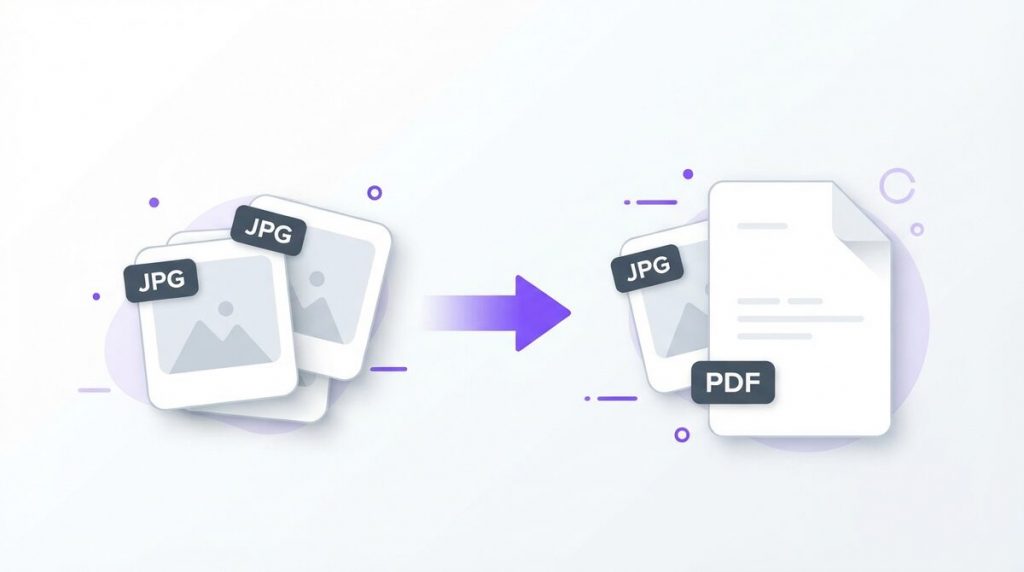
Learning how to convert jpg to pdf is one of the most useful skills you can pick up, and the best part is that you can do it completely free and 100% privately, right inside your web browser. Whether you need to bundle a stack of scanned receipts, turn phone photos of a signed contract into a clean document, or send a portfolio that opens perfectly on any device, a PDF is almost always the smarter choice than a loose pile of image files.
In this step-by-step guide, you will learn several ways to convert jpg to pdf—an instant browser-based tool that never uploads your files, plus built-in options on Windows, Mac, iPhone, and Android. We will also cover how to combine multiple images into one file, reorder pages, keep quality high, and fix the most common problems along the way.
Why Convert JPG Images to PDF?
JPG (also written as JPEG) is the world’s most popular image format, ideal for photos and screenshots. But images have real limitations when you need to share, print, or archive them. A folder full of loose JPG files is messy to email, prints inconsistently, and looks unprofessional when someone opens ten separate photos instead of one tidy document.
Converting your images to PDF solves all of that. A PDF keeps every page in a fixed order, prints exactly the same on any printer, and opens identically on a phone, tablet, laptop, or work computer—no special image viewer required.
Here are the most common reasons people convert JPG to PDF:
- Bundling documents: Turn several photos of a contract, ID, or invoice into one file you can attach in a single click.
- Professional presentation: A single PDF looks far more polished than a zip of images when you send it to a client, teacher, or employer.
- Consistent printing: PDFs preserve the exact size and layout, so nothing gets stretched or cropped by a printer.
- Smaller, tidier attachments: One PDF is easier to name, store, and find later than a dozen photos named IMG_0421 through IMG_0433.
- Long-term archiving: PDF is a stable, universal format that will still open cleanly years from now.
Once you see how quick it is to convert JPG to PDF, you will reach for it constantly—for school assignments, tax paperwork, receipts, warranty cards, and more.
How to Convert JPG to PDF Free (Step by Step)
The fastest, safest way to convert jpg to pdf is with a browser-based tool that processes everything on your own device. Because the conversion happens locally, your images are never uploaded to a server—there is nothing to sign up for, no watermark, and no waiting on an upload bar. Here is the full walkthrough using PDFLove’s free Images to PDF converter.
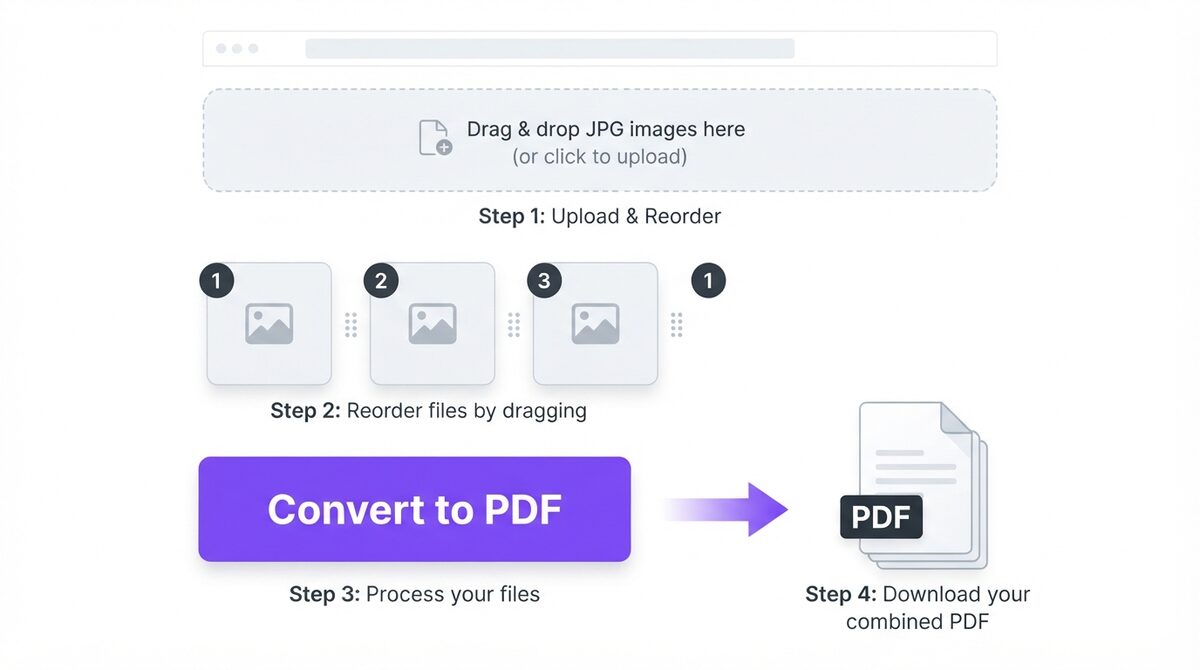
- Open the tool. Go to the PDFLove Images to PDF page in any modern browser (Chrome, Safari, Edge, or Firefox). It works on desktop and mobile.
- Add your images. Click the upload area to browse your files, or simply drag and drop your JPG images straight onto the page. You can add PNG images too, and mix formats freely.
- Select multiple files at once. Hold Ctrl (Windows) or Cmd (Mac) to pick several images in one go, or add them one at a time.
- Reorder the pages. Drag the thumbnails into the exact sequence you want. The order you see is the order they will appear in the finished PDF.
- Convert to PDF. Click the convert or download button. The tool instantly builds a single PDF from your images—right in your browser.
- Save the file. The finished PDF downloads to your device. Rename it to something meaningful and you are done.
That is genuinely the whole process. Because nothing leaves your computer, converting a jpg to pdf this way is both the fastest and the most private method available. You can explore more free document tools any time on the PDFLove tools page.
Combine Multiple JPGs Into One PDF
One of the biggest advantages of a good JPG to PDF converter is that it can merge many images into a single document. Instead of sending five separate photos of a multi-page form, you send one clean PDF with five pages in the right order.
With the PDFLove Images to PDF tool, combining files is built in—there is no separate merge step. Just add every image you want, arrange the thumbnails, and convert. Each image becomes its own page in the final PDF.
This is perfect for:
- Multi-page contracts photographed one page at a time
- A set of receipts for an expense report
- Both sides of an ID card or insurance card
- A photo essay or portfolio where sequence matters
- Handwritten notes you snapped page by page
If you already have separate PDFs you need to join, PDFLove also offers a dedicated merge feature—but for images, the Images to PDF tool handles combining and converting in a single step.
Convert JPG to PDF on Windows
Windows 10 and Windows 11 include a hidden but handy built-in option: the Microsoft Print to PDF virtual printer. It works from any app that can print, including Photos and File Explorer.
- Open your JPG image in the Photos app, or select one or more images in File Explorer.
- Right-click and choose Print (or press Ctrl+P).
- In the printer dropdown, select Microsoft Print to PDF.
- Choose your paper size, orientation, and how many images fit per page.
- Click Print, then pick a location and file name to save your PDF.
This method is free and offline, but it offers limited control over ordering and layout when you have many images. For combining a large batch or fine-tuning the page order, the browser tool is usually quicker and more flexible.
Convert JPG to PDF on Mac With Preview
Mac users have an excellent built-in tool called Preview that can turn images into a PDF without any downloads.
- In Finder, select all the JPG images you want to include.
- Right-click and choose Open With > Preview.
- In Preview’s sidebar, drag the thumbnails into the order you want.
- Select all thumbnails (Cmd+A), then go to File > Print.
- Click the PDF dropdown in the bottom-left corner and choose Save as PDF.
- Name your file and save it.
Preview is reliable and produces a clean multi-page PDF. The main downside is that reordering many images by dragging thumbnails can get fiddly, and it is slower than a purpose-built JPG to PDF converter when you are handling dozens of files.
Convert JPG to PDF on iPhone and Android
You do not need a computer at all. Both iPhone and Android can create PDFs from photos directly, which is ideal when you have just snapped a document.
On iPhone (Photos app)
- Open the Photos app and select the images you want.
- Tap the Share icon, then scroll down and tap Print.
- On the print preview, pinch outward with two fingers on the thumbnail—this opens the images as a PDF.
- Tap Share again and choose Save to Files to store your PDF.
On Android
- Open the image in Google Photos or your gallery app.
- Tap the menu and choose Print.
- In the printer dropdown, select Save as PDF.
- Tap the download icon and choose where to save the file.
The pinch trick on iPhone is not obvious, and Android steps vary by phone maker. If you want a consistent experience across every device, opening the PDFLove browser tool on your phone gives you the same simple flow everywhere—add images, reorder, download.
Ordering Pages and Getting the Layout Right
When you combine several images, page order is everything. A contract with pages out of sequence, or an ID with the back before the front, looks careless and can even cause a document to be rejected.
Keep these ordering tips in mind:
- Arrange before you convert. With the PDFLove tool, drag thumbnails into the final sequence before clicking convert—what you see is what you get.
- Name your source files smartly. If you plan to sort by file name, use numbers like 01, 02, 03 so they line up correctly.
- Check orientation. Rotate any sideways photos before converting so every page reads the right way up.
- Match paper size. For printing, keep images consistent so pages do not jump between portrait and landscape unexpectedly.
A minute of arranging up front saves you from redoing the whole file later.
JPG, PNG, or HEIC: Which Source Images to Use
Most people start with JPG photos, but your camera roll is rarely that tidy. A screenshot is usually a PNG, and recent iPhones save photos as HEIC by default. The PDFLove Images to PDF tool accepts JPG, PNG, and HEIC images, so you can mix all three in one batch and still get a single PDF out the other end – no converting to a common format first.
Which format should you feed it? A quick guide:
- JPG – the right choice for photographs of documents, receipts, and anything you shot with a camera. This is the classic jpg to pdf case.
- PNG – better for screenshots, diagrams, and images with sharp text or flat color, because PNG does not add compression blur around letters.
- HEIC – what your iPhone likely captured. There is no need to export it as a JPG first; add it straight to the tool.
If a file will not load, check that it is a real image and not just renamed. And if you have both a JPG and a PNG of the same screenshot, reach for the PNG – the text will stay crisper once it lands in your PDF.
Tips for the Best JPG to PDF Quality
A jpg to pdf conversion is only as good as the images you put into it. Follow these tips to keep your converted files sharp and readable.
- Start with the highest-resolution image you have. A crisp original always beats a blurry, heavily compressed one—you cannot add detail that was never captured.
- Shoot documents in good, even light. Avoid shadows and glare; natural daylight near a window works best.
- Hold the camera flat and steady. Position the page square to the lens so text stays straight and legible.
- Crop out clutter. Trim away the desk or background so the document fills the frame.
- Balance size and quality. If the finished PDF needs to be emailed, a slightly smaller image keeps the file light while staying readable.
- Convert once from the source. Re-saving JPGs repeatedly adds compression artifacts; work from the original whenever possible.
These small habits make the difference between a professional-looking PDF and one that is hard to read.
Common Problems and How to Fix Them
Most JPG to PDF issues are quick to solve. Here are the ones people run into most, with simple fixes.
The images look blurry in the PDF
This usually means the source photo was low resolution or already compressed. Re-take or re-scan the document at a higher quality, and make sure your jpg to pdf tool is not down-sizing images.
Pages are in the wrong order
Reorder the thumbnails before converting. With the PDFLove tool you can drag pages into place; with Preview or Print to PDF you may need to rename source files first.
The PDF file is too big to email
Very large photos create large PDFs. Reduce the image dimensions before converting, or use a PDF compression tool afterward to shrink the file without a noticeable quality drop.
An image is rotated the wrong way
Rotate the photo in your gallery or image editor before you convert, so the finished page reads upright.
Some images will not upload
Make sure the files are genuine JPG or PNG images and not corrupted. Renaming a file’s extension does not change its actual format, which can cause errors.
White borders around the image
This happens when the image aspect ratio does not match the page. Crop the image to your target ratio, or choose a fit-to-page option if the tool offers one.
Real-World Use Cases
Once converting jpg to pdf becomes second nature, you will use it everywhere. A few examples:
- Job applications: Combine a scanned certificate, ID, and reference letter into one attachment.
- Expense reports: Turn a month of receipt photos into a single, page-numbered PDF for accounting.
- School and university: Submit handwritten assignments or lab sheets as one tidy document.
- Real estate and rentals: Bundle photos of a signed lease and supporting documents.
- Warranty and insurance claims: Package product photos and receipts into one file the insurer can open instantly.
- Creative portfolios: Present artwork or design mockups in a fixed, professional sequence.
In every case, one well-ordered PDF beats a scattered set of loose images.
PDFLove vs Other JPG to PDF Converters
There are dozens of jpg to pdf converters online, so why choose PDFLove? The short answer is privacy plus speed, with none of the usual catches.
Many popular websites upload your images to their servers to do the conversion. That means your personal documents—IDs, contracts, medical forms—travel across the internet to a company you may not know. Many of those sites also add watermarks, limit how many files you can convert per day, or push you toward a paid plan.
Here is how the free PDFLove approach compares:
- No upload: Conversion runs entirely in your browser, so your files never leave your device.
- No sign-up: There is no account to create and no email required.
- No watermark: Your finished PDF is clean and professional.
- No cost: The tool is genuinely free, with no hidden limits or trials.
- Works everywhere: Any modern browser on any device, online or offline once loaded.
For anyone who values control over their own documents, converting jpg to pdf on-device is simply the better path.
Why PDFLove Is the Free, Private Choice
Privacy is not a bonus feature at PDFLove—it is the whole design. Traditional online converters need to receive your files to process them. PDFLove flips that model: the conversion runs inside your browser using your own device’s power, so your JPG images and the resulting PDF stay with you from start to finish.
This matters because JPG and PDF are open, well-documented formats you should be able to use without handing your data to a third party. You can read more about how the widely used image format works on the Wikipedia JPEG article, which explains the technology behind those everyday photo files.
Because there is no upload, there is also nothing to wait for and nothing stored on a server after you are done. You get a fast, free, watermark-free PDF and complete peace of mind. Browse the full lineup of private tools on the PDFLove tools page whenever you need to merge, split, compress, or convert.
Everyday Situations Where You’ll Convert JPG to PDF
Once you know how to convert JPG to PDF, you will use it constantly. A few real examples show why it is such a handy trick:
- Submitting documents – many forms and portals accept a PDF but not loose images, so you convert JPG to PDF before uploading.
- Photos of paperwork – snap a receipt, ID, or signed page and turn it into a clean PDF to email.
- Multi-page scans – combine several photos into one ordered PDF instead of sending a dozen separate images.
- Portfolios and mock-ups – bundle design images into a single, easy-to-share PDF.
- Printing – a PDF prints at a predictable size, while a raw JPG can print too large or too small.
In each case the reason is the same: a PDF is tidier and more universal than a folder of images. That is why learning to convert JPG to PDF – and to merge several images into one file – is so useful for everyday paperwork.
Frequently Asked Questions
How do I convert JPG to PDF for free?
Open the free PDFLove Images to PDF tool, drag in your JPG images, arrange them in the order you want, and click convert. The PDF is built in your browser and downloads instantly—no sign-up, no watermark, and no cost.
Is it safe to convert jpg to pdf online?
With PDFLove it is completely safe because the conversion happens on your own device. Your images are never uploaded to a server, so nothing leaves your computer or phone. Many other sites do upload your files, so always check whether a converter processes files locally.
Can I combine multiple JPG images into one PDF?
Yes. Add every image you want, drag the thumbnails into the correct sequence, and convert. Each image becomes a separate page in a single, tidy PDF—perfect for multi-page documents, receipts, or both sides of an ID.
Does converting to PDF reduce image quality?
A good converter keeps your images at their original quality. Any blurriness usually comes from a low-resolution source photo rather than the conversion. Start with the sharpest image you have for the best result.
Can I convert jpg to pdf on my iPhone or Android phone?
Yes. You can use your phone’s built-in Print option to save photos as a PDF, or simply open the PDFLove tool in your mobile browser for the same drag, reorder, and download flow on any device.
Do I need to install any software?
No. The PDFLove converter runs entirely in your web browser, so there is nothing to download or install. It works on Windows, Mac, iPhone, and Android with no account required.
Will there be a watermark on my PDF?
No. PDFLove never adds a watermark. Your finished PDF is clean and professional, ready to email, print, or archive.
What is the difference between JPG and PDF?
JPG is an image format best for single photos, while PDF is a document format that holds multiple pages in a fixed order and opens identically on any device. Converting jpg to pdf makes your images easier to share, print, and organize.
Conclusion
Converting jpg to pdf is quick, free, and—when you choose the right tool—completely private. You now have several methods to pick from: a browser-based converter that never uploads your files, plus built-in options on Windows, Mac, iPhone, and Android. For most people, the fastest and safest route is the on-device tool, where you can add images, drag them into order, and download a clean, watermark-free PDF in seconds.
Ready to try it? Head over to the free PDFLove Images to PDF converter and turn your photos into a polished PDF right now—no sign-up, no upload, no cost.