Knowing how to convert a PDF to JPG is handy any time you need a document as a plain image — to drop a page into a slide, post it online, attach it to a form, or preview it without a PDF reader. A PDF is great for printing and sharing, but an image file just works everywhere.
The good news: you can convert PDF to JPG (or PNG) for free, in seconds, without installing software or uploading your file to a stranger’s server. In this guide you’ll learn three reliable ways to do it — a free browser tool, your computer’s built-in features, and your phone — plus how to keep the quality high and your files private.
Everything here works on Windows, Mac, Chromebook, iPhone, and Android. Let’s turn that PDF into an image.
Why Convert a PDF to JPG or PNG?
A PDF is built to preserve layout, but images are far more flexible for everyday sharing and posting. Turning a PDF page into a JPG or PNG opens up a lot of small but useful jobs.
Common reasons people convert PDF to JPG:
- Posting online — social platforms, forums, and marketplaces accept images, not PDFs.
- Slides and docs — drop a page straight into PowerPoint, Google Slides, or a Word file as a picture.
- Previews and thumbnails — show a page without making someone open a PDF reader.
- Uploads that reject PDFs — some forms only take JPG or PNG.
- Quick edits — crop, mark up, or annotate a page in any basic image editor.
Whatever the reason, the goal is the same: get a clean, shareable image out of a page that’s currently locked inside a PDF. The methods below cover every device.
JPG vs PNG: Which Should You Pick?
Before you convert, it helps to choose the right image format. Both work, but they shine in different situations.
- JPG (JPEG) — smaller files, ideal for pages with photos, colour, or gradients. Perfect when you want a lightweight image to email or upload.
- PNG — lossless and razor-sharp, best for pages with text, line art, tables, or screenshots. Larger files, but crisper edges and no compression fuzz.
A simple rule of thumb: choose JPG for photo-heavy pages and PNG for text-heavy pages where sharpness matters. If you’re not sure, JPG is the safe, small default — and most tools, including PDFLove, let you pick either. You can read more about how these formats work on the JPEG reference page.
PDF to JPG vs Taking a Screenshot
The fastest-looking way to get an image of a PDF page is to screenshot it — but it’s rarely the best way. It’s worth understanding the difference before you convert PDF to JPG for anything important.
A screenshot captures whatever your screen shows, at your screen’s resolution. That’s fine for a quick preview, but it has real limits:
- Lower quality — you’re limited to your display’s pixel density, so text can look soft, especially when printed or zoomed.
- Manual cropping — you have to line up the capture and trim the edges, and it’s easy to clip content.
- One page at a time — there’s no way to screenshot a 30-page PDF efficiently.
- Inconsistent sizing — every capture can come out a slightly different size.
Converting the PDF properly renders the actual page data to a full-resolution image, at a consistent size, with no cropping guesswork. So while a screenshot is fine to convert a PDF to JPG for a casual preview, a real converter wins any time quality, consistency, or multiple pages matter.
Method 1: Convert PDF to JPG Free in Your Browser (Fastest)
The quickest way to convert PDF to JPG for free is a browser-based tool that never uploads your file. With PDFLove’s free PDF to Images converter, every page is rendered to a high-quality JPG or PNG right inside your browser tab — nothing is sent to a server, so there’s nothing to leak.
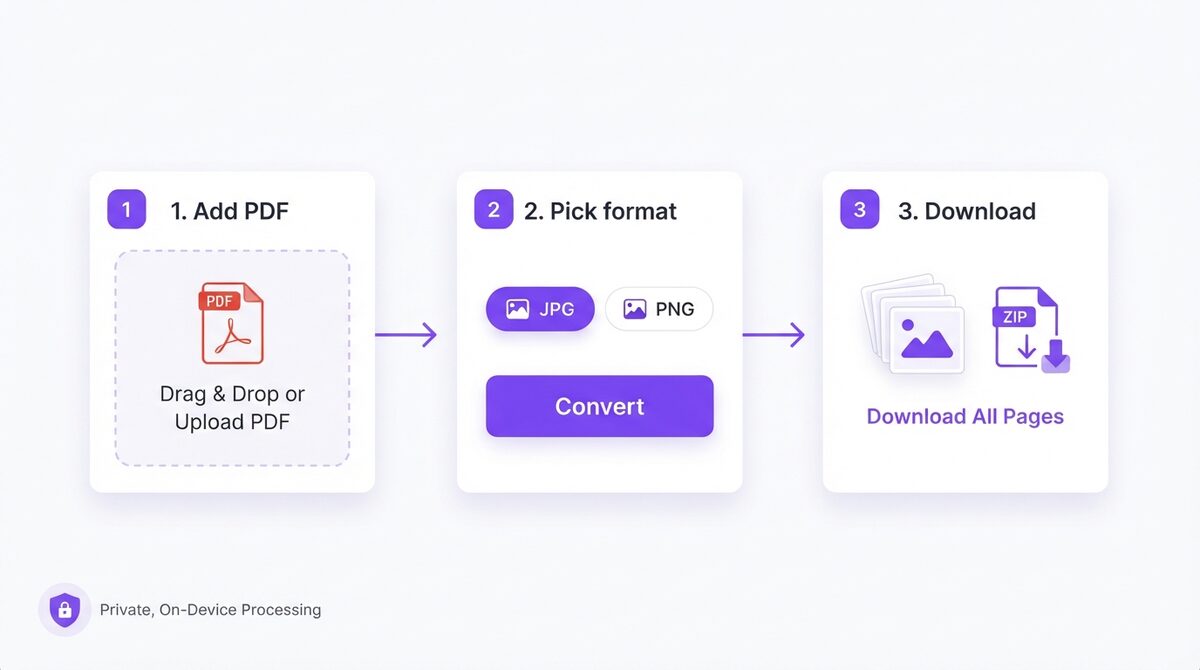
Here’s how to convert PDF to JPG in three easy steps:
- Open the tool. Go to the free PDF to JPG converter in any modern browser.
- Add your PDF. Drag the PDF onto the page, or click to browse and select it. The file stays on your device.
- Pick a format and download. Choose JPG or PNG, click convert, and download your images — one per page, bundled in a ZIP for multi-page files.
That’s it — no account, no email, no watermark, and no page limit. Because the work happens locally, conversion is fast even for long documents, and it keeps running even if your connection drops.
This method is the most cross-platform option: it works the same on a work laptop, a school Chromebook, or a phone. If you regularly convert PDF to JPG, bookmark the tool so it’s one click away.
Method 2: Convert PDF to JPG on Windows
No extra software? Windows has a couple of built-in ways to turn a PDF page into an image.
Using the Snipping Tool (single page, quick)
- Open the PDF in your browser or Edge and zoom so the page fills the screen.
- Press Windows + Shift + S to launch the snip toolbar.
- Drag to capture the page area, then paste into Paint and save as JPG or PNG.
This is fine for one page, but the quality depends on your screen resolution, so it’s best for quick previews rather than print-quality images.
Using Print to a photo app
For a cleaner result across many pages, a browser tool that renders the actual PDF (Method 1) gives you full-resolution images without the screenshot guesswork. If you only need one crisp page, the Snipping Tool is the fastest built-in route to convert PDF to JPG on Windows.
Method 3: Convert PDF to JPG on Mac (Preview)
Mac users have it easy — the built-in Preview app can export a PDF page as an image with no downloads.
- Open the PDF in Preview.
- Select the page you want in the sidebar (or open a single-page PDF).
- Go to File > Export.
- Set Format to JPEG or PNG, choose a quality/resolution, and click Save.
Preview only exports one page at a time, so for a multi-page PDF it gets tedious. To convert every page of a PDF to JPG at once on any device, the browser tool in Method 1 is the simpler choice.
How to Convert PDF to JPG on iPhone and Android
You don’t need a computer to convert PDF to JPG. Because the browser method runs on your device, you can do it from a phone in the same few steps.
On iPhone or iPad
- Open Safari and go to the free PDF to Images converter.
- Tap the upload area and pick your PDF from Files, iCloud Drive, or your email.
- Choose JPG or PNG, convert, then save the images to Photos or Files.
On Android
- Open Chrome and go to the converter.
- Tap to browse and select the PDF from your storage or Google Drive.
- Convert and download the images to your gallery.
This is perfect for quick jobs on the go — say you need to post a page of a document to a chat or upload it to a form. You can convert PDF to JPG on your phone in under a minute, with no app to install.
How to Convert Every Page of a PDF to Images at Once
Screenshot methods only grab one page. When you need a whole document as images — a multi-page report, a scanned booklet, a slide deck — you want a tool that renders every page and hands them back together.
With a browser converter, converting all pages of a PDF to JPG is automatic:
- Drop in the multi-page PDF.
- Pick your format (JPG or PNG) and resolution.
- Download a ZIP containing one image per page, named in order.
Because it processes the real PDF (not a screen capture), every page comes out at full, consistent quality. It’s the fastest way to convert a long PDF to JPG without doing pages one by one.
How to Convert a Single PDF Page to an Image
Sometimes you don’t want the whole document — just page 4 as a JPG to drop into an email or a slide. You have two easy options.
- Convert all, keep one — run the full PDF through the converter and simply download the single image you need from the results. Fast, and you keep the rest in case.
- Extract the page first — use a free split tool to pull out just that page as a one-page PDF, then convert that to JPG. Handy when the document is long and you only ever want that page.
Either way takes seconds. For most people, converting the whole PDF and grabbing the one image is the quickest path to a single-page JPG — no need to fiddle with page ranges.
What Resolution Should You Choose When Converting PDF to JPG?
Resolution decides how sharp your image looks, and the right setting depends on where the image will end up.
- On-screen / web — a standard resolution (around 72–150 DPI) is plenty for images shown on a monitor or posted online, and keeps file sizes small.
- Printing — aim higher (around 300 DPI) so text and lines stay crisp on paper.
- Zooming in — if people will zoom into the image (say, a detailed diagram), convert at a higher resolution so it holds up.
If your tool offers a scale or quality slider, nudge it up when you need detail and down when you need a small file. When you convert PDF to JPG with PDFLove, you can pick the quality that fits the job — high resolution for print, lighter for quick sharing. When in doubt, higher resolution plus PNG gives you the sharpest possible result.
How to Convert PDF to JPG Without Losing Quality
Image quality comes down to resolution and format. A few habits keep your converted pages sharp.
- Convert at a higher resolution. If the tool offers a scale or DPI setting, pick a higher one for crisp text and clean lines.
- Use PNG for text and diagrams. PNG is lossless, so headings, tables, and line art stay razor-sharp with no compression fuzz.
- Use JPG for photos. JPG keeps photo-heavy pages small without visible quality loss at high settings.
- Start from a text-based PDF. A crisp source page converts to a crisp image; a blurry scan stays blurry.
- Avoid screenshots for print. Screen captures are limited to your display resolution — render the PDF instead for full quality.
With the right resolution and format, your converted images will look every bit as sharp as the original PDF page.
Common Problems When You Convert PDF to JPG (and How to Fix Them)
A few snags come up often. Here’s the quick fix for each.
The image looks blurry
You likely converted at a low resolution, or used a screenshot. Re-convert at a higher scale/DPI, and use a tool that renders the PDF rather than capturing the screen.
The text is fuzzy at the edges
That’s JPG compression on sharp text. Convert to PNG instead — it’s lossless and keeps text crisp.
The PDF is password protected
A converter can’t read a locked PDF. Remove the password with a free unlock tool (when you have the right to do so), then convert.
Only one page converted
Built-in apps like Preview export a single page at a time. Use a browser tool that exports all pages to a ZIP to convert the whole PDF to JPG at once.
The file is huge
High-resolution PNGs can be large. Switch to JPG, or lower the resolution a step — or compress the images afterward for email.
Why PDFLove Is the Free, Private Choice
Most online converters upload your PDF to their servers. For a meme that’s fine — but contracts, IDs, invoices, and medical records are another story. Once a file leaves your device, you’re trusting someone else’s security.
PDFLove works differently. Every tool runs 100% in your browser, so when you convert PDF to JPG your document never leaves your device. There’s no upload, no cloud storage, and no account — which also means there’s nothing for a breach to expose. And it’s genuinely free: no watermarks, no page limits, no file-size caps.
You also get a full toolkit in one place. Beyond converting, you can merge, split, compress, sign, and protect PDFs — all with the same private, on-device processing. It’s the convenience of an online tool with the privacy of desktop software.
PDFLove vs Other PDF to JPG Converters
How does an on-device converter compare with the alternatives?
- vs. server-based online tools: similar speed, but no upload, no privacy risk, and no daily conversion limit.
- vs. screenshots: full-resolution, consistent images instead of screen-limited captures.
- vs. Preview / built-in apps: converts every page at once, on any device — not one page at a time.
- vs. desktop software: nothing to install or update, with the same on-device privacy.
For most people, a free browser tool is the sweet spot: fast, private, and available everywhere.
Everyday Situations Where Converting PDF to JPG Helps
Once you know how to convert PDF to JPG, you’ll reach for it more often than you’d expect. A few real examples:
- Selling online — marketplaces like eBay or Facebook Marketplace want photos, so turn a spec sheet or receipt PDF into a JPG to upload.
- Job and school forms — many portals accept only JPG or PNG for supporting documents; convert your PDF and upload without a hitch.
- Presentations — drop a chart or certificate page straight into a slide as an image, perfectly sized and sharp.
- Social posts — share a single page of a flyer, menu, or report as an image that displays inline, no download needed.
- Signatures and stamps — turn a signed page into a PNG to place into another document.
- Archiving snippets — save one important page as an image for quick reference without opening a PDF reader.
In each case, the win is the same: an image just drops in and displays anywhere, while a PDF often needs an extra step. That’s why converting PDF to JPG (or PNG) is such a handy trick to have ready.
Frequently Asked Questions
How do I convert PDF to JPG for free?
Open a free browser-based converter like PDFLove’s PDF to Images tool, add your PDF, choose JPG, and download. You get one image per page in seconds — no sign-up, no watermark, and no upload.
Can I convert a PDF to PNG instead of JPG?
Yes. The same tool lets you export pages as PNG, which is lossless and best for text, tables, and line art. Choose JPG for photo-heavy pages and PNG when sharpness matters.
Is it safe to convert PDF to JPG online?
It depends on the tool. Server-based converters upload your file, which is risky for sensitive documents. A tool that processes on your device — where the PDF never leaves your browser — is much safer.
Will converting PDF to JPG reduce quality?
Not if you convert at a high resolution. JPG uses light compression that is invisible at high settings; for perfectly sharp text, use PNG instead, which is lossless.
How do I convert all pages of a PDF to images at once?
Use a browser tool that renders every page and returns a ZIP with one image per page. Built-in apps like Mac Preview only export a single page at a time.
Can I convert PDF to JPG on my phone?
Yes. Because a browser tool runs on your device, you can convert PDF to JPG on iPhone or Android in the same steps — open the tool, add the PDF, pick JPG or PNG, and save the images.
Do I need Photoshop or Acrobat to convert PDF to JPG?
No. A free browser converter turns a PDF into JPG or PNG with no paid software. You only need Acrobat or Photoshop if you want their extra editing features.
What’s the difference between JPG and PNG for PDF pages?
JPG makes smaller files and suits photos and colour. PNG is lossless and keeps text and lines razor-sharp, but files are larger. Pick JPG for photo pages and PNG for text pages.
Conclusion
You now have several dependable ways to convert PDF to JPG or PNG for free: a fast, private browser tool that handles every page at once, your computer’s built-in export on Windows and Mac, and your phone. For most jobs — especially anything sensitive, high-resolution, or multi-page — an on-device converter gives you the best mix of speed, quality, and privacy.
Remember the two quick decisions that shape your result: pick JPG for photo-heavy pages and small files, or PNG for crisp text and diagrams; and convert at a higher resolution whenever the image will be printed or zoomed. Get those right and your images will look every bit as sharp as the original PDF.
Before you send a document to a random online converter, remember the privacy trade-off — sensitive files deserve a tool that processes everything on your own device, with no upload and no account. That’s exactly how PDFLove works, and it’s completely free.
Ready to turn that PDF into images? Convert your PDF to JPG or PNG for free with PDFLove — no sign-up, no uploads, and your files never leave your device.